A script for analyzing video of telescopic meteors

I am writing an Apple Script to help me process videos of telescopic meteors. These are meteors that are too faint and small to see with your eyes, but can be seen in videos taken with the right equipment. I have collected many hours of video showing several hundred of these meteors. Processing the video requires quite a few steps:

  1. Break the video into individual frames. Easy peasy.
  2. Desaturate the frames.
  3. Flip each frame horizontally (long story)
  4. Identify the stars in each frame.
  5. Search the frames for meteors (Huge job)
  6. Identify meteors and analyze their paths and speeds

Now, Step #1 is handled by “Video To Photo Extractor”, a program on the App Store. But steps #2 and #3 have to be done with an Apple Script that uses Pixelmator Pro. I had one of these working a few months ago, but for messy reasons I have lost it. So I’m re-writing it, and this time I can’t get it working. (Steps 4 through 6 require a really hairy Java program that I’m still working on.)

At the urging of a friend, I finally agreed to hand the problem to Claude. It has not gone well. Apparently Apple has been changing the keywords for the Script language, and Claude is using a mix of old versions and new versions. It has taken me several dozen iterations through Claude to get something that almost works. I have also used the code writing in Gemini; it’s no better. I suppose that part of the problem may arise from the paucity of scripts written in the Apple Script language, compared to, say, C++ or Java.

So here is the result of my labors. I warn you, I’ve been writing code for more than 50 years, which means that I’m going senile and making more and more stupid mistakes.

on run
	set sourceFolder to (choose folder with prompt "Select the folder containing color .png files:")
	set destFolder to (choose folder with prompt "Select the folder to save grayscale, flipped .png files:")
	
	convertFolderToGrayscale(sourceFolder, destFolder)
end run

on convertFolderToGrayscale(sourceFolder, destFolder)
	set sourcePOSIX to POSIX path of sourceFolder
	set destPOSIX to POSIX path of destFolder
	
	tell application "Finder"
		set pngFiles to every file of folder sourceFolder whose name extension is "png"
	end tell
	
	if (count of pngFiles) is 0 then
		display dialog "No .png files were found in the selected source folder." buttons {"OK"} default button 1
		return
	end if
	
	tell application "Pixelmator Pro"
		activate
		
		repeat with aFile in pngFiles
			tell application "Finder" to set fileName to name of aFile
			
			set sourceFilePath to sourcePOSIX & fileName
			set destFilePath to destPOSIX & fileName
			
			try
				set theDocument to open (aFile as alias)
				delay 0.5
				
				tell theDocument
					-- Turn on color adjustments for the base layer to make it grayscale
					--set color adjustments enabled of layer 1 to true
					tell color adjustments of layer 1
						set saturation to -100
					end tell
					
					-- Valid command verified by your dictionary screenshot:
					flip horizontally theDocument
				end tell
				
				-- Save and close properties
				export theDocument to file destFilePath as PNG
				close theDocument saving no
				
			on error errMsg
				display dialog "Error processing " & fileName & ": " & errMsg buttons {"OK"} default button 1
			end try
		end repeat
	end tell
	
	display dialog "Batch processing complete. Files saved to: " & destPOSIX buttons {"OK"} default button 1
end convertFolderToGrayscale

I apologize for the lousy formatting; a quick scan of the site didn’t show me how to present properly formatted Apple Scripts.

When I run this script, I get several problems. When it runs, it opens each of the frames correctly, then correctly desaturates it and correctly flips it horizontally, but then it does NOT close that window and it does NOT save the output, and it reports this error:

Error processing MeteorB 00_00_00.03.png: You can’t save the file “CF00162E-ADF6-43F5-874E-7ABE63C9DA4C” because the volume “Macintosh HD” is read only.

Yeah, right. It’s trying to save to “Macintosh HD”, the internal hard drive, and not to “Darth Tenzing”, the external hard drive that I specified. Moreover, “Macintosh HD” is NOT read only. I’ll experiment with hard-coding the folder names.

When it was finished, it provided this final report:

Batch processing complete. Files saved to: /Volumes/Darth Tenzing/TelescopicMeteors/SourceFrames/TargetFrames/

No, the files were NOT saved.

Note that the Script Editor declared that the Pixelmator Pro reference to “saturation” was invalid. Script Editor is wrong. So were both Claude and Gemini. When I provided these two LLMs with the quotation from the Pixelmator Pro dictionary in Script Editor, they both had the decency to admit that they were wrong.

So, I need to modify this script to do two things:

  1. It MUST close each document after it has made the changes. There are 54,000 frames in an hour of video and I really don’t want to have to go through 54,000 windows, closing each one and clicking the button that says “delete” when it asks if I want to save the frame before closing it.
  2. It MUST save the modified document in the specified folder.

I earnestly solicit any comments on these scripts, other than comments along the lines of “It’s OK, Chris, everything will be just fine. You just sit down and watch endless hours of soap operas on TV while the real programmers get back to work.”

Oh, and if a) it’s technically possible on this forum; and b) you guys would like to see them; I can post a few video snippets of telescopic meteors. A script for analyzing video of telescopic meteors
1 Like
	export the theDocument to POSIX file destFilePath as PNG

Hello Chris, nice to meet you.

In my environment, it worked by changing only this part.
macOS27.0.1
Pixelmator Pro 3.6.14

I hope this helps.

1 Like

Thanks much. I’ve been a real curmudgeon about updating my software, as it seems that the updates only make the user interface worse. But your comment impelled me to make the changes. So now I am using the following software:

Script Editor 2.11 (237)
AppleScript 2.8
Pixelmator Pro 3.8 (20260323.0955)
MacOS Golden Gate 27.0.1

And the line in question now reads almost exactly as you present it (I removed the “the”)
export theDocument to POSIX file destFilePath as PNG

This triggers the error message:
Syntax Error
Expected end of line, etc. but found identifier

And Script Editor highlights the keyword “theDocument”.

Dirty ricklefricks!

To do this I wouldn’t use Claude. I’d use BitRig with ChatGPT. I would ask it to build a swift app, and make the app AppleScriptable.

I wouldn’t use Video to Photo Extractor or Pixelmator Pro, but would ask BitRig to do it all.

(I’ve also found ChatGPT better at AppleScript than Claude; BitRig runs them both and is better at swift; web apps (javaScript); Swift; app store connect; test flight, than either of them.

Thanks, estockly. I played around with ChatGPT. I didn’t want to use BitRig because I need this script for my desktop machine, not my iPhone, and BitRig seems to have been designed for iPhone, not the desktop. In any case, I had it write a script for me, and it certainly came up with a creative solution. Instead of issuing commands directly to Pixelmator Pro, it had the system send fake keypresses to Pixelmator Pro. This certainly seems valid, but in the end it was pretty slow.

I have tried a number of arrangements, sometimes combining bits from different scripts issued by different LLMs. I eventually came up with a combination that worked. I don’t quite know how; it was mostly a matter of trial and error on a scale that would make a computer gasp in exhaustion. But it works now. Here is the working script:

on run
	set sourceFolder to (choose folder with prompt "Select the folder containing color .png files:")
	set destFolder to (choose folder with prompt "Select the folder to save grayscale, flipped .png files:")
	
	convertFolderToGrayscale(sourceFolder, destFolder)
end run

on convertFolderToGrayscale(sourceFolder, destFolder)
	set sourcePOSIX to POSIX path of sourceFolder
	set destPOSIX to POSIX path of destFolder
	
	tell application "Finder"
		set pngFiles to every file of folder sourceFolder whose name extension is "png"
	end tell
	
	if (count of pngFiles) is 0 then
		display dialog "No .png files were found in the selected source folder." buttons {"OK"} default button 1
		return
	end if
	
	tell application "Pixelmator Pro"
		activate
		
		repeat with aFile in pngFiles
			set fileName to name of (info for (aFile as alias))
			set sourceFilePath to sourcePOSIX & fileName
			set destFilePath to destPOSIX & fileName
			
			try
				set theDocument to open (POSIX file sourceFilePath)
				delay 0.5
				set the saturation of the color adjustments of the first layer of the front document to -100
				flip horizontally theDocument
				export theDocument to (POSIX file destFilePath) as PNG
				close theDocument saving no
				
			on error errMsg
				display dialog "Error processing " & fileName & ": " & errMsg buttons {"OK"} default button 1
			end try
		end repeat
	end tell
	
	display dialog "Batch processing complete. Files saved to:" & return & destPOSIX buttons {"OK"} default button 1
end convertFolderToGrayscale

Thanks, everybody, for your help!

Good news, bad news. The script works! But it crashes when I give it a big job. One hour of video produces 108,000 frames of video. I need a program that can handle at least 10,000 frames at a time. This one crashed with 3,000.

The error was “Apple Event timeout”.I suspect that, somewhere in there, something expected a process to take place in a short time, and when it didn’t, it killed the script execution. I suppose further that the problem could be corrected with careful treatment of the script timing behavior. However, I fear that I’ll still have problems. Apple Script isn’t built for handling massive tasks like this. So it looks as if I have to resort to something else. Gad, I hope I don’t have to make this work in Java… Ugh…

1 Like

When you have a large number of files to process, it often works quite well in my experience if you wait for each step to finish, such as opening the file, converting, flipping, saving, and closing it.

However, this will make the processing time longer.

If you are not necessarily required to use Pixelmator for the processing, there are some other options you could try.

For example, using sipsfor conversion through do shell script and Image Events for flip , processing with CIImage or ImageRep through ASOC, using Automator, or asking Claude to make a Swift script for this task.

It may be worth trying some of these alternatives.

Automator

1 Like

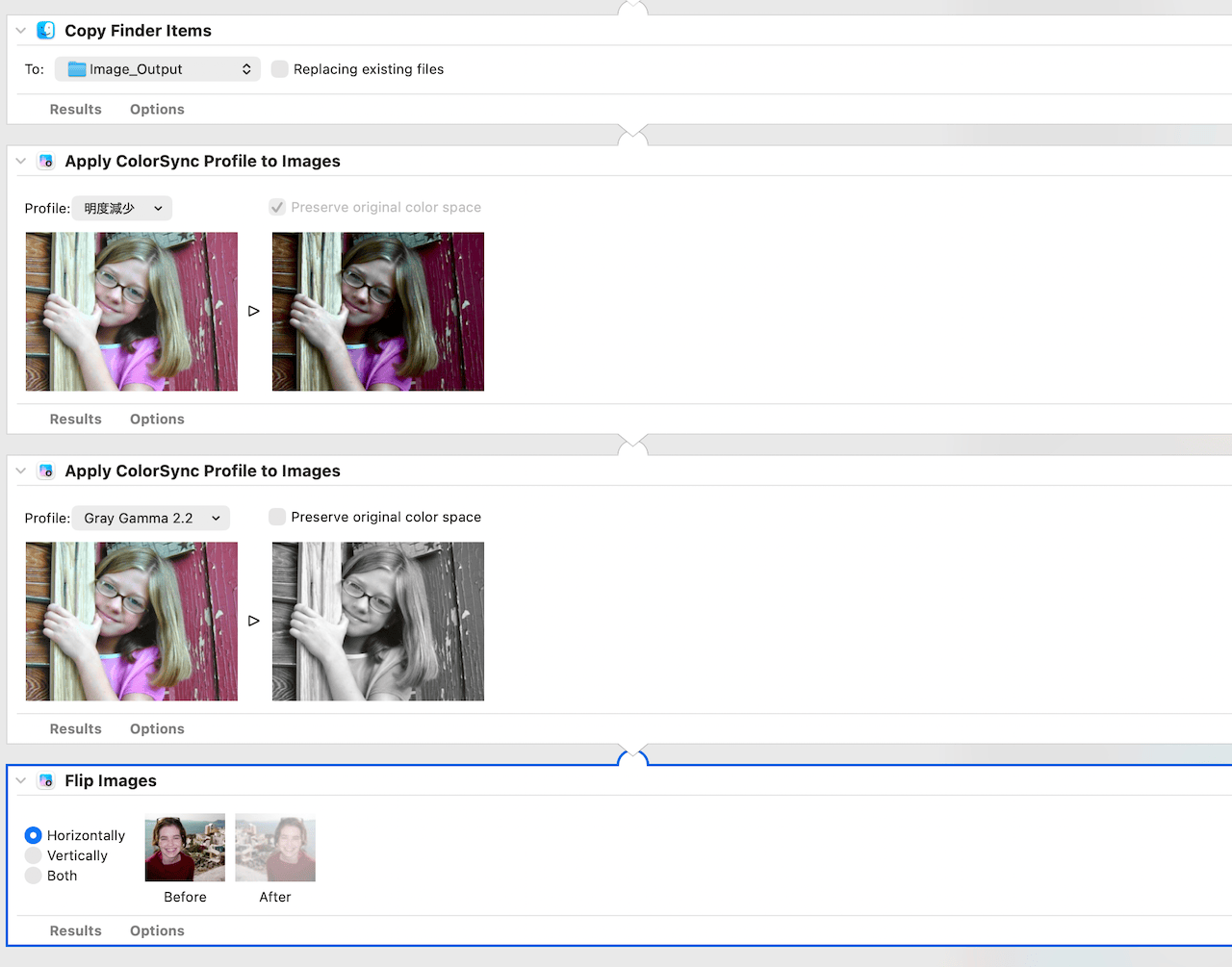
Chris - This seems like the kind of task that RetroBatch is made for (Retrobatch 2 | Batch Image Processor from Flying Meat), and of course, RetroBatch will slide nicely into any AppleScript-based workflow.

1 Like

IceFole and Olof, thanks much for those suggestions. I was especially impressed with Retrobatch 2 – it does exactly what I need done. I shall download it, try it out, and report back.

The idea of inserting a few pauses in the operation of the script did occur to me, but as you note, that would only slow down an already slow process. It was processing one frame every three seconds, so an hour’s worth of video would require nearly four days of processing time. Now, I do have several spare Macs that I could use for this, but Retrobatch 2 seems to be a much better solution. I’ll tell you how it goes.

Thanks again!

1 Like

Retrobatch 2 solved my problem! It processed 54,000 images in just under five hours. I can put this work on my second Mac while I continue to use my primary Mac for more general work.

Thanks again, Olof, for telling me about Retrobatch 2!

Chris

1 Like

As a special “treat”, I have assembled a few clips of meteors caught by my system on the night of September 16th and 18th. These are short clips, typically about two seconds long, mashed together. It gives you an idea of how many telescopic meteors are out there. Two of the clips show two meteors together.

You can see them at https://www.erasmatazz.com/MeteorCompendium.mov

For some reason, Chrome downloads the videos, while Safari shows them. Perhaps some other browser uses them for something else. Who knows…

FFMpeg is also a great command line tool for batch processing media. Actually many av processing / converting tools will use it at the heart of their own programs. It’s a great tool for setting up the processing of multiple files each in a step, passing the output from one step into the next.

https://ffmpeg.org/about.html

Single shell command:

ffmpeg -i input_video.mp4 -vf "format=gray,hflip" frames/frame_%04d.png
  • -i input_video.mp4:
    your source video.

  • -vf "format=gray,hflip":
    Applies a video filter chain.
    format=gray desaturates the video ,
    hflip flips horizontally.

  • frames/frame_%04d.png:
    in folder named frames output as individual images
    (e.g., frame_0001.png, frame_0002.png)

——————————-

There’s also this api for identifying

I’m glad this is working out.

The initial release of BitRig was indeed designed for iPhone. The current release can develop for: Mac, iPhone, iPad, Apple Watch, Apple TV, Vision Pro and web apps.

I am currently developing several mac apps, along with some iPhone and Apple Watch apps using BitRig. Two mac apps are in TestFlight now for beta testing.

Also BitRig can use your ChatGPT account (or Claude) to handle the coding, xCode and navigating the App Store workflow.

1 Like

Thanks, estockly. Good luck with your apps. I have one suggestion: please, please take the time to give your work a good user interface. It seems that, ever since we shifted from “user interface” to “user experience”, the user whatever has gone to hell. Back in the 1990s, before you could get help on the Internet, application developers had to provide an extensive customer service department to help solve problems by telephone. This was inordinately expensive, which induced software companies to make the effort to make their software easy to use. The results were impressive. But nowadays, you can ship crazy crap and just let the users work it out in user groups – the 21st century version of “RTFM”. The Chinese software is easily the worst in this regard.

Here’s a cute ancient story for your entertainment. I worked at Atari back in the day. Bill Carris ran customer support for the Atari 2600, the games machine. The advertising made a big deal out of the fact that it had full-color output. They had a customer call in complaining that he wasn’t getting color out of his 2600. After much questioning and experimentation, they finally figured out that he was using it on a black-and-white TV.