Hi,
I am looking for ideas on the various methods of renaming a number of files based on their contents. The files are pdf files created by a scanner and associated OCR software. My aim is to look at the file by selecting it in the Finder and have it renamed and then stored in the correct folder depending on its contents. For example when I view a scan of a document from my bank I want to have it renamed with the creation date and name of bank and then moved to a folder of other files from the bank.
At the moment I am experimenting with Noodlesoft’s Hazel. I have set up a drop folder for each document type and Hazel renames the file and moves it to the final storage folder. While this works it has the drawback of requiring multiple drop folders coupled to multiple hazel actions which get error prone when setting up multiple drop folders. I realise that there are many other ways to achieve the end result using other tools. So what do you or would you use?
best wishes
Simon
What type of document do you want to target? Automation tackles patterns, not randomness. If it’s a financial report, bank statement or similar, you most probably have a spot with the word “bank” pegged.
Please provide an example.
I’m not sure what you mean by “spot” but certainly the PDF documents contain account numbers etc. Actually I was not thinking of parsing the text of the documents but I can see that it would be an excellent solution. Instead I was thinking of having some form of user interface that would allow me to select the document type which would then control how the document was renamed.
Call me old fashioned but I would rather not post an example from my bank account 
#scrutinizer82 Thanks for the nudge. I’m going to see what I can come up with using PDFkit.
Are you creating file names based on metadata or from the contents of the file itself?
If you want to read the files and create a filename based on content, I think you’re going to work really hard to create a script that will always be a little unreliable and inflexible. Unless there’s some other feature you can use to tell the files apart (eg bank statements always contain a certain word and that word only ever appears in bank statements).
If you want to rename files based on metadata, A Better Finder Rename can do that (and many other tricks - it’s highly worth the money).
Or you could tinker up a bash script using exiftool to read metadata fields, but that can get gnarly.
I agree that " A better finder rename" is very useful but I need to read data from the contents of the PDF files.
The target PDF have been OCR’d so I am able to search for names and account numbers but obviously it is subject to the accuracy of the OCR process. My initial attempts are promising : My script reads in data from a text file which contains a list of records. Each record contains lists of search keys and the name, file tags and file comment to be set on the file. At the moment the new name is prefixed with the file creation date to avoid duplicate file names.
I’ll post my script and text file once I have knocked off a few rough edges.
I’ve done tasks like this before and RegEx’s are your key to get more “standardized” info from text that has the main part I want, but will often have other junk around it that I don’t need.
IE
ABCF-12334 some junk [Fred Smith] extra work Promo Final-01 end junk
ABFC 123 [Fred Smith] work Advertising junk Final V1
ABED12356 junk [Bob] in progress work Sales Final10 end junk
It’s all about breaking down what you need for your capture groups.
Progressing thru to match those groups
Adding in conditions for matching
Adding optionals for the matching
Adding in between sections for skipping over the junk , maybe making them optional
You’ve got 4 letters
Sometimes. a dash , space, nothing
Run of at least 3 digits
Maybe junk
A name between [name]
Maybe junk
a work type
Maybe junk
Final with a version dash,V, space , nothing
1 or more digits
Maybe Junk
RegEx
^([A-Z]{4}).*?(\d{3,}).+\[(.*)\].*work\s(\w+)\b.*(final).*?(\d+)\b.*$
Replace
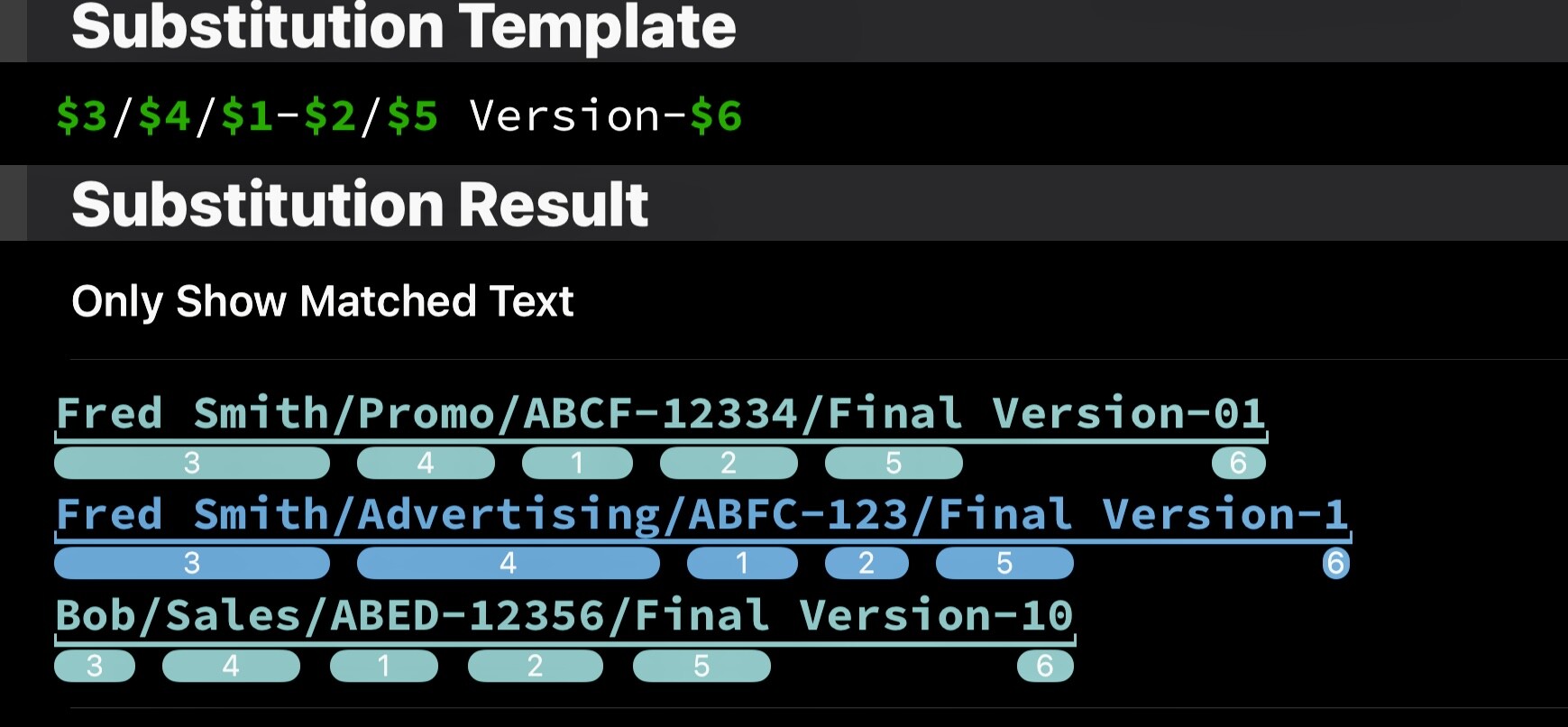
$3/$4/$1-$2/$5 Version-$6
Results
Fred Smith/Promo/ABCF-12334/Final Version-01
Fred Smith/Advertising/ABFC-123/Final Version-1
Bob/Sales/ABED-12356/Final Version-10