It looks like there’s a bug in Script Editor: when you try to check the ‘Show Script Menu’ option in Preferences, it gets unchecked by itself right away. After several attempts I could actually check it, after which the Script Menu showed up in the menu bar. However, after unchecking this option, I wasn’t able to check it again.
Same behavior here. Submitted a bug report. On my system, triple clicking to enable, disable, re-enable gets it to stay most of the time.
Edit: The toggle reliably works for me now with only a single click. Not sure what changed.
Does the Script Menu respond to AppleScript commands properly?
AppleScript_Script_Menu_Show(true)

on AppleScript_Script_Menu_Show(booleanValue)
	try
		tell application "AppleScript Utility"
			if booleanValue then
				if not Script menu enabled then
					set the Script menu enabled to true
				end if
			else
				set the Script menu enabled to false
			end if
			return Script menu enabled
		end tell
	on error errorText number errorNumber partial result errorResults from errorObject to errorExpectedType
		error "<AppleScript_Script_Menu_Show>" & errorText number errorNumber partial result errorResults from errorObject to errorExpectedType
	end try
end AppleScript_Script_Menu_Show
Hi Paul, thanks.
I tried enabling it via AppleScript Utility, which I’ve forgotten it was there, but it does not work either.
As per leo_r’s message what I tried to do is:
tell application "System Events" to tell process "Script Editor" to tell its window "General"
	repeat 100 times
		tell its checkbox "Show Script menu in menu bar" to click
		delay 2
		if its checkbox "Show Script menu in menu bar"'s value is 1 then exit repeat
	end repeat
end tell
The delay has to be greater than 1 second, so I used 2.
It did not work.
If someone tries and gets the menu, please, let me know.
I really, really miss it.
The script works flawlessly here.
It does in certain situations, refer to my previous post for more info:
Indeed, going to the “songs” tab and playing something from there makes everything work. Here are my assumptions (which I verified btw):
- Playing any song directly will make it work with
current trackUNLESS this song is NOT in your Music library (either added through Apple Music or uploaded).- If you play a song not in your library,
current trackis not updated even if you clicked on it specifically.- Playing an album (in your library obviously) makes all the tracks within it appear in
current trackuntil autoplay takes over.- Any autoplayed track won’t appear in
current trackeven if in your library (unless: see the last bulletpoint)- Music played through the “songs” tab all appear in
current trackeven if autoplay kicks in. I assume this is because this tab is an iTunes legacy (visually and under the hood) and doesn’t use the modern autoplay. This tab also won’t play non-library songs unlike the “albums” tab which seems to use the correct autoplay and suffers the same symptoms as the “recently added”, “home”, “radio”, etc… tabs.
The Script Menu is the most important part of the runtime environment.
We provided feedback on this issue and discussed it with the engineering team.
We share the view that the incorrect code sign of the Cocoa-AppleScript applet and the script menu not launching are issues that need to be addressed.
1 Like
I tested, and I could find a way to refer to a song being played via Apple Music or streaming from a “radio”, using AppleScript.
Since I have not scripted iTunes or Music for a while, I am not sure if it was always like this.
Could you please explain to us how you managed to achieve that?
I feel like this was a typo by DPet and probably should have read “and I couldn’t find a way”.
While there’s no available reference to the current track when playing from “Radio” the duration and length do get updated. cool, so maybe a Database lookup of song durations. [rolls eyes so hard he falls over].
I didn’t catch that it was a typo — I was genuinely looking for a solution, but yeah, AppleScript seems to be lacking that functionality.
I was curious if an AppleScript could be run by way of Spotlight Search in Tahoe, and, in limited testing, this worked if the AppleScript was saved as an app. The AppleScripts I tested did the following:
- quit all apps and close all Finder windows;
- backup my home folder using rsync; and
- display a dialog.
I did not have to set permissions for the above AppleScript apps (other than the dialogs when the app was first run), and they did not appear in the Privacy & Security Accessibility settings. I’m running public beta 6.
I wasn’t able to run an AppleScript that displayed a notification. The AppleScript app did appear in the Notifications pane of System Settings, but enabling the settings didn’t help. For now I’ll use a swiftDialog notification.
For some time I’ve used Shane’s Dialog Toolkit Plus and Myriad Tables Lib script libraries with numerous AppleScripts. With macOS Sequoia, some of these worked but others did not. After installing macOS Tahoe, those that did work continued to work, which is obviously good news. When time permits, I’ll retest those that did not work to see if they might work with Tahoe, which is probably unlikely but worth the time.
Upgraded to macOS Tahoe, and sad to say, Script Editor still crashes when a tab is closed. Doesn’t always crash, but a very high chance so it is very disruptive if you work with a lot of script in tabs on a daily basis.
Notifications work for me, though I had to set them to “Persistent” to have them actually appear in the corner rather than only in notification center (no focus mode enabled).
I haven’t run into this in a while. I always use command+W to close tabs, so maybe something is different there?
1 Like
I retested with the release version of macOS 26.0 and found the same thing. The notification displays in the corner of the screen if set to persistent but not otherwise.
It’s a kludge but the following will display the notification in the corner of the screen without setting the notification to persistent. This worked if the AppleScript is saved as an app and run by double-clicking on the app or by way of Spotlight Search.
do shell script "osascript -e 'display notification \"Hello World\"'"
Hi all,
I was testing this old AppleScript on MacOS 26.0 Tahoe and it seems the whose keyword doesn’t work correctly, also, it seems some UI element attributes couldn’t be accessed anymore.
-- This script click on the Fast User Switching menu item on Control Center menu bar to open the drop down list, then find the correct user item to click to. It was working fine in MacOS 15 Sequoia btw.

on main(intendedUserName)
  tell application "System Events"
    try
      tell its application process "ControlCenter"
        -- Click on the Fast User Switching button on menu bar
        if not exists (first menu bar item of menu bar 1 ¬
                              whose value of attribute "AXIdentifier" is "com.apple.menuextra.user") then return "NO_SWITCHING_BUTTON"
        click (first menu bar item of menu bar 1 ¬
          whose value of attribute "AXIdentifier" is "com.apple.menuextra.user")

        -- Find the correct user item and click it
        delay 2
        set userButtons to (every button of scroll area 1 of group 1 of window 1 whose value of attribute "AXAttributedDescription" contains intendedUserName)
        repeat with userButton in userButtons
          click item 1 of userButton
          delay 1
          return "SWITCHED_USER"
        end repeat
      end tell
    on error errorMessage
      return "FAILED_EXECUTING|" & errorMessage
    end try

    return "FAILED_SWITCHING|NotFoundUser"
  end tell
end main
I’ve tried to manually find the UI elements by looping instead of using whose, which does work for “AXIdentifier” attribute. But as soon as we access the “AXAttributedDescription”, the script will fail with errAEEventFailed: -10000.
-- Updated script. Still failing on MacOS 26 Tahoe.

on main(intendedUserName)
  tell application "System Events"
    try
      tell its application process "ControlCenter"
        set fusBtn to null
        set menuItems to menu bar items of menu bar 1
        repeat with menuItem in menuItems as list
          try
          set attr to value of attribute "AXIdentifier" of menuItem
          if attr is "com.apple.menuextra.user" then
            set fusBtn to menuItem
          end if
          end try
        end repeat
        if fusBtn is null then return "NO_SWITCHING_BUTTON"

        click fusBtn
        delay 2
        UI elements of group 1 of window 1
        if not (exists group 1 of window 1) then
          return "NO_SWITCH_USER_DROPDOWN"
        else
          set agentItems to checkboxes of group 1 of window 1
          repeat with agentItem in agentItems as list
            try
              -- Failing here, but if we `log attributes of agentItem`, then we see the UI element does have the AXAttributedDescription attr.
              set agentName to value of attribute "AXAttributedDescription" of agentItem
              if agentName is intendedUserName then
                click agentItem
                delay 1
                return "SWITCHED_USER"
              end if
            end try
          end repeat
        end if
      end tell
    on error errorMessage
      return "FAILED_EXECUTING|" & errorMessage
    end try
    return "FAILED_SWITCHING|NotFoundUser"
  end tell
end mainHandler
The user name can only be found in the “AXAttributedDescription” attribute. Title, name, value, AXHelp, AXDescription… doesn’t have the value. Accessing the other attributes (AXTitle, AXHelp…) in MacOS 26 seems easy to fail also.
Can anyone confirm having the same issue on MacOS 26 or help giving me a guidance on what I can try next here?
Thanks
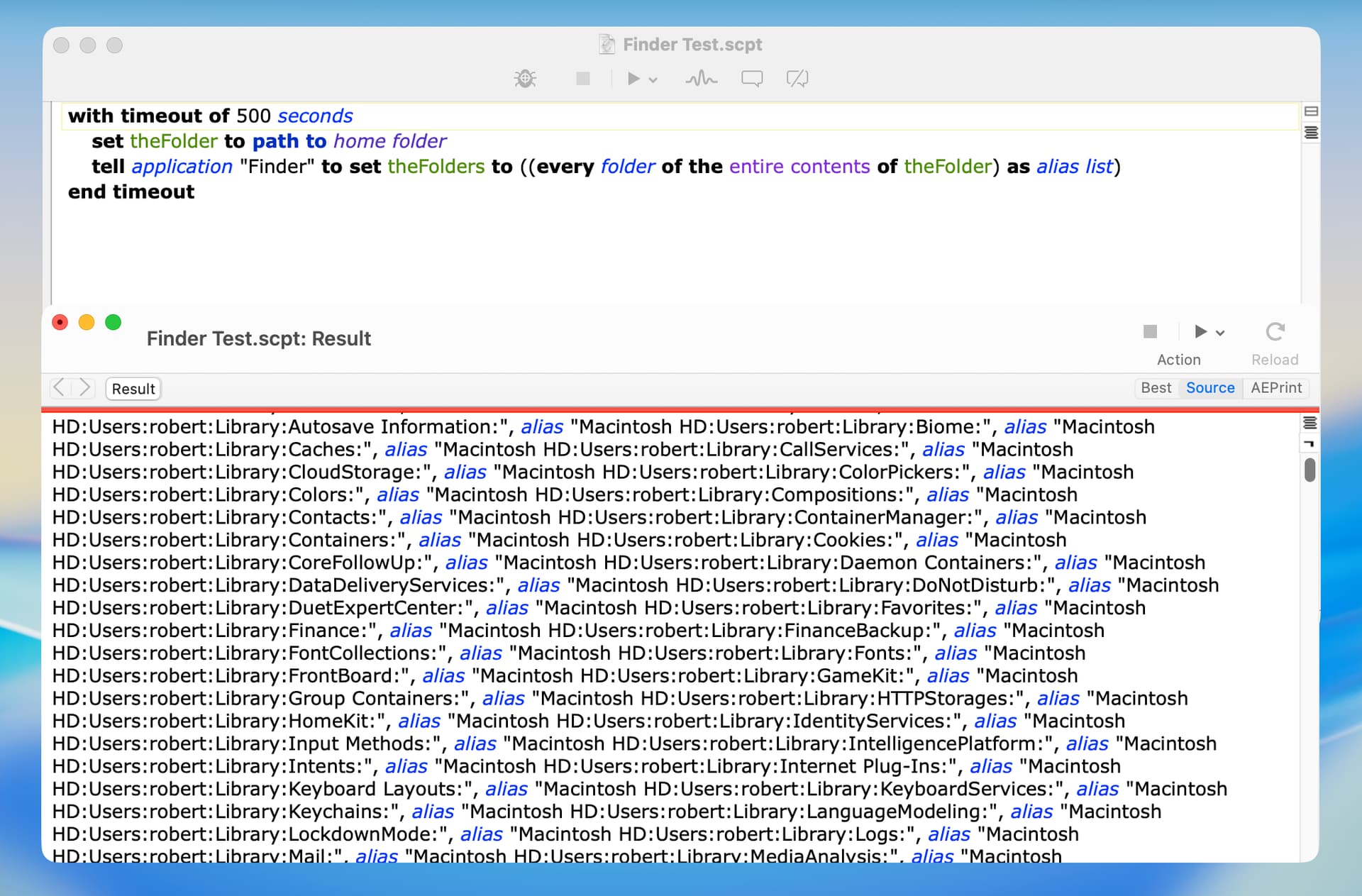
If I remember correctly, Finder did not return hidden folders and files unless it was set to to do so, which isn’t the case on my computer. However, I checked and the contents of the ~/Library folder is returned by Finder in an AppleScript on macOS Tahoe. I don’t think this was the case before Tahoe, but I could easily be wrong about that. BTW, using Finder to recursively get all folders or files from a user’s home folder is probably a bad idea, but that’s a separate issue.
Getting current track is broken in Tahoe 26.0 and 26.1 for me in this important regard:
- when playing music in the Catalog (i.e., streaming music) it gives a scripting error
- when playing music in the Library (i.e., local music) it works as expected.
This is different behavior than Sequoia, where both of those cases worked like a charm for me.
I do suffer from the same issue, even wrote an issue report using feedback assisstant and forum but no words from Apple yet. I check if it is fixed with every OS update but till now nothing is changed.