I didn’t catch that it was a typo — I was genuinely looking for a solution, but yeah, AppleScript seems to be lacking that functionality.
I was curious if an AppleScript could be run by way of Spotlight Search in Tahoe, and, in limited testing, this worked if the AppleScript was saved as an app. The AppleScripts I tested did the following:
- quit all apps and close all Finder windows;
- backup my home folder using rsync; and
- display a dialog.
I did not have to set permissions for the above AppleScript apps (other than the dialogs when the app was first run), and they did not appear in the Privacy & Security Accessibility settings. I’m running public beta 6.
I wasn’t able to run an AppleScript that displayed a notification. The AppleScript app did appear in the Notifications pane of System Settings, but enabling the settings didn’t help. For now I’ll use a swiftDialog notification.
For some time I’ve used Shane’s Dialog Toolkit Plus and Myriad Tables Lib script libraries with numerous AppleScripts. With macOS Sequoia, some of these worked but others did not. After installing macOS Tahoe, those that did work continued to work, which is obviously good news. When time permits, I’ll retest those that did not work to see if they might work with Tahoe, which is probably unlikely but worth the time.
Upgraded to macOS Tahoe, and sad to say, Script Editor still crashes when a tab is closed. Doesn’t always crash, but a very high chance so it is very disruptive if you work with a lot of script in tabs on a daily basis.
Notifications work for me, though I had to set them to “Persistent” to have them actually appear in the corner rather than only in notification center (no focus mode enabled).
I haven’t run into this in a while. I always use command+W to close tabs, so maybe something is different there?
1 Like
I retested with the release version of macOS 26.0 and found the same thing. The notification displays in the corner of the screen if set to persistent but not otherwise.
It’s a kludge but the following will display the notification in the corner of the screen without setting the notification to persistent. This worked if the AppleScript is saved as an app and run by double-clicking on the app or by way of Spotlight Search.
do shell script "osascript -e 'display notification \"Hello World\"'"
Hi all,
I was testing this old AppleScript on MacOS 26.0 Tahoe and it seems the whose keyword doesn’t work correctly, also, it seems some UI element attributes couldn’t be accessed anymore.
-- This script click on the Fast User Switching menu item on Control Center menu bar to open the drop down list, then find the correct user item to click to. It was working fine in MacOS 15 Sequoia btw.

on main(intendedUserName)
  tell application "System Events"
    try
      tell its application process "ControlCenter"
        -- Click on the Fast User Switching button on menu bar
        if not exists (first menu bar item of menu bar 1 ¬
                              whose value of attribute "AXIdentifier" is "com.apple.menuextra.user") then return "NO_SWITCHING_BUTTON"
        click (first menu bar item of menu bar 1 ¬
          whose value of attribute "AXIdentifier" is "com.apple.menuextra.user")

        -- Find the correct user item and click it
        delay 2
        set userButtons to (every button of scroll area 1 of group 1 of window 1 whose value of attribute "AXAttributedDescription" contains intendedUserName)
        repeat with userButton in userButtons
          click item 1 of userButton
          delay 1
          return "SWITCHED_USER"
        end repeat
      end tell
    on error errorMessage
      return "FAILED_EXECUTING|" & errorMessage
    end try

    return "FAILED_SWITCHING|NotFoundUser"
  end tell
end main
I’ve tried to manually find the UI elements by looping instead of using whose, which does work for “AXIdentifier” attribute. But as soon as we access the “AXAttributedDescription”, the script will fail with errAEEventFailed: -10000.
-- Updated script. Still failing on MacOS 26 Tahoe.

on main(intendedUserName)
  tell application "System Events"
    try
      tell its application process "ControlCenter"
        set fusBtn to null
        set menuItems to menu bar items of menu bar 1
        repeat with menuItem in menuItems as list
          try
          set attr to value of attribute "AXIdentifier" of menuItem
          if attr is "com.apple.menuextra.user" then
            set fusBtn to menuItem
          end if
          end try
        end repeat
        if fusBtn is null then return "NO_SWITCHING_BUTTON"

        click fusBtn
        delay 2
        UI elements of group 1 of window 1
        if not (exists group 1 of window 1) then
          return "NO_SWITCH_USER_DROPDOWN"
        else
          set agentItems to checkboxes of group 1 of window 1
          repeat with agentItem in agentItems as list
            try
              -- Failing here, but if we `log attributes of agentItem`, then we see the UI element does have the AXAttributedDescription attr.
              set agentName to value of attribute "AXAttributedDescription" of agentItem
              if agentName is intendedUserName then
                click agentItem
                delay 1
                return "SWITCHED_USER"
              end if
            end try
          end repeat
        end if
      end tell
    on error errorMessage
      return "FAILED_EXECUTING|" & errorMessage
    end try
    return "FAILED_SWITCHING|NotFoundUser"
  end tell
end mainHandler
The user name can only be found in the “AXAttributedDescription” attribute. Title, name, value, AXHelp, AXDescription… doesn’t have the value. Accessing the other attributes (AXTitle, AXHelp…) in MacOS 26 seems easy to fail also.
Can anyone confirm having the same issue on MacOS 26 or help giving me a guidance on what I can try next here?
Thanks
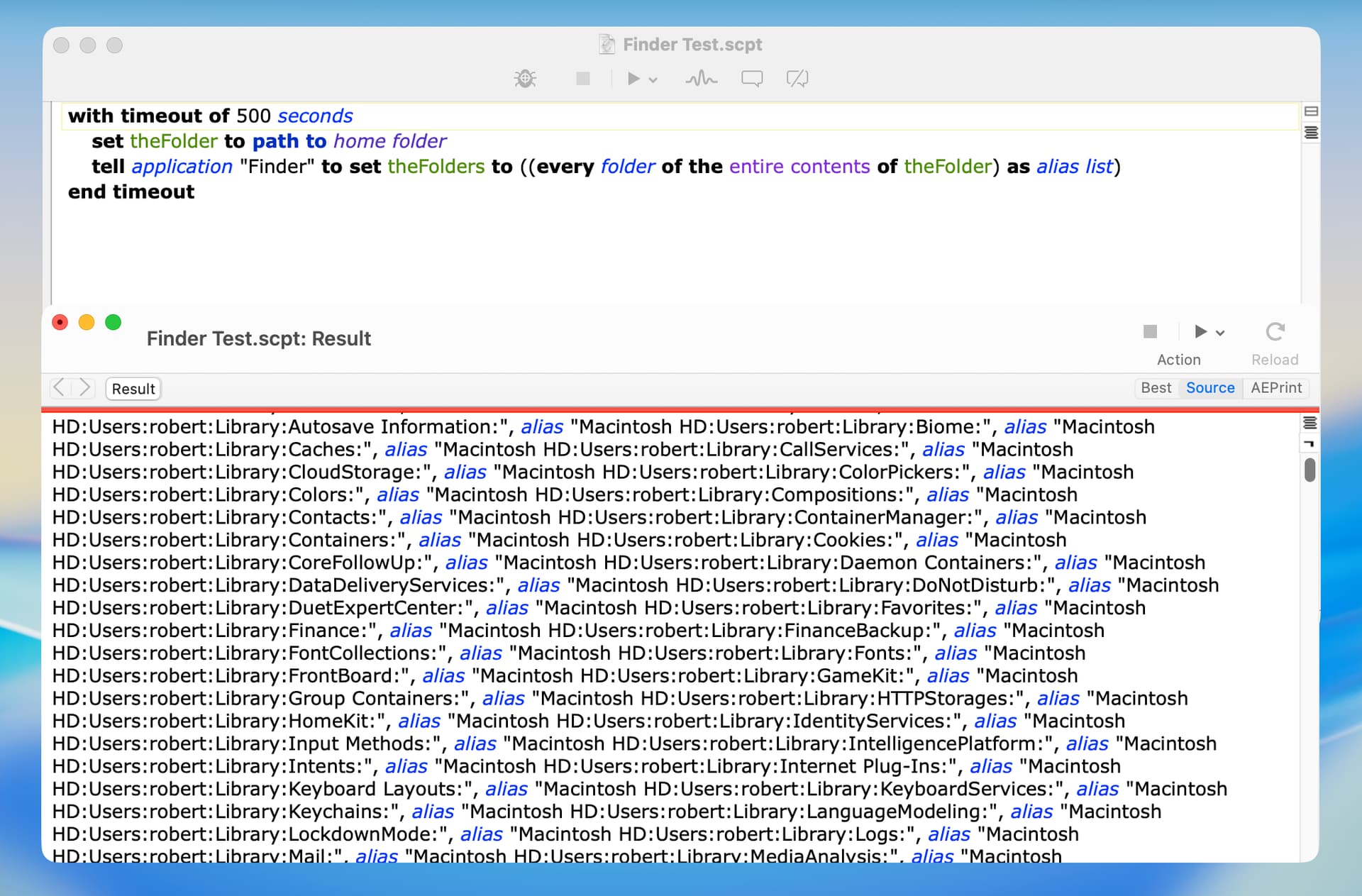
If I remember correctly, Finder did not return hidden folders and files unless it was set to to do so, which isn’t the case on my computer. However, I checked and the contents of the ~/Library folder is returned by Finder in an AppleScript on macOS Tahoe. I don’t think this was the case before Tahoe, but I could easily be wrong about that. BTW, using Finder to recursively get all folders or files from a user’s home folder is probably a bad idea, but that’s a separate issue.
Getting current track is broken in Tahoe 26.0 and 26.1 for me in this important regard:
- when playing music in the Catalog (i.e., streaming music) it gives a scripting error
- when playing music in the Library (i.e., local music) it works as expected.
This is different behavior than Sequoia, where both of those cases worked like a charm for me.
I do suffer from the same issue, even wrote an issue report using feedback assisstant and forum but no words from Apple yet. I check if it is fixed with every OS update but till now nothing is changed.
I don’t think this is directly related to macOS 26,
but I came across something that made me wonder if it’s always been like this (in other words, if it’s by design).
If this is the intended behavior, it feels a bit odd to me.
Looking at this article (see the URL below),
it seems that back in 2006, this byte swap didn’t occur according to the posts at the time.
So I’m wondering — when did this behavior change?
#!/usr/bin/env osascript
use AppleScript version "2.8"
use scripting additions
######-->text
# $ U+FF04 FULLWIDTH DOLLAR SIGN
log «data utxtFF04» as Unicode text
-->$
# ① U+2460 CIRCLED DIGIT ONE
log «data utxt2460» as Unicode text
-->①
# U+F8FF PRIVATE USE AREA-F8FF
log «data utxtF8FF» as Unicode text
-->
######-->DO run script
set strReturn to run script "«data utxtFF04»"
-->ӿ
# ӿ U+04FF CYRILLIC SMALL LETTER HA WITH STROKE
log (run script "«data utxt2460»")
-->怤
# 怤 U+6024 CJK UNIFIED IDEOGRAPH-6024
log (run script "«data utxtF8FF»")
-->
# U+FFF8
(*
bites swap
$
utxtFF04 = U+FF04
FF←→04
U+04FF
*)
log (run script "«data utxt04FF»")
-->$
log (run script "«data utxt6024»")
-->①
log (run script "«data utxtFFF8»")
-->
Breaking change for Applescript Mail integration in 26.1
My code used to construct a URL to open an email as: “message://%3C” & id & “%3E”
But as of 26.1 Mail now returns the id in Applescript wrapped with < and >
Was: redmine.journal-162731.20251114033459.6@jawasoft.com
Now: <redmine.journal-162731.20251114033459.6@jawasoft.com>
The link does not work with the braces.
Which breaks my code and anyone else with a legacy email integration. Easy enough to work around but annoying.
UPDATE: I see Things found the same problem: Mac Release Notes - Things Support
I’m not completely sure if this depends on my environment or on the script itself, but on macOS 26.1 with Script Editor version 2.11 (233), it feels like something has changed.
When I run scripts that normally produce a huge amount of log output — for example, a loop that calls do shell script a thousand times — the memory usage during execution now seems noticeably lower.
Compared to macOS 15, the memory consumption feels much lighter.
Again, this is just my impression, but it really looks improved.
This seems fixed in 26.2 for me, using this test script:
tell application "Mail" to set theMessageID to message id of some message of inbox
open location "message://%3C" & theMessageID & "%3E"
JXA’s run() function handling is broken in 26.2. See discussions with the Alfred co-founder on the Alfred forum, Mastodon and Reddit.
This issue may not be directly related to macOS 26.
I also do not know when this behavior started.
I simply noticed it while investigating why an Automator AppleScript would not compile.
I searched the past threads, but could not find any hits for |value|
(perhaps the pipe character is treated as a metacharacter in the search?).
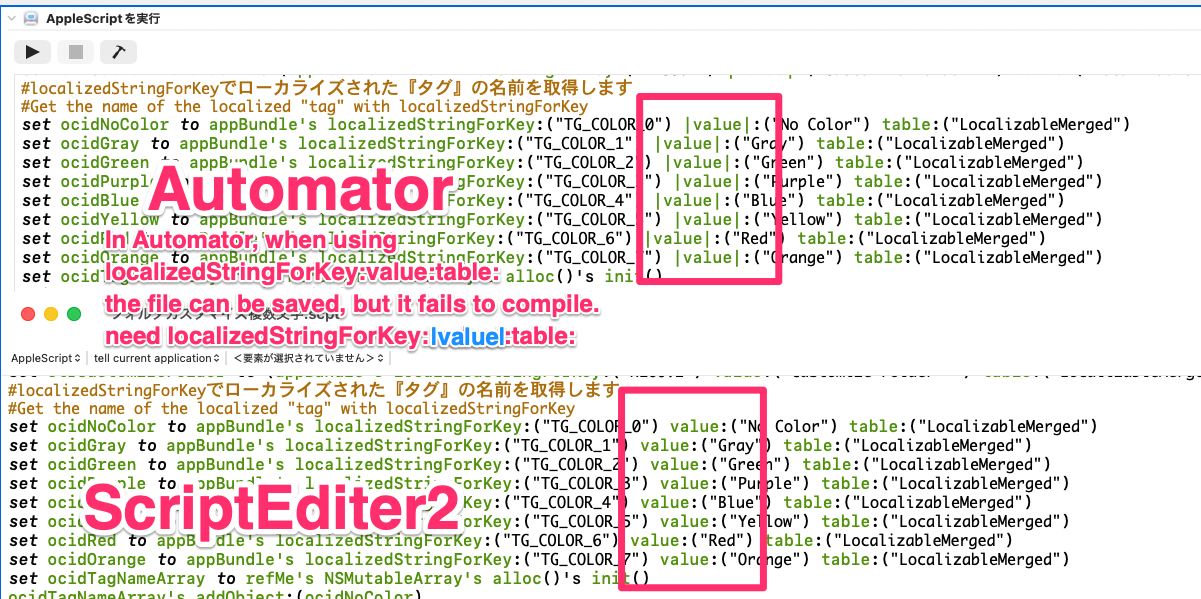
I am posting this here in case it may be helpful to someone else.
It does the same thing at least as far back as 10.12 Sierra. It isn’t as bad as it was, but Automator still uses terms that unfortunately conflict with the editors - it has always been weird like that. For example, if you do something like set value to "test", the value term is colored like a property or enumerated value, so it needs to be escaped with pipes to avoid the clash, just like more obvious parts of AppleScriptObjC method names such as “error” or “size”.
The script editors also don’t help when they remove the pipes that they don’t think are needed, which makes it more fun when switching back and forth with Automator. Switching back and forth also wouldn’t be as much of an issue if the code completion in Automator’s “Run AppleScript” action wasn’t so intrusive, but that is another topic (unless that has been fixed).
1 Like
Not directly related to Tahoe, but I saw this:
OSASCRIPT rules to XPScripts.yr, bringing its total to 17.
So I checked the OSASCRIPT rule file in XProtect.
You can open and read it with a text editor.
/private/var/protected/xprotect/XProtect.bundle/Contents/Resources/XPScripts.yr
/Library/Apple/System/Library/CoreServices/XProtect.bundle/Contents/Resources/XPScripts.yr
With my limited skills, I cannot fully understand everything about malware, but even though the number is small, I noticed there are some malicious scripts that try to steal data.
It made me think I should be more careful.
One change I’ve noticed with Tahoe is that Script Debugger does not always work reliably. Most notably, the app will occasionally beach-ball for 10 seconds or so before completing some task.
Script Debugger was retired 11 months ago, and additional issues will almost certainly arise. So, I thought it was time to see if Script Editor could be used to write ASObjC scripts. The answer is yes but with two reservations.
When writing a new ASObjC script with Script Editor, I have to save the script almost immediately. If not, I get the following error and compiling the script does not make a difference (I don’t know what this has to do with autosave). The workaround when this occurs is to copy the script to the clipboard and then open and immediately save the script in a new Script Editor window.
The document “Untitled 2.scpt” could not be autosaved. C and Objective-C pointers cannot be saved in scripts. Compiling the script will reset property values and may resolve this issue.
The second reservation is that ASObjC values are not returned by Script Editor in a meaningful manner. For example, the result of a NSString is returned in Script Editor as «class ocid» id «data optr0000000000EA76A909000000» The fix for this is to coerce the NSString to text. Arrays and dictionaries can be handled similarly.
Script Editor has always done both of those things with ASObjC.
If properties or globals contain Objective-C pointers (results from the Cocoa API), the script can’t be saved because those pointers won’t be valid. The auto-save (which I do not like at all) seems a bit more aggressive, though. As mentioned, compiling will clear the persistent store, although the script needs to have been changed so that it will actually be recompiled. Another option is to save the scripts as text, although they won’t be auto-saved. Both editors tend to crash for many ASObjC errors.
Unlike Script Debugger, Script Editor wasn’t updated to show Cocoa values, so you only see their raw form. It is easy to get used to Script Debugger’s default features - the differences have caught me a few times, so I try to remember to periodically test scripts using Script Editor to check that they work there. You can also return results with a coercion to a list, which has a quirk in that all the items in the list get coerced, e.g. return {NSStringItem, NSArrayItem, NSDictionaryItem} as list. This is also handy to coerce multiple Cocoa objects passed to a handler, such as a performSelector with multiple objects.