The WWDC 2026 Keynote mentioned several changes to the Shortcuts app in macOS Golden Gate, and I’ve listed them below. All but one of these are from a terse listing of new features at 6:20 of the keynote video.
Natural language shortcut creation
Redesigned Shortcuts Editor
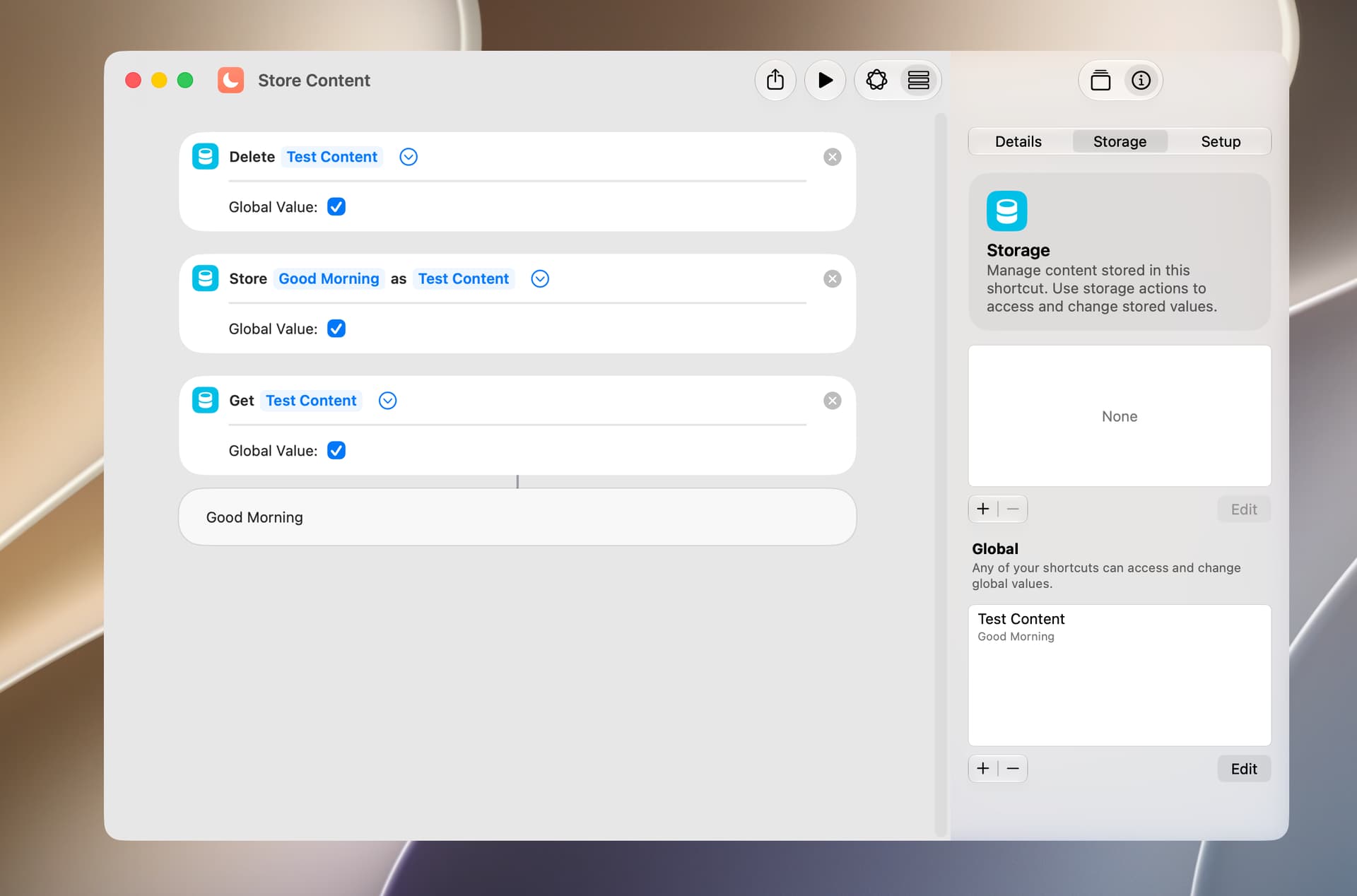
Store data in shortcuts
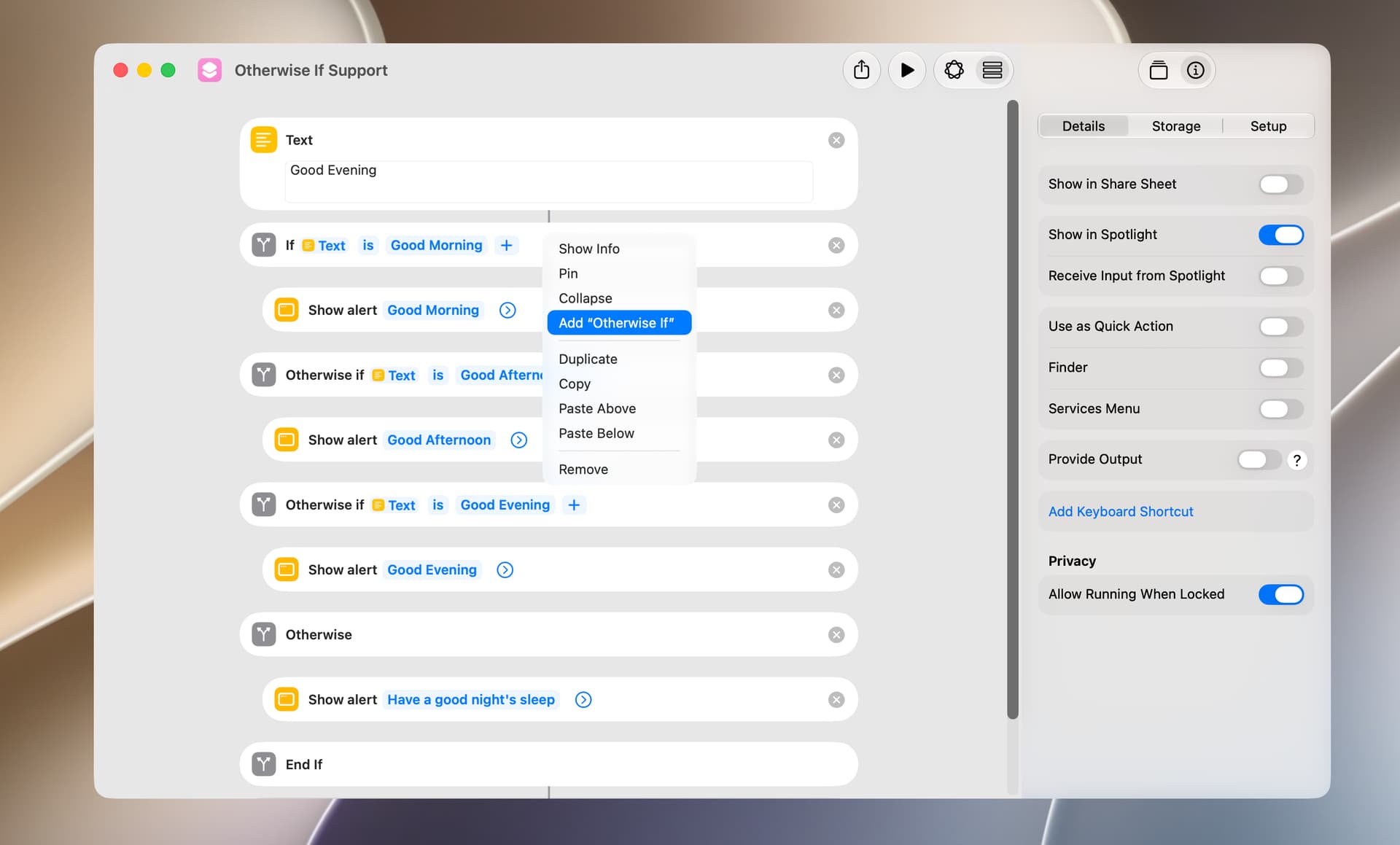
Else if support
Screenshot and notification automations
Expanded Get What’s On Screen capabilities
Group conversation support
Faster shortcuts and actions indexing in Spotlight
Two items are of special interest to me, and the first is else if support. The second is the ability to store data in a shortcut across multiple runs of the shortcut. I normally don’t install early beta versions of macOS, but I would certainly like to try out these new features.
I installed the first public beta of macOS Golden Gate and thought I’d report on a few of the new Shortcuts features.
The ability to store data in shortcuts is implemented by way of Store Content, Get Stored Content, and Delete Stored Content actions. The items that can be stored include text, dates, lists, abd dictionaries (as JSONs). Folders and files can be stored but only in a limited and not very useful fashion. The pane that allows you to view and edit stored content is nicely done IMO.
The If action now supports otherwise if markers, which are added by way of the action’s context menu (see screenshot). Both if and otherwise if markers support multiple test conditions. This is great.
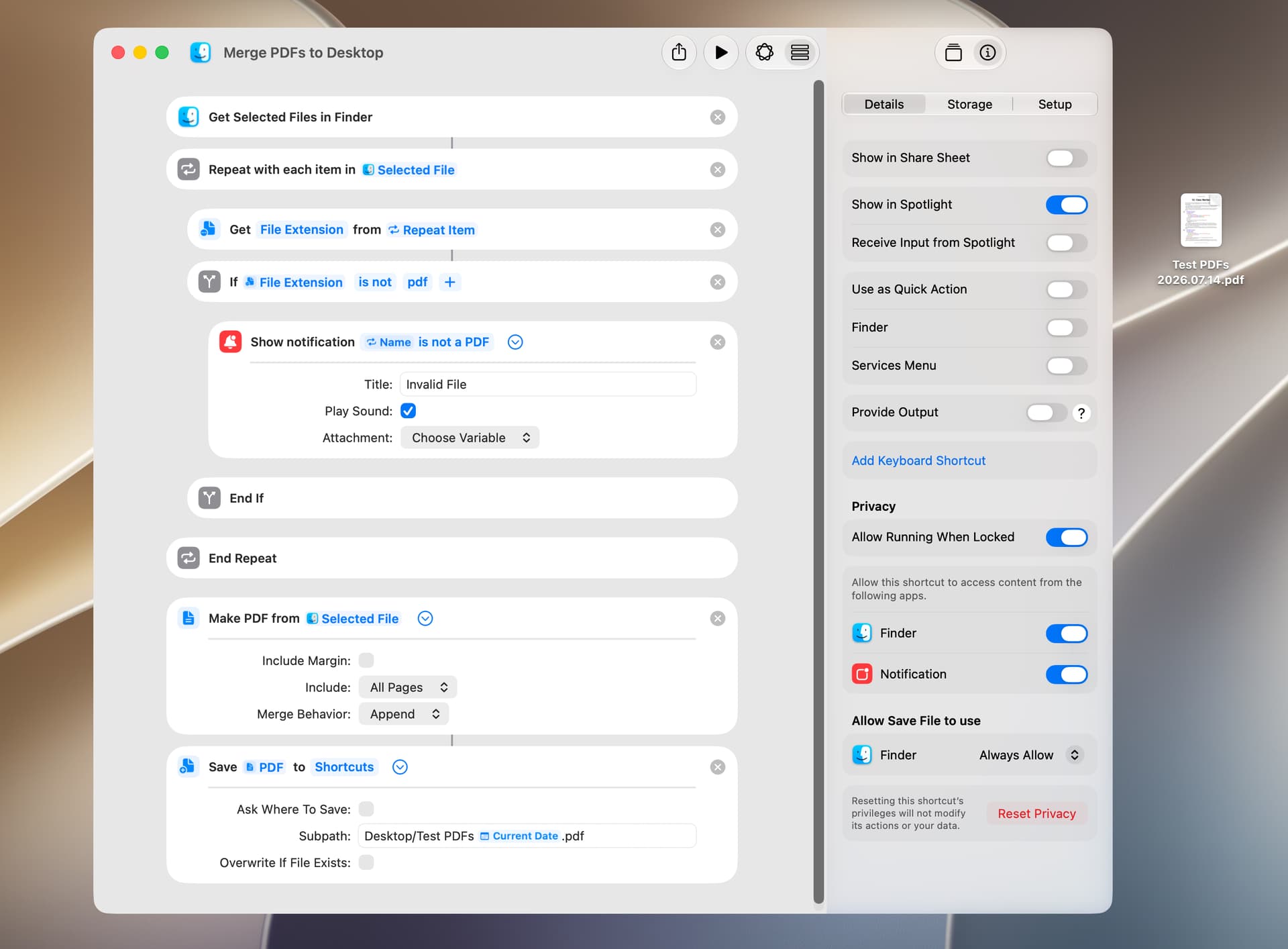
The most significant change to the Shortcuts app is natural language shortcut creation. To test this, I had Shortcuts create the shortcut detailed in item 1 below and then had Shortcuts make the edits in items 2 and 3. The instructions I gave to Shortcuts (including the unintentional typo in item 3) were:
Merge PDF files selected in a Finder window
Notify me if a selected file is not a PDF
Save the merged PDFs to my desktop with the name “Test PDFs” with a date stampe appended to the name
The shortcut did not work as written, because the folder in the Save action needed to be my Home folder. This may have been done for security reasons and was easily changed.
I would want the shortcut to stop if a selected item is not a PDF, but that’s not what I requested.
Given that this is public beta 1, I think the results were quite good. I especially like the ability to edit a shortcut.
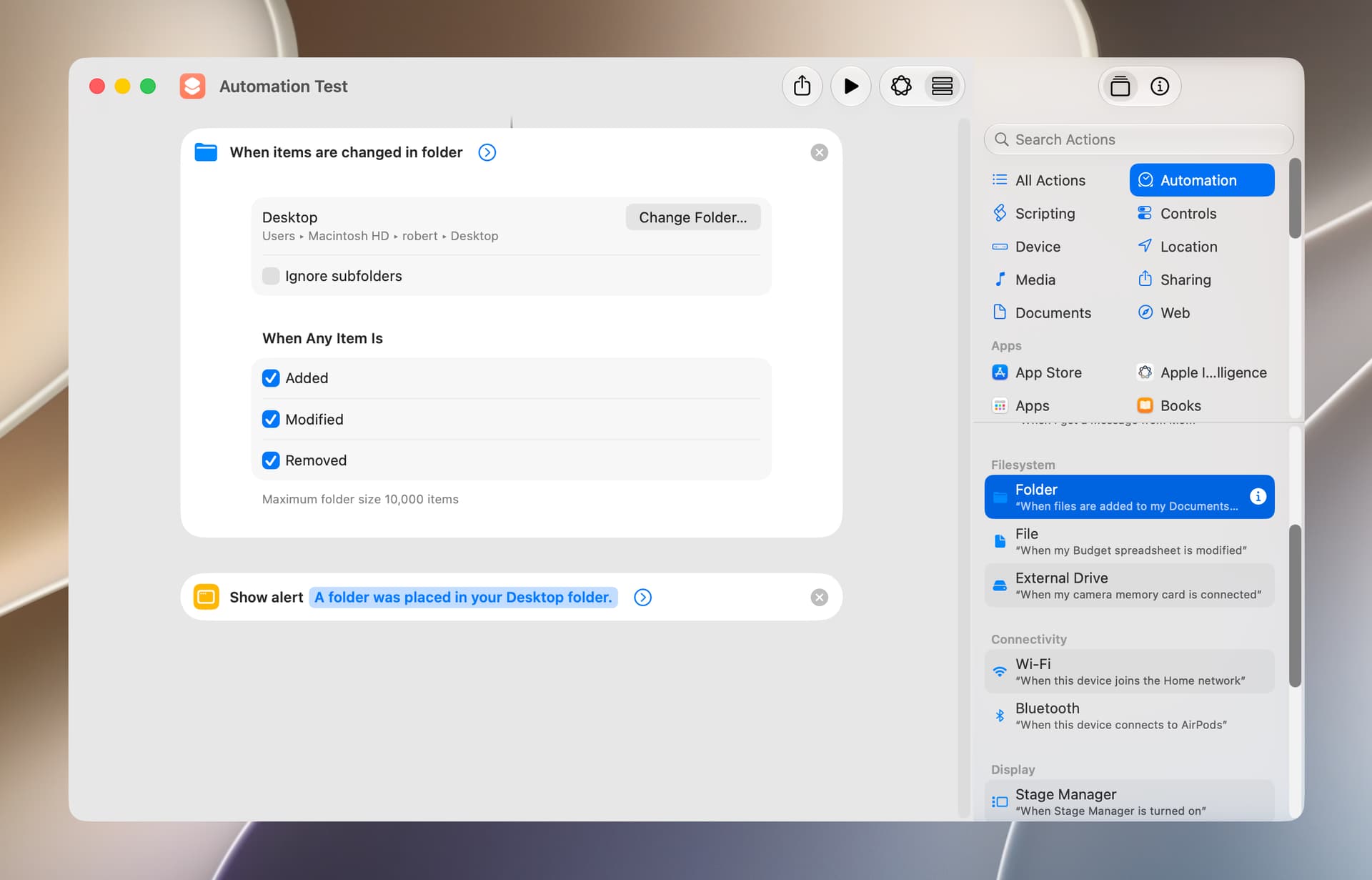
In prior versions of macOS, you created an automation by highlighting Automation in the Shortcuts app sidebar and clicking on the plus sign. The new method is to:
open the actual shortcut in the Shortcut Editor;
select Automation in the Editor’s right pane; and
select and add the desired automation to the shortcut.
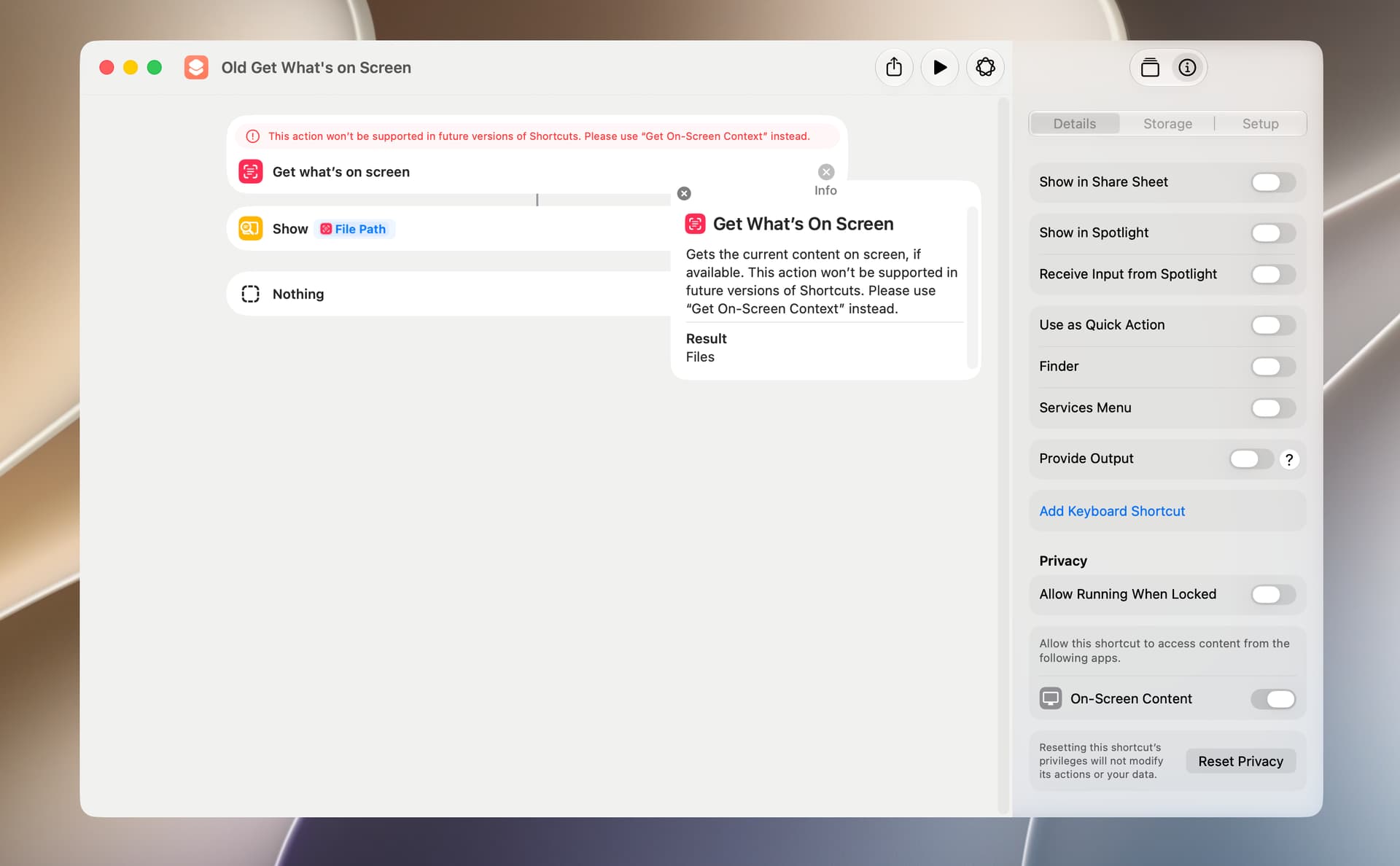
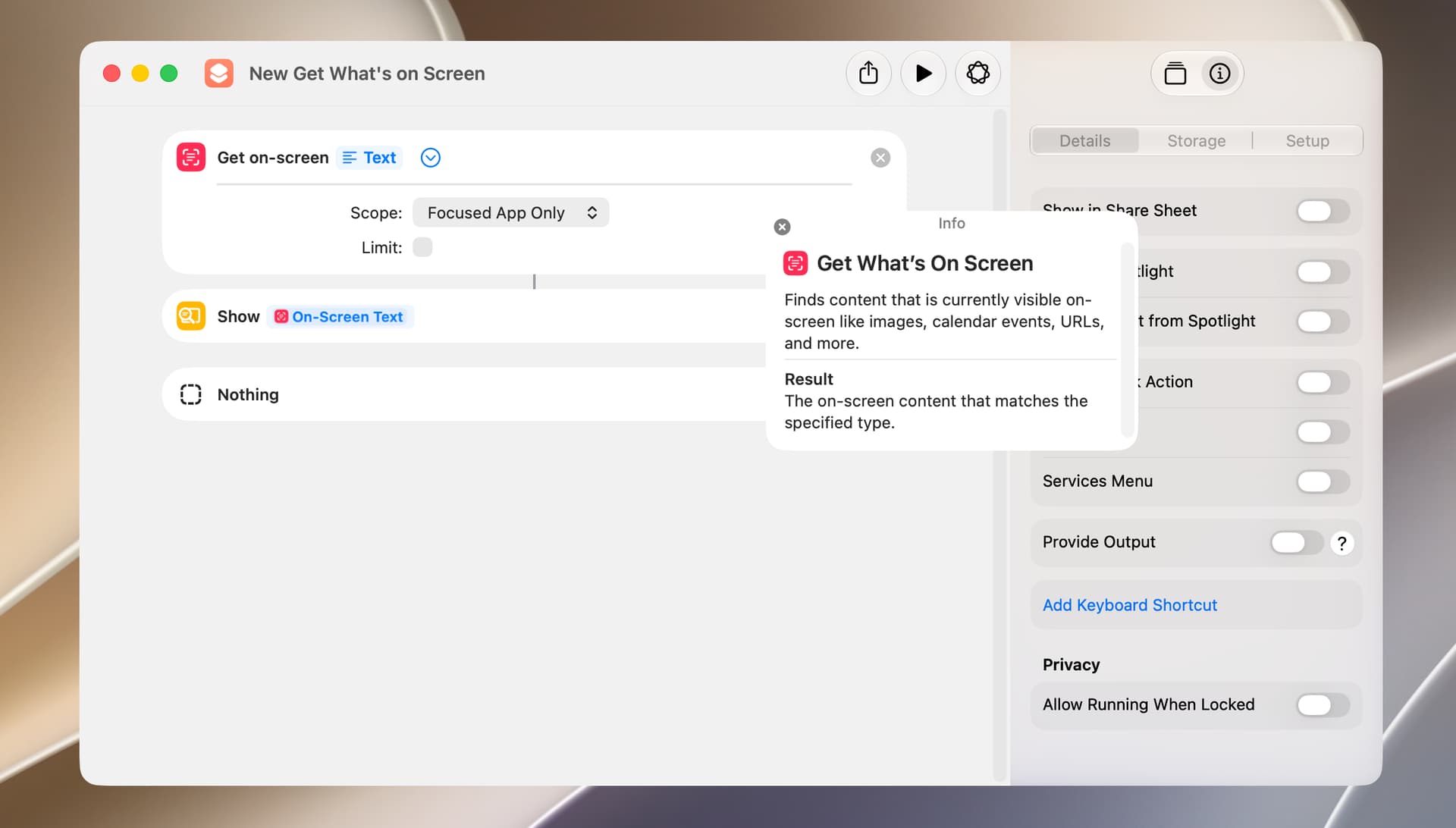
Neither the old nor the new Get What’s on Screen actions work all that well. The new action will do a lot more, and I suspect it will be a worthwhile update in time.
I did some additional testing of the natural language shortcut creation feature. The requests I made and the results were:
Open Safari and Resize and Move Window Request: Open the Safari app and adjust the window size so that it takes up approximately two-thirds of the screen Result: Worked fine but the window location was off-center Request: I also want the Safari window centered on the screen Result: Perfect
Open System Settings to Desktop & Dock Request: Create a shortcut that opens the System Settings and select Desktop & Dock in the sidebar Result: Works great
Open System Settings to Software Update Request: Create a shortcut that opens the System Settings and show the Software Update pane Result: The shortcut was created but an error was reported that the URL was missing a hostname Note: I requested additional shortcuts that open particular System Settings and many did not work correctly
Open Finder Window and Highlight Desktop in Sidebar Request: Open a Finder window and select Desktop in the sidebar Result: Shortcuts asked for clarification as to local or cloud Desktop, and I responded local Result: The shortcut was created but Desktop was selected in the main Finder window pane Request: I want Desktop selected in the sidebar Result: Shortcuts responded: Shortcuts can’t select specific items in the Finder sidebar You could try: “Open the Desktop folder in Finder” Request: Open the Desktop folder in Finder Result: Works great
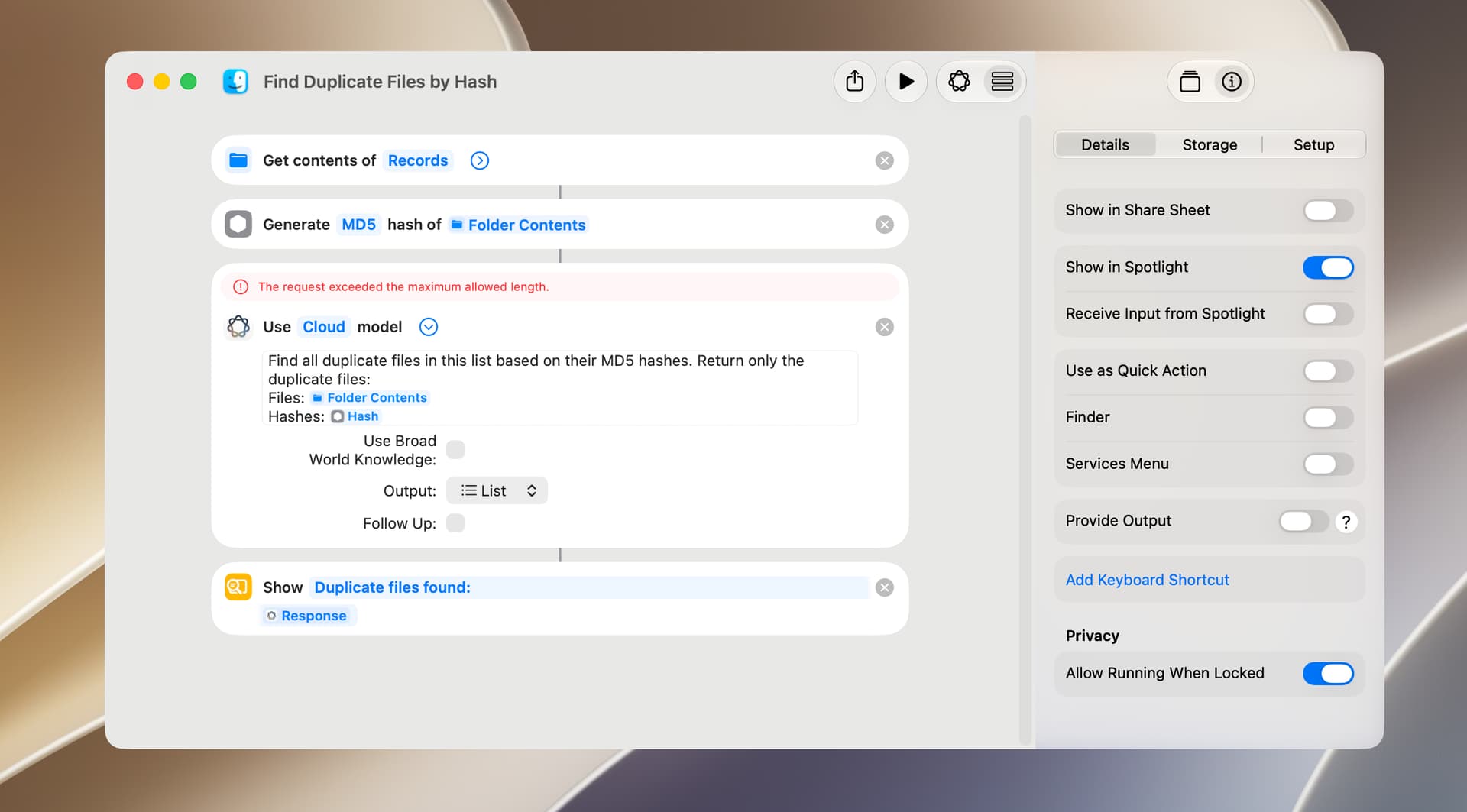
Find Duplicate Files Request: Find all duplicate files in my Home folder Result: Shortcuts requested clarification, and I manually selected my Home folder Result: The shortcut was created but failed because the request exceeded the maximum allowed length. I changed the folder to one with a smaller number of files, but I received the same error message. Also, file name and size were used to find duplicate files. Request: Use a files hash to find duplicate files Result: See screenshot below. BTW, I have enabled the Shortcuts setting to allow sharing of large amounts of data. There is a Cloud Pro model, but I don’t have access to that.
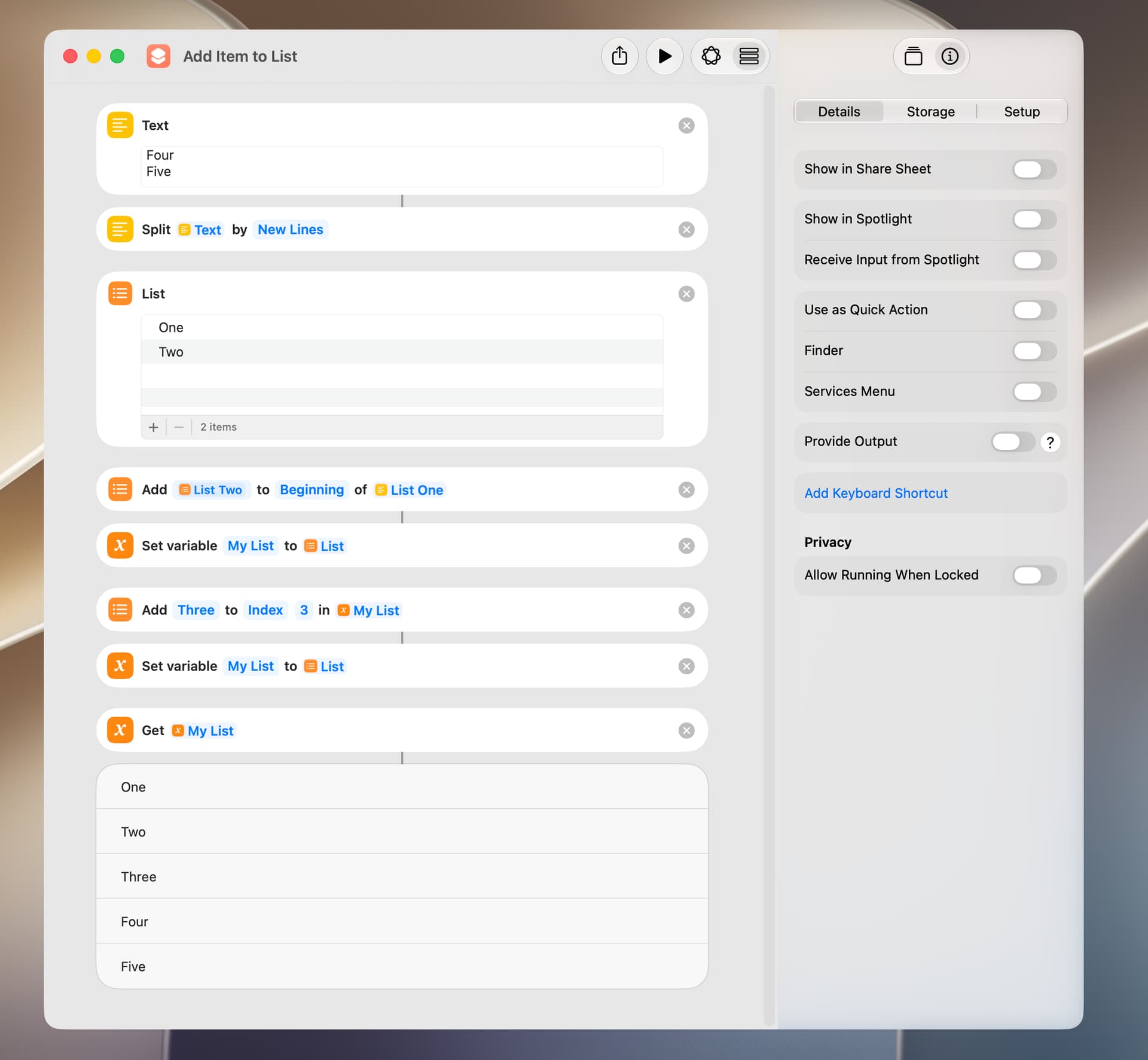
The Add Item to List action is apparently new to Golden Gate. The added item can be anything that a list can contain including text, lists, dictionaries, and files. The added item can be inserted at the beginning or end of the list, or at a specified index. A few comments:
Adding a list to a list concatenates the lists.
Adding a dictionary to a list stores a JSON.
Adding any item to a list creates a new list.
Negative index numbers are not supported, but some simple math with Count and Calculate actions will accomplish the same thing.
If multiple additions are made to a list, it might be a good idea to use manual variables to avoid erroneous references.
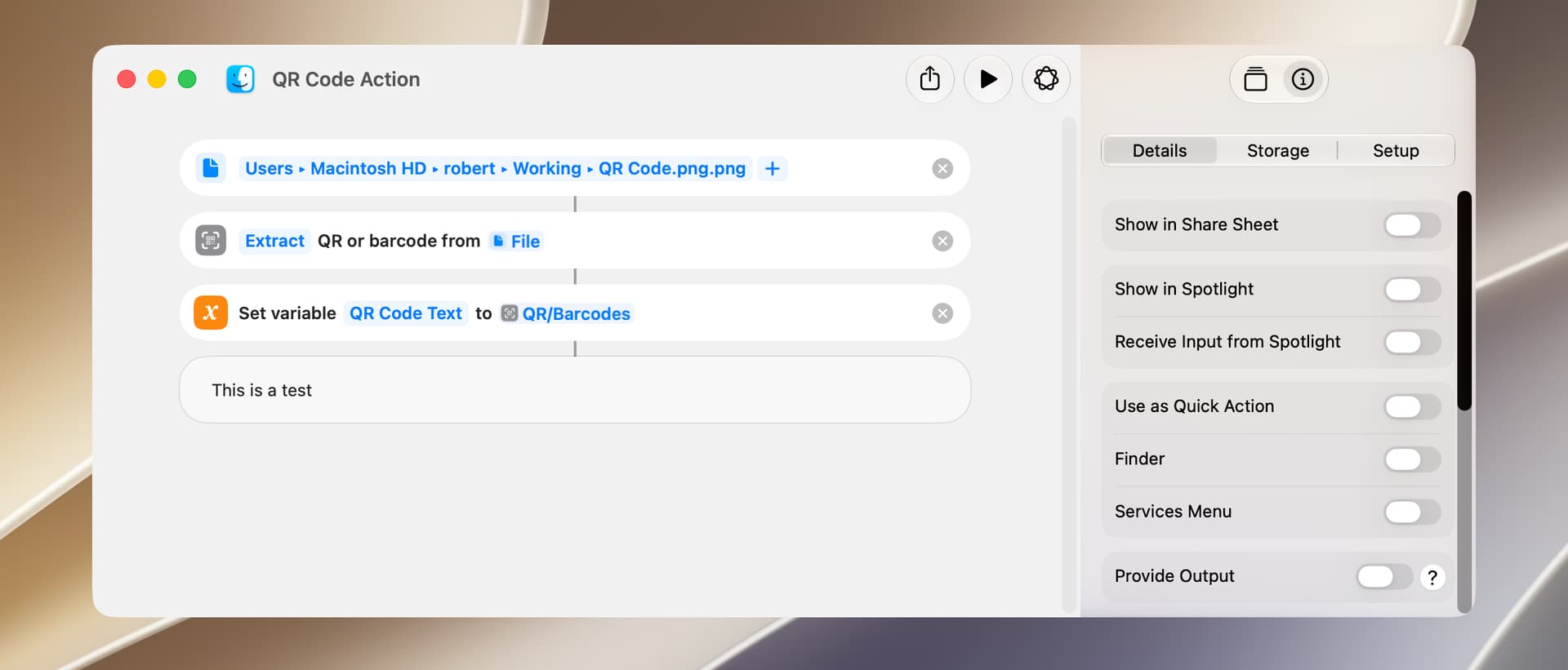
Also, a Scan QR or Barcode action that works on an image or file received as input became available in Public Beta 2 of macOS Golden Gate. This action was available in Public Beta 1, but it wouldn’t work on an image or file received as input.
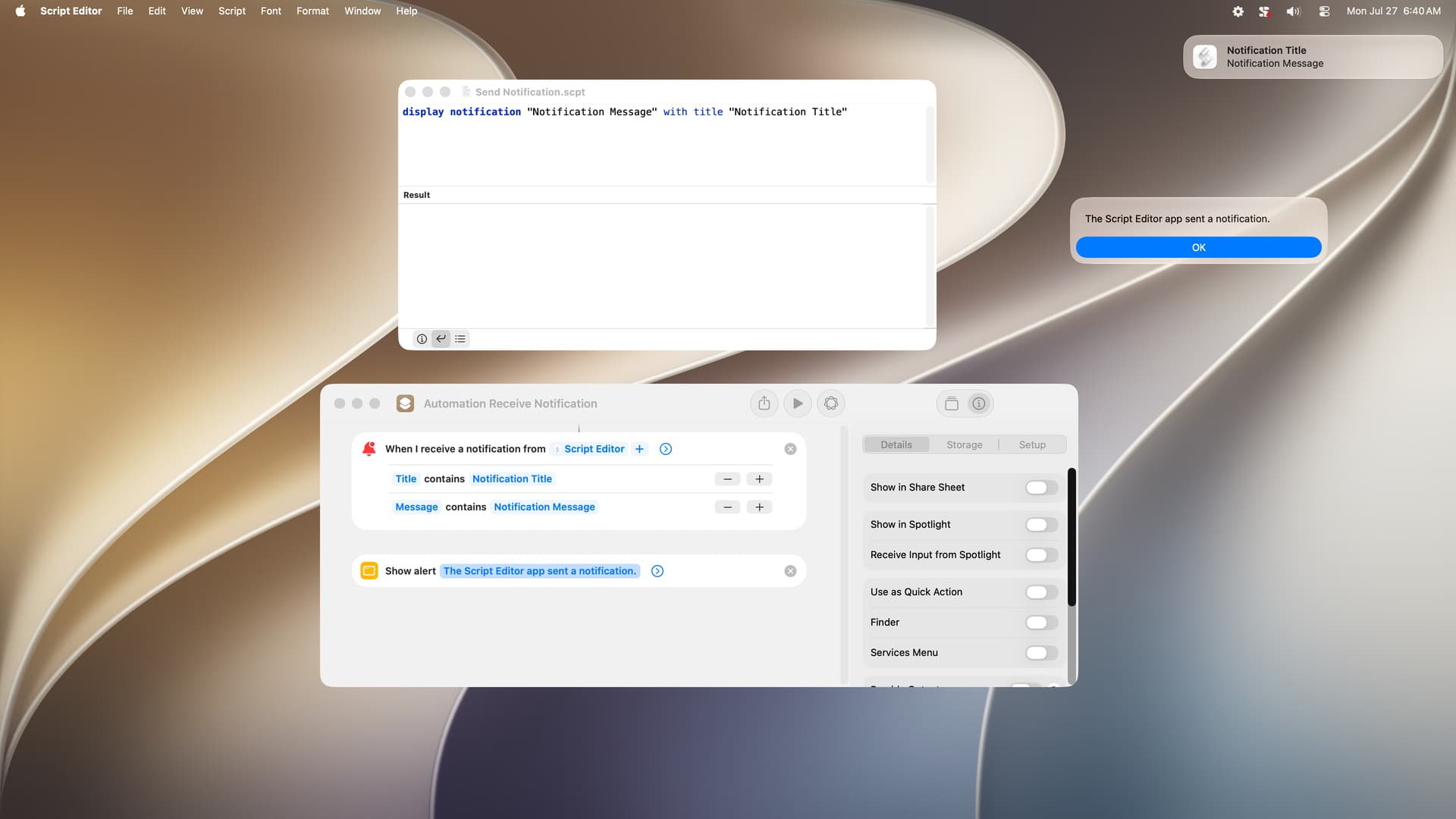
I tested the new Shortcuts automation feature that performs some action when a notification is received. The automation triggers are the name of the app and a specified string in the notification’s title, subtitle, or message. This appears to work well, although it seems there should be any-are-true and all-are-true qualifiers.
In the following example, Script Editor sends a notification, and the shortcut displays a dialog when the notification has specified text in its title and message (both have to be true). I tested this with the Shortcuts app not running, and the dialog was displayed as expected.
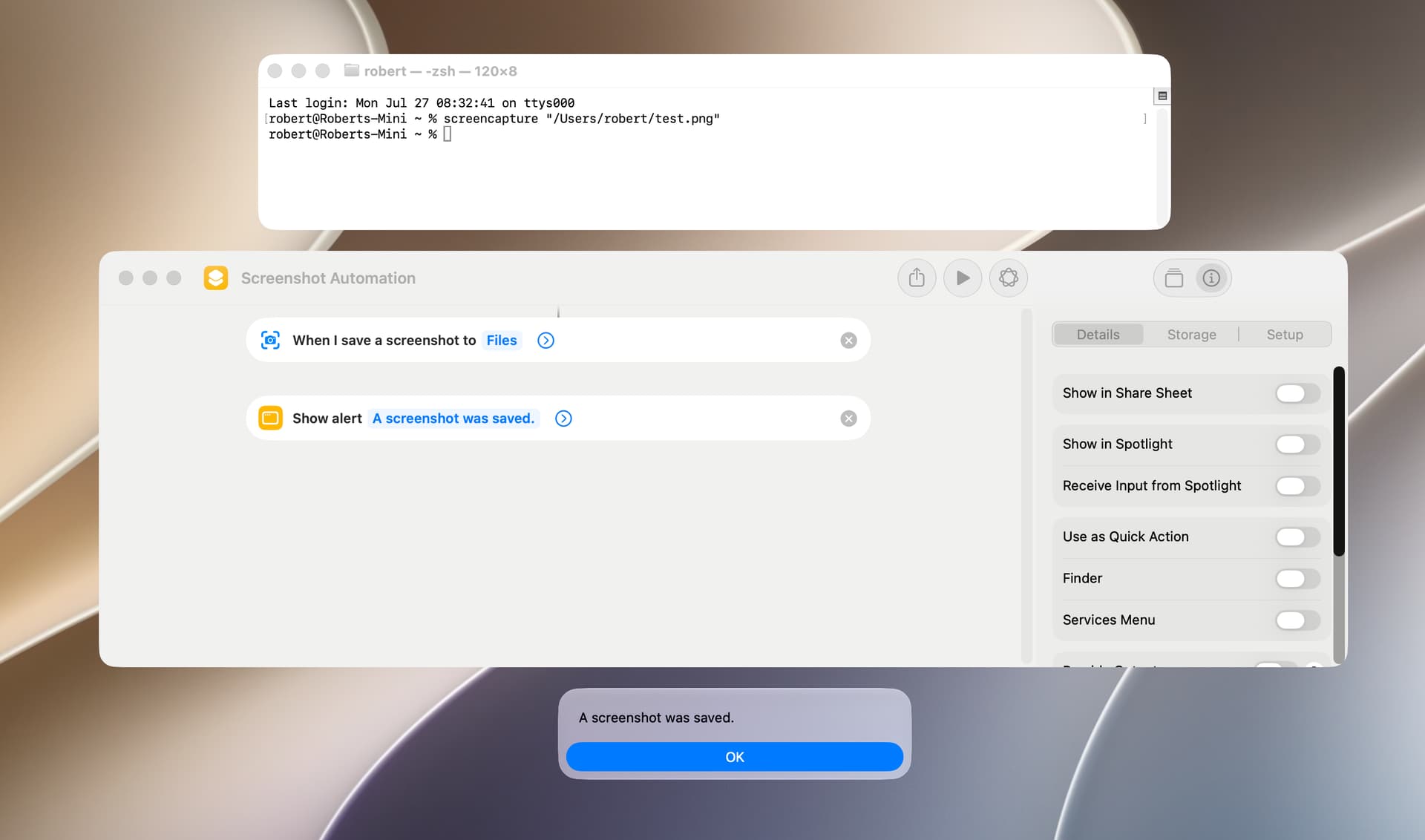
Another new automation runs a shortcut when a screenshot is taken. This works if the screenshot is taken with a shortcut or with the screencapture utility. The automation options are clipboard, files, and photos.
Several issues that were present in macOS 26.6 Tahoe are still present in macOS 27.0 Golden Gate (Public Beta 4), and there are a few new issues.
Email automation didn’t work in Tahoe, and it doesn’t work in Golden Gate. There is no error message–the automation simply doesn’t trigger the shortcut.
The Move File and Save File actions report a non-specific error in Tahoe if the Overwrite if File Exists option is enabled and if the target folder is on an external drive. That’s still the case, and perhaps this is intended behavior.
In post 6 in this thread, I noted that the Get What’s on Screen action that was available in Tahoe has been replaced with a new action with the same name in Golden Gate. In my testing, the Golden Gate version of this action will return text and URLs in a few instances but otherwise doesn’t do much. Perhaps I don’t understand how it’s supposed to work.
The Quick Look utility in Tahoe was able to view saved shortcuts (shortcut file extension) but that’s not the case in Golden Gate. The following error message is issued:
Extension com.apple.shortcuts.QuickLookExtension failed during preview of this document.
On a positive note, the Shortcuts Editor works well (with a few minor exceptions) and is very stable. Also, and perhaps most importantly, shortcuts run reliably.
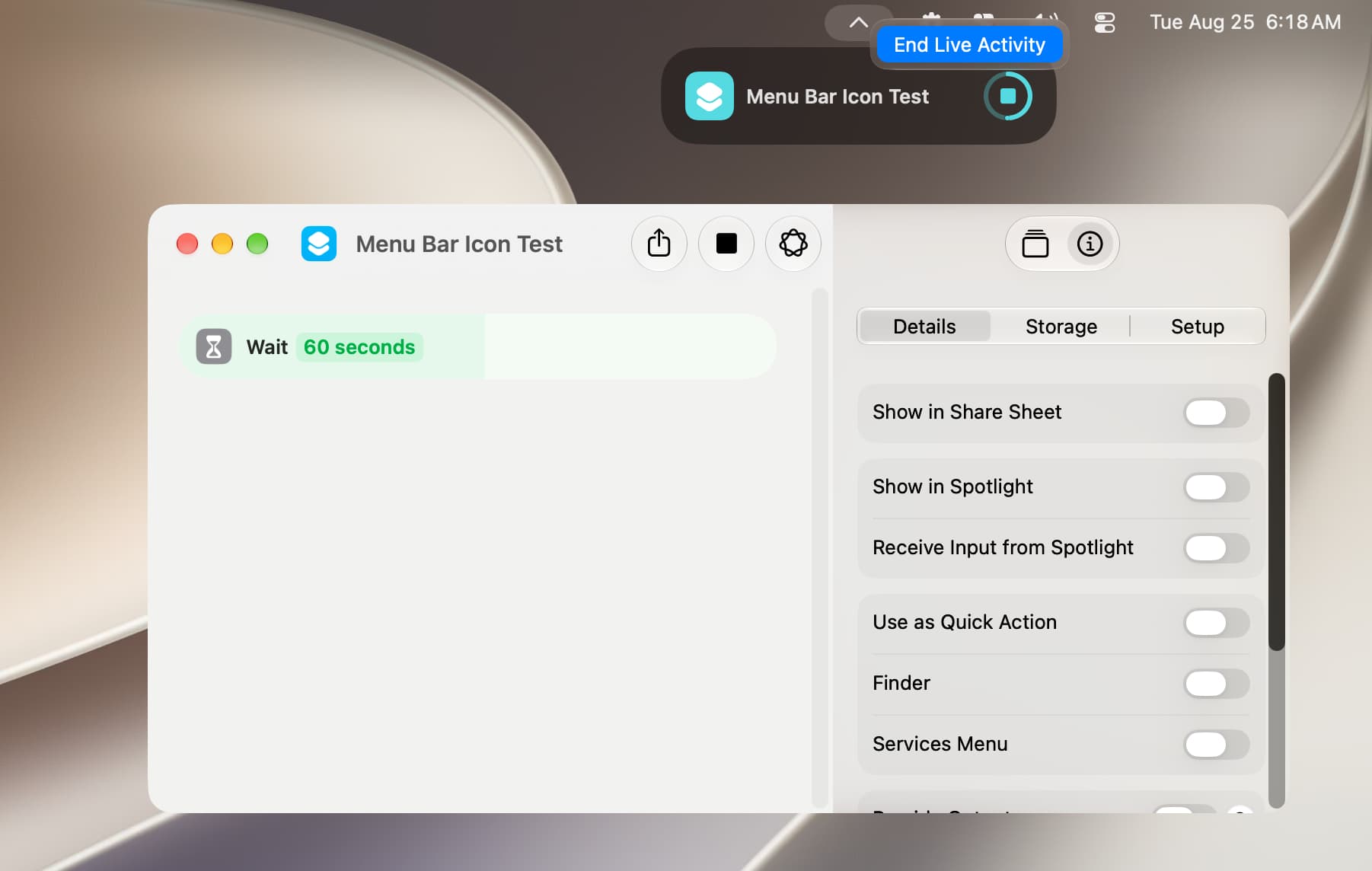
I installed macOS 27.0 Public Beta 5 and not much has changed with the Shortcuts app. At some point the menu bar icon that is displayed when a shortcut is running may have changed. Left-clicking on the icon shows an informational bubble with the shortcut name and completion status, and right-clicking on the menu bar icon shows an End Live Activity option. Perhaps this is old news that I missed.
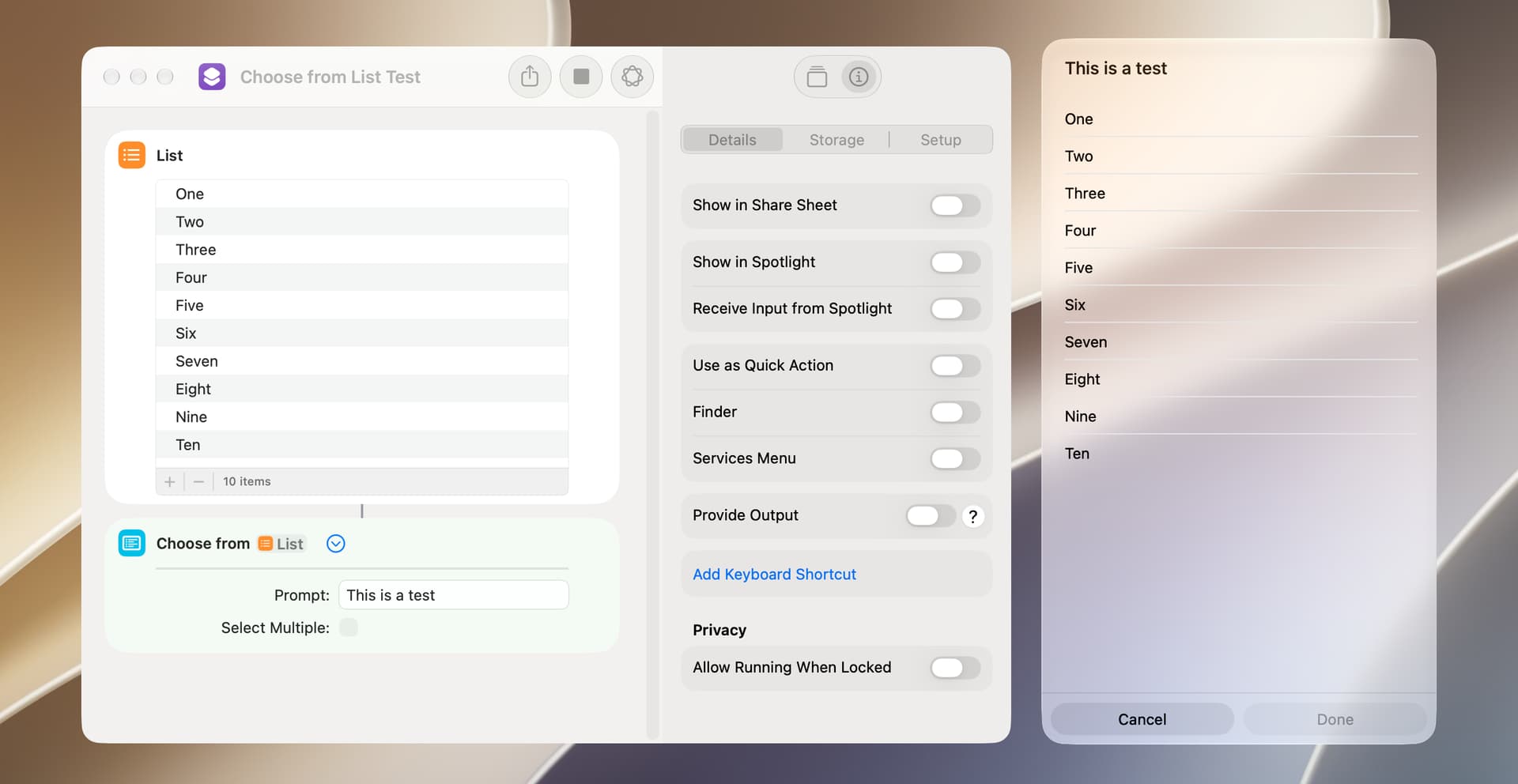
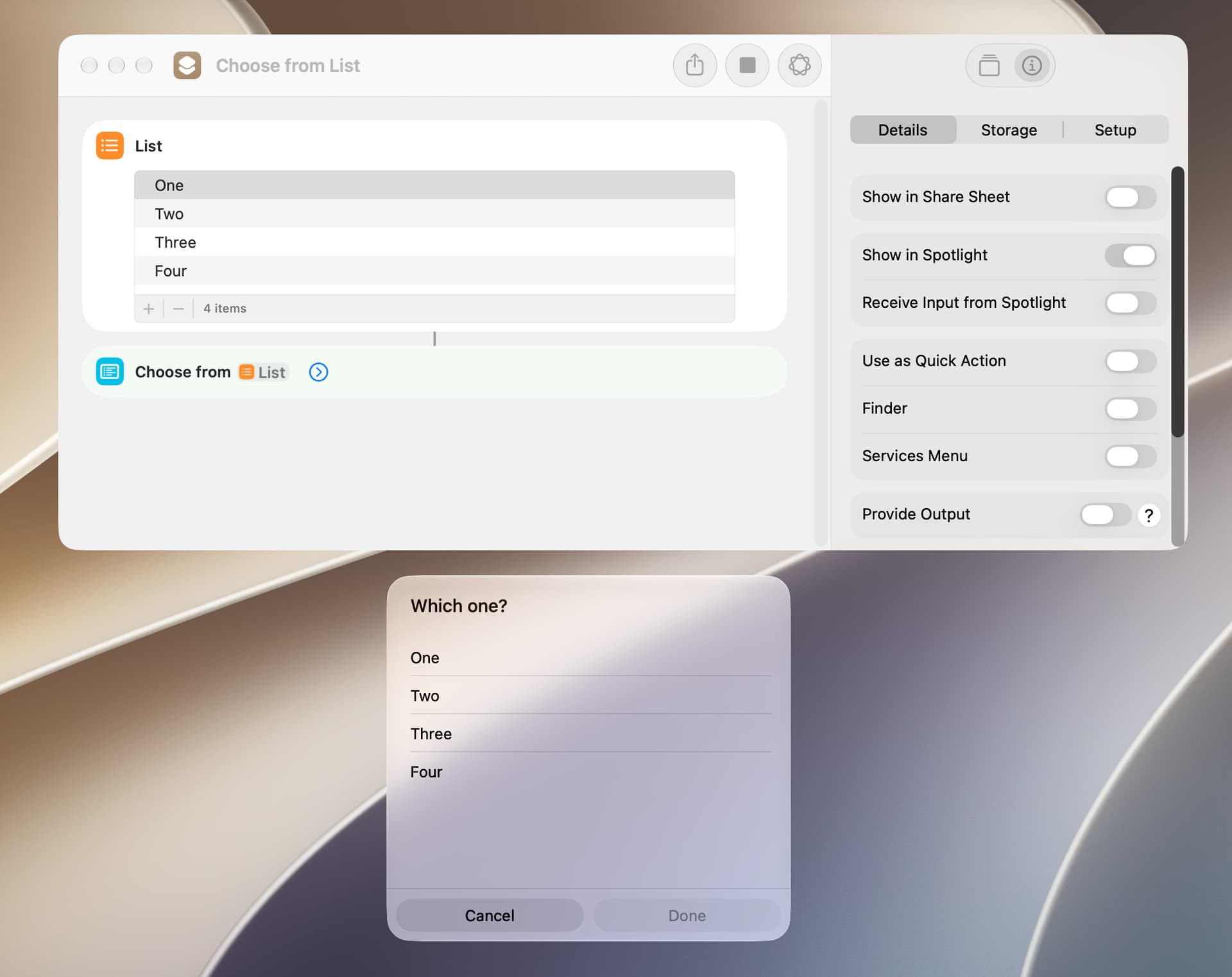
I’m on macOS 27.0 Golden Gate Public Beta 5, and a bug that adds empty dialog rows was introduced in the Choose from List and Choose from Menu actions a while back.
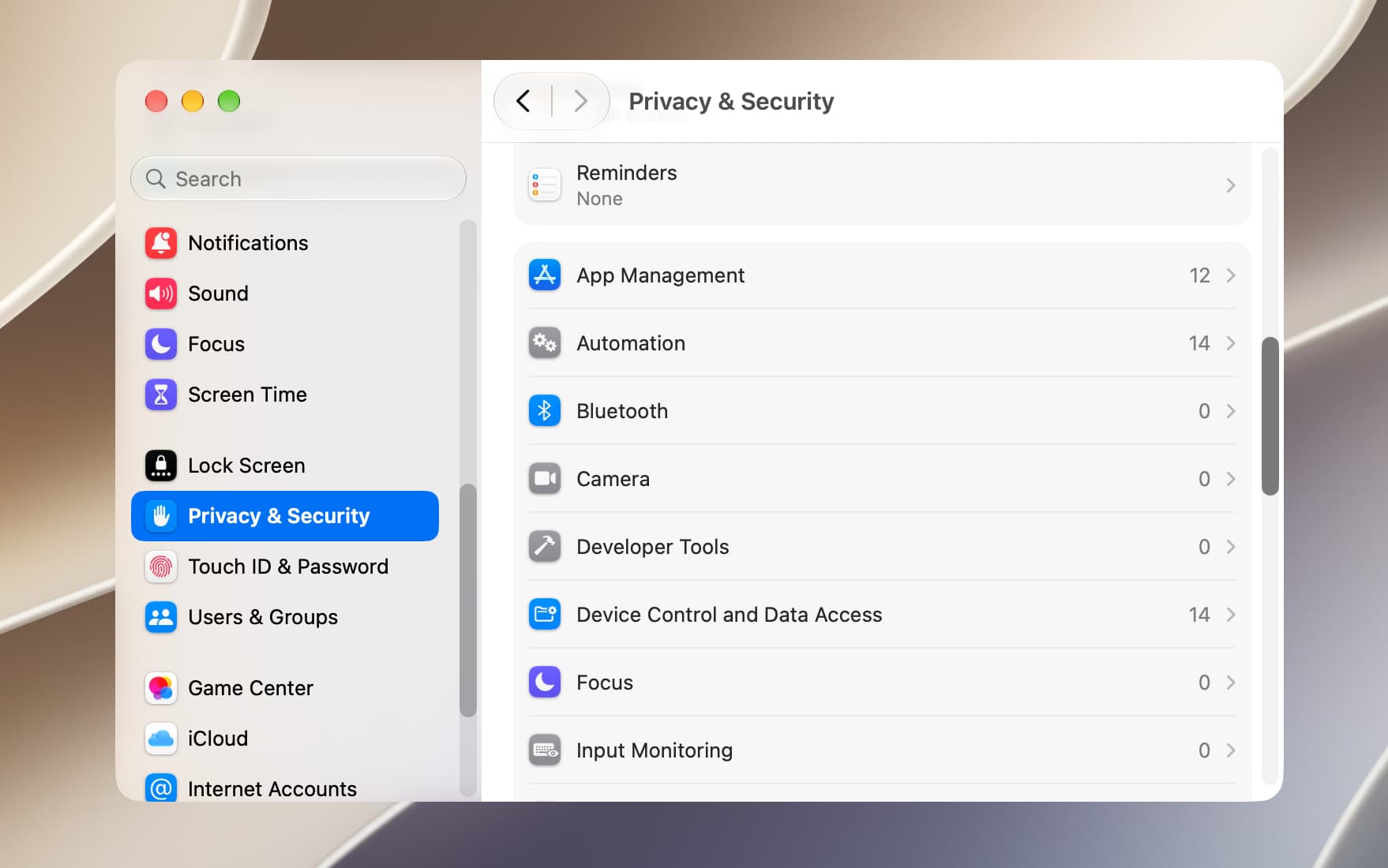
The entries in the Privacy & Security Pane of System Settings have changed a bit in Golden Gate, and Accessibility is now gone. I’m not sure of this, but it appears that Accessibility has been replaced with App Management and with Device Control and Data Access. After upgrading to Golden Gate, I do not recall any significant issues in this regard, so these changes appear mainly cosmetic.
In macOS 27.0 Release Candidate 1, there’s still a bug that occurs when you:
Install a shortcut by way of a file, which can be signed for Anyone or for People Who Know Me.
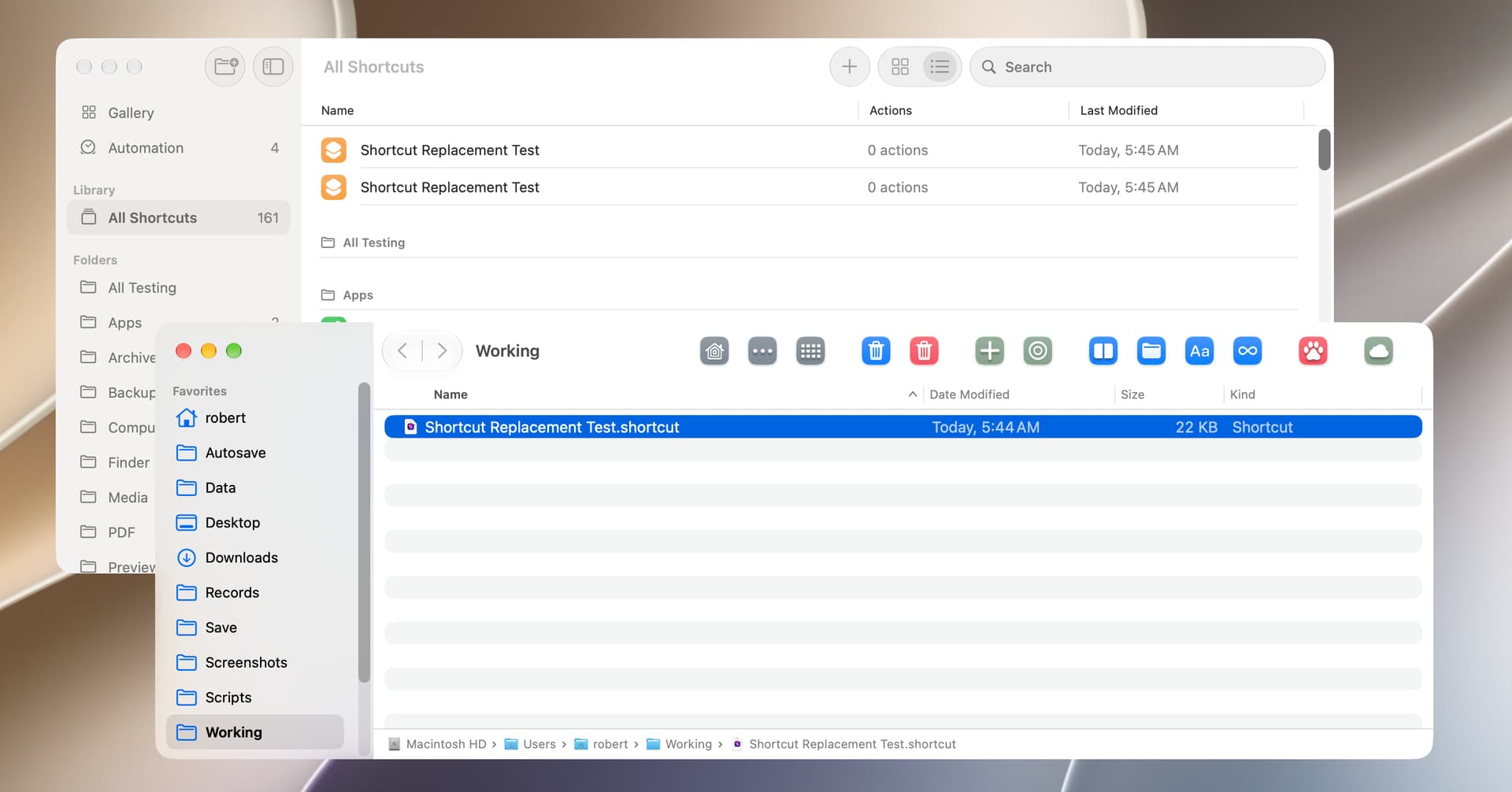
Install the same shortcut a second time and select Replace when notified that the shortcut already exists. This causes two instances of the shortcut to be shown (see screenshot below).
Install the same shortcut a third time and, once again, select Replace. This causes both of the existing instances of the shortcut to be removed and the third instance of the shortcut to be installed.
This is related to the Shortcuts thread, but I could not find a suitable place to post this, so I will leave it here.
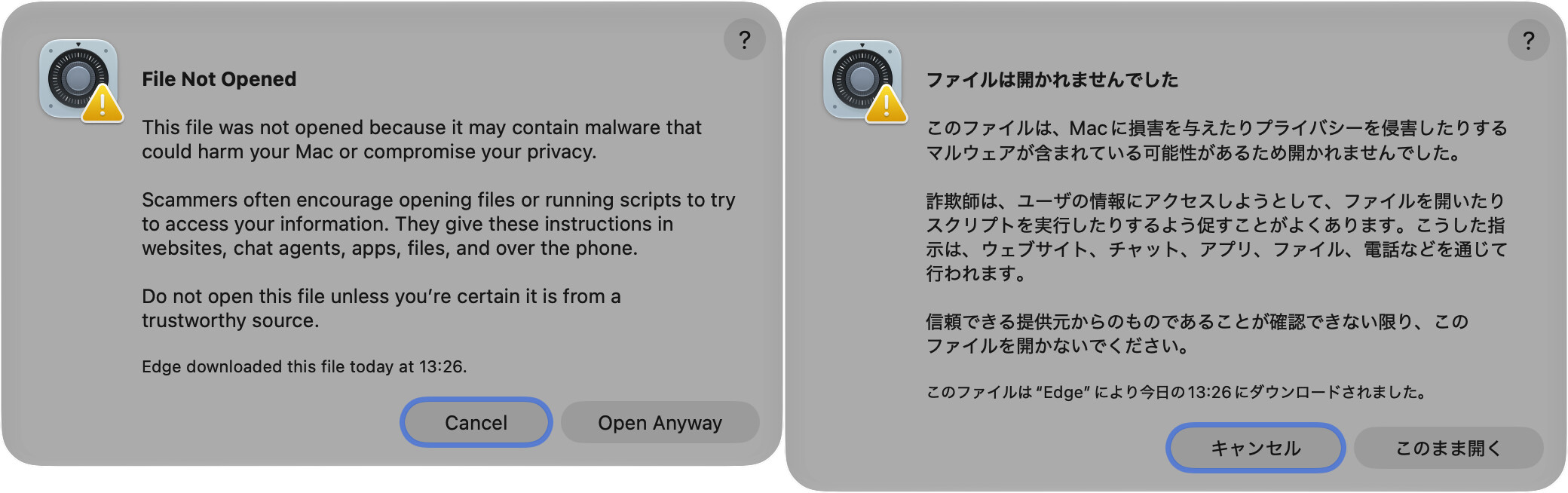
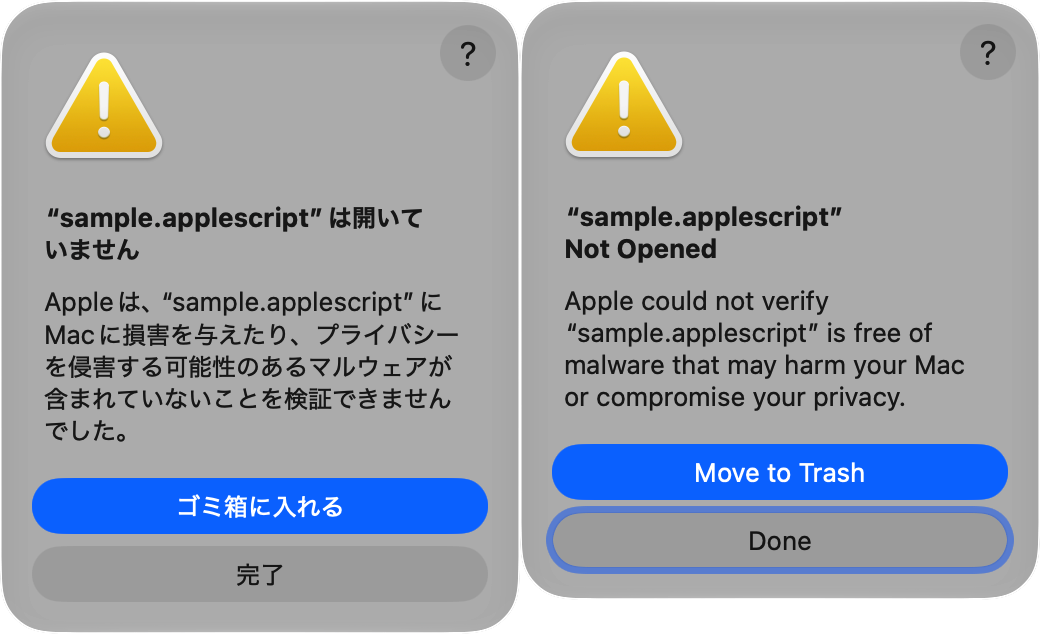
It seems that there is a change in Gatekeeper behavior in macOS 27.
It mainly seems to be related to downloaded files. In my environment, when a text-based AppleScript file with the .applescript extension has Extended Attributes (EA), and the com.apple.quarantine attribute is present, macOS 27 now shows the following warning.
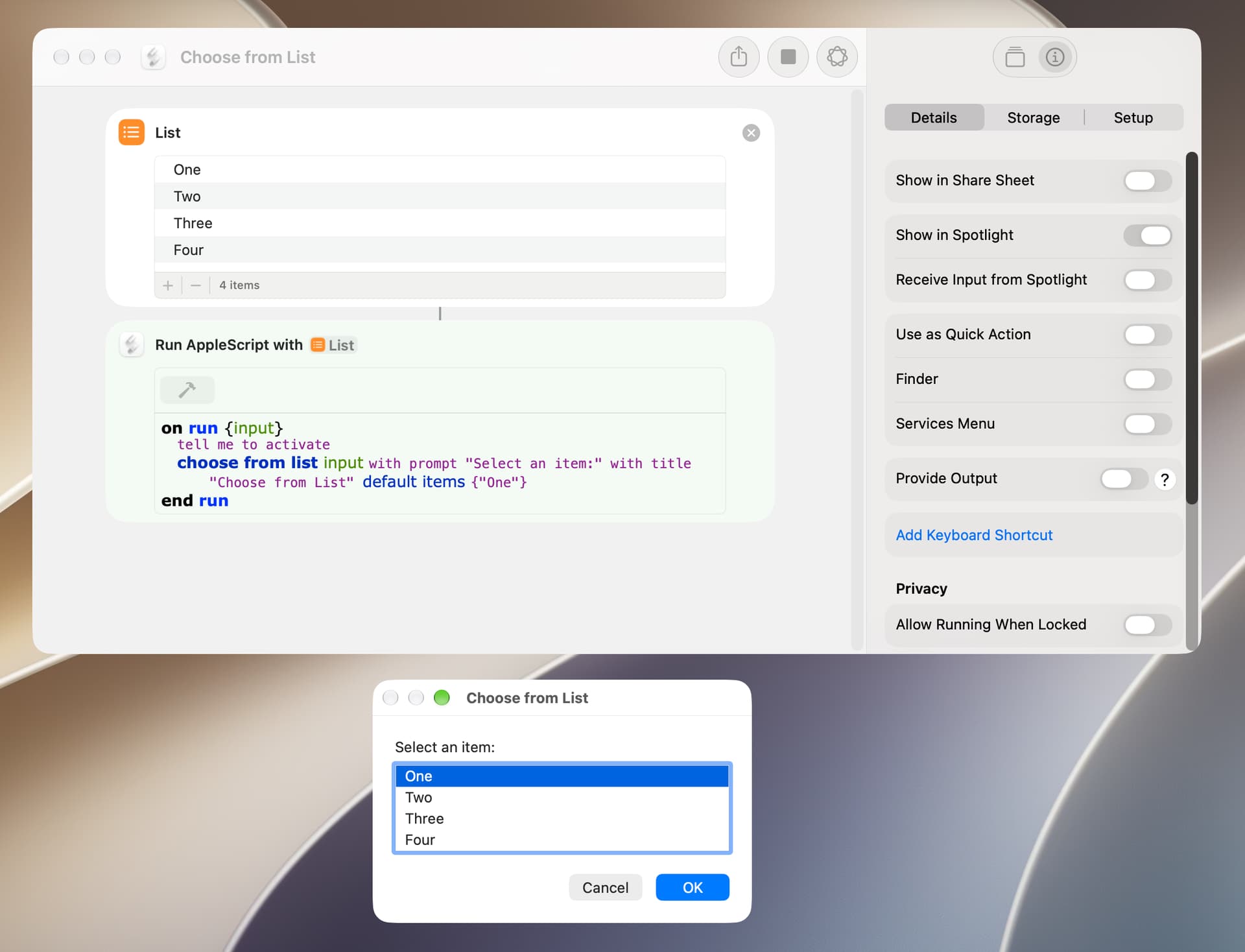
A few months back, I began having an issue with the Choose from List and Choose from Menu actions. More specifically, the dialogs do not size as expected and instead show significant blank space (or unused rows) at the bottom of the dialog. I had this issue on my M2 Mac mini running macOS 27.0 and I now have it on my M6 Mac mini running macOS 27.2 Public Beta 3.
I spent a fair amount of time researching this issue and found a few suggestions but none helped. Google AI reported that this “is a known rendering and layout bug”, and that would appear to be the case.
The release version of macOS Golden Gate 27.2 is available, and there’s not much in the way of changes to the Shortcuts app. The Quick Look utility will now reliably display shortcut files. Also, there was a cosmetic bug that occasionally prevented you from selecting a shortcut in the main Shortcuts app window, and that’s fixed. Unfortunately, the Choose from List action still displays blank space at the bottom of the dialog. I’ve given up on Email automations and didn’t test that.
Overall, the Shortcuts app works well and is a useful automation tool IMO.