Is it possible to produce an Apple Script that can be run within an Apple Shortcut that can delete files in a specified folder, but delete them without moving them into the Bin?
Daron. The answer to your question varies, depending on what input is received by the Run AppleScript action from the shortcut. I’ll assume that the input is the folder containing the files that will be deleted, and my suggestion (which worked on my Tahoe computer) is:
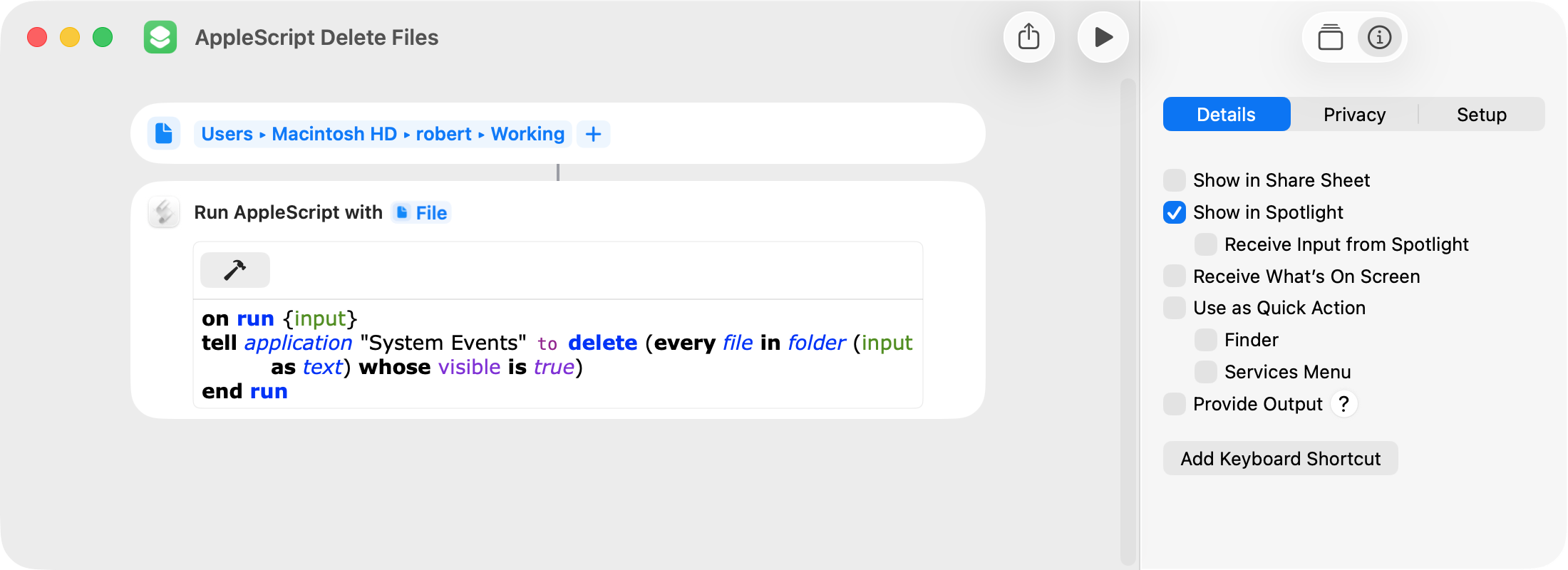
AppleScript Delete Files.shortcut (21.8 KB)
Just as a point of information (which I’m sure Daron is aware of), the same task can be performed natively with shortcut actions. This approach is significantly faster than the AppleScript solution.
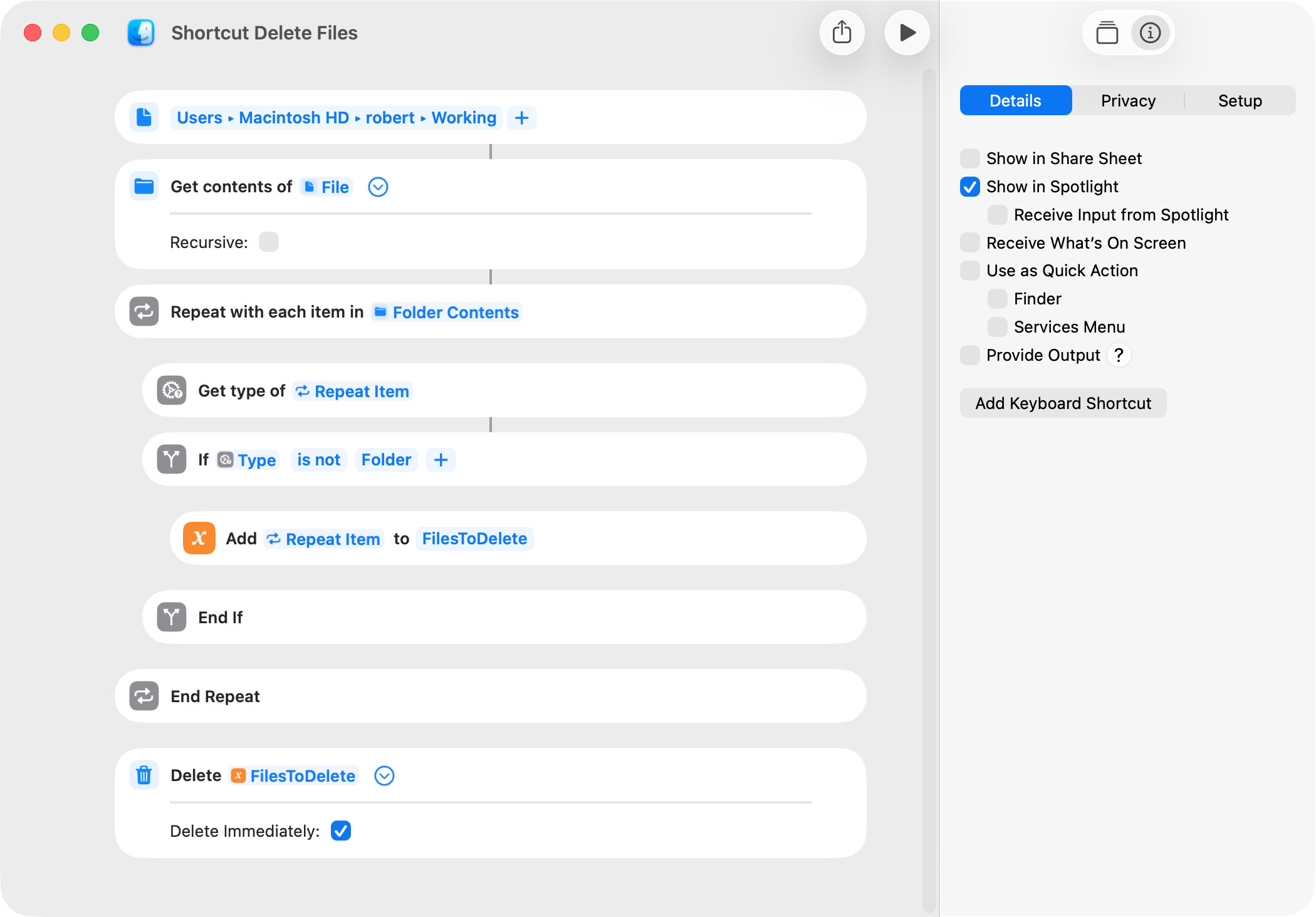
Shortcut Delete Files.shortcut (22.3 KB)
Thanks Bob, I prefer the AppleScript version, as the Apple Shortcut version always asks for the removal to be confirmed.
However ideally I want to run it as a script from within the Bloom File manager (which can use full Apple Script) so how would I update the script to specify the folder for it to work on from within the script itself?
That way I can use the script natively within Bloom…
If not possible, I can run the Apple Shortcut from Shortery as it is. No great rush and thanks as always.
Daron. I’m not familiar with the Bloom File manager, but the following are a few examples of AppleScripts that should do what you want:
--Example One
set theFolder to "Macintosh HD:Users:robert:Working:"
tell application "System Events" to delete (every file in folder theFolder whose visible is true)

--Example Two
set theFolder to (POSIX file "/Users/robert/Working/") as text
tell application "System Events" to delete (every file in folder theFolder whose visible is true)

--Example Three
set theFolder to (choose folder) as text
tell application "System Events" to delete (every file in folder theFolder whose visible is true)
BTW, System Events will not work with system aliases in recent versions of macOS.
Thanks as always. I’ll have a play as soon as time permits. Working with Bloom is never straightforward, so it’ll take me a while. In the interim I’m running the ‘Apple Script Shortcut’ via Shortery. Thank you.
You’re most welcome.
Just FWIW, the shortcut version that uses the Delete Files action can be made to skip the confirmation dialog by changing the Shortcuts App’s settings.
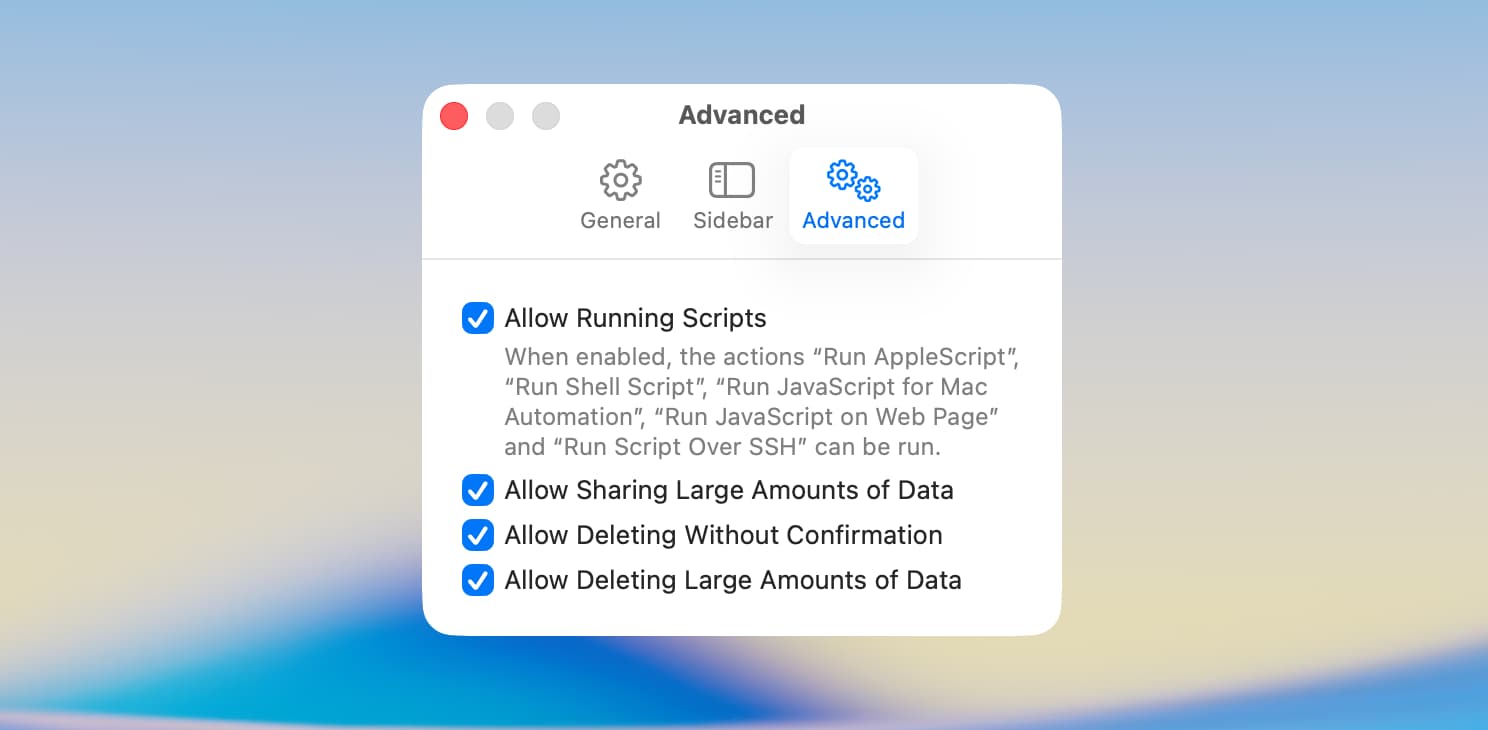
I tested this on my macOS 26.4 computer and confirmed that the confirmation dialog is not displayed when the Allow Deleting Without Confirmation option is enabled. However, this may not be a solution when the shortcut is distributed to other users or when you want to be prompted in some instances but not others.
Thanks makes sense.
The Bloom Developer did come back on the Apple Script version saying ‘I think you should be careful with this. It’s better to specify the directory explicitly, rather than using the filter “visible is true”. Sometimes, the script might remove files unexpectedly’.
Does that make sense?
It doesn’t make sense to me because:
-
the first of my two example AppleScripts explicitly specify the folder that contains the files that will be deleted;
-
my third example AppleScript prompts the user to select the folder that contains the files that will be deleted; and
-
the visible-is-true filter prevents hidden files from being deleted (which I assume you do not want to delete) and has nothing to do with folders.
Perhaps I don’t understand what the Bloom developer is saying? I don’t know how my AppleScripts could remove files unexpectedly.
I’m glad you say that as it didn’t make sense to me either. 
1 Like
The bash / zsh rm (“remove”) command deletes files or folders immediately, no “Are you sure” or “Empty Trash”. (No Undo either, so be careful).
remove one or more files:
rm /path/to/a/file /path/to/another/file
use the -r flag (“recursive”) to delete a directory (folder) and its contents (including subdirectories):
rm -r /path/to/some/folder
use a wildcard to delete the entire contents of a directory, but not the directory itself:
rm -r /path/to/some/folder/*
1 Like
Ah ha thanks Luke that is very useful!