This is my first post here, please be gentle with me!
I take a lot of sports photogrpahs and a number recognition system adds the ‘found numbers’ to the keywords tag. This works well, bu, when it finds more than one number it gives me back (for example) 12,15 in this field.
My ‘ultimate’ solution would be to make duplicate copies of the image each with just one of the ‘found numbers’
My irst step is to actually find the comma in the keywords. If I manually change the comma to a semicolon, automator can find that.
I’ve tried various approaches with exiftool - the best I’ve got so far is that it returns the info wrapped in quotes - for example “12,25”
Is there an escape sequence I can use with automator - or any other tool.
I’ve been in IT for nearly 50 years and retired for 18 months… I’ve definitiely forgot more than I currently know!
Thank you for any help
Hello.
My English is not good, so maybe I misunderstand your question.
But I think you mean something like this. What do you think?
I hope this will be helpful.
#!/usr/bin/env osascript
#coding: utf-8
use AppleScript version "2.8"
use scripting additions

set strSeparator to (",") as text

set strMetaNO to ("12,15") as text
if strMetaNO contains strSeparator then

	set strDelim to AppleScript's text item delimiters
	set AppleScript's text item delimiters to strSeparator
	set listMetaNO to (every text item of strMetaNO) as list
	set AppleScript's text item delimiters to strDelim

	set strFirstItem to (first item of listMetaNO) as text
	log strFirstItem
	--> 12
	set strLastItem to (last item of listMetaNO) as text
	log strLastItem
	--> 15
else
	set strFirstItem to strMetaNO as text
	log strFirstItem
end if

###########
set strMetaNO to ("12") as text
if strMetaNO contains strSeparator then

	set strDelim to AppleScript's text item delimiters
	set AppleScript's text item delimiters to strSeparator
	set listMetaNO to (every text item of strMetaNO) as list
	set AppleScript's text item delimiters to strDelim

	set strFirstItem to (first item of listMetaNO) as text
	log strFirstItem

	set strLastItem to (last item of listMetaNO) as text
	log strLastItem

else
	set strFirstItem to strMetaNO as text
	log strFirstItem
	-->12
end if
Generally, when keywords are stored in IPTC data, the convention for compatibility is comma-separated entries. Some images store these keywords in XMP data, not in IPTC data, so there is that additional complexity.
To get the first (0-based) item in a list of keywords using ExifTool, one uses a special argument:
exiftool -s3 -listItem 0 -IPTC:Keywords /path/to/image
Also the Finder Window Spotlight (case-insensitive) search for a known keyword is:
kind:image name:.jpg keyword:austria
Mike. I’ve included a shortcut below that does what you want. Your request was more limited in scope, but I was interested in writing a shortcut that did everything. A few comments:
-
macOS Monterey 12.0.1 or later is required. If you’re running an earlier version of macOS, a different approach will have to be used.
-
I’ve tested the shortcut on macOS Golden Gate 27.2 without issue.
-
The shortcut looks for keywords that contain one or more digits (i.e. numbers) followed by a comma followed by one or more digits. If no such keywords are found, the shortcut will report that no matching files were found.
-
Multiple calls are typically made to the
exiftoolutility, and this will slow the shortcut if the number of files being edited is large. There’s no way around this. -
The original file is edited and a duplicate of the original is saved. This seemed the most reliable approach, although the shortcut could be changed to edit the duplicate file.

Edit Keywords of JPG Files.shortcut (24.5 KB)
BTW, if my shortcut does too much, let me know and I’ll remove the extraneous portions.
Hello Icefole (or I think icefloe :))
Thank yopu for the code there, I’ll have a good luck through that.
I’ve bough the best couple of applescript books I could find and I’m very much a new user with AppleScript, Automator, shortcuts etc.
I’ll have a look through and I’ll respond back
Hello
Thanks for putting this info here for me.
I do see systems putting info into the IPTC keywords field with commas to sperate.
Sometimes, this is okay for me.
In this case, I want to work through the images and find the comma, then do something wioth it.
I think if you look at the information from peavine that it may be the solution I’m after.
Hi peavine,
Thank you so much for your work there, this looks amazing.
Just before I run it, please can I check something with you, and this may be linguistics rather than a system query!
Is your code looking for this character ; or this character ,
(I’m trying to work out if -csv -csvDelim “;” is saying 'when you read the file, replace the delimiter with a semi-colon)
I’ll see how I get on!
Thank you so much
Hi Peavine,
I’m beginning to understand what the script is doing and it is really helpful.
I’m not sure of the etiquette of this group - is it best to try steppimg through this with you in the open group, so anyone that wants to see what’s developing can see it, or is it best to send messages to you?
Thank you so much for your help.
Mike
Mike. The following command-line creates a multiline string, and each line of the string contains the path to the source file followed by a delimiter followed by the keywords. The default delimiter is a comma, which wouldn’t work in my shortcut, so I used a semicolon instead. That’s the purpose of the -csvDelim option.
exiftool -csv -csvDelim ";" -SourceFile -Keywords "$@"
I reread your original post and concluded that I may have misunderstood your request. The following proof-of-concept (and somewhat kludgey) shortcut does the following:
- Find all JPG files that have a keyword consisting of one or more digits then a comma then one or more digits (call it a digit-comma-digit keyword).
- Get the leading digits from the digit-comma-digit keyword.
- Create a copy of the source file with a keyword that contains the digits from step 2 but not the digit-comma-digit keyword.
- Get the trailing digits from the digit-comma-digit keyword.
- Create a copy of the source file with a keyword that contain the digits from step 4 but not the digit -comma-digit keyword
- The new files have the same name as the source file but with the applicable digits appended.
The following screenshot shows four source files (three with digit-comma-digit keyword) and the duplicate files created by the shortcut. In this example, “Test A (3).jpg” should be "Test A (33).jpg, and I’ll fix that.
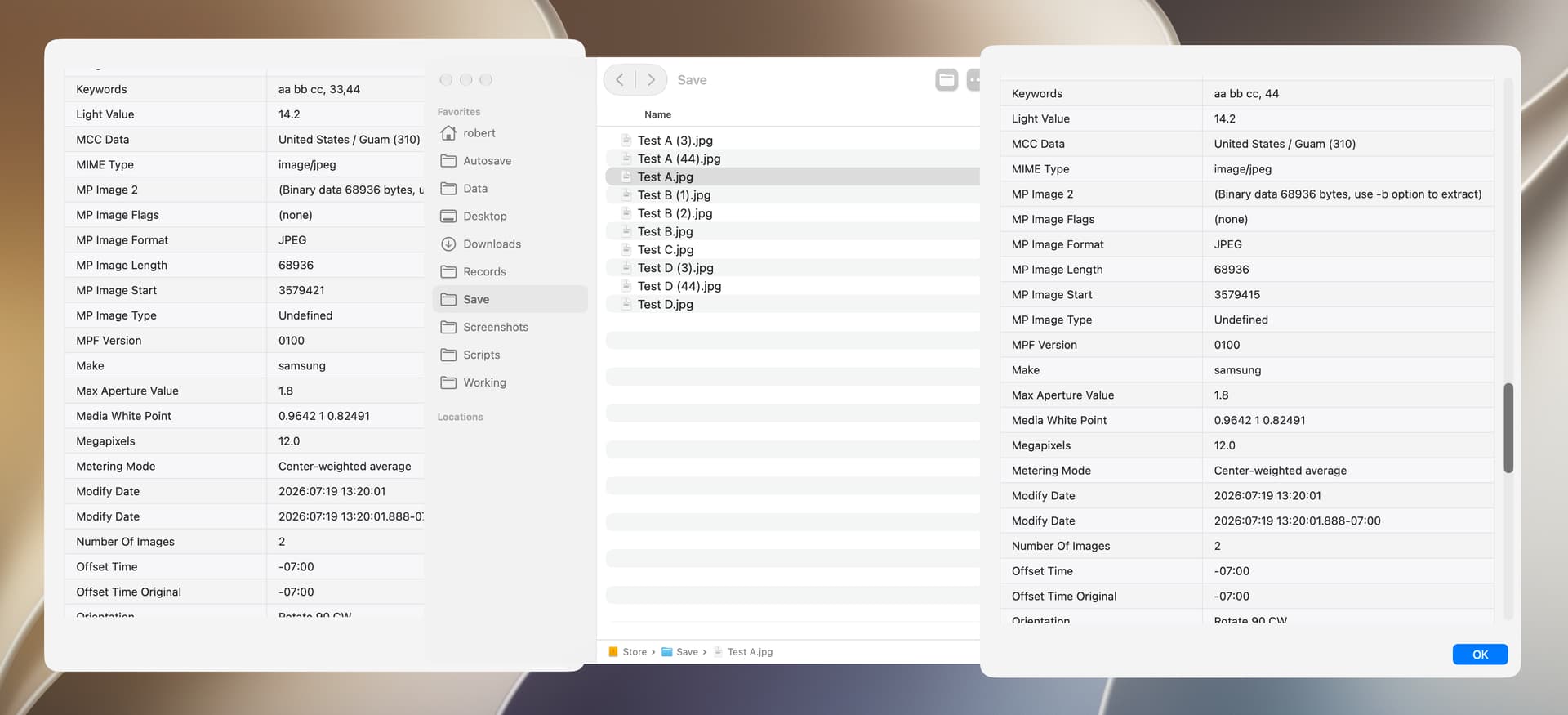
This is the new shortcut.
It’s better to do this in the forum, so that interested forum members can see how things progress and to offer suggestions.
Thank you - I will do.
My images do have a comma separator in the keywords.
I ran your script and added a ‘show shell script result’
This gaveme lines of test with full-path-and-file-name;keyword,keyword
(This is a fantastic step for me as even this list would give me something to work with!)
The next test of ‘if matching files’… then said nothing was found.
I’ve just spotted the other codes you’ve uploaded and I’ll have a look, thank you again!
I’m using the second script. I’ve added a few bits because of my odd situation. Some of my image files are .JPG so I’ve added that (I’ll probably add .jpeg and .JPEG as well).
I’ve also added a show shell script result which gives this
SourceFile;Keywords
/Users/mikemcsharry/Desktop/test-comma-keywords/originals/test-image-6.JPG;23
/Users/mikemcsharry/Desktop/test-comma-keywords/originals/test-image-7.JPG;12
/Users/mikemcsharry/Desktop/test-comma-keywords/originals/test-image-5.JPG;12, 17
/Users/mikemcsharry/Desktop/test-comma-keywords/originals/test-image-4.JPG;11, 25, 45
/Users/mikemcsharry/Desktop/test-comma-keywords/originals/test-image-1.JPG;portrait
/Users/mikemcsharry/Desktop/test-comma-keywords/originals/test-image-3.JPG;
/Users/mikemcsharry/Desktop/test-comma-keywords/originals/test-image-2.JPG;——
(The ‘portrait’ and ‘____’ keywords are genuine responses from the tagging system I use so they are okay.
The program then stops with the message of ‘no JPG files…’
The File Extension option in the Filter Files action is not case sensitive in my testing. So, I think you only need jpg and jpeg.
The shortcut uses a regex that looks in each file’s keywords for one or more digits followed by a comma followed by one or more digits (no spaces). None of your files match that pattern, and that’s why you get the no-JPG-files dialog.
Using the shell script result in your post, we need to construct a pattern that will match whatever should be matched. For example, in the following example, the numbers 11, 25, and 45 might be matched.
/Users/mikemcsharry/Desktop/test-comma-keywords/originals/test-image-4.JPG;11, 25, 45
Once the above is resolved, what should the rest of the shortcut do?
Ah! The spaces. I’m just going to check something. For the samples I’ve used, I’ve manually entered the numbers. I’m just going to check what te numbering system does.
The tagging system does exactly as shown above. It adds
xx, yy, zz
So firstnumber comma space secondnumber comma space thirdnumber
(I’m pretty sure it adds subsequent numbers as comma space number)
Mike. I wrote a regex pattern that will filter files and create the necessary list. It’s a bit of a kludge but will do until something better comes to mind. What did you want the remainder of the shortcut to do?
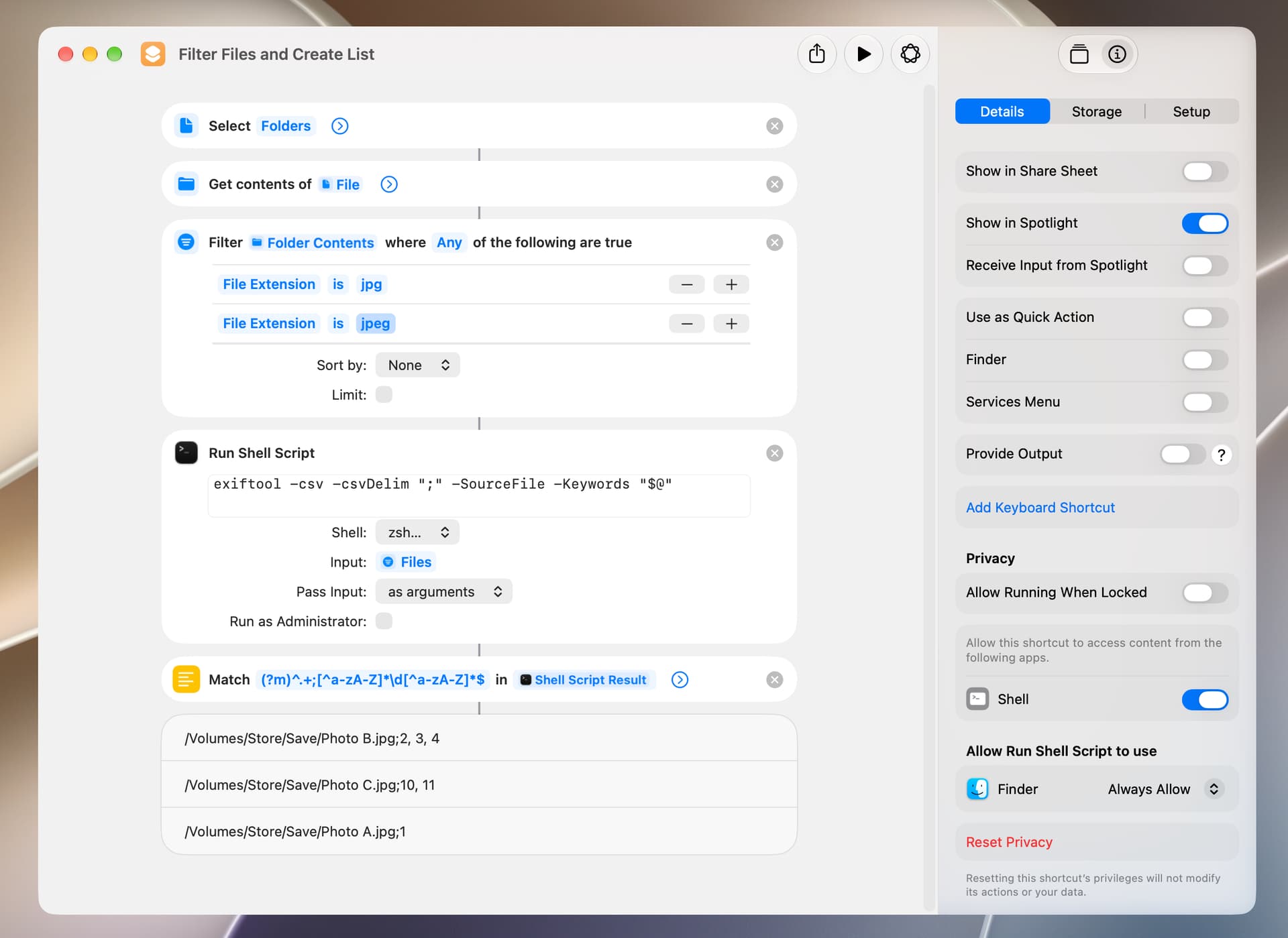
Filter Files and Create List.shortcut (22.4 KB)
You are so helpful. Thank you.
I’m trying to interpret the Match statement…
I found your post from August 25 and am trying to work out what this match statement does…
You mention your regular expression notebook? I’m going searching for that!!
Let’s see if I understand this…
Shell Script Result is the string returned by the script call to exiftool.
The exiftool call is 2 lines of code and says give me the filename and the contents of the keywords field.
The match statment is going to filter the reply from the script call and breaking this down
(?m)^.+;[^a-zA-Z]\d[^a-zA-Z]$
[^a-zA-Z] match any character except a-z and A-Z - so if the string includes letters upper or lower case then ignore it. In my case the “portrait” tag
Not sure what (?m) does
The ^ is something to do with the start of the line and the $ is something to do with the end of the line
\d is something to do with matching any character…
I’m now completely lost!
It’s obviously working as this is my ‘show shell script result’
SourceFile;Keywords
/Users/mikemcsharry/Desktop/test-comma-keywords/originals/test-image-6.JPG;23
/Users/mikemcsharry/Desktop/test-comma-keywords/originals/test-image-7.JPG;12
/Users/mikemcsharry/Desktop/test-comma-keywords/originals/test-image-5.JPG;12, 17
/Users/mikemcsharry/Desktop/test-comma-keywords/originals/test-image-4.JPG;11, 25, 45
/Users/mikemcsharry/Desktop/test-comma-keywords/originals/test-image-1.JPG;portrait
/Users/mikemcsharry/Desktop/test-comma-keywords/originals/test-image-3.JPG;
/Users/mikemcsharry/Desktop/test-comma-keywords/originals/test-image-2.JPG;——
and only images 6 7 5 and 4 were returned by the Match statement - so only images which included images with numbers
Mike. Your understanding of the exiftool call is correct.
The regex pattern simply matches every line of a string that contains a number and does not contain a letter after the semicolon. The breakdown of the pattern is:
(?m) - is a flag option that directs the regex to treat each line of the string as a separate entity
^ - is the beginning of a string but because of the flag option is the beginning of a line
.+ - the dot matches any character and the plus requires one or more matches (this matches the file path)
; - a literal semicolon
[^a-zA-Z]* - The [^a-zA-Z] part of the pattern does not match a lowercase or uppercase letter in the range of a to z and the asterisk requires 0 or more matches (the Match Text action has a lowercase option so [^a-z] should work)
\d - a single digit in the range of 0 to 9
[^a-zA-Z]* - as above
$ - is the the end of the string but because of the flag option is the end of a line
The Match Text action creates a list of items that match the regular expression. In this particular circumstance, the items are matching lines of the text.
My regex skills are pretty basic, and I suspect the regex pattern works but is flawed.
Your regex skills are a million miles ahead of mine!
I’ve been experimenting with the tagging software I use and also with Photomechanic and also with Windows.
It seems that the extra space after the comma after the first tag (and subsequent tags) is entered by various things and I think I have to assume it will be there at this stage.
eg - I used windows to manually add tags 12,23 in the properties → details window. When I opened the window again it was 12, 23
(I currently use both Windows and mac, and am moving across to mac as soon as I can afford a reasonable spec macbook air or pro - busily watching the prices on apple refurb).