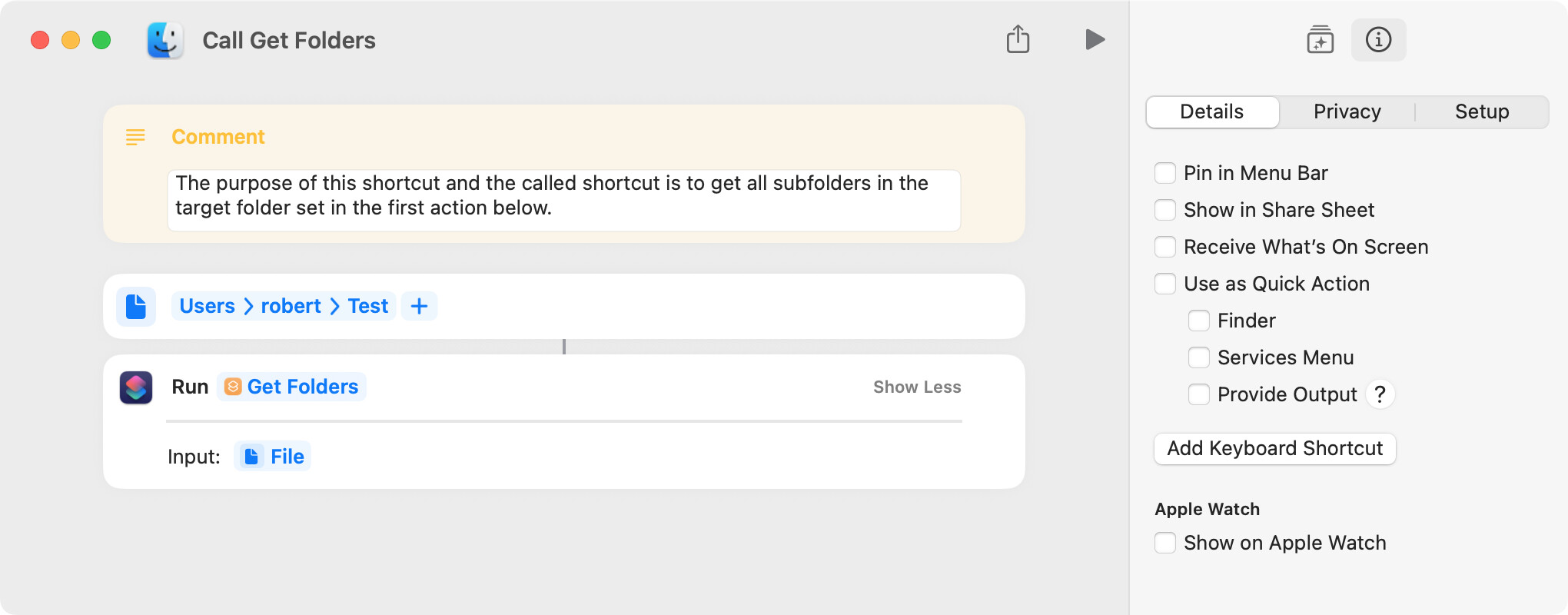
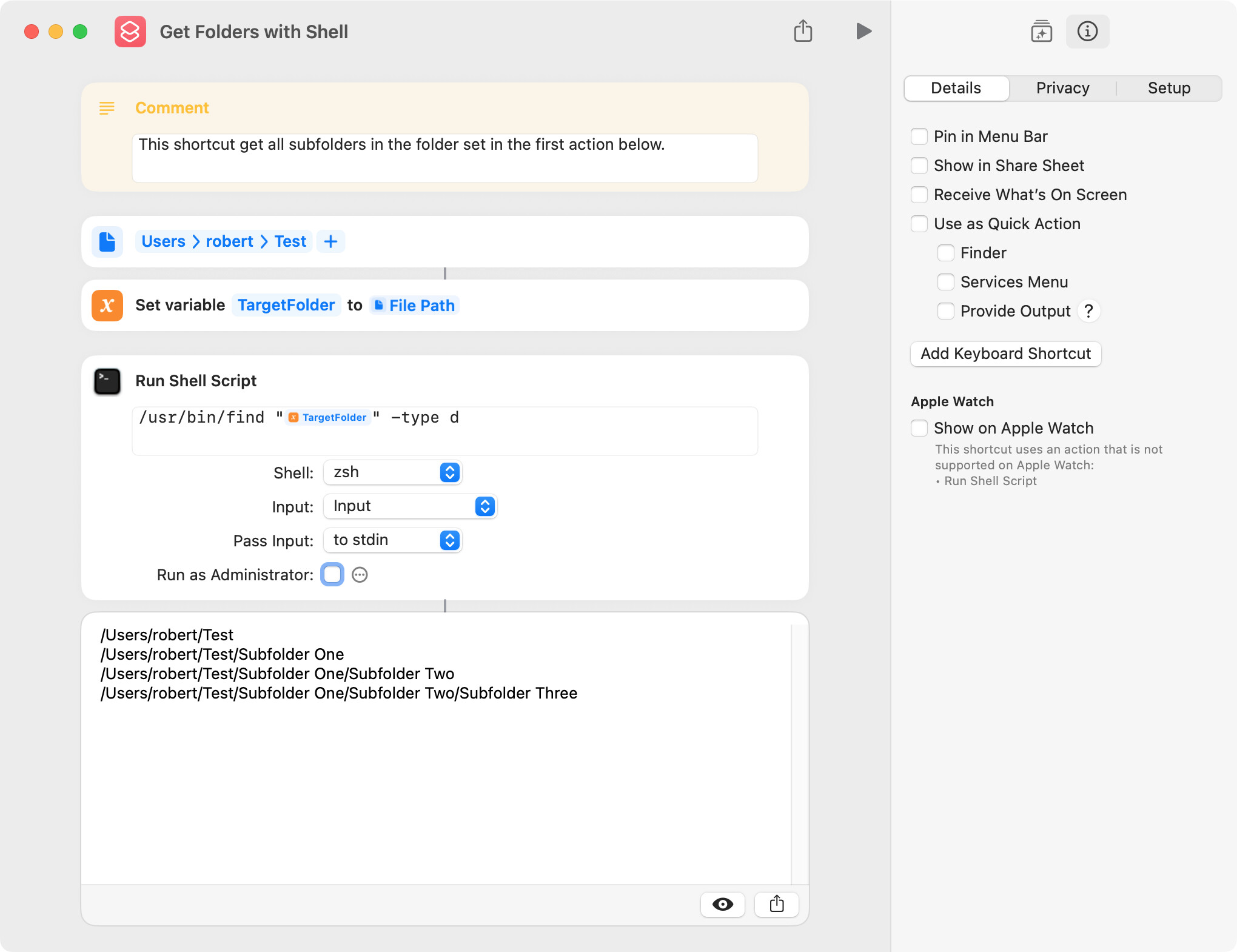
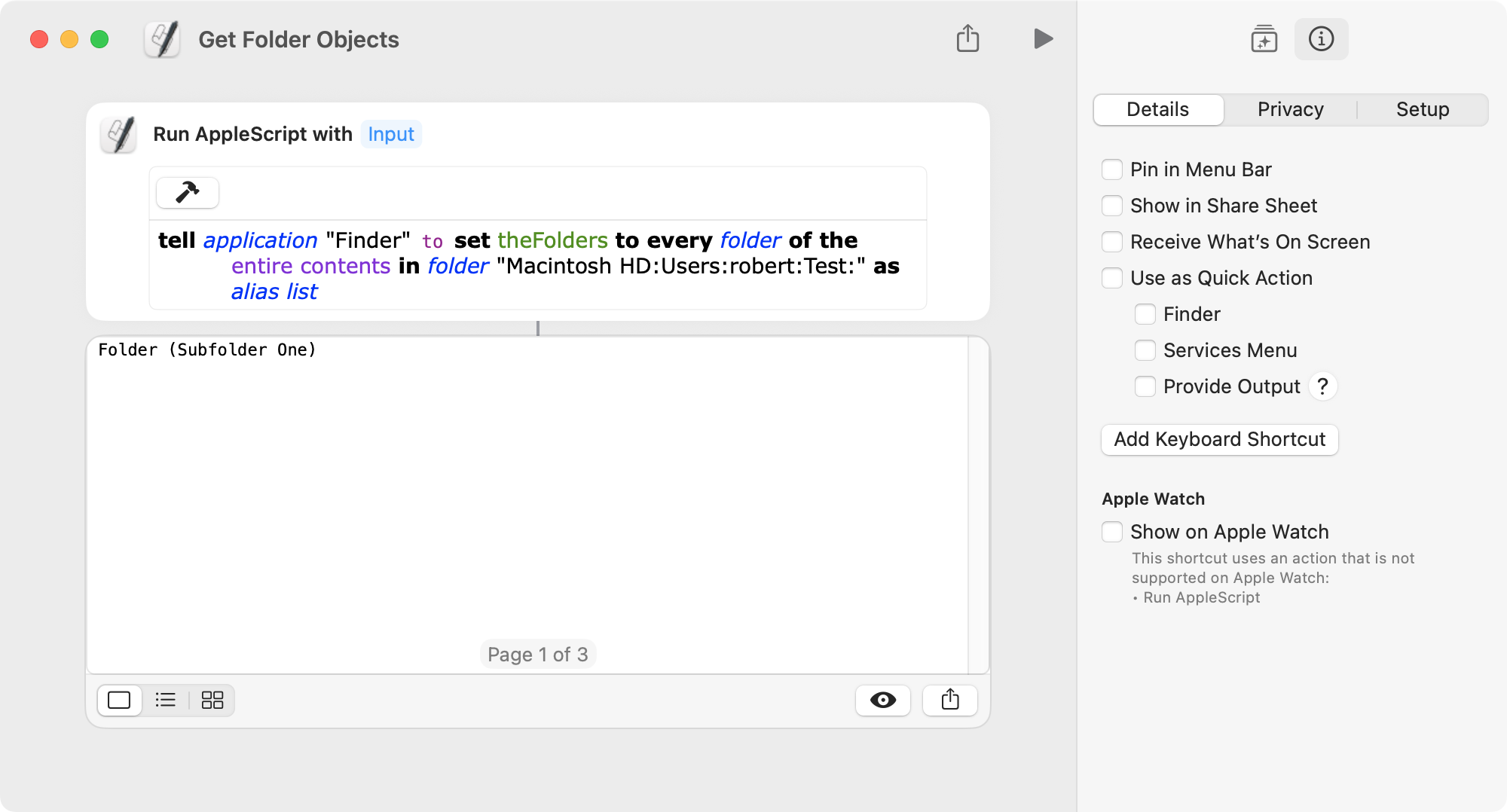
As far as I am aware, it is not possible with a shortcut to recursively get all subfolders (including empty subfolders) in a target folder. A possible alternative is to call a second shortcut that is recursive, but I can’t seem to get this to work. Thanks for any help.
Thanks Stefan. That approach works well and will be useful in many instances (see screenshot below). However, the Find command returns POSIX paths, which cannot be used in many shortcut actions. I don’t believe there is a shortcut equivalent of AppleScript’s POSIX file.
Please try this AppleScript, it converts the POSIX paths to the universal class furl
set rootFolder to quoted form of POSIX path of (choose folder)
set allFolders to paragraphs of (do shell script "/usr/bin/find " & rootFolder & " -type d")
set theResult to {}
repeat with aFolder in allFolders
	set end of theResult to aFolder as «class furl»
end repeat
return theResult
Thanks Stefan. That does work, and, FWIW, Finder can also be used. In both cases, folder objects that can be used directly in a shortcut action are returned.
Sure, this script creates a plain text file on desktop with name FoldersOf plus the name of the chosen folder
set rootFolder to (choose folder)
tell application "System Events" to set folderName to name of rootFolder
set destinationFile to quoted form of (POSIX path of (path to desktop) & "FoldersOf" & folderName & ".txt")
do shell script "/usr/bin/find " & quoted form of POSIX path of rootFolder & " -type d > " & destinationFile
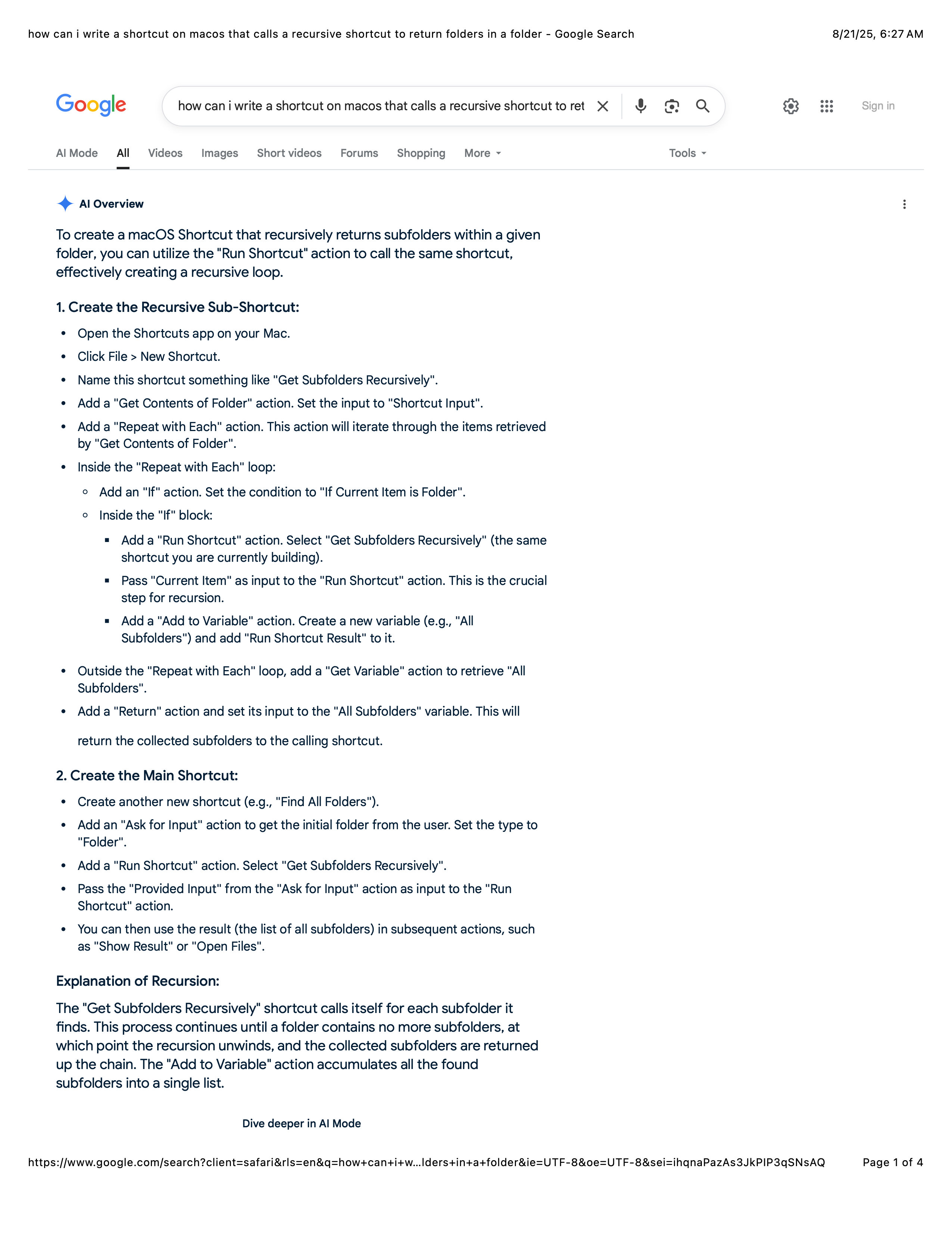
I decided to see if Google AI might have a solution. After creating the two shortcuts, it occurred to me that they were surprisingly similar to the shortcuts I included in post 1. The Google AI shortcuts didn’t work (even after correcting a few obvious errors).
I think the answer may lie in returning as input a list of the subfolders when the second shortcut calls itself. I’ll keep at it.
I’m making progress. I found that the recursion was working and that the subfolders were found. The issue is the procedure by which the subfolders are made into a list and returned to the calling shortcut.
To confirm this, I rewrote the recursive shortcut to append the POSIX paths of the subfolders to a text file, which worked well. To test these shortcuts, the target folder and the folder that will contain the text file need to be set, and the name of the called shortcut may also need to be set.
If this was an AppleScript, I would make the recursive shortcut into a handler, and add the subfolders to a list, which I would make global. It’s the global part that can’t be done with a shortcut.
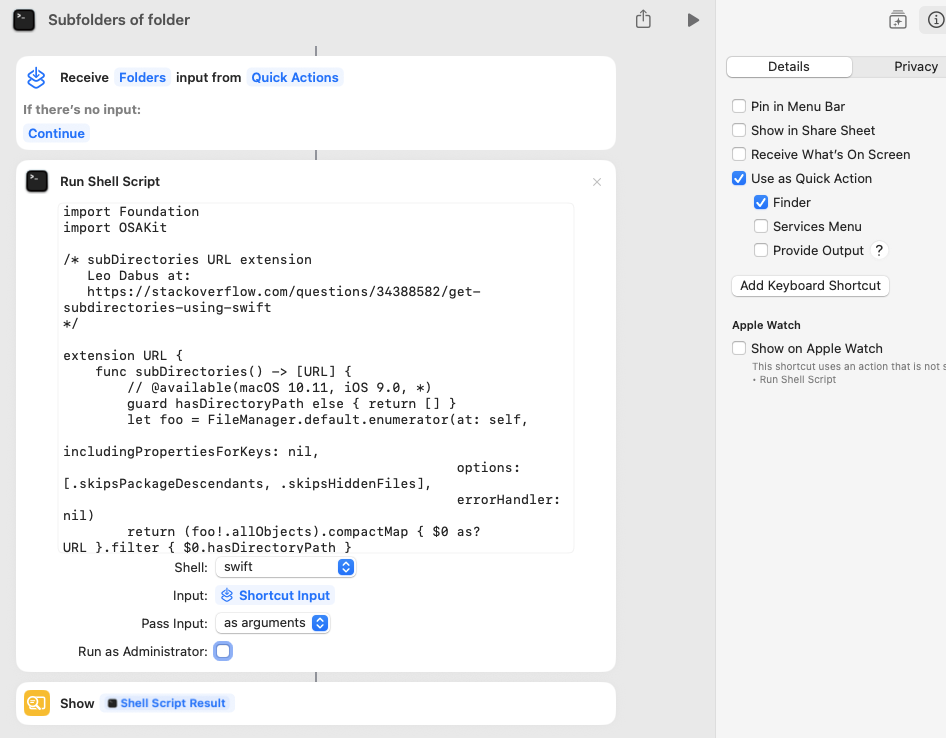
This is a revision of my post on 2025-08-24 that stated folder recursion, but used the wrong FileManager function to achieve that goal. It now does folder recursion returning an array of URLs and optionally (by uncommenting), a list of HFS paths for those URLs.
The entire Swift code that goes into the Run Shell Script:
import Foundation
import OSAKit

/* subDirectories URL extension
   Leo Dabus at:
   https://stackoverflow.com/questions/34388582/get-subdirectories-using-swift
*/

extension URL {
    func subDirectories() -> [URL] {
        // @available(macOS 10.11, iOS 9.0, *)
        guard hasDirectoryPath else { return [] }
        let foo = FileManager.default.enumerator(at: self,
                                                 includingPropertiesForKeys: nil,
                                                 options: [.skipsPackageDescendants, .skipsHiddenFiles],
                                                 errorHandler: nil)
        return (foo!.allObjects).compactMap { $0 as? URL }.filter { $0.hasDirectoryPath }
    }
}

var args: [URL]
var subDirs: [URL]

args = CommandLine.arguments.dropFirst().map { URL(fileURLWithPath: $0).standardizedFileURL }

// args.first contains the folder URL selected in the Finder
subDirs = args.first!.subDirectories()

let tildePath = (args.first!.path as NSString).abbreviatingWithTildeInPath
print("Subfolders of:  \(tildePath)")
print(String(repeating: "_", count: 14), terminator: "\n")

// as folder names
subDirs.forEach {
   print(($0.path as NSString).abbreviatingWithTildeInPath)
}

// as optional HFS subfolder paths
/*
print("\n")
print("HFS subfolders of:  \(tildePath)")
print(String(repeating: "_", count: 18), terminator: "\n")
subDirs.forEach { print(($0.path as NSString).value(forKey: "_osa_hfsPath")!) }
*/
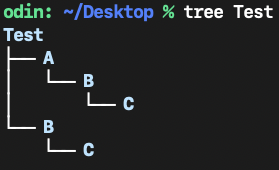
The Test folder hierarchy:
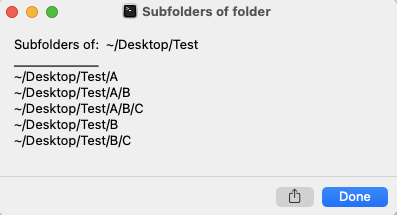
and the result of the Shortcut (with HFS output suppressed):
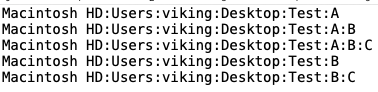
and what the HFS output would appear as if enabled:
I finally gave up on the goal set in post 1 and thought I’d finish up with a few comments and working shortcut examples. I incorporated Stefan’s suggestion in post 4 in a shortcut, and I tested it against my Finder shortcut. My observations are:
Both shortcuts returned shortcut folders that could be used in other shortcut actions.
With a folder that contained 26 subfolders, Stefan’s suggestion in a shortcut was faster at 290 milliseconds as compared with 350 milliseconds for my Finder shortcut.
Tested on a folder that contained packages, Stefan’s suggestion in a shortcut returned folders in the packages, and my Finder shortcut did not.
Stefan’s suggestion in a shortcut returned hidden folders. My Finder shortcut did not return hidden folders unless the Finder was set to show hidden folders.
The following shortcuts input a shortcut folder and output a list of shortcut folders.
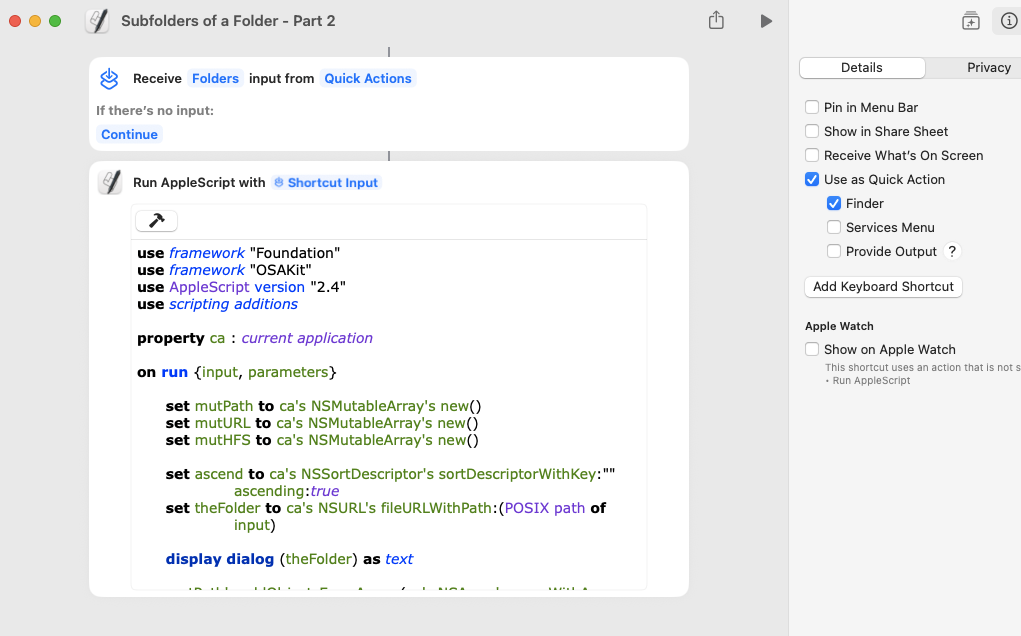
Here is a Quick Action Shortcut that gets only the sorted subfolder hierarchy of a Finder selected folder. It uses a Run AppleScript and ASOC to quickly produce three display dialogs of the folder hierarchy:
POSIX paths
URL paths
HFS paths
Tested on macOS 15.6.1 with Script Debugger 8.0.10 and Script Editor 2.11.
Run AppleScript content:
use framework "Foundation"
use framework "OSAKit"
use AppleScript version "2.4"
use scripting additions

property ca : current application

on run {input, parameters}

	set mutPath to ca's NSMutableArray's new()
	set mutURL to ca's NSMutableArray's new()
	set mutHFS to ca's NSMutableArray's new()

	set ascend to ca's NSSortDescriptor's sortDescriptorWithKey:"" ascending:true
	set theFolder to ca's NSURL's fileURLWithPath:(POSIX path of input)

	mutPath's addObjectsFromArray:(ca's NSArray's arrayWithArray:(my recursiveFolderEnumerate(theFolder)))
	mutPath's sortUsingDescriptors:{ascend}

	my convert_array(mutPath, mutURL, "fileURL")
	my convert_array(mutPath, mutHFS, "_osa_hfsPath")

	display dialog (mutPath's componentsJoinedByString:return) as text
	display dialog (mutURL's componentsJoinedByString:return) as text
	display dialog (mutHFS's componentsJoinedByString:return) as text

	return input
end run

on recursiveFolderEnumerate(afolder)
	set fm to ca's NSFileManager's defaultManager()
	-- presumption is that folders do not have extensions
	set pred to ca's NSPredicate's predicateWithFormat:"SELF.pathExtension == '' "
	set theKeys to {ca's kCFURLIsDirectoryKey}
	set theOptions to (ca's NSDirectoryEnumerationSkipsPackageDescendants as integer) + (ca's NSDirectoryEnumerationSkipsHiddenFiles as integer)
	set enumerator to (((fm's enumeratorAtURL:afolder includingPropertiesForKeys:theKeys options:theOptions errorHandler:(reference))'s allObjects()'s ¬
		valueForKey:"path")'s filteredArrayUsingPredicate:pred) as list
	return enumerator
end recursiveFolderEnumerate

on convert_array(src_ary, dest_ary, keyStr)
	try
		(dest_ary's setArray:(src_ary's allObjects()'s valueForKeyPath:keyStr))
	on error
		-- On macOS 15.6.1, Apple's Script Editor 2.11 accepts fileURL and Script Debugger 8.0.10 throws a KVC error
		if keyStr = "fileURL" then
			repeat with apath in src_ary
				(dest_ary's addObject:(ca's NSURL's fileURLWithPath:apath))
			end repeat
		end if
	end try
	return
end convert_array
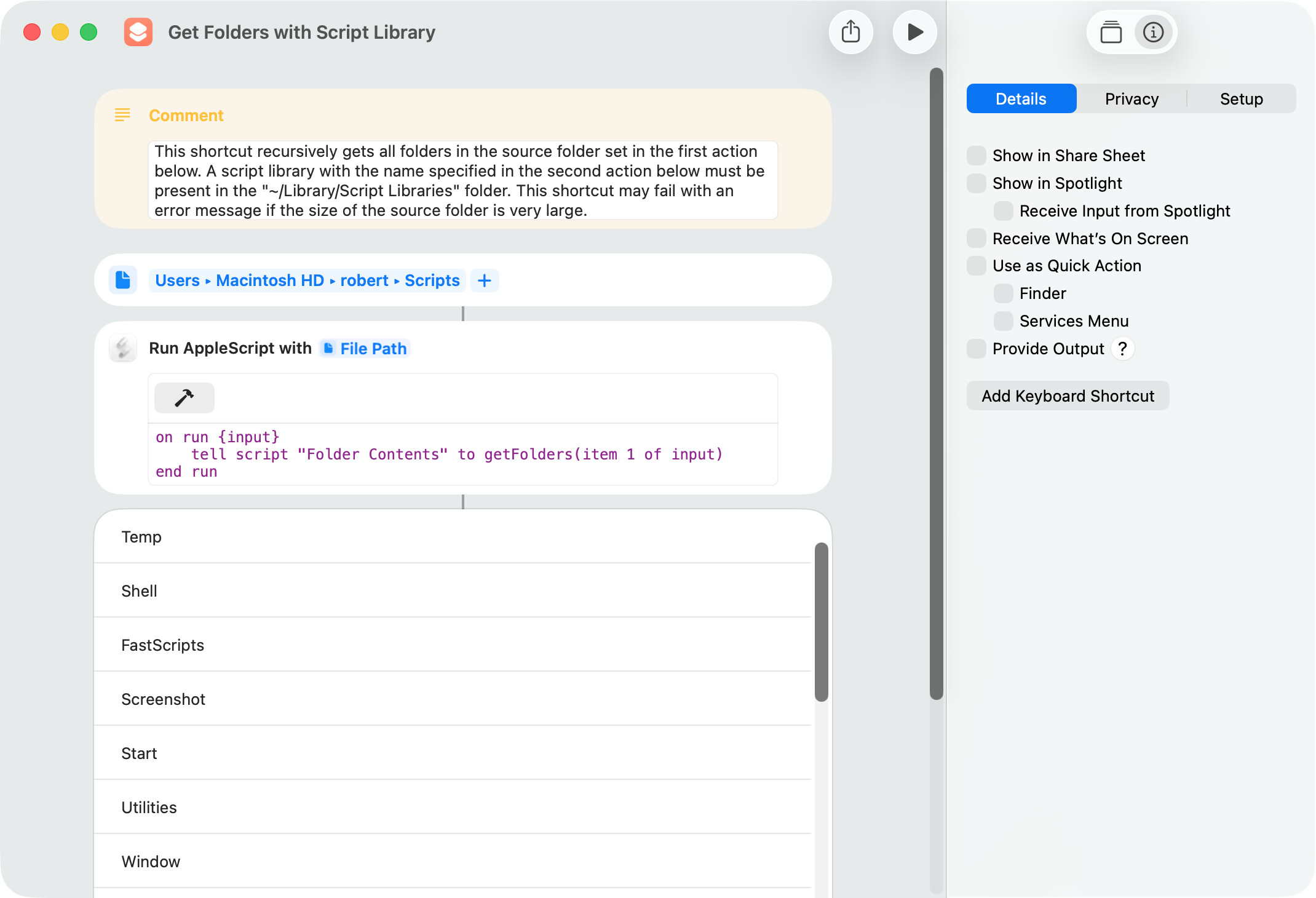
Another option that might be of use on occasion is to get folders or files by way of an AppleScript script library. This has several advantages but can be slow, and it breaks if the size of the source folder is very large.
The script library is called as follows and returns Shortcuts folder or file objects.
This is the script library, which must be placed in the user’s ~/Library/Script Libraries/ folder. This folder will need to be created if it doesn’t exist.
use framework "Foundation"
use scripting additions

--This is an AppleScript script library that must be called from an AppleScript or Shortcuts app shortcut
--The sourceFolder parameter is a path

--Get folders but not packages
on getFolders(sourceFolder)
	set folderContents to getFolderContents(sourceFolder)

	set folderKey to current application's NSURLIsDirectoryKey
	set packageKey to current application's NSURLIsPackageKey
	set theFolders to current application's NSMutableArray's new()
	set booleanTrue to current application's NSNumber's numberWithBool:true

	repeat with anItem in folderContents
		set {theResult, aFolder} to (anItem's getResourceValue:(reference) forKey:folderKey |error|:(missing value))
		if aFolder is booleanTrue then
			set {theResult, aPackage} to (anItem's getResourceValue:(reference) forKey:packageKey |error|:(missing value))
			if aPackage is not booleanTrue then (theFolders's addObject:anItem)
		end if
	end repeat

	return theFolders as list
end getFolders

--Get files but not alias files
on getFiles(sourceFolder)
	set folderContents to getFolderContents(sourceFolder)

	set fileKey to current application's NSURLIsRegularFileKey
	set aliasKey to current application's NSURLIsAliasFileKey
	set theFiles to current application's NSMutableArray's new()
	set booleanTrue to current application's NSNumber's numberWithBool:true

	repeat with anItem in folderContents
		set {theResult, aFile} to (anItem's getResourceValue:(reference) forKey:fileKey |error|:(missing value))
		if aFile is booleanTrue then
			set {theResult, anAlias} to (anItem's getResourceValue:(reference) forKey:aliasKey |error|:(missing value))
			if anAlias is not booleanTrue then (theFiles's addObject:anItem)
		end if
	end repeat

	return theFiles as list
end getFiles

--Get alias files but not symbolic links
on getAliasFiles(sourceFolder)
	set folderContents to getFolderContents(sourceFolder)

	set aliasKey to current application's NSURLIsAliasFileKey
	set symbolicLinkKey to current application's NSURLIsSymbolicLinkKey
	set theAliasFiles to current application's NSMutableArray's new()
	set booleanTrue to current application's NSNumber's numberWithBool:true

	repeat with anItem in folderContents
		set {theResult, anAliasFile} to (anItem's getResourceValue:(reference) forKey:aliasKey |error|:(missing value))
		if anAliasFile is booleanTrue then
			set {theResult, aSymbolicLink} to (anItem's getResourceValue:(reference) forKey:symbolicLinkKey |error|:(missing value))
			if aSymbolicLink is not booleanTrue then (theAliasFiles's addObject:anItem)
		end if
	end repeat

	return theAliasFiles as list
end getAliasFiles

--Get packages
on getPackages(sourceFolder)
	set folderContents to getFolderContents(sourceFolder)

	set packageKey to current application's NSURLIsPackageKey
	set thePackages to current application's NSMutableArray's new()
	set booleanTrue to current application's NSNumber's numberWithBool:true

	repeat with anItem in folderContents
		set {theResult, aPackage} to (anItem's getResourceValue:(reference) forKey:packageKey |error|:(missing value))
		if aPackage is booleanTrue then (thePackages's addObject:anItem)
	end repeat

	return thePackages as list
end getPackages

--Gets folder contents for use in the above handlers
on getFolderContents(sourceFolder)
	set sourceFolder to current application's |NSURL|'s fileURLWithPath:sourceFolder
	set fileManager to current application's NSFileManager's defaultManager()
	set folderContents to (fileManager's enumeratorAtURL:sourceFolder includingPropertiesForKeys:{} options:6 errorHandler:(missing value))'s allObjects() --hidden files and package contents are skipped
end getFolderContents
BTW, as noted above, the script library approach has several advantages over a shortcut that uses a Get Contents of Folder action with the recursive option enabled. The script library approach:
will return folders, alias files, or packages if desired; and
does not return package contents.
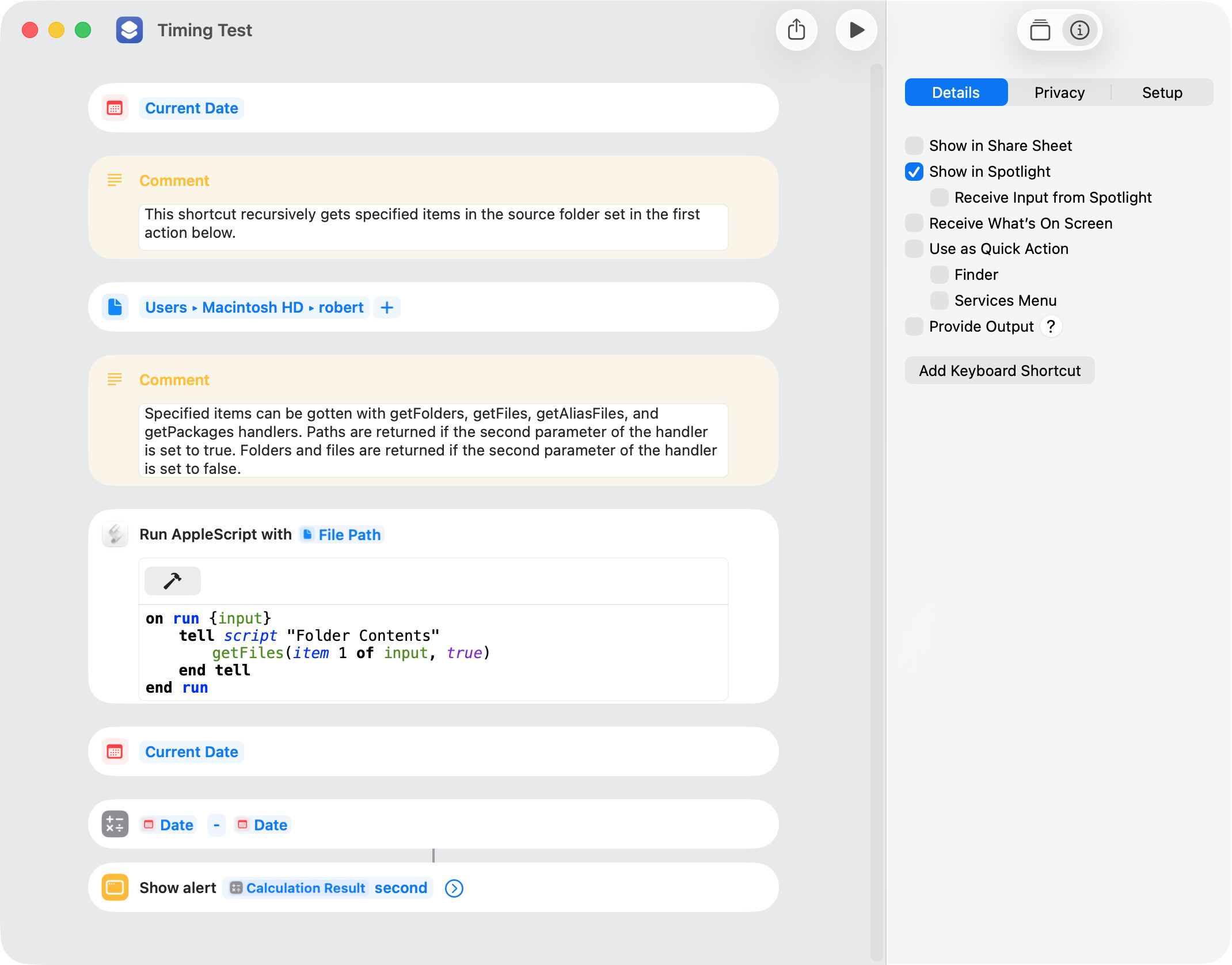
Just to quantify, I tested the script library shortcut and a shortcut that uses a Get Folder Contents action. Both of these were set to return all files in my smallish Home folder with the Library folder hidden. The results were:
The script library shortcut took 2.98 seconds and the Get Folder Contents shortcut took 2.30 seconds.
The script library shortcut returned 853 files which included no files in packages and the Get Folder Contents shortcut returned 1,165 files which included a large number of files in packages.
A significant amount of the time taken by the script library shortcut is attributable to the time it takes to coerce AppleScript folder and file objects to Shortcuts folder and file objects. I added an option in the script library to return paths, which reduced the timing result from 2.98 seconds to 0.81 second when getting all files in my Home folder with the Library folder hidden. Running the shortcut by way of Spotlight reduces both of these timing results by about 650 milliseconds.
use framework "Foundation"
use scripting additions

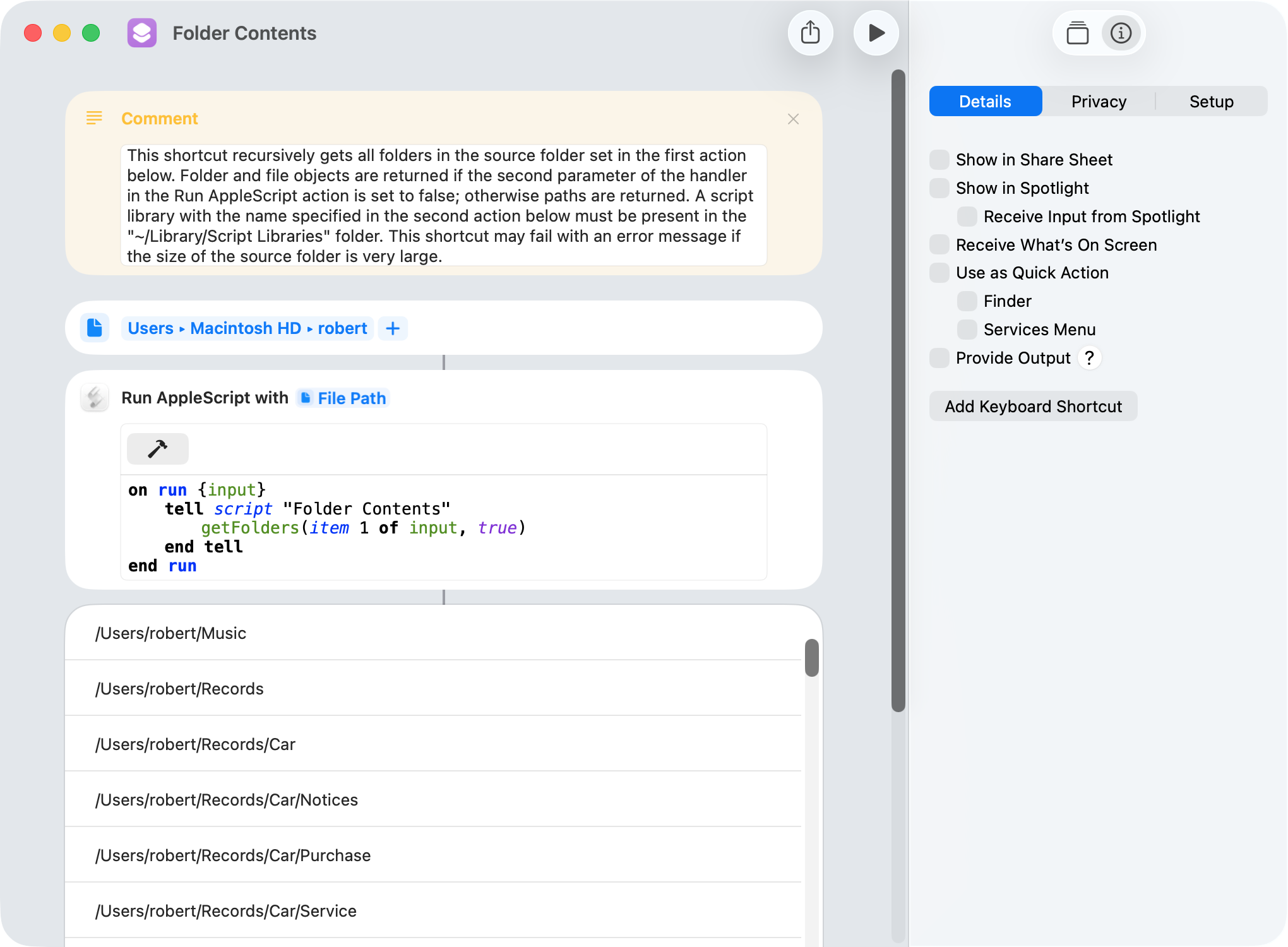
--This script library recursively gets items of a specified type from the contents of a folder
--The first handler parameter is the path of the source folder
--The second handler parameter is a boolean that returns paths if true and folders and files if false

--Get folders skip packages
on getFolders(sourceFolder, pathOption)
	set folderContents to getFolderContents(sourceFolder)

	set folderKey to current application's NSURLIsDirectoryKey
	set packageKey to current application's NSURLIsPackageKey
	set booleanTrue to current application's NSNumber's numberWithBool:true
	set theFolders to current application's NSMutableArray's new()

	repeat with anItem in folderContents
		set {theResult, aFolder} to (anItem's getResourceValue:(reference) forKey:folderKey |error|:(missing value))
		if aFolder is booleanTrue then
			set {theResult, aPackage} to (anItem's getResourceValue:(reference) forKey:packageKey |error|:(missing value))
			if aPackage is not booleanTrue then (theFolders's addObject:anItem)
		end if
	end repeat

	if pathOption is true then
		return (theFolders's valueForKey:"path") as list
	else
		return theFolders as list
	end if
end getFolders

--Get files skip alias files and symbolic links
on getFiles(sourceFolder, pathOption)
	set folderContents to getFolderContents(sourceFolder)

	set fileKey to current application's NSURLIsRegularFileKey
	set aliasKey to current application's NSURLIsAliasFileKey
	set booleanTrue to current application's NSNumber's numberWithBool:true
	set theFiles to current application's NSMutableArray's new()

	repeat with anItem in folderContents
		set {theResult, aFile} to (anItem's getResourceValue:(reference) forKey:fileKey |error|:(missing value))
		if aFile is booleanTrue then
			set {theResult, anAlias} to (anItem's getResourceValue:(reference) forKey:aliasKey |error|:(missing value))
			if anAlias is not booleanTrue then (theFiles's addObject:anItem)
		end if
	end repeat

	if pathOption is true then
		return (theFiles's valueForKey:"path") as list
	else
		return theFiles as list
	end if
end getFiles

--Get alias files skip symbolic links
on getAliasFiles(sourceFolder, pathOption)
	set folderContents to getFolderContents(sourceFolder)

	set aliasKey to current application's NSURLIsAliasFileKey
	set symbolicLinkKey to current application's NSURLIsSymbolicLinkKey
	set booleanTrue to current application's NSNumber's numberWithBool:true
	set theAliasFiles to current application's NSMutableArray's new()

	repeat with anItem in folderContents
		set {theResult, anAliasFile} to (anItem's getResourceValue:(reference) forKey:aliasKey |error|:(missing value))
		if anAliasFile is booleanTrue then
			set {theResult, aSymbolicLink} to (anItem's getResourceValue:(reference) forKey:symbolicLinkKey |error|:(missing value))
			if aSymbolicLink is not booleanTrue then (theAliasFiles's addObject:anItem)
		end if
	end repeat

	if pathOption is true then
		return (theAliasFiles's valueForKey:"path") as list
	else
		return theAliasFiles as list
	end if
end getAliasFiles

--Get packages
on getPackages(sourceFolder, pathOption)
	set folderContents to getFolderContents(sourceFolder)

	set packageKey to current application's NSURLIsPackageKey
	set booleanTrue to current application's NSNumber's numberWithBool:true
	set thePackages to current application's NSMutableArray's new()

	repeat with anItem in folderContents
		set {theResult, aPackage} to (anItem's getResourceValue:(reference) forKey:packageKey |error|:(missing value))
		if aPackage is booleanTrue then (thePackages's addObject:anItem)
	end repeat

	if pathOption is true then
		return (thePackages's valueForKey:"path") as list
	else
		return thePackages as list
	end if
end getPackages

--Get folder contents for use in above handlers
on getFolderContents(sourceFolder)
	set sourceFolder to current application's |NSURL|'s fileURLWithPath:sourceFolder
	set fileManager to current application's NSFileManager's defaultManager()
	set folderContents to (fileManager's enumeratorAtURL:sourceFolder includingPropertiesForKeys:{} options:6 errorHandler:(missing value))'s allObjects() --hidden files and package contents are skipped
	return folderContents
end getFolderContents
My Home folder has stabilized after a reinstall, and I thought I would rerun the script-library timing tests. The details of the timing tests are:
All files in my Home folder (about 814) were gotten by way of the Folder Contents script library.
The Library folder in my Home folder was hidden.
The script library was called by an AppleScript.
The calling AppleScript was first set to return paths and then folders and files.
The vehicles that ran the calling AppleScript were Script Geek, a shortcut by way of Spotlight, and a shortcut by way of the Shortcuts Editor.
The folders and files returned by the calling AppleScript when run by Script Geek were AppleScript folders and files.
The folders and files returned by the calling AppleScript when run by the Shortcuts Editor and by Spotlight were Shortcuts folders and files.
My computer is an M2 Mac mini running macOS 26.5.
The results in seconds were:
Test Vehicle
Return Path
Return Folder/File
Script Geek
0.06
0.08
Spotlight
0.17
2.04
Shortcuts Editor
0.81
2.70
The reason for the relatively high timing results of 2.04 and 2.70 were the time it took the Run AppleScript action to coerce AppleScript folder and files to Shortcuts folders and files.
The reason the Spotlight result is about 0.65 second faster than the Shortcuts Editor result reflects the time it takes to load (or more accurately not load) both the Foundation framework and the underlying code for the Run AppleScript action. This speed advantage is not present the first time the shortcut is run by way of Spotlight (e.g. after a reboot).
I also ran the same timing tests using the Get Contents of Folder action, and those results are shown below. Because this action gets package contents, the number of files returned was 1,113.
Test Vehicle
Return Path
Return Folder/File
Spotlight
2.19
1.75
Shortcuts Editor
2.26
1.82
A shortcut using the Get Contents of Folder action has a timing result of about 0.03 second when run on a folder containing 5 files and no folders or packages. In this use scenario, the Get Contents of Folder action seems the obvious choice.
Just to set a baseline, I attempted to get all files in my Home folder by way of Finder in an AppleScript, but the script failed with a time-out error message.
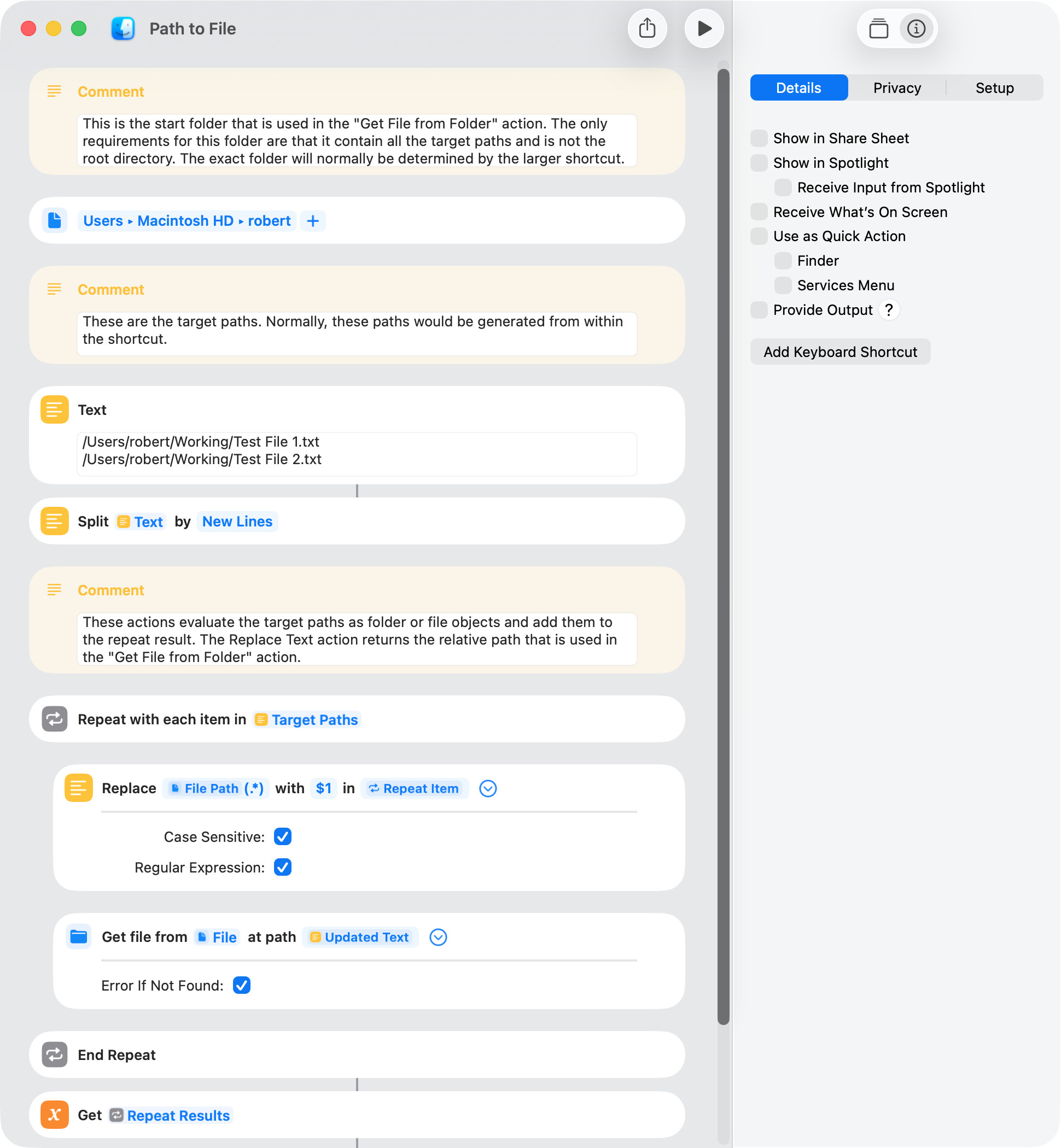
The Shortcuts app does not have a direct equivalent to AppleScript’s POSIX file class, which gets a folder or file object from a POSIX path. However, the Get File from Folder action is close, and the following is an example of how it can be used for this purpose.
I attempted to use this approach to create a list of Shortcuts file objects from the path of every file in my smallish Home folder (Library folder hidden), and the timing result was 1 minute and 3 seconds. However, with a folder that contained 10 files, the timing result was 70 milliseconds.
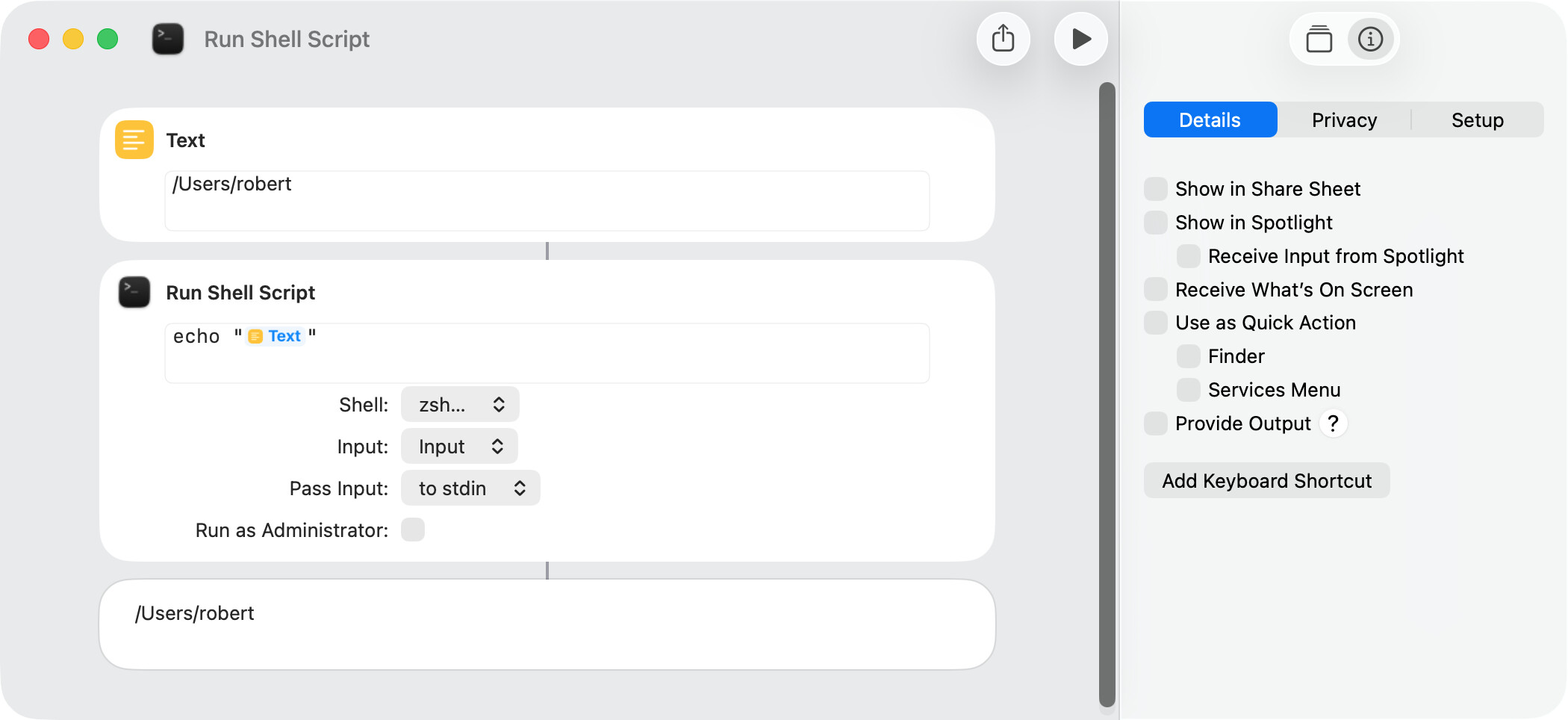
That is weird, because even Automator uses POSIX behind the scenes. What happens if you just run the paths through a shell script that only returns its input?
The issue (at least for me) is that many Shortcuts actions require a start folder, and it has to be a folder not a path. I suspect this is more of an issue for people used to writing AppleScripts than it is for other users.