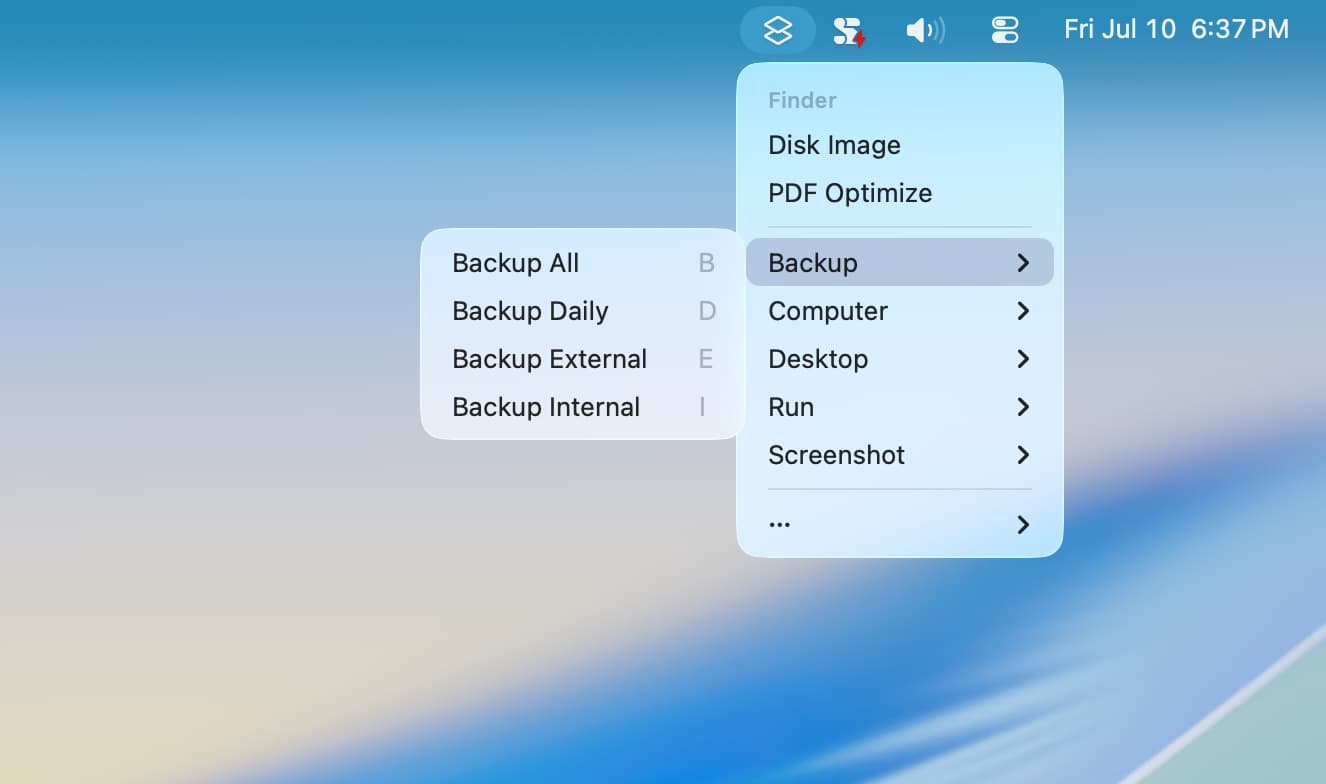
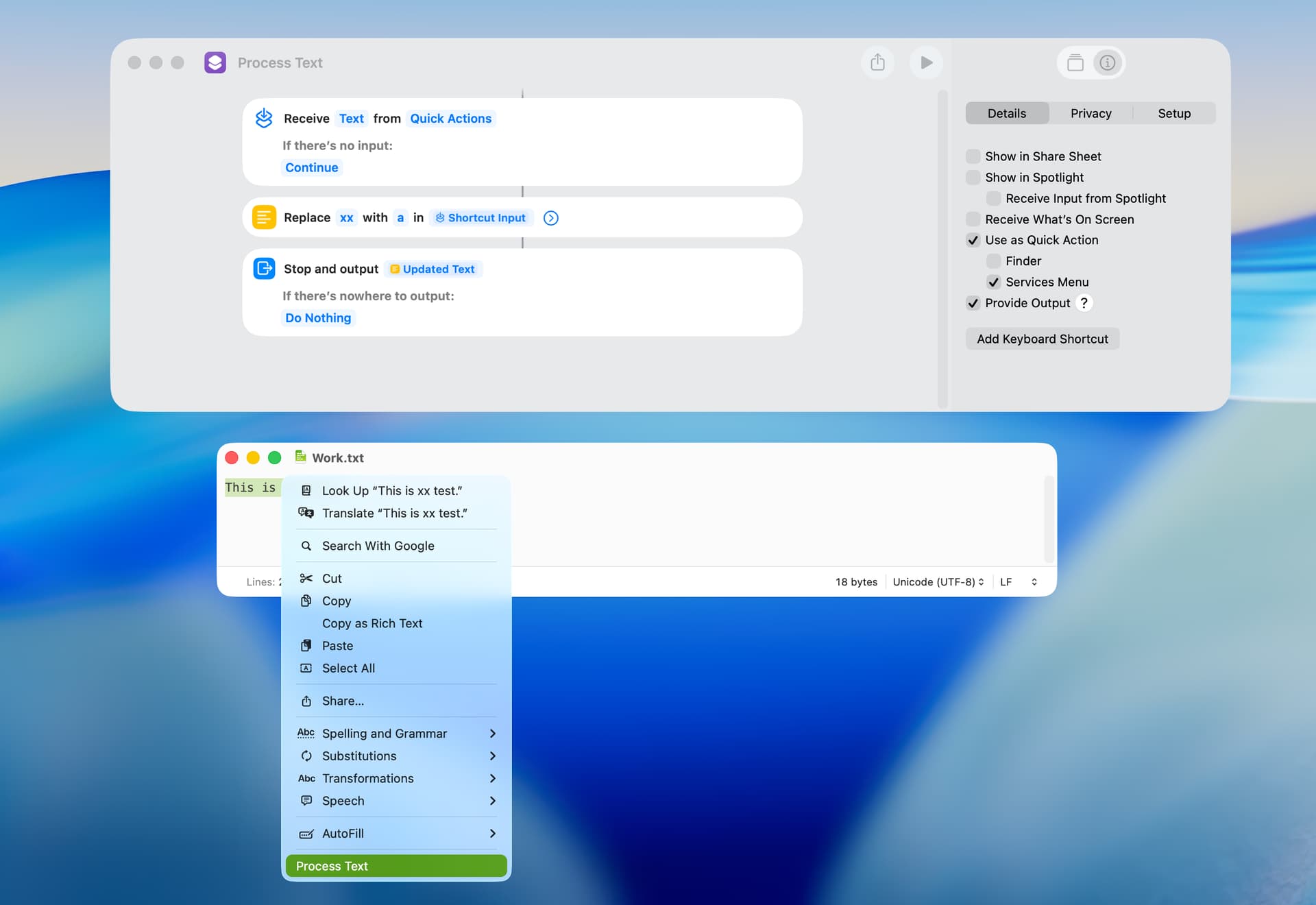
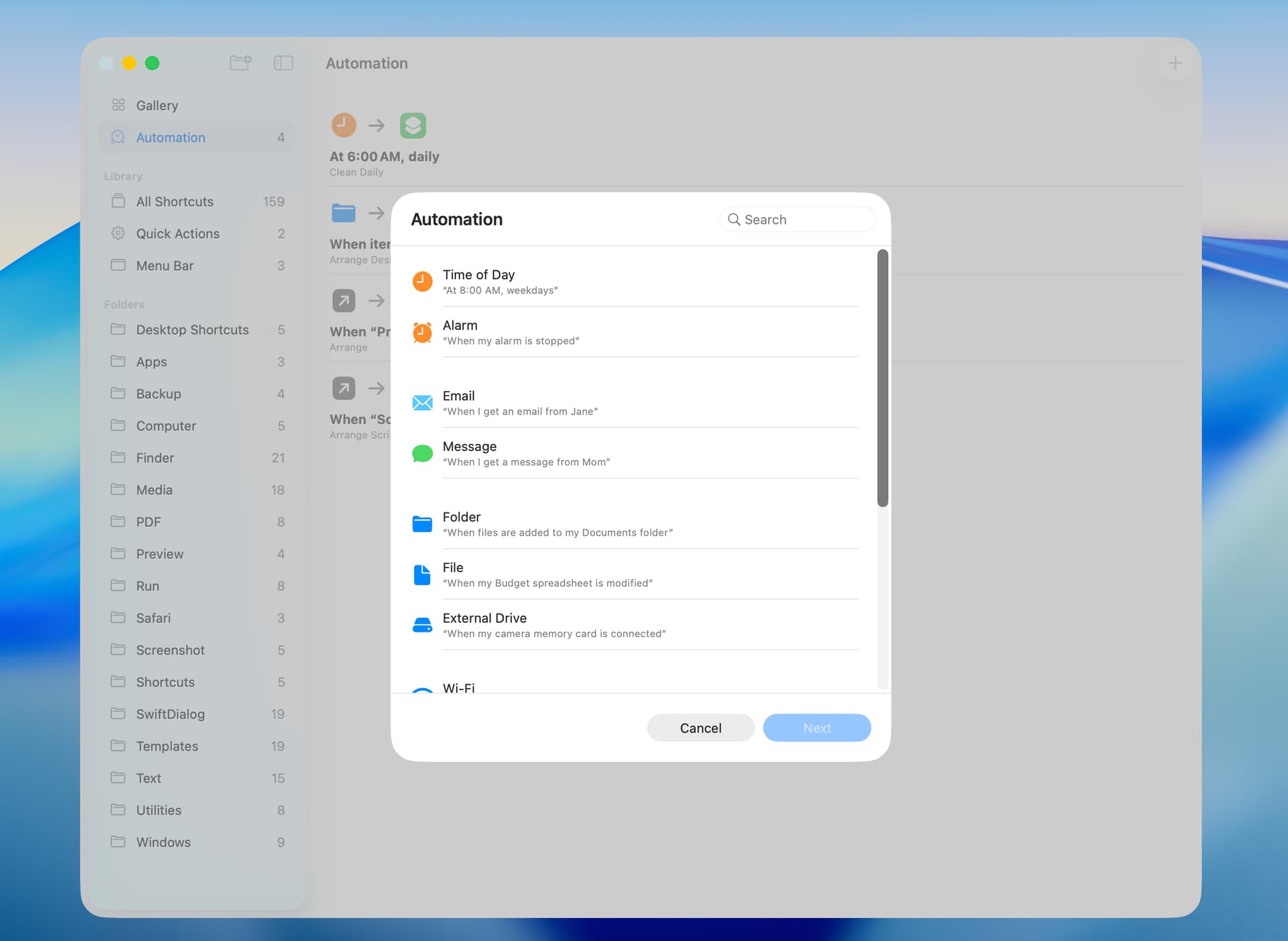
The ability to easily run a shortcut is of obvious importance, and I’ve summarized below several approaches. They all work on macOS Tahoe, but several will not work on earlier versions of macOS.
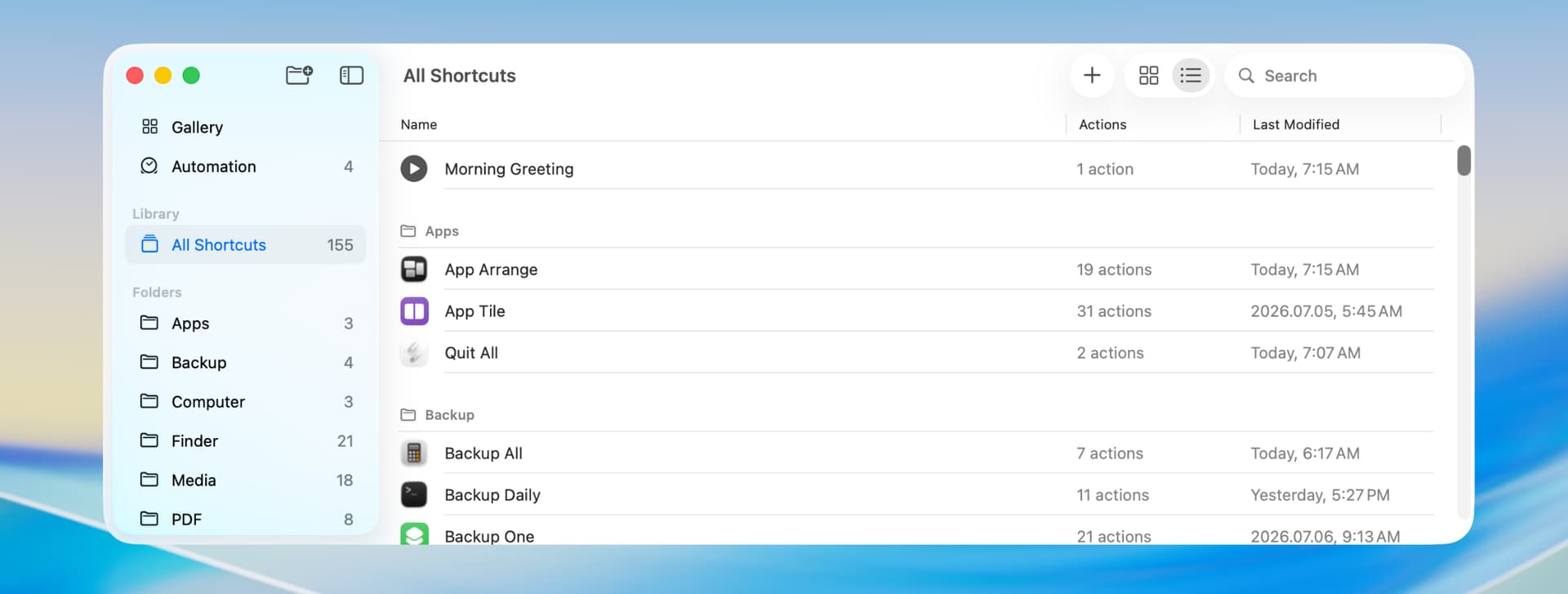
A simple approach is to run a shortcut from within the Shortcut Editor, but this is primarily of use when writing and testing a shortcut. For occasional use, you can run a shortcut from the Shortcuts app’s main window. Just click on the right-arrow icon before the shortcut’s name.
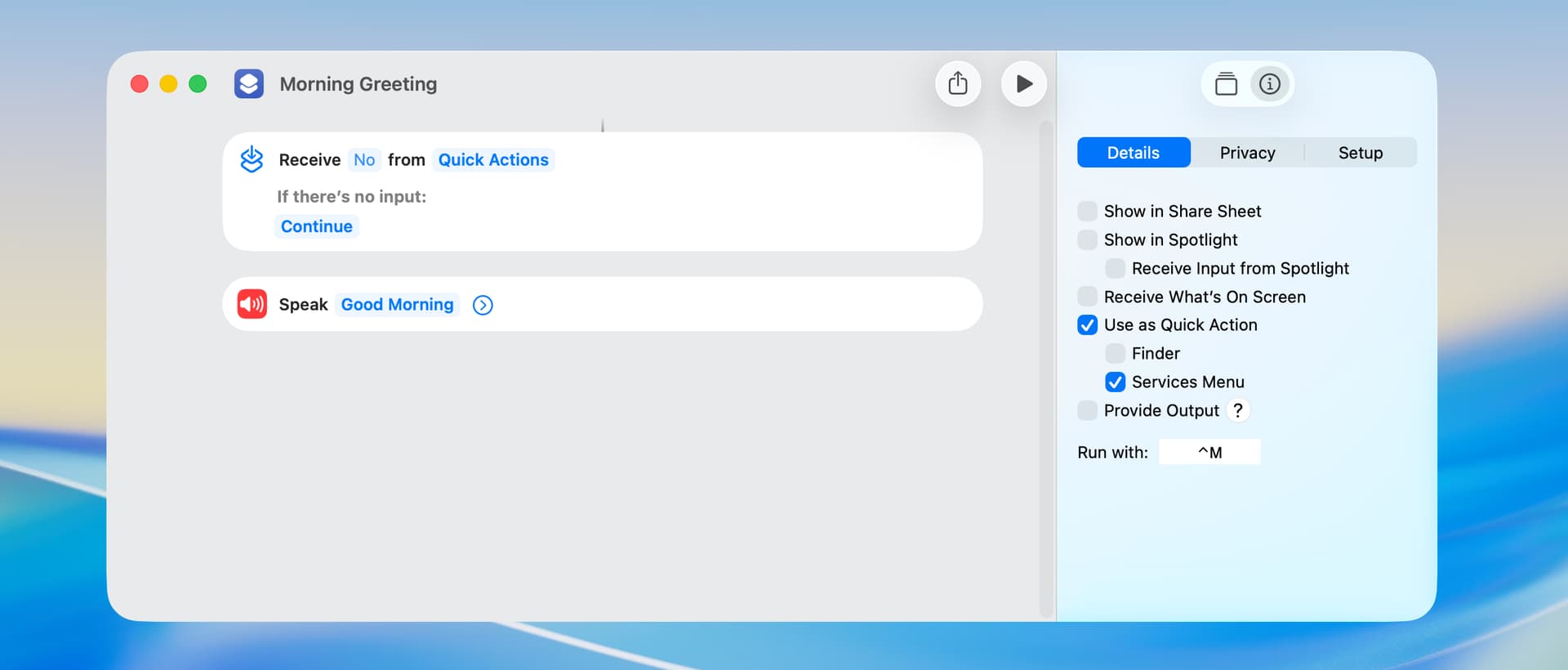
You can also run a shortcut by way of a keyboard shortcut (Control-M in the following example). This approach doesn’t work as well as one would hope, although it’s still quite useful.
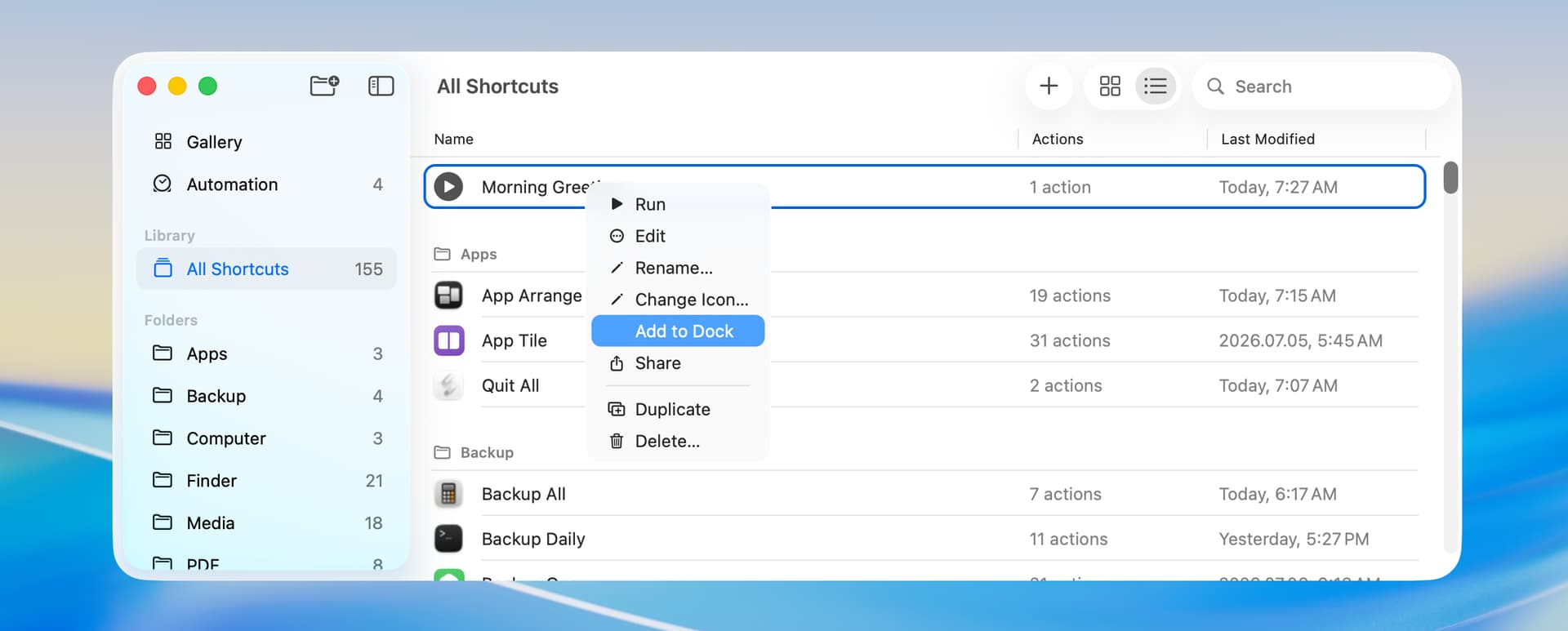
The context menu for every shortcut has an Add to Dock entry and running a shortcut by way of a Dock icon works well. This adds an APP file to an Applications folder in your home folder, and this file can be used for other purposes. For example, you can Command-drag the APP file to the Finder toolbar to create a toolbar icon.
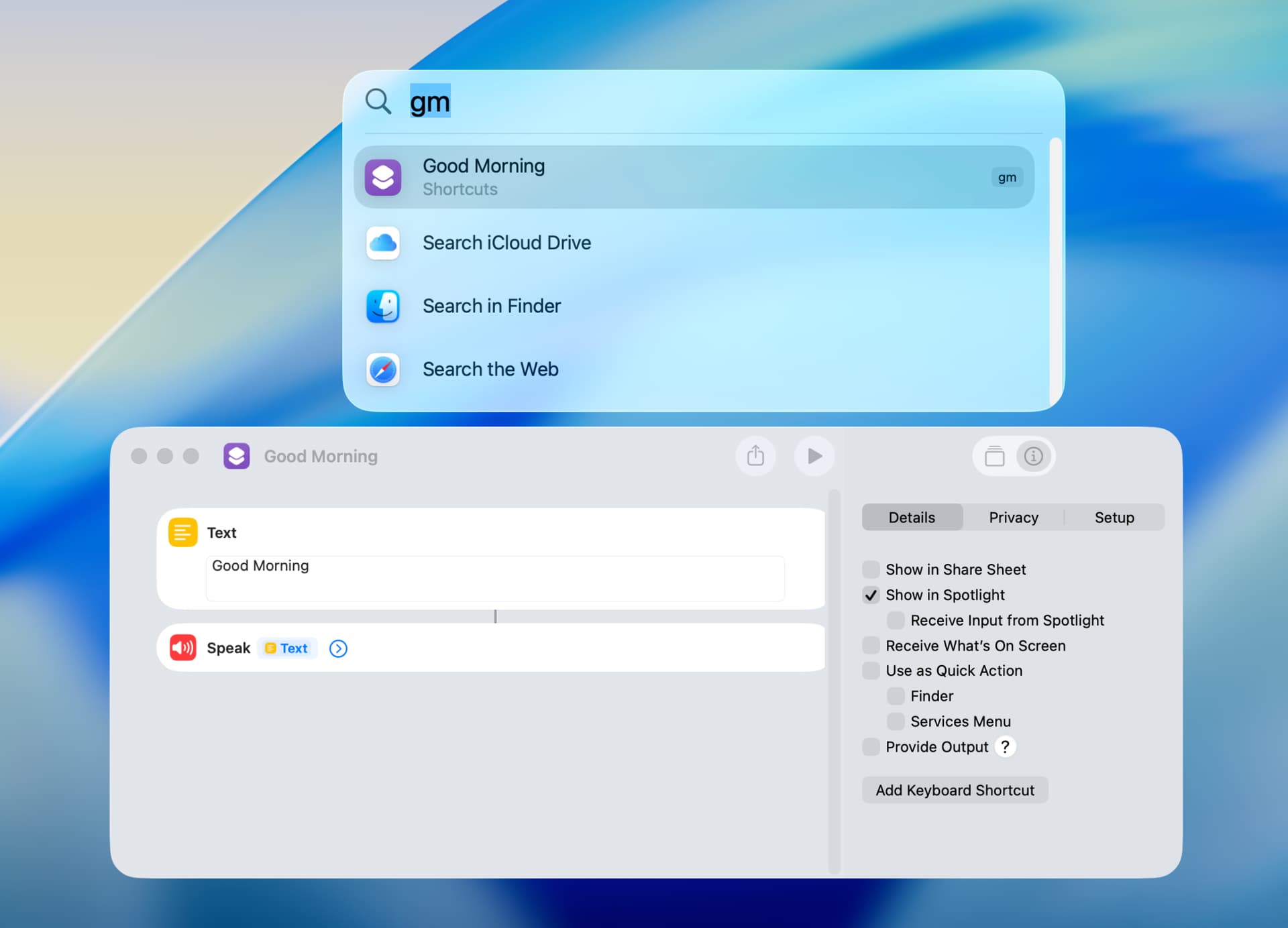
Spotlight is a great way to run a shortcut, and Quick Keys make this even more useful. You do have to enable the Show in Spotlight option for the shortcut.
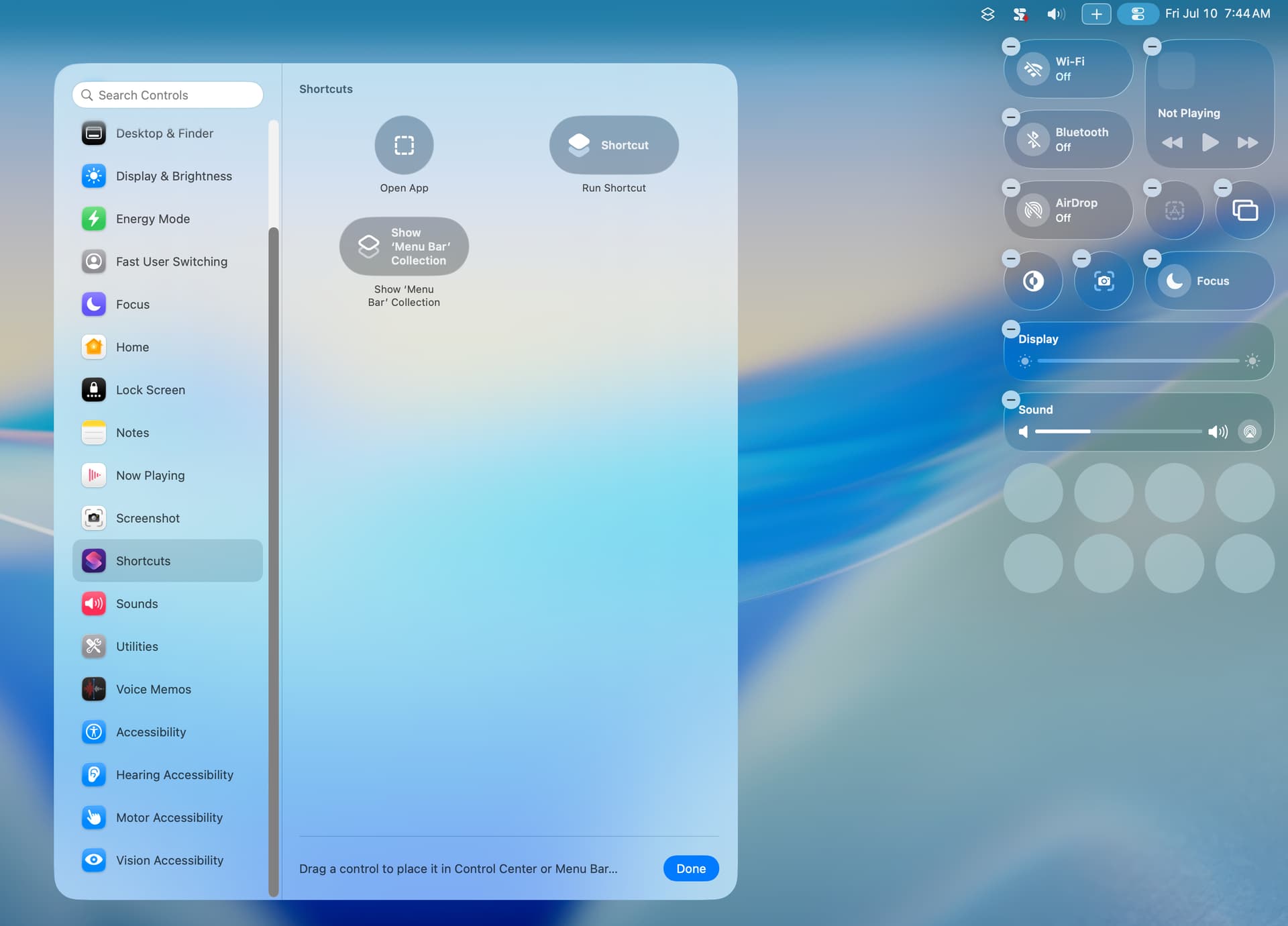
The Control Center can be used to add a single shortcut icon or a Menu Bar Collection icon to the menu bar or Control Center. The following screenshot shows the Control Center configuration dialog.
The screenshot below shows a Menu Bar Collection dialog. It also shows how items are added to the dialog in the main window of the Shortcuts app. In earlier versions of macOS, the Menu Bar Collection was a drop-down list.
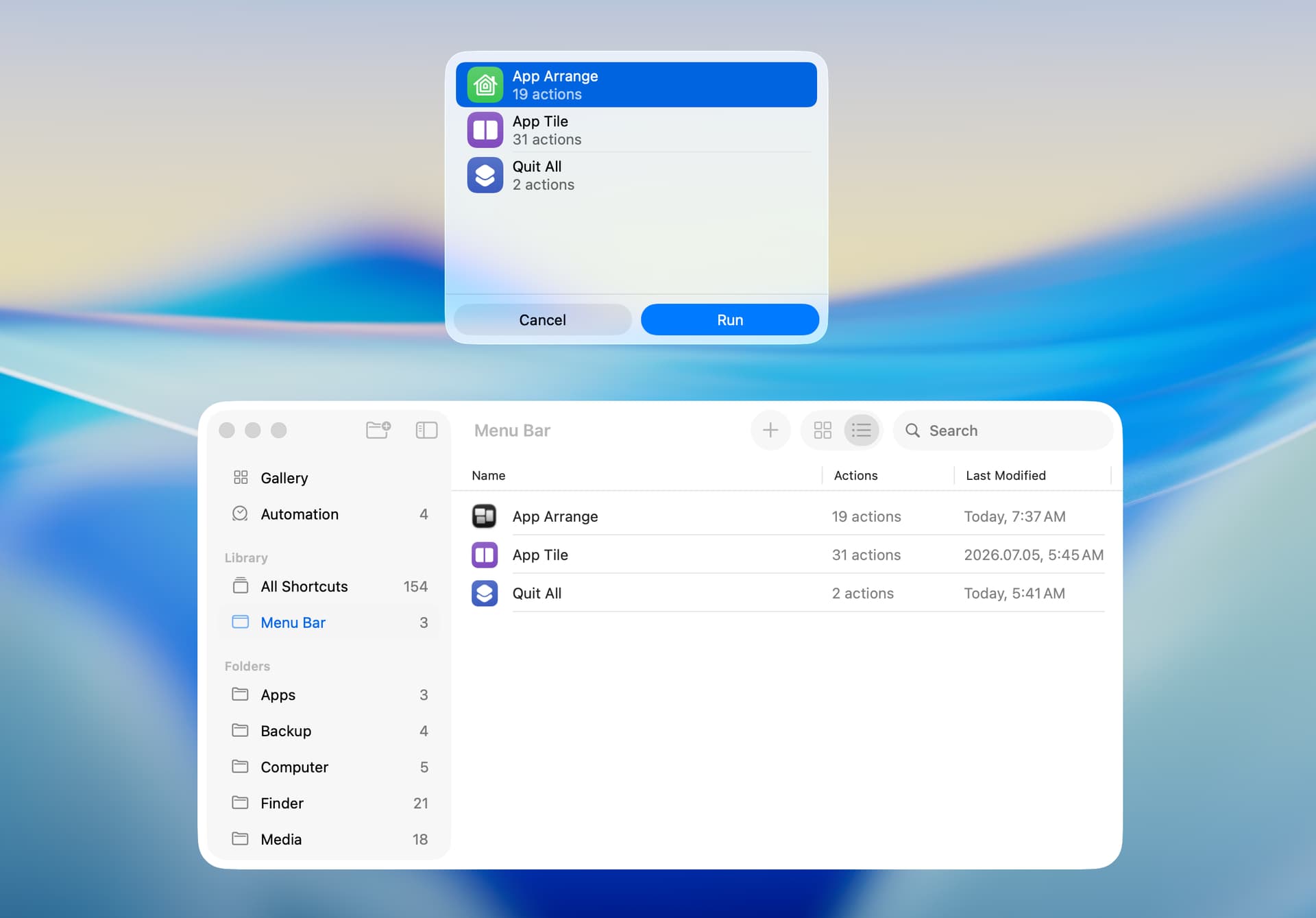
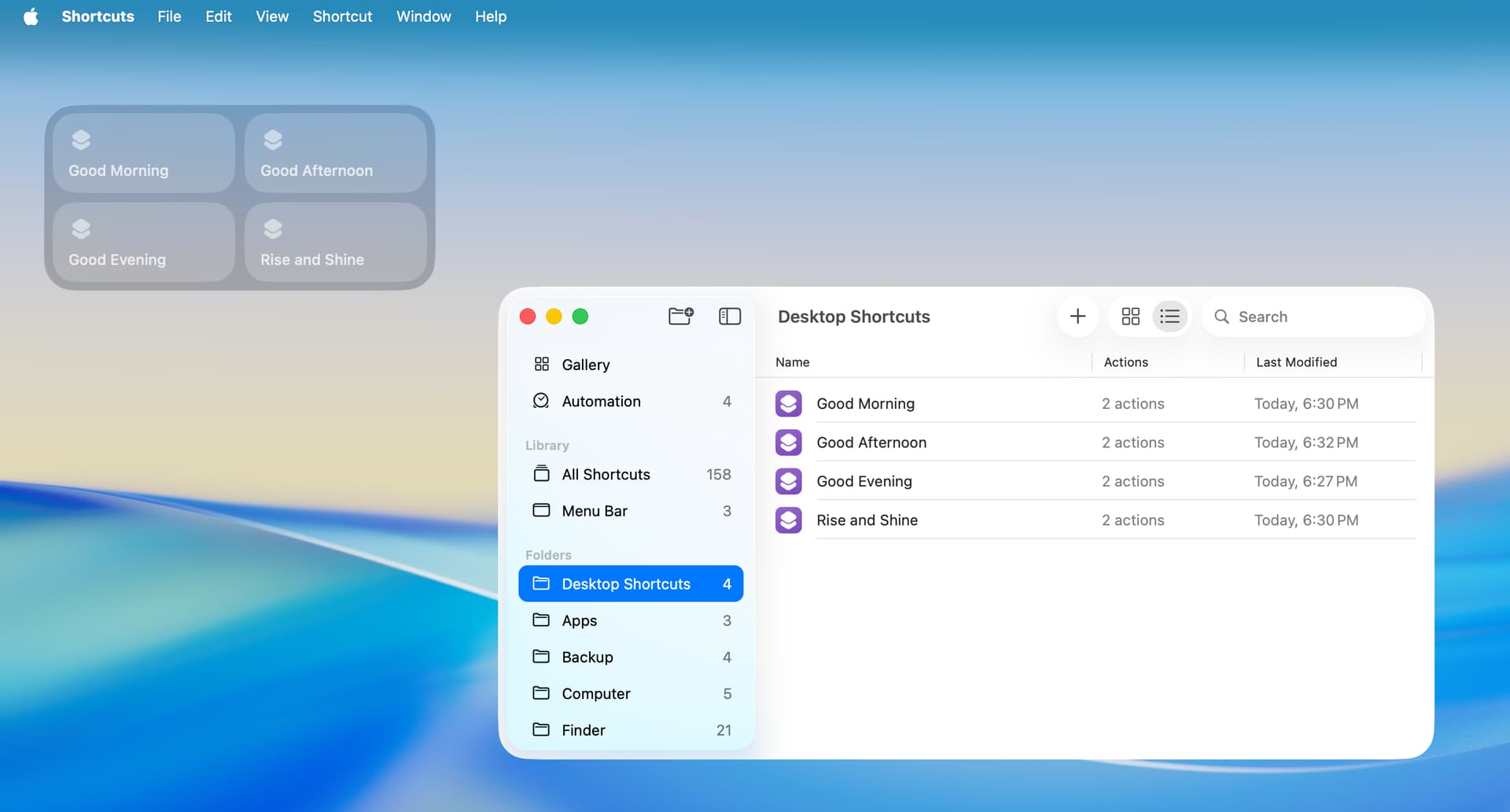
Shortcuts can also be run by way of a Widget on the desktop. The specific shortcuts in the widget are those contained in a folder in the main window of the Shortcuts app.
I am only aware of one app whose primary purpose is to run shortcuts, and it’s called Short Run. This utility allows you to designate both global and application-specific shortcuts, and shortcuts can be run by way of Quick Keys (but not keyboard shortcuts). In the following example, two Finder specific shortcuts are displayed as are four global shortcuts organized in a Backup folder. The Backup but not the Finder shortcuts have been assigned Quick Keys. The Short Run app is available in the App Store and costs $6.00.