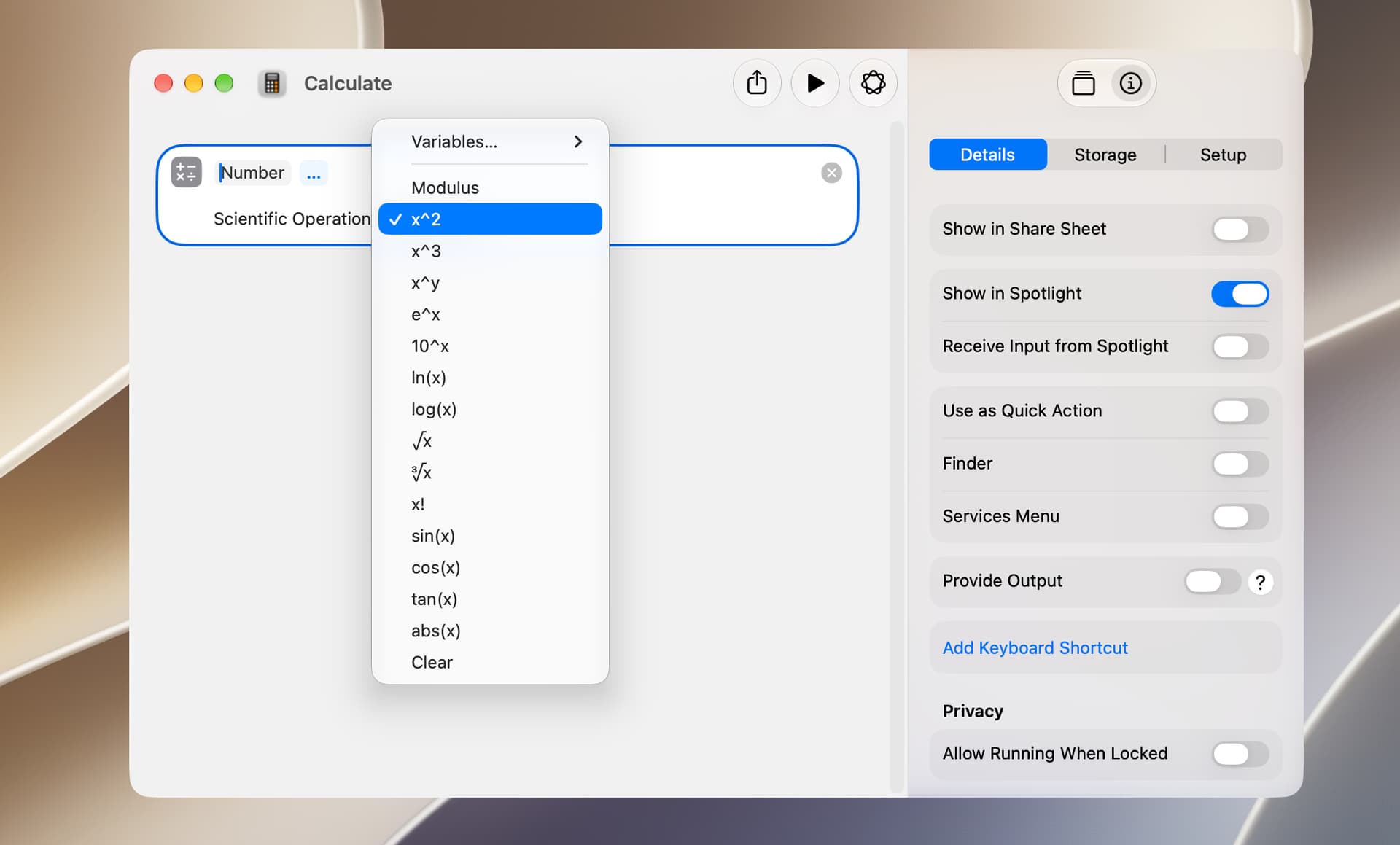
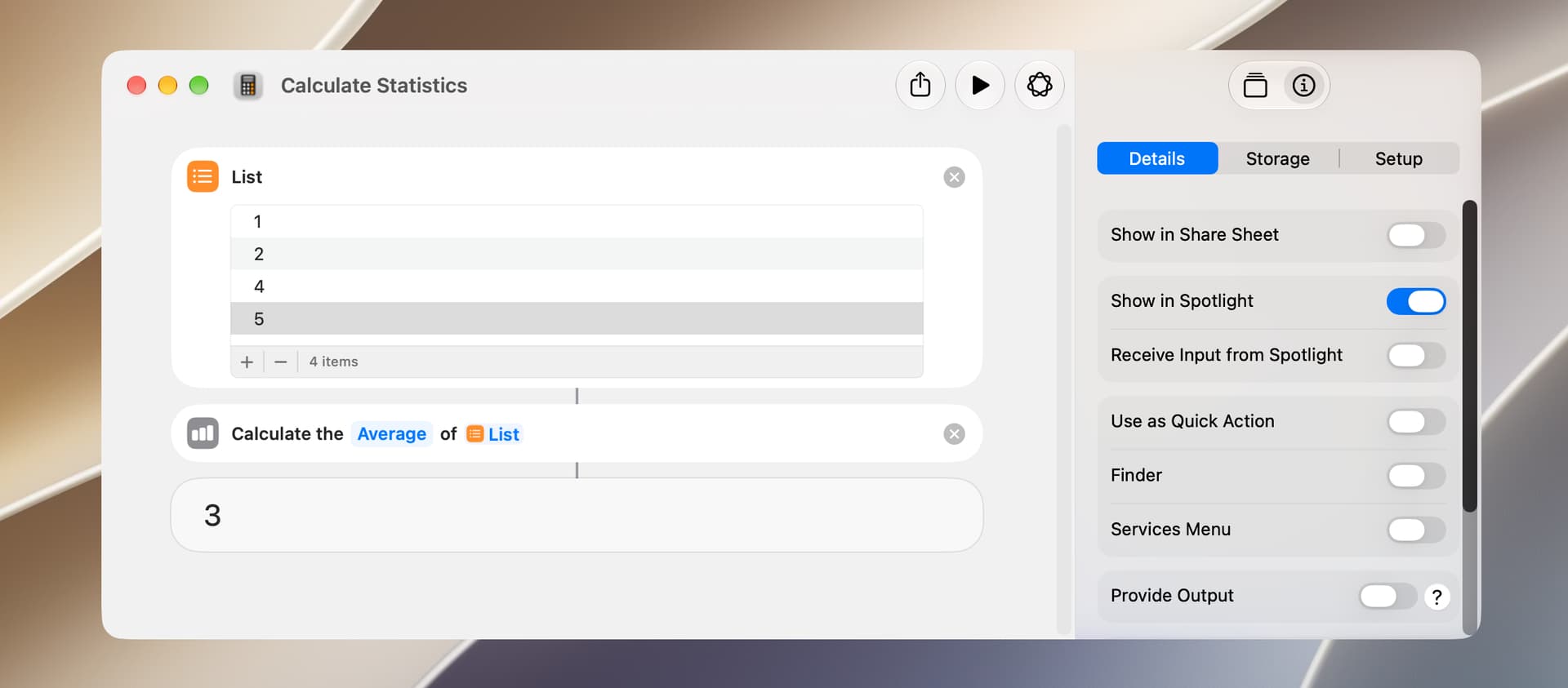
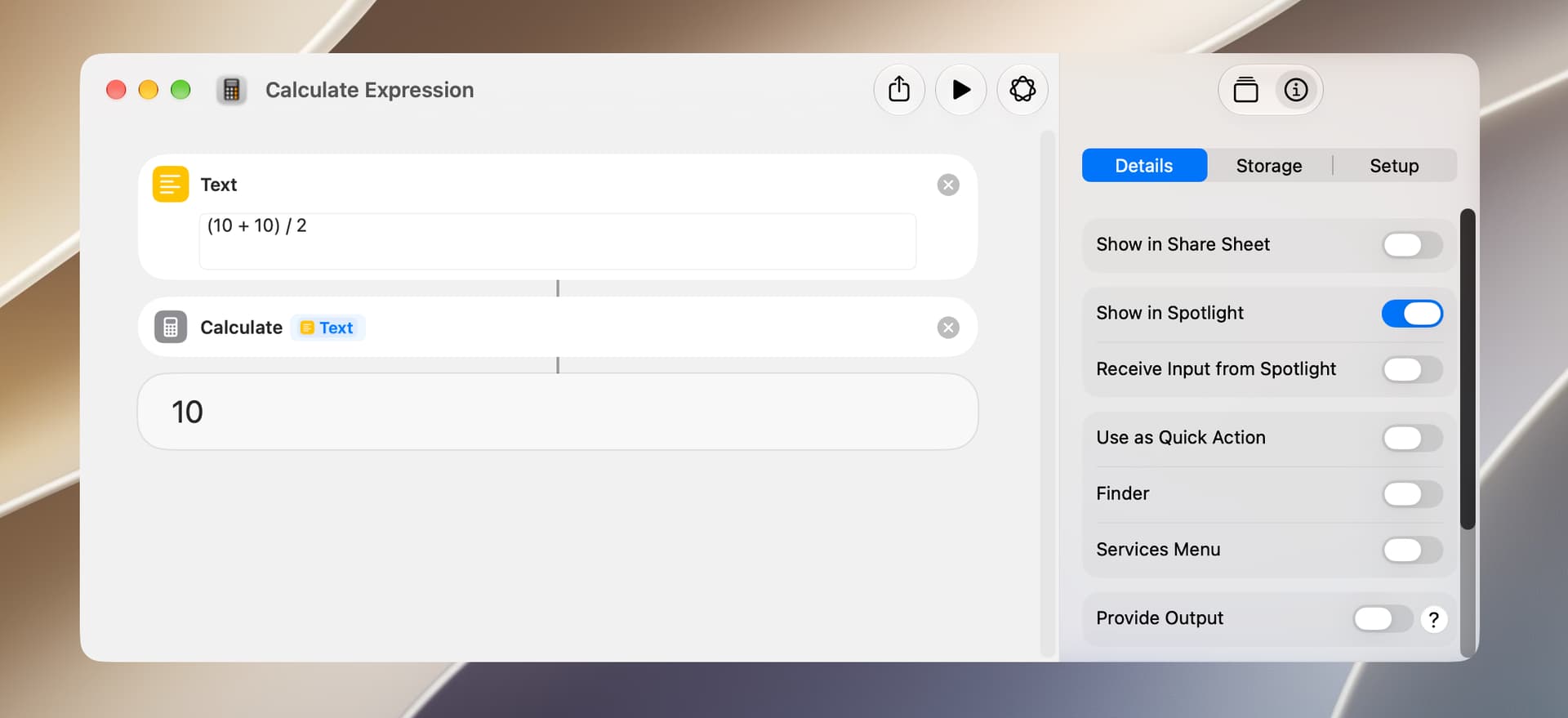
The Shortcuts app has three actions that are most commonly used to perform math calculations. The first is the Calculate action, which is primarily used to perform basic math operations. However, clicking on the plus character and selecting the ellipsis character yields additional options.
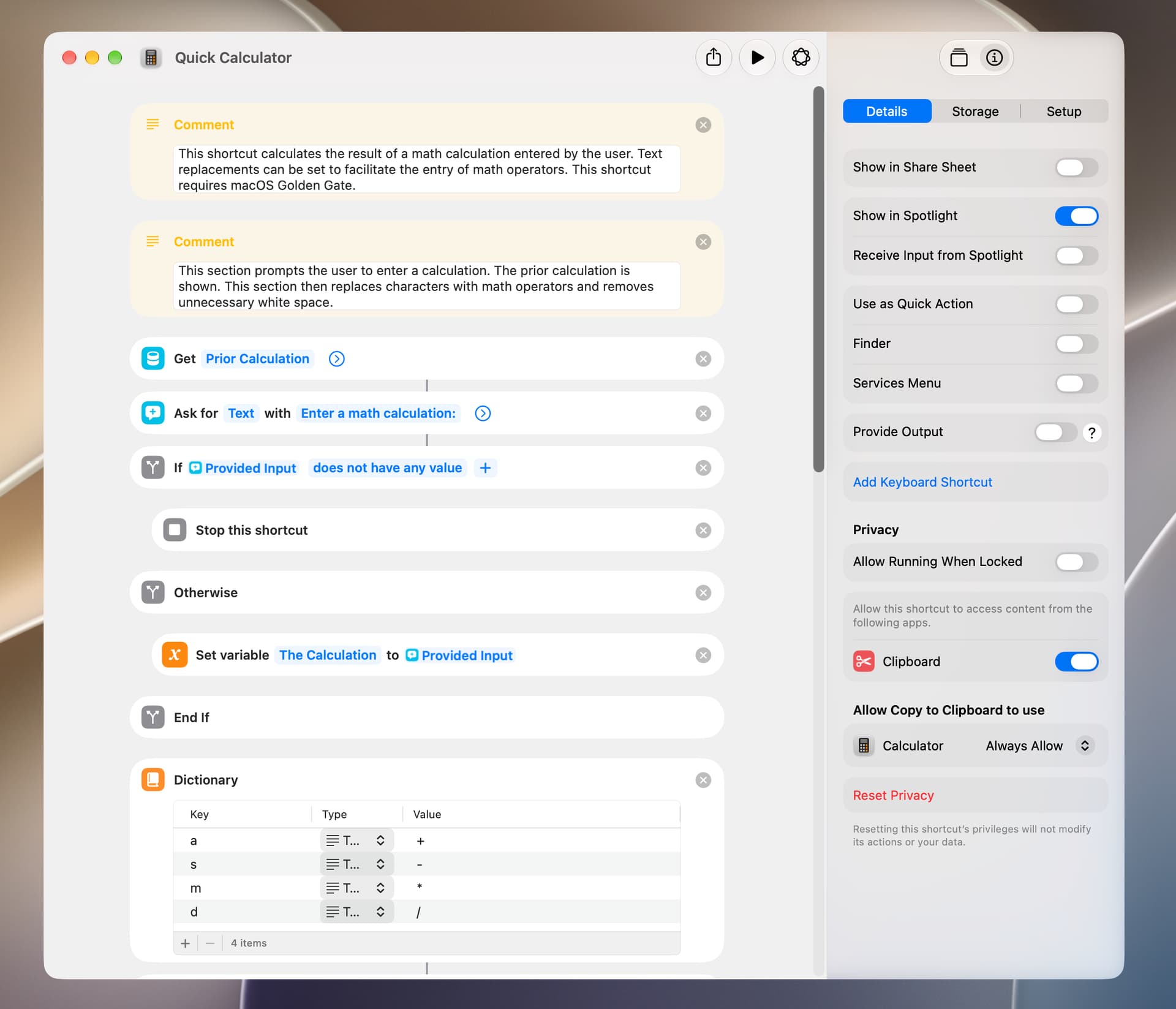
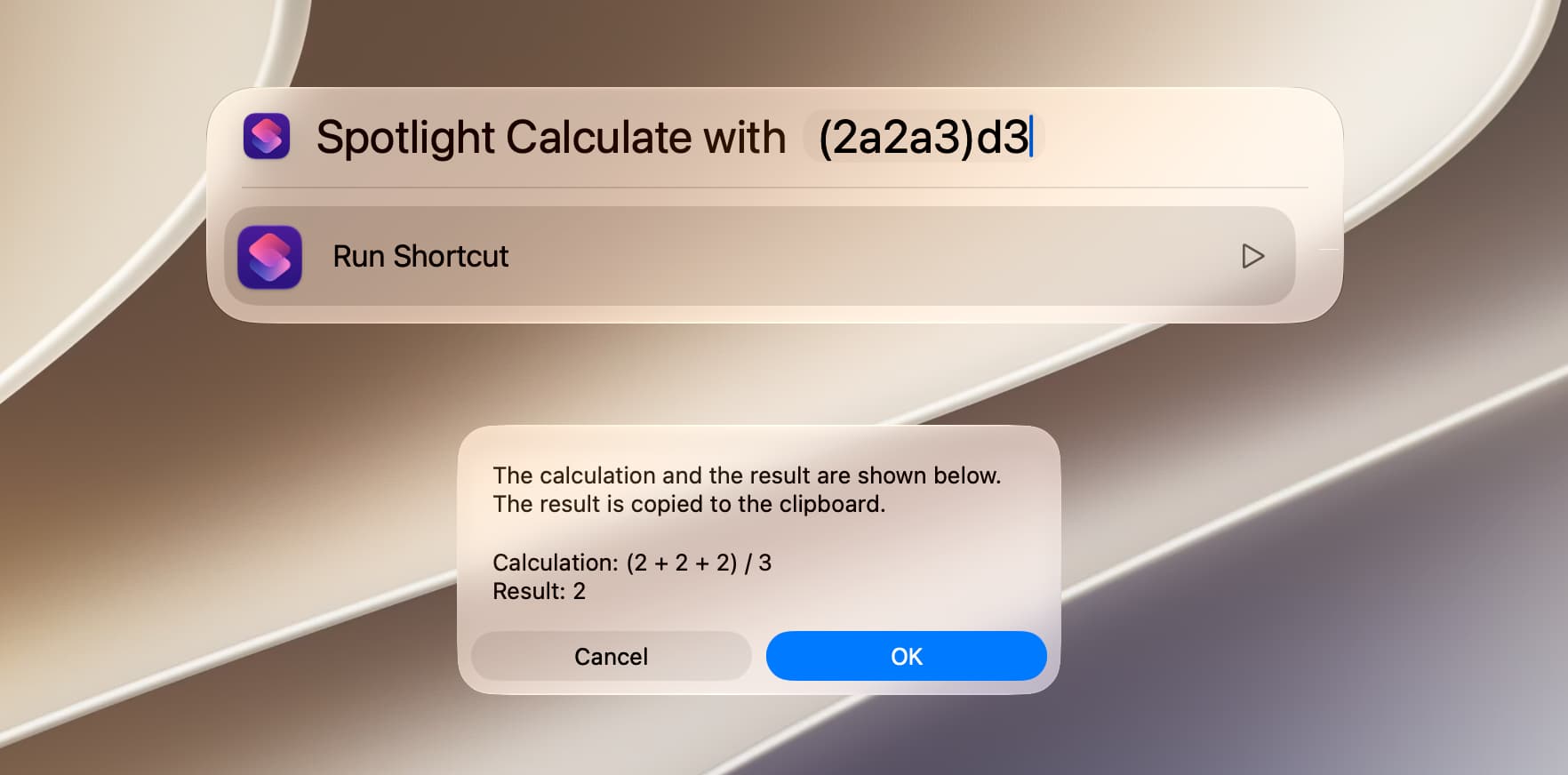
The shortcut included below is a simple calculator that demonstrates a use of the Calculate Expression action. This shortcut supports text replacements to facilitate the entry of math operators and shows the prior calculation. macOS Golden Gate 27 is required.
The following are a few additional math operators that can be used with these shortcuts, although I suspect anyone who needs these will be using a proper scientific calculator.
exponent ^ or **
square root √
cube root ∛
Factorial !
modulus %
Pi π
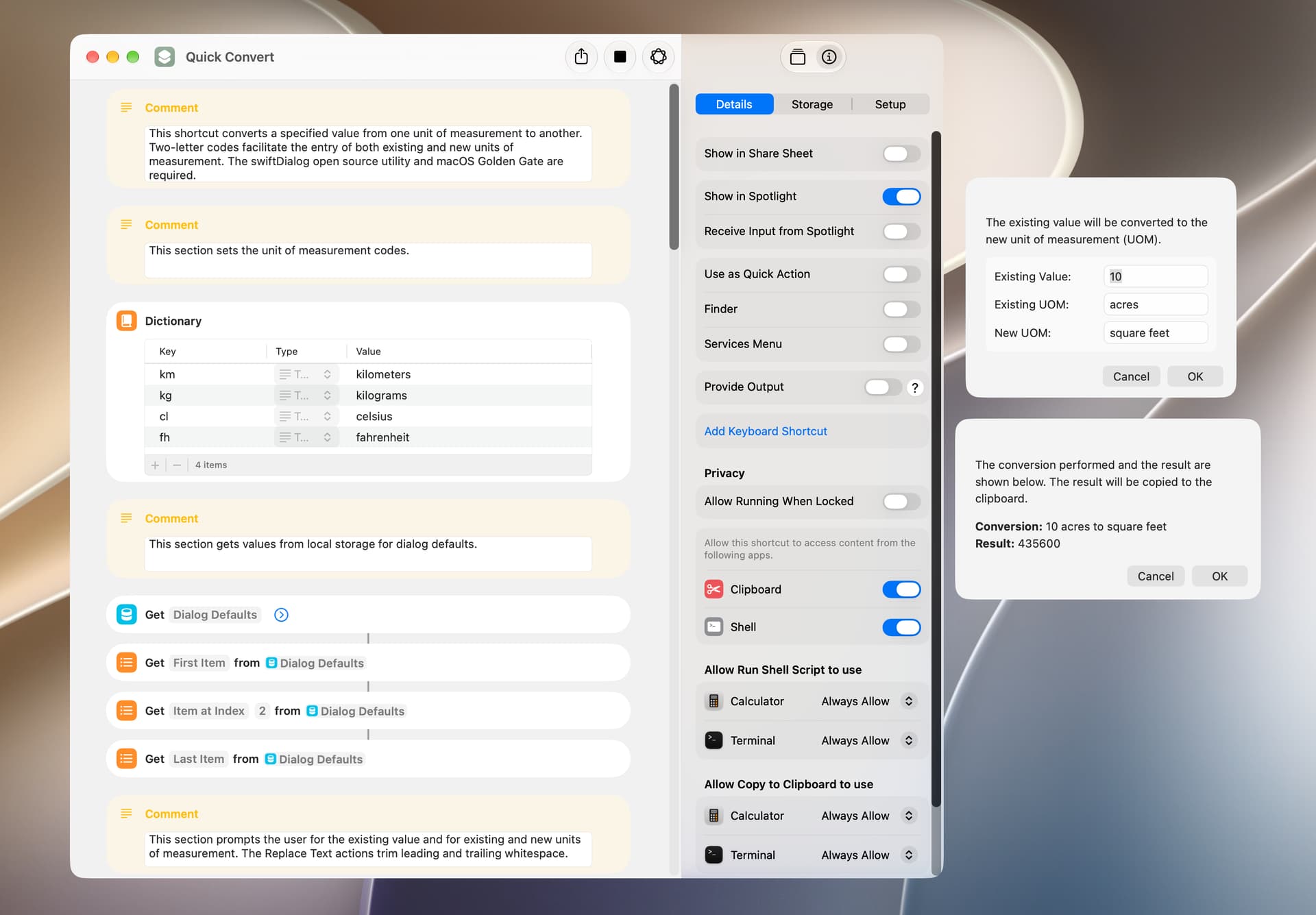
The shortcut included below is another example that uses the Calculate Expression action. It performs various conversions including distance, volume, mass, time, and temperature. This shortcut requires macOS Golden Gate and the open source swiftDialog utility.
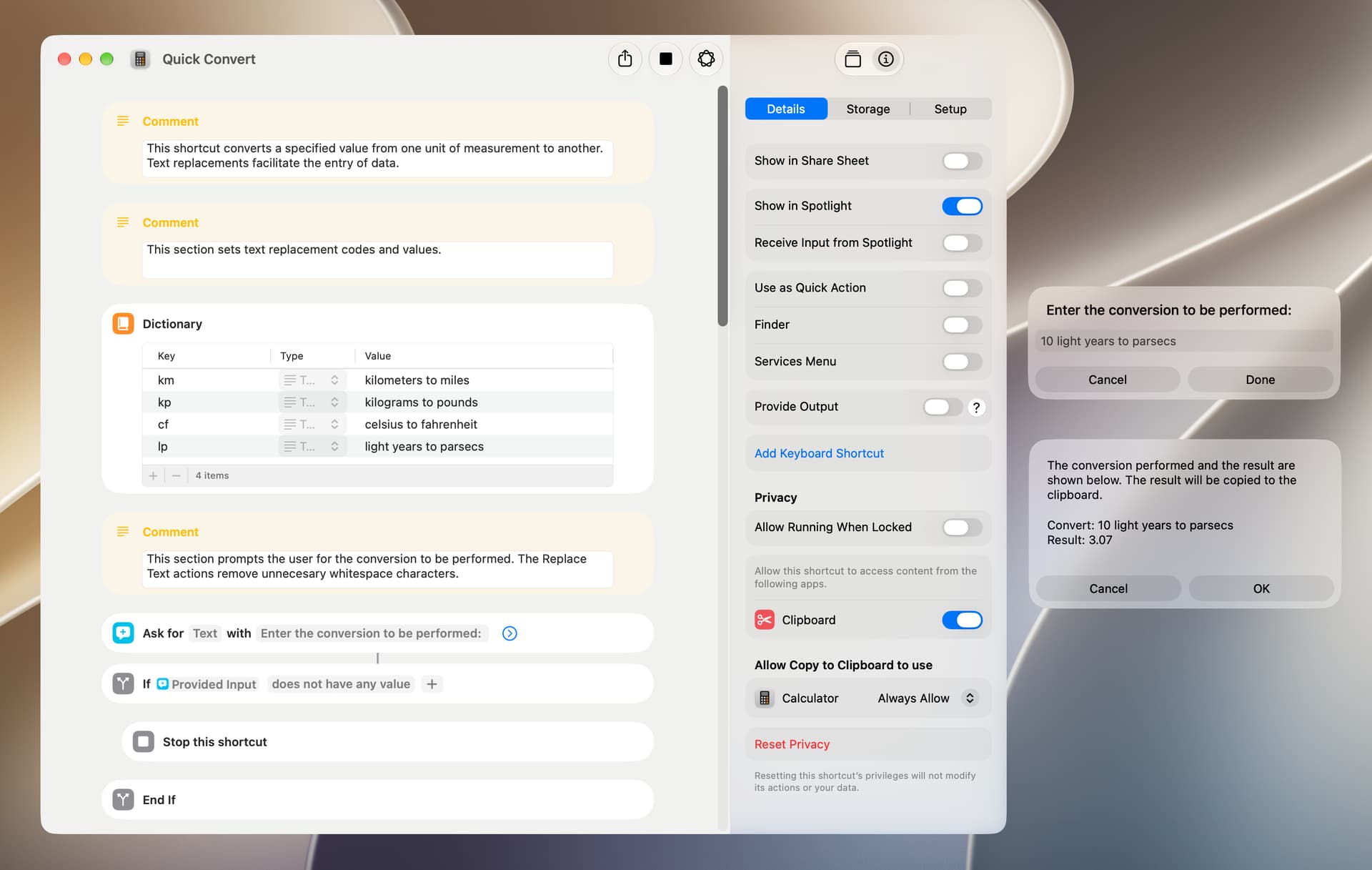
This shortcut is similar to the above, differing in the following respects:
It should work with any version of macOS that supports the Shortcuts app, although it has only been tested on macOS Golden Gate 27.2.
It does not require the swiftDialog app.
The text replacement codes are intended for use with frequently-used conversions. Thus, for example, acceptable user input includes 100 kilograms to pounds and 100 kp (see the Dictionary action in the screenshot).
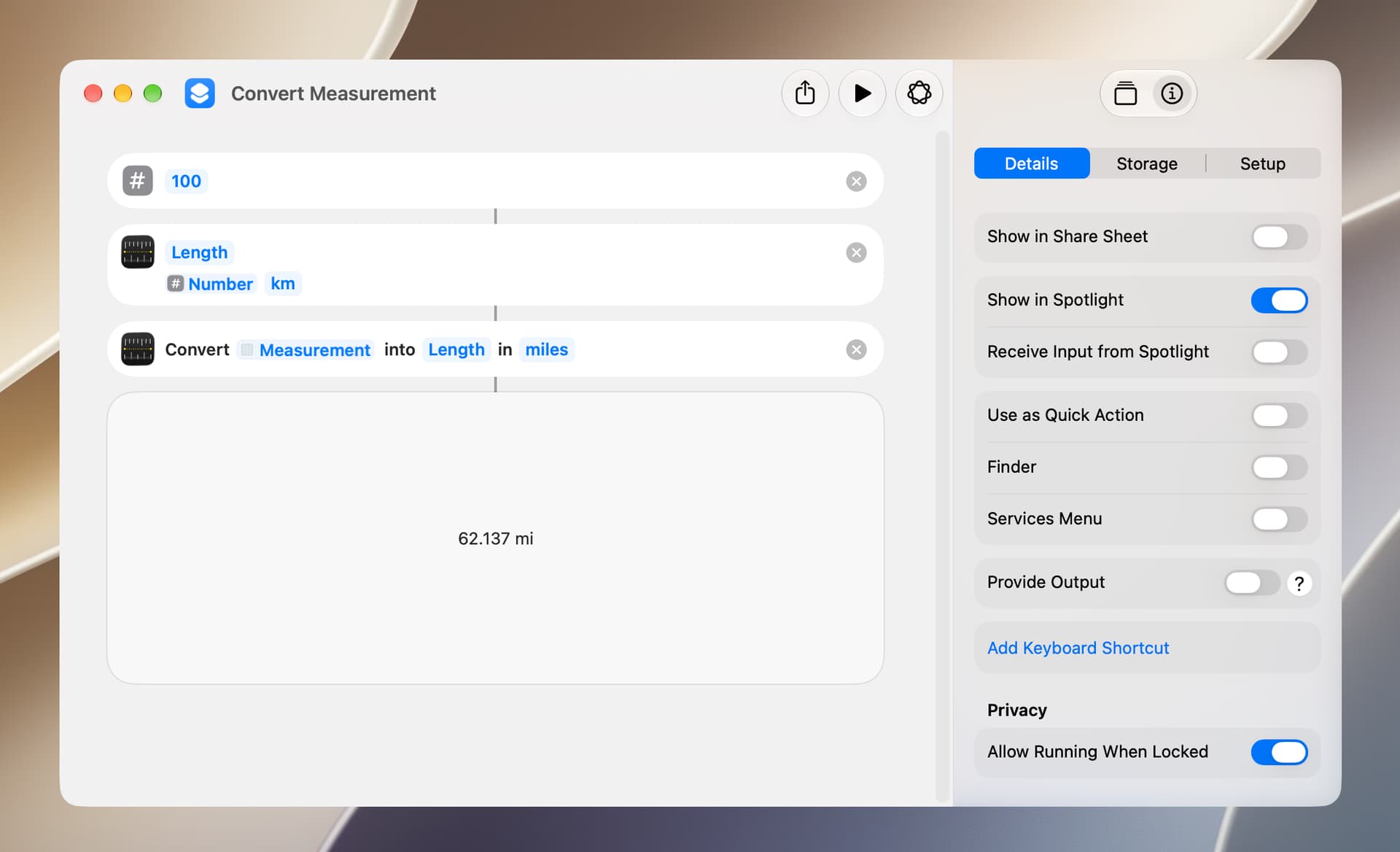
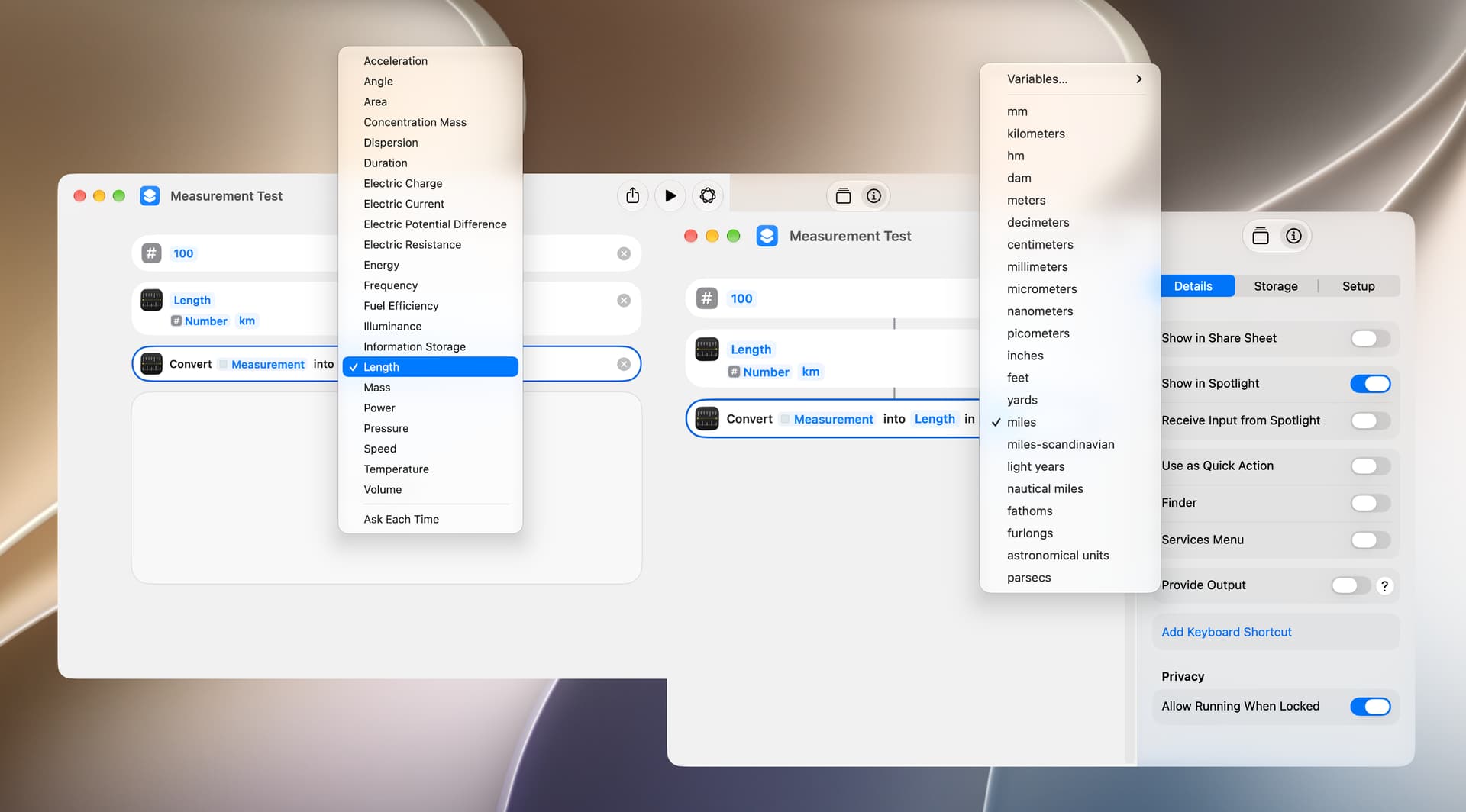
There are two actions whose purpose is to format and convert a value from one unit of measurement to another. They are described as:
Measurement. Passes the specified measurement (including number and unit) to the next action.
Convert Measurement. Converts the measurements passed into the action to the specified unit.
The following is a simple example of their use. It should be noted that the input of the Convert Measurement action apparently needs to be a measurement object and will not work if the input is text.
In limited testing, many but not all of the units of measurement were supported by the Calculate Expression action and will work with my shortcuts included above.