An option available in every shortcut is Receive Input from Spotlight. I was never certain of the typical use scenario for this action and decided to investigate.
Google AI describes the purpose of this option as:
The “Receive Input from Spotlight” option allows you to pass what you type, select, or query directly into your shortcut when you run it from the macOS Spotlight search bar.
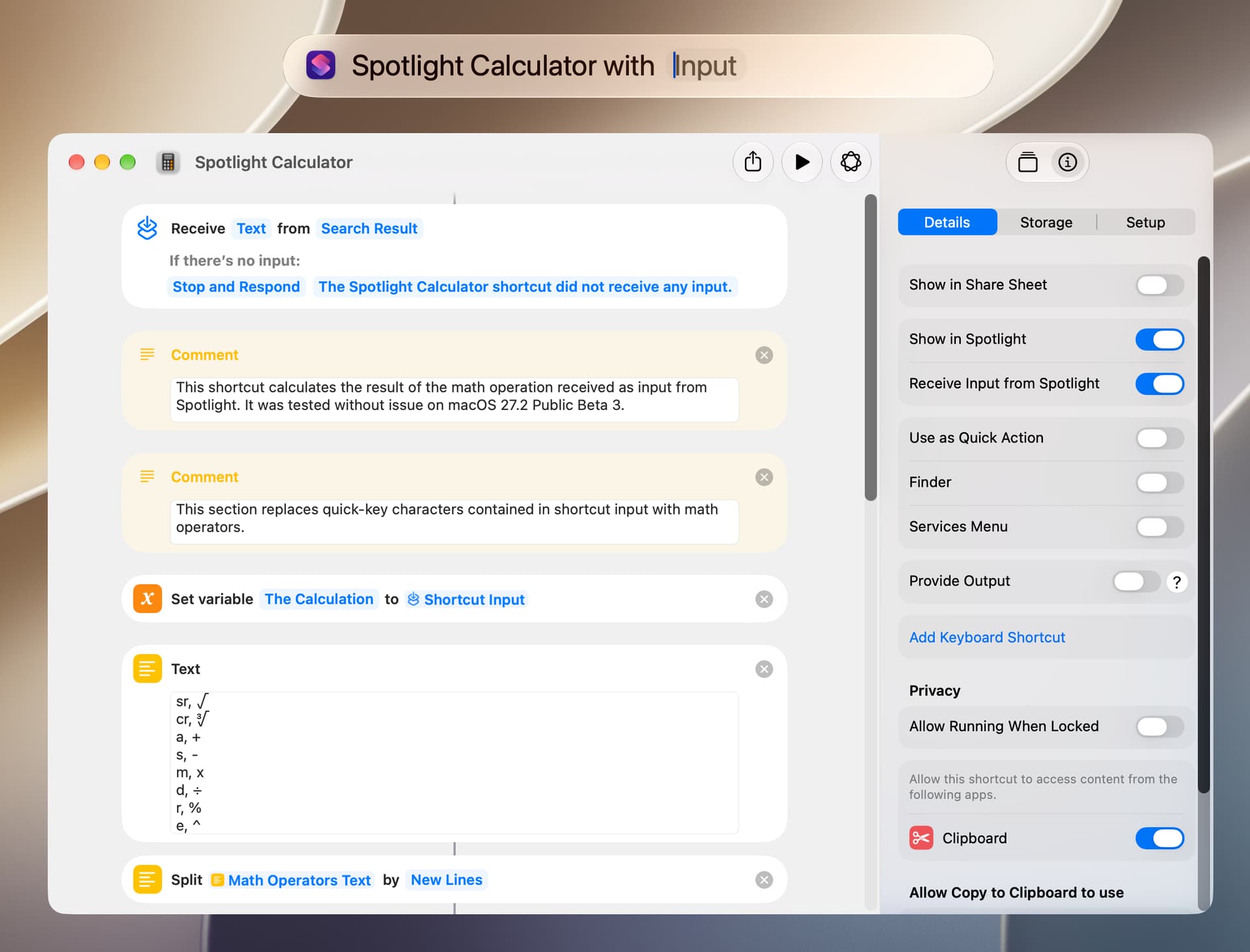
An example of a shortcut that uses this option is a calculator. To run this shortcut:
Activate the Spotlight search bar.
Enter the name of the shortcut and select it with the keyboard or mouse.
The Spotlight search bar will show the name of the shortcut and allow the user to enter text at the Input placeholder (see screenshot below).
After doing the above, the entered text is processed by the shortcut and the result displayed. The shortcut allows the user to set quick-keys to make the entry of math operators a bit simpler.
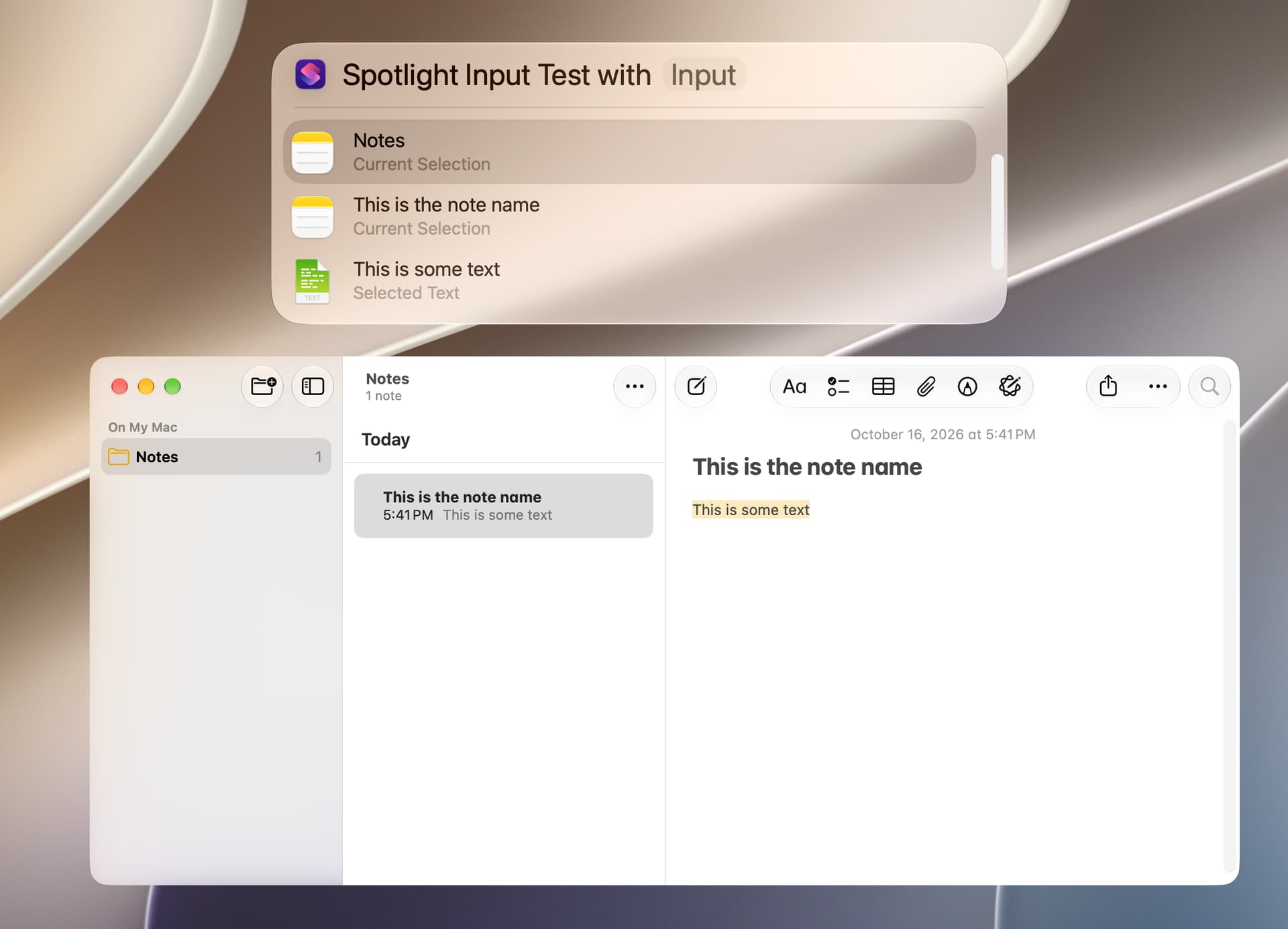
I tested various apps to see what data was received by a shortcut from Spotlight when the Receive Input from Spotlight option is enabled. Just by way of example, the following shows the Spotlight result with the Notes app:
This is a summary with various apps and circumstances. I’m currently running Public Beta 3 of macOS 27.2.
App and Status
Items
Available Spotlight Data
Finder window with selected folder or file
1
The folder or file
Mail with selected email and text
1
Sender name, email address, and subject
Safari with selected text
2
Web site name and URL, and selected text
Preview with and without selected text
0
None
Notes with selected text
3
App name, note name, and selected text
Script Editor with selected text
1
The selected text
Shortcuts with shortcut selected
2
The selected shortcut and its folder
TextEdit with selected text
1
The selected text
The ability to enter text when a shortcut is run by Spotlight seems useful. Otherwise, it’s going to take some testing to determine how the Receive Input from Spotlight option might otherwise be used. It’s also worth noting that several other actions get the same data (without having to use Spotlight), and the following are a few examples:
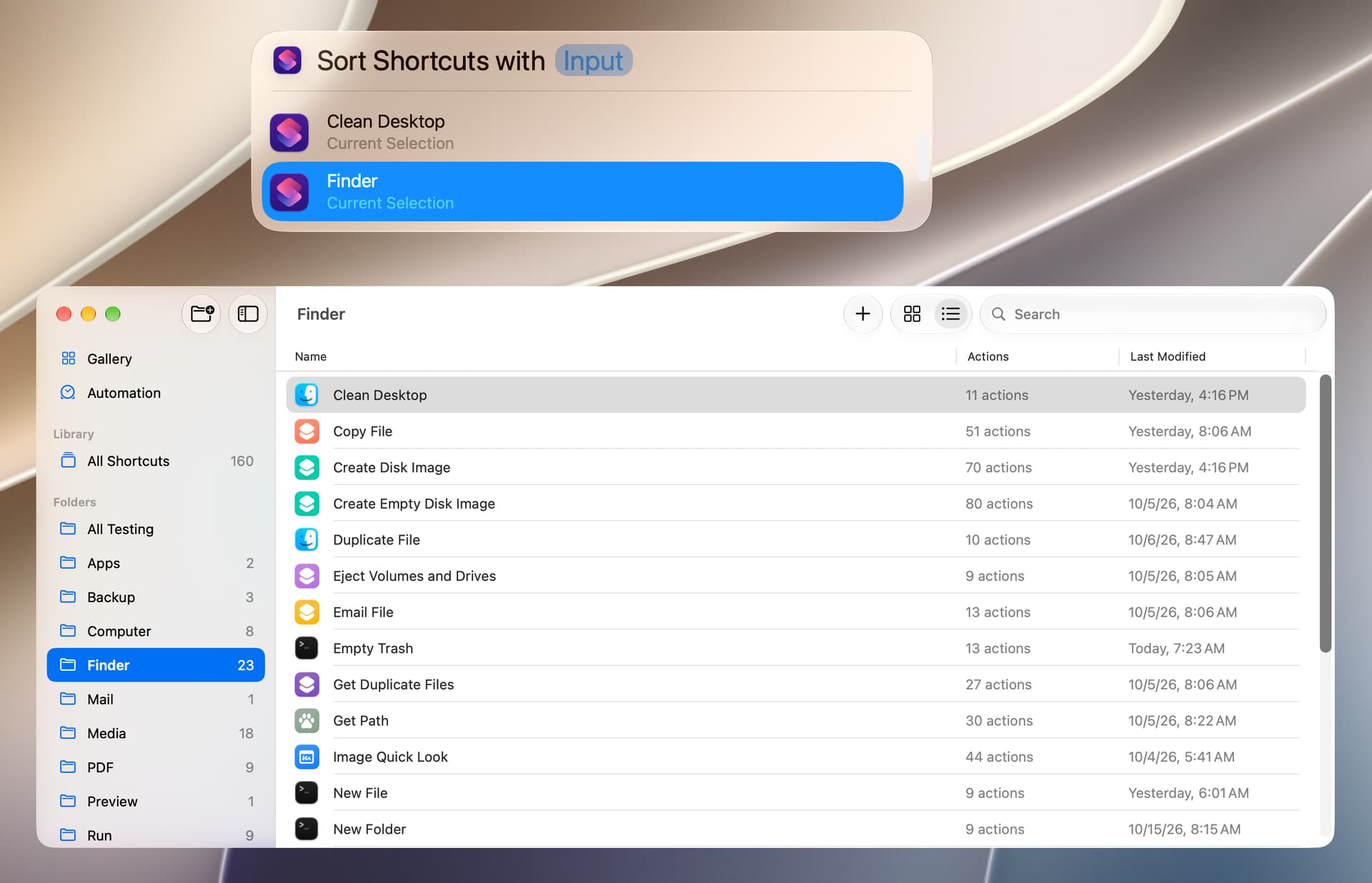
The shortcut included below uses the Receive Input from Spotlight option to get a folder selected in the Shortcuts app. It then sorts the shortcuts in this folder.
As a word of caution, the shortcut uses the Filter Files action to sort the shortcuts and the Move Shortcuts action to write the sorted shortcuts to the app. Because of this, the situation could arise where every shortcut in the Shortcuts app could be moved to one folder (typically. the All Shortcuts folder).
To deal with the above issue, the shortcut sets folders that cannot be sorted. Further, the shortcut displays an error and stops if the reported number of shortcuts in a folder exceeds a specified number (10 as written). I’ve been using this shortcut without issue, but please have a reliable backup of all shortcuts if you decide to test this shortcut.
The following screenshot demonstrates the use of the shortcut.
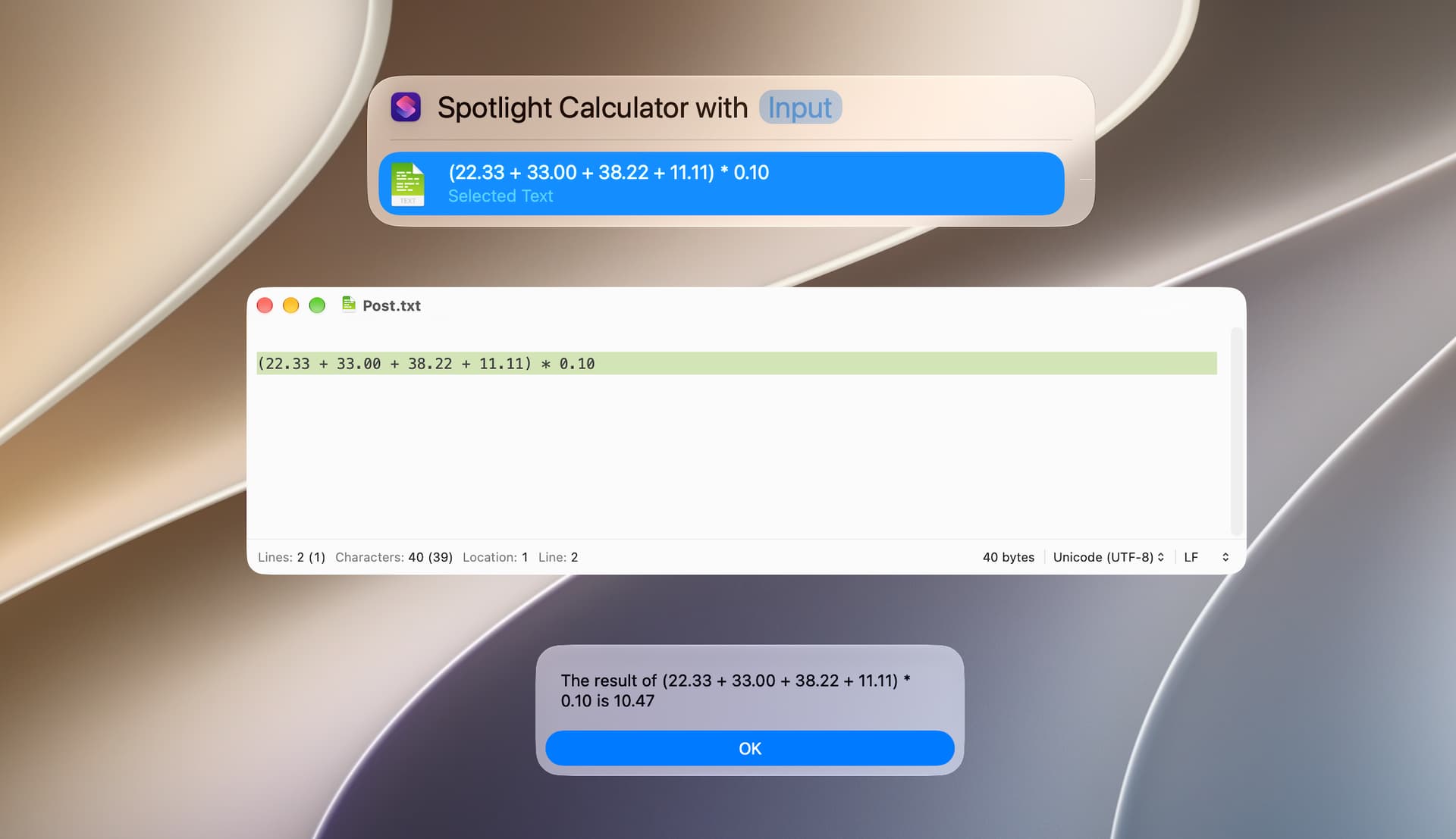
The following is another example where a selection can be used to get input for a shortcut by way of Spotlight. It uses the Spotlight Calculator shortcut from above.