Regular expressions (regexes) are supported in shortcuts and are useful in manipulating text strings. I thought I would briefly explain their operation and provide a few examples.
By way of preface, the regexes used in shortcuts follow the ICU standard, which can be found at:
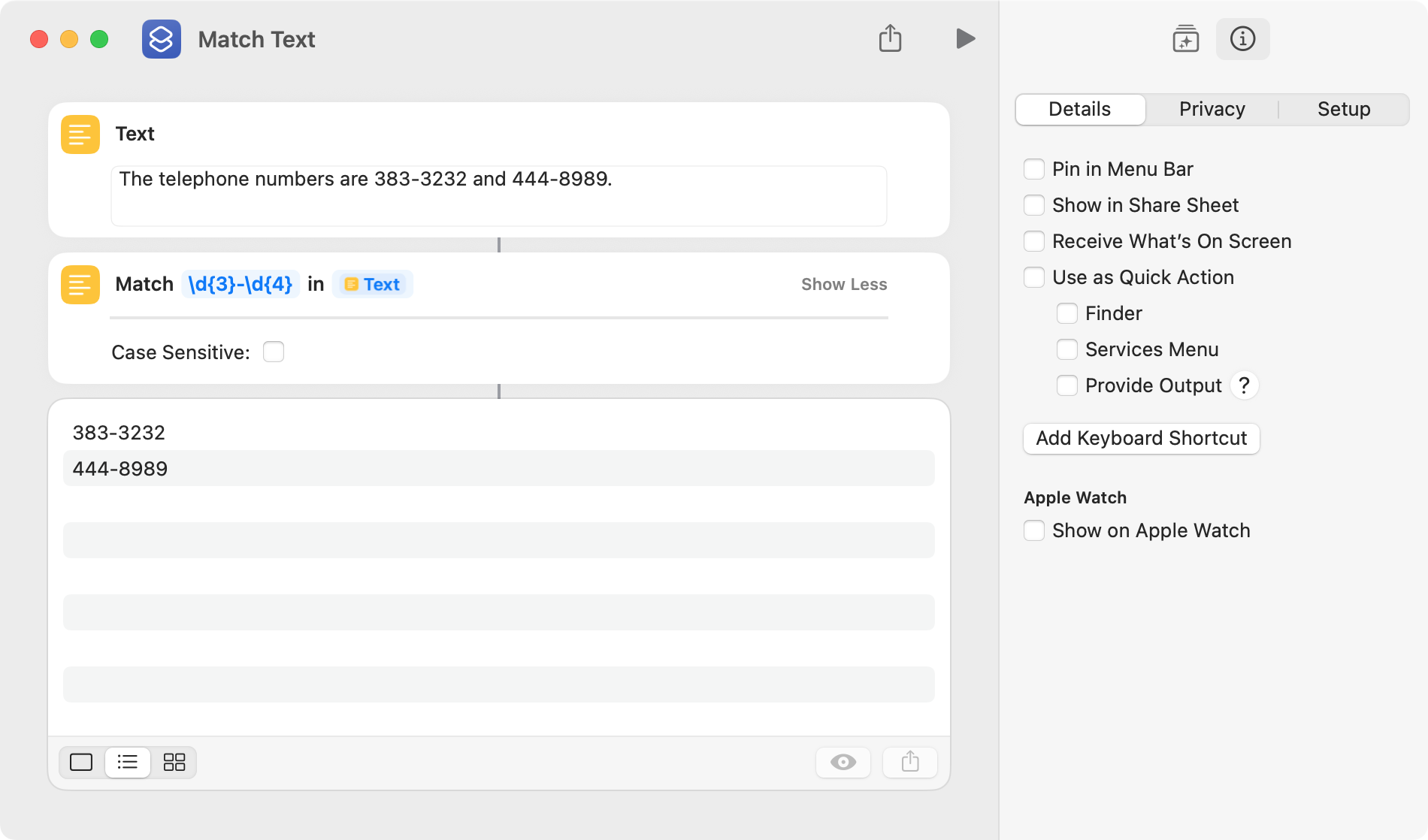
Two actions are used in a shortcut to implement a regex. The first is the Match Text action, which returns a list of strings that match a regex pattern. In the following example, the regex pattern finds 3 digits, followed by a literal dash, followed by 4 digits. The shortcut returns a list of 2 matches.
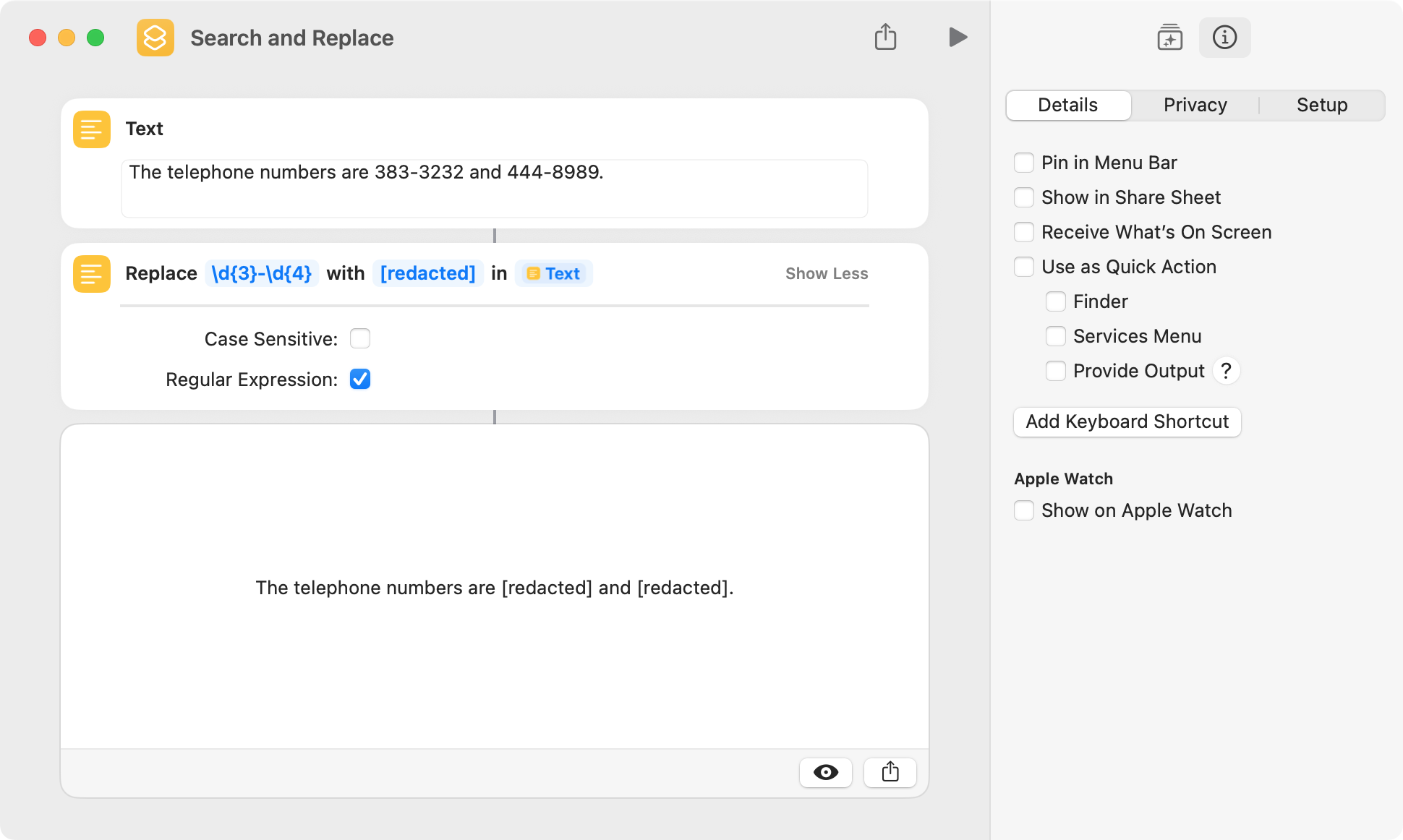
The second regex action is Replace Text, which does a search and replace. In the following example, substrings that match the regex pattern are replaced with the text [redacted].
Capture groups are a useful regex feature, and they match and return the portion of a regex pattern contained within parentheses. The text matched by capture groups is returned in a Replace Text action as $1, $2, and so on. The text matched by a capture group in a Match Text action is returned by a Get Group from Matched Text action.
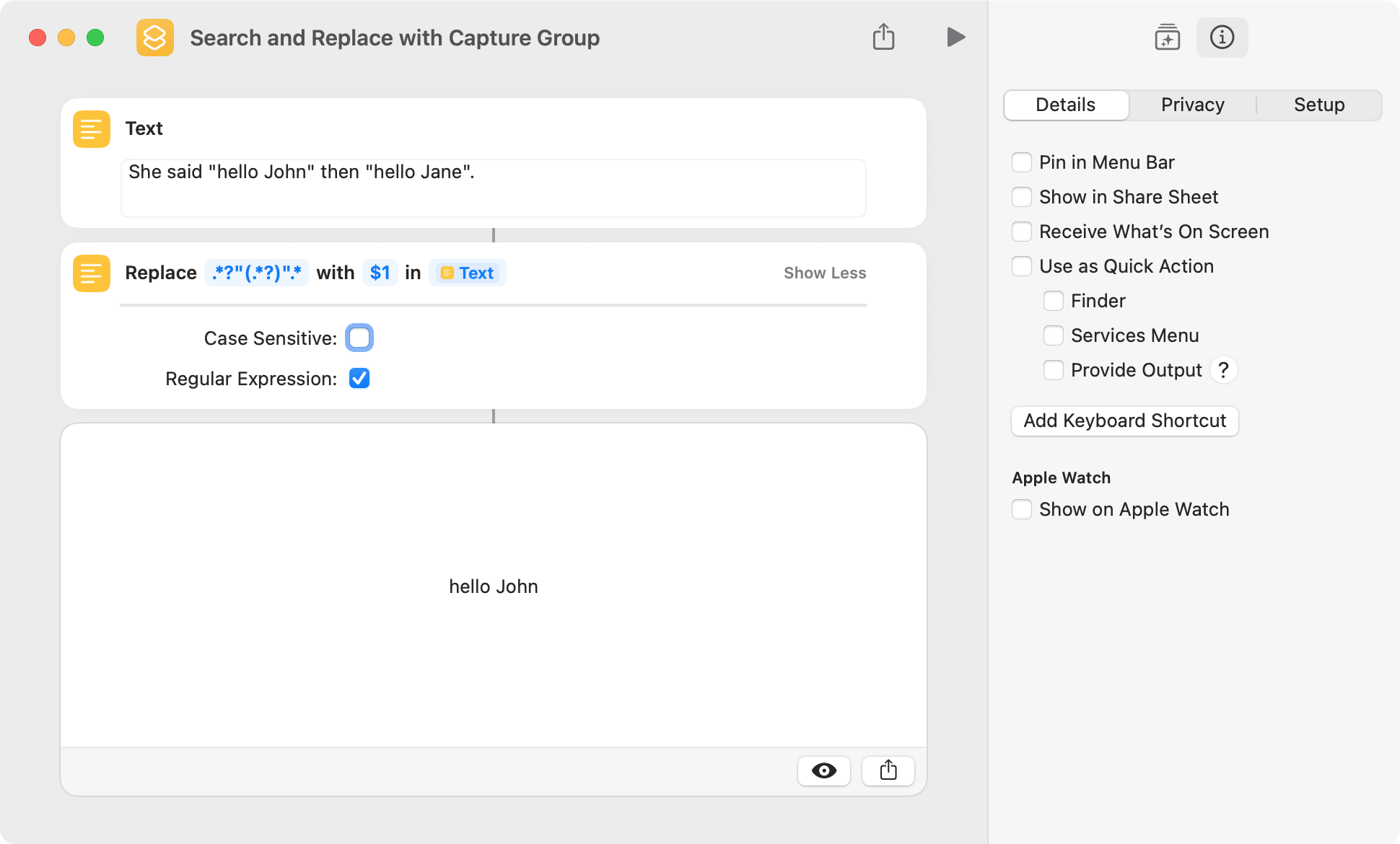
This example uses a capture group in a Replace Text action to return the substring contained within quotation marks. It’s important to note that the entire string is matched and is replaced with the hello john greeting. This may seem to be of little use, but I use it frequently.
In the above example, hello John is returned instead of hello Jane because the .* metacharacters are made lazy by appending the ? metacharacter. The terms lazy and greedy are an important concept in regexes, and a Google search will yield many good explanations.
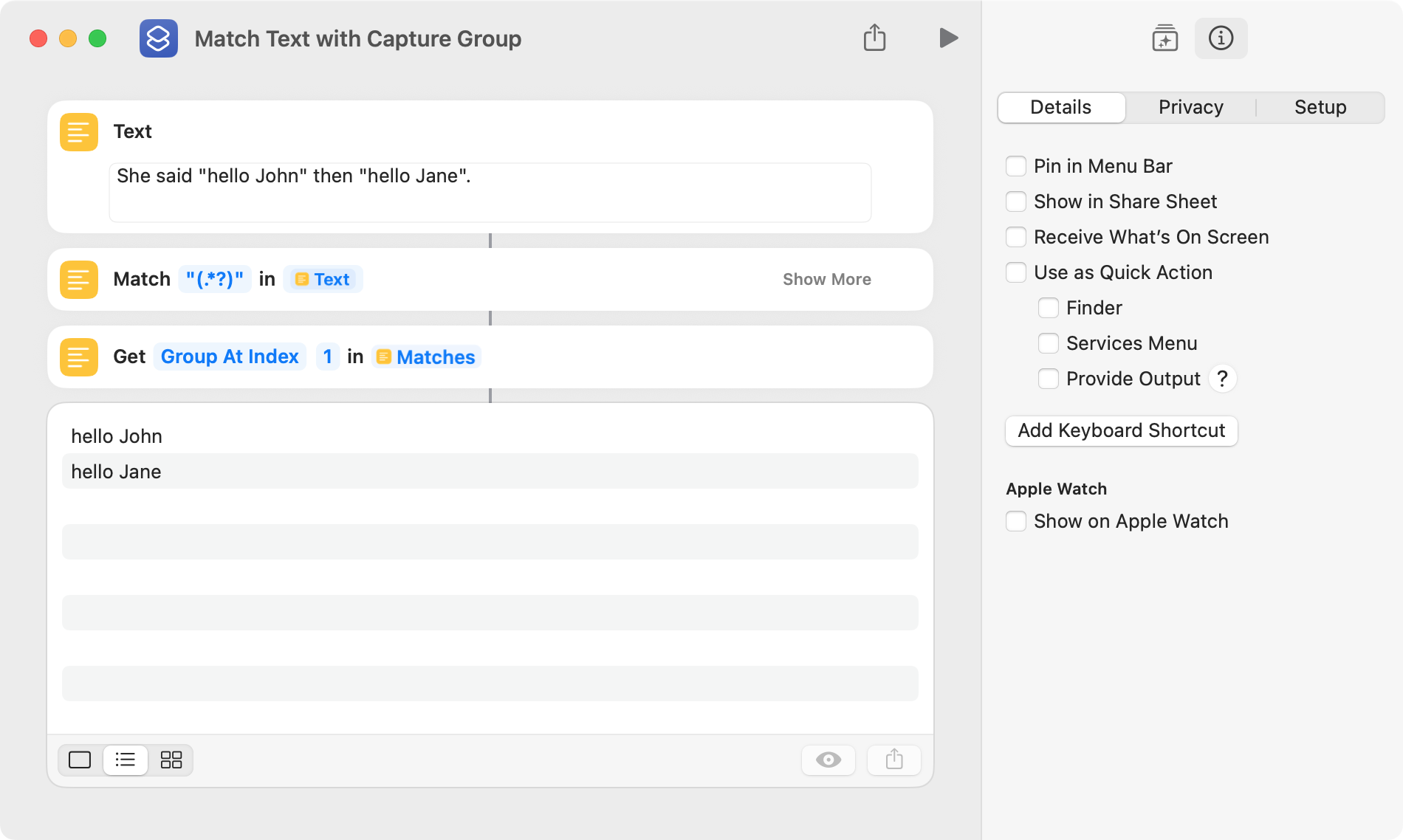
This example uses a capture group in a Match Text action to return the substrings contained within quotation marks. A list of two items results.
Replace Text actions are almost always faster then Match Text actions, although both are very quick.
It is not always possible to accomplish a particular task with one regex action, and two or more consecutive regex actions can be used instead.
Literal characters can be included in a regex pattern, but the following characters must be escaped with a backslash to retain their literal meaning: * ? + [ ( ) { } ^ $ | \ .
If a regex pattern contains an error, the shortcut will report an error. If a regex pattern does not find a match, the entire original string is often returned.
I’ve been working to update my regular expression notebook and thought I’d post a few examples. I’ve included a screenshot of the shortcut and the regex pattern in parentheses.
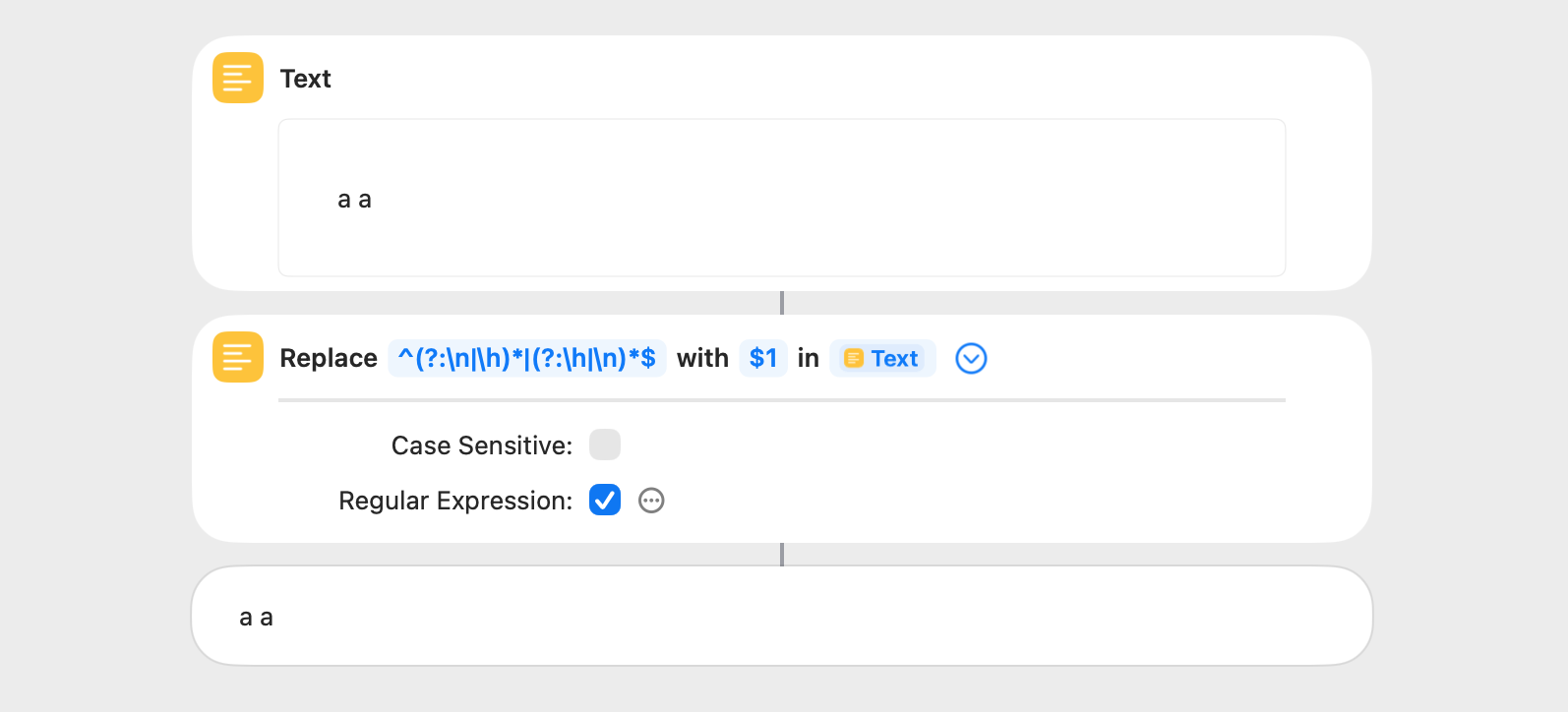
This shortcut removes horizontal and vertical whitespace from the beginning and end of a string (^(?:\n|\h)*|(?:\h|\n)*$). This is the same as the Trim Whitespace action, and they both take about the same amount of time.
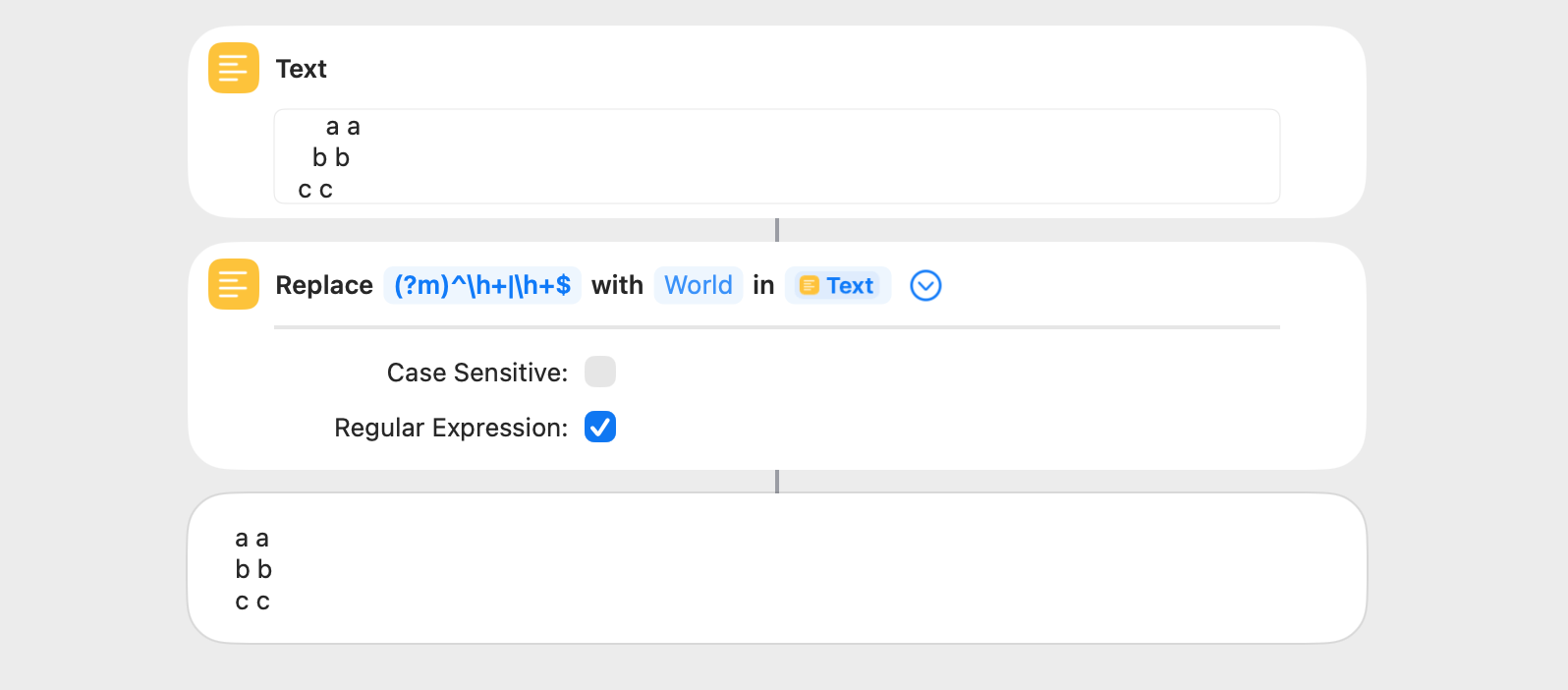
This shortcut removes horizontal whitespace from the beginning and end of every line of a string ((?m)^\h+|\h+$). This can also be done by way of the Split Text, Trim Whitespace, and Combine Text actions, although the regex solution is significantly faster.
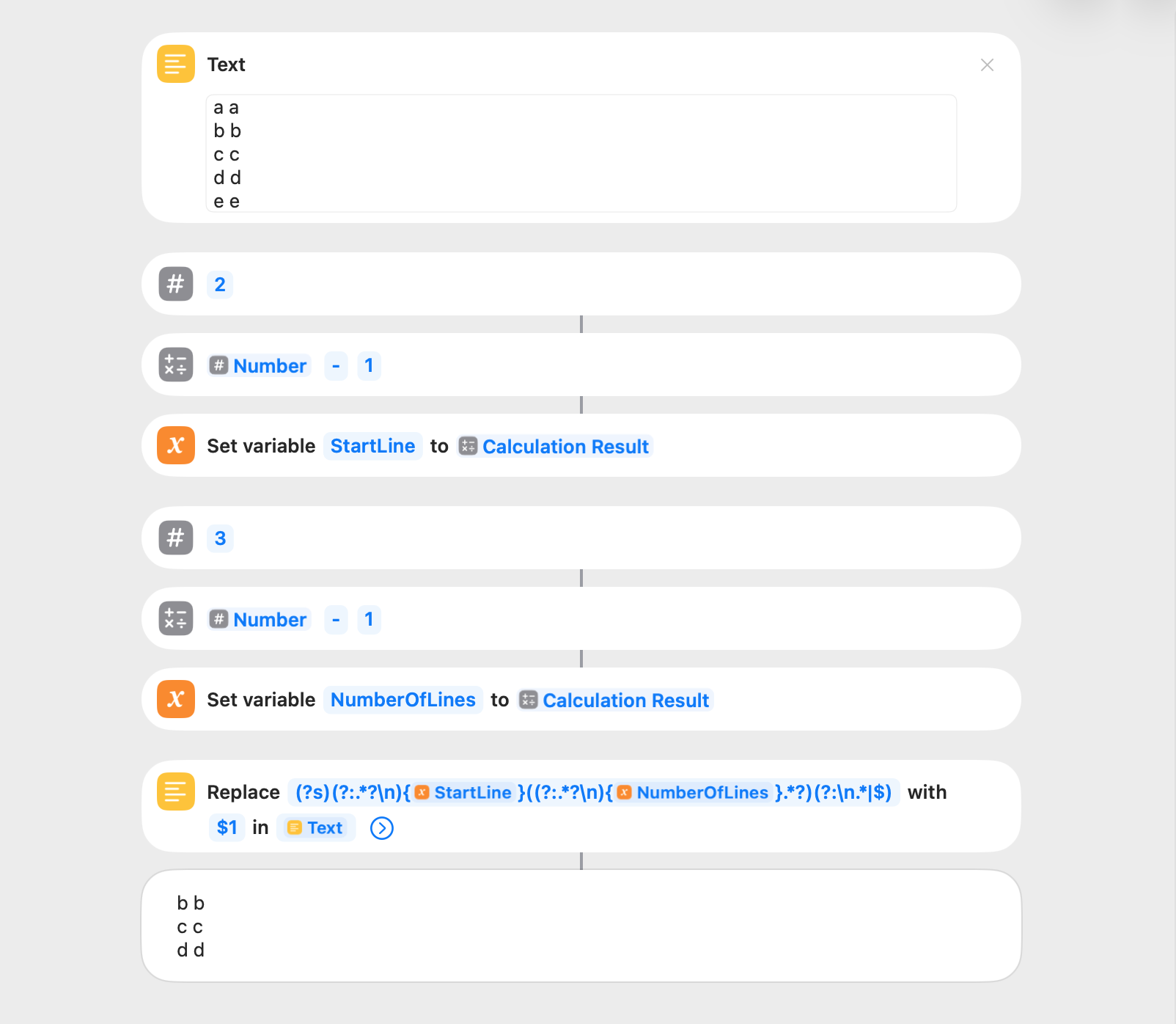
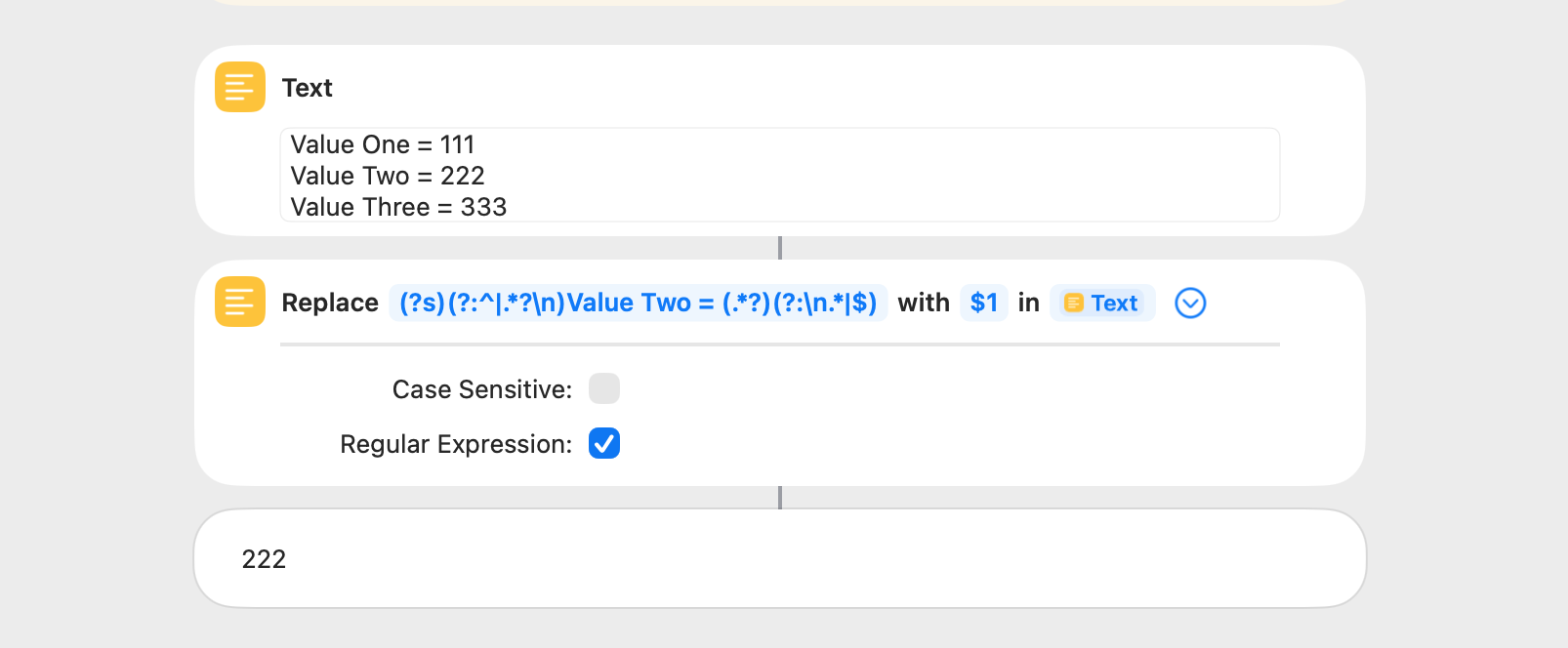
This shortcut gets the text of the specified line of a string and additional lines as desired ((?s)(?:.*?\n){StartLine}((?:.*?\n){NumberOfLines}.*?)(?:\n.*|$)). This can also be done by way of the Split Text, Get Item from List, and Combine Text actions, although the regex solution is significantly faster.
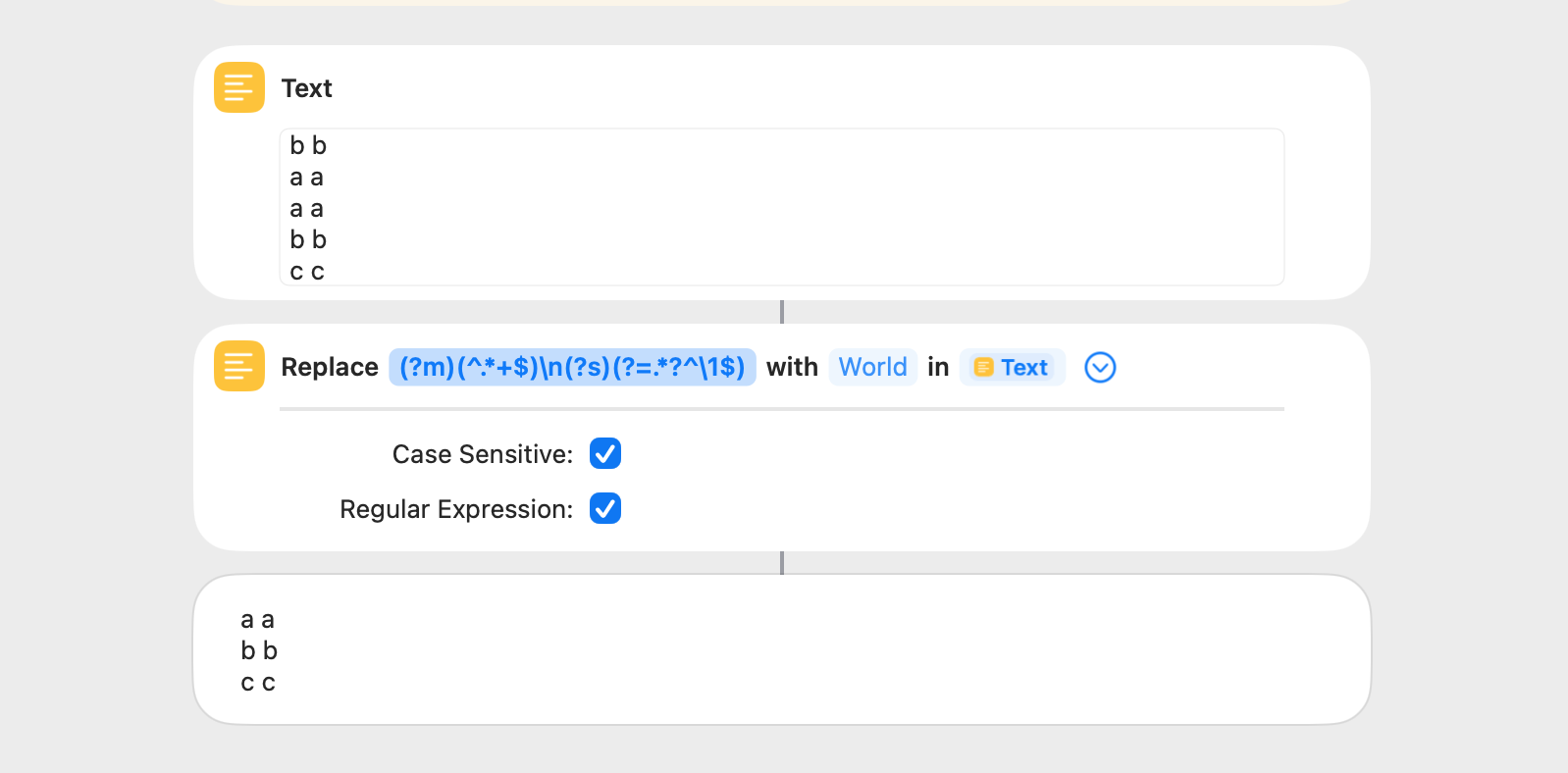
This shortcut removes duplicate consecutive and nonconsecutive lines from a string ((?m)(^.*+$)\n(?s)(?=.*?^\1$)). The last instance of a duplicate is retained, but the first instance of a duplicate can be retained by reversing the order of the string before and after the Replace Text action. Nigel assisted me with the regex pattern.
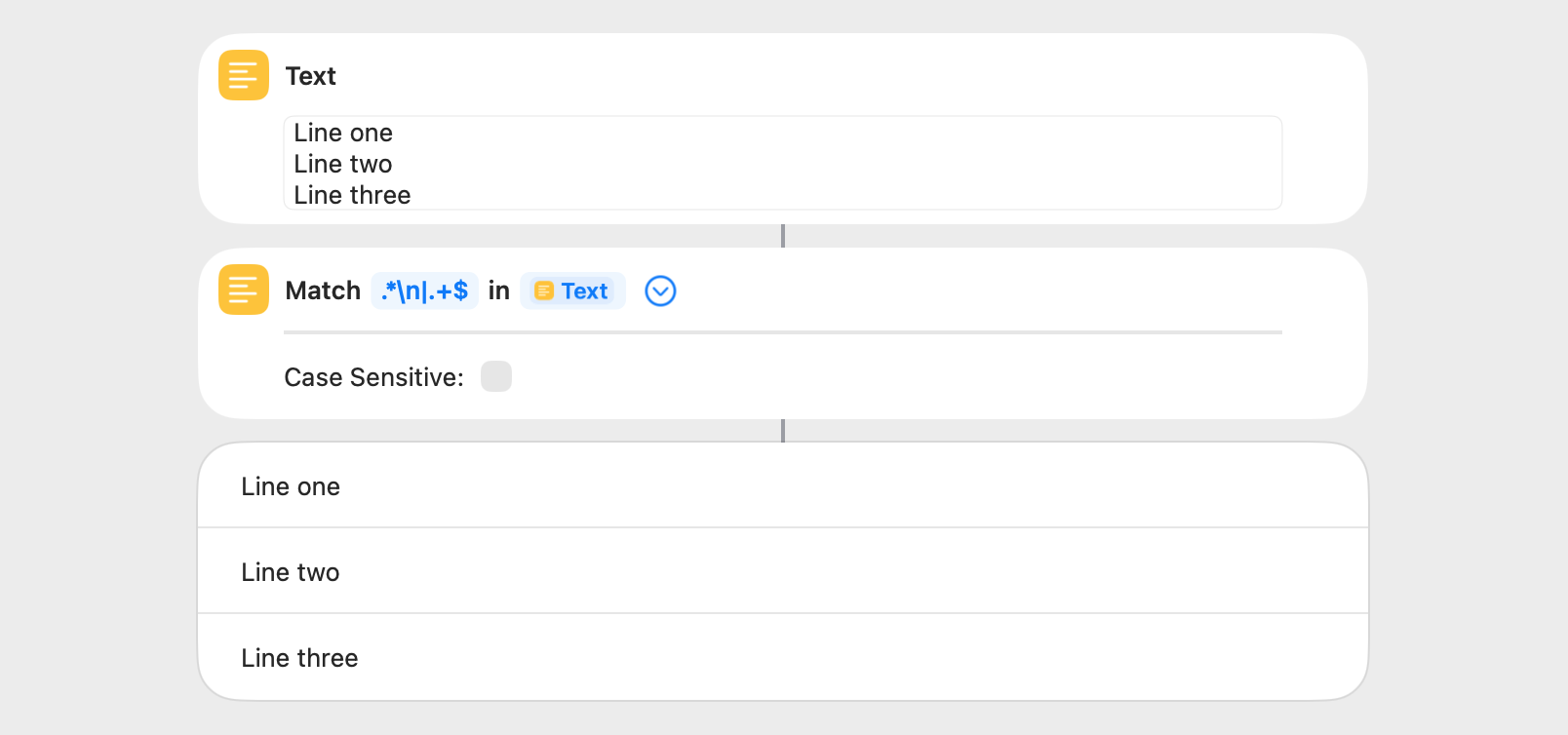
This shortcut makes a multi-line string into a list (.*\n|.+$). It is the same as the Split Text action, and there’s no difference in the timing results.
I encountered a regex oddity and thought I’d explain FWIW.
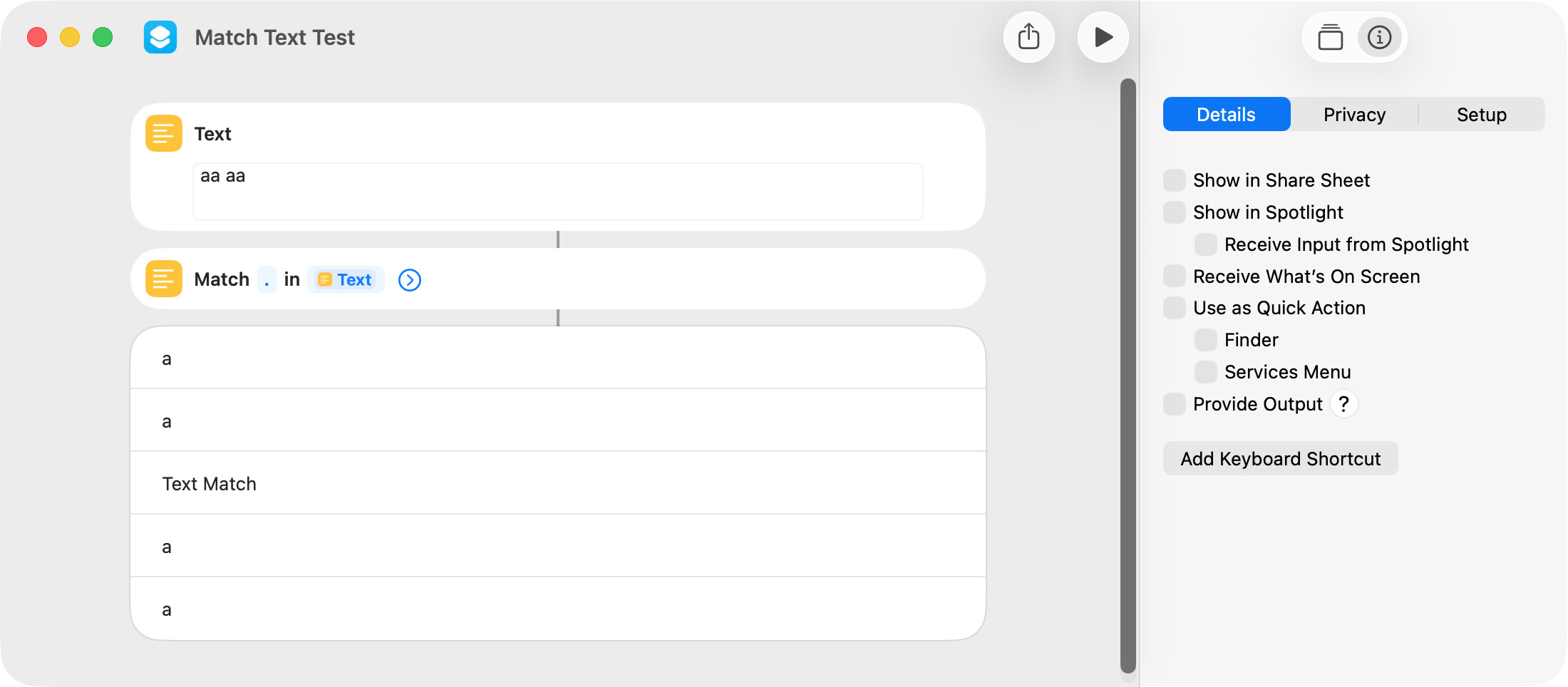
The Match Text action in the shortcut displayed below uses a dot metacharacter to match any character. The Show Content action shows the literal character for the letter a but a text match label for a space.
The Match Text action returns an object and, to be consistent, should probably display a text match label for every character or the literal character for every character (including a space). I assume the space character cannot be seen and that’s why it’s instead shown as text match.
The important point is that every matched character is returned as a literal character when the result of a Match Text action is used later in the shortcut.
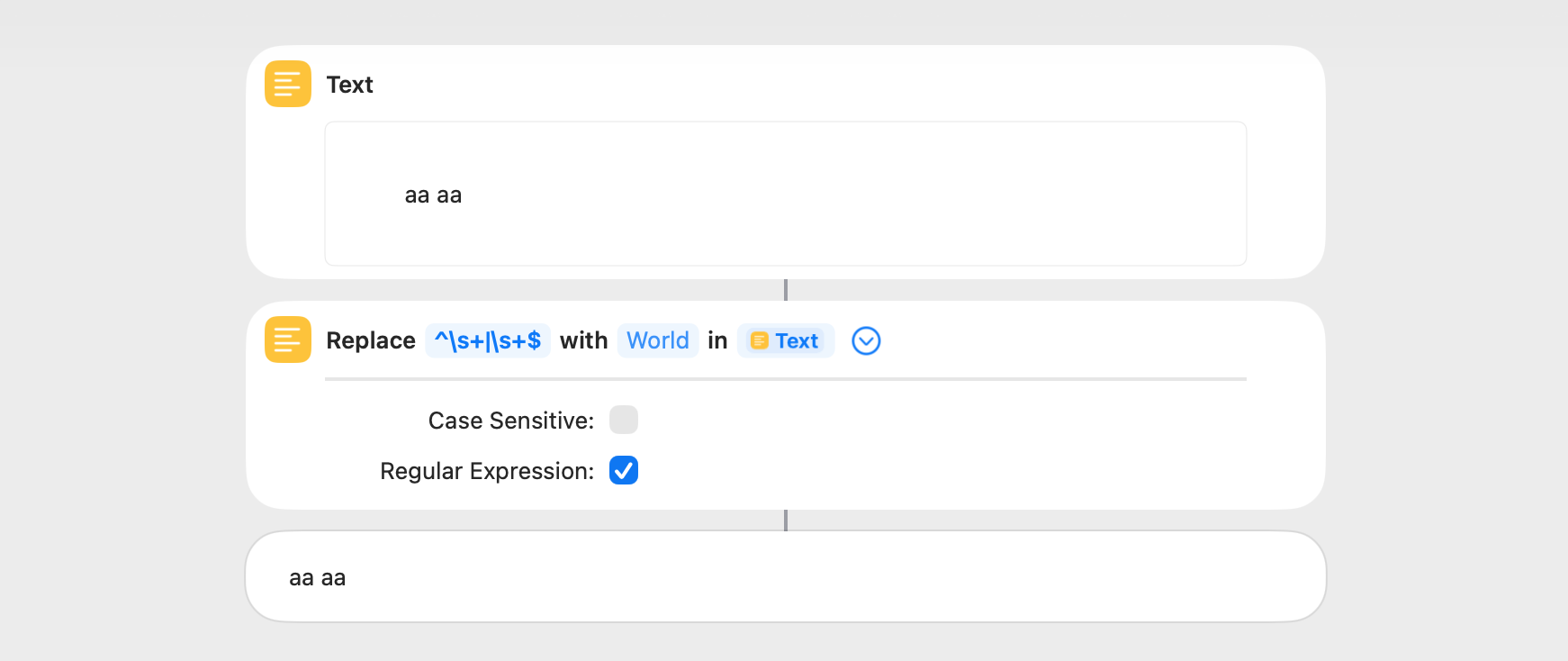
The above regex example works as expected but contains an error in that there is no capture group. Also, there’s a simpler and more comprehensive way to do this. It uses the \s metacharacter, which matches both horizontal and vertical whitespace. The forum wouldn’t let me edit my earlier post.