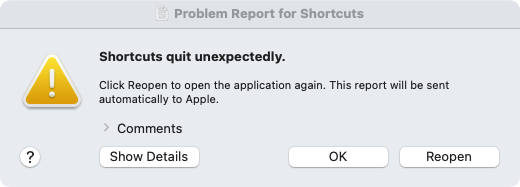
The following are now present in my Accessibility and Full Disk Access permissions, but the rsync shortcut will not run from the menu bar. It does run fine from within the Shortcuts app and by way of an AppleScript or shell script. The rsync shortcut also works if the destination is on my boot drive (other than a protected folder like Desktop).
I’ve given up on this for now. A workaround is to run the shortcut by way of an AppleScript in the AppleScript Menu:
tell application "Shortcuts Events" to run shortcut named "my shortcut"
For FastScripts users, another workaround is to run the shortcut by way of a Bash script. This can be run from the FastScripts Menu or by way of a keyboard shortcut.
#!/bin/bash

shortcuts run "My Shortcut"
A third option is to run the rsync shortcut by way of the Dock. To do this, simply right click on the shortcut in the Shortcuts app and select Add to Dock. This creates a shortcut application in your ~/Applications folder and places an icon for the shortcut in your dock.
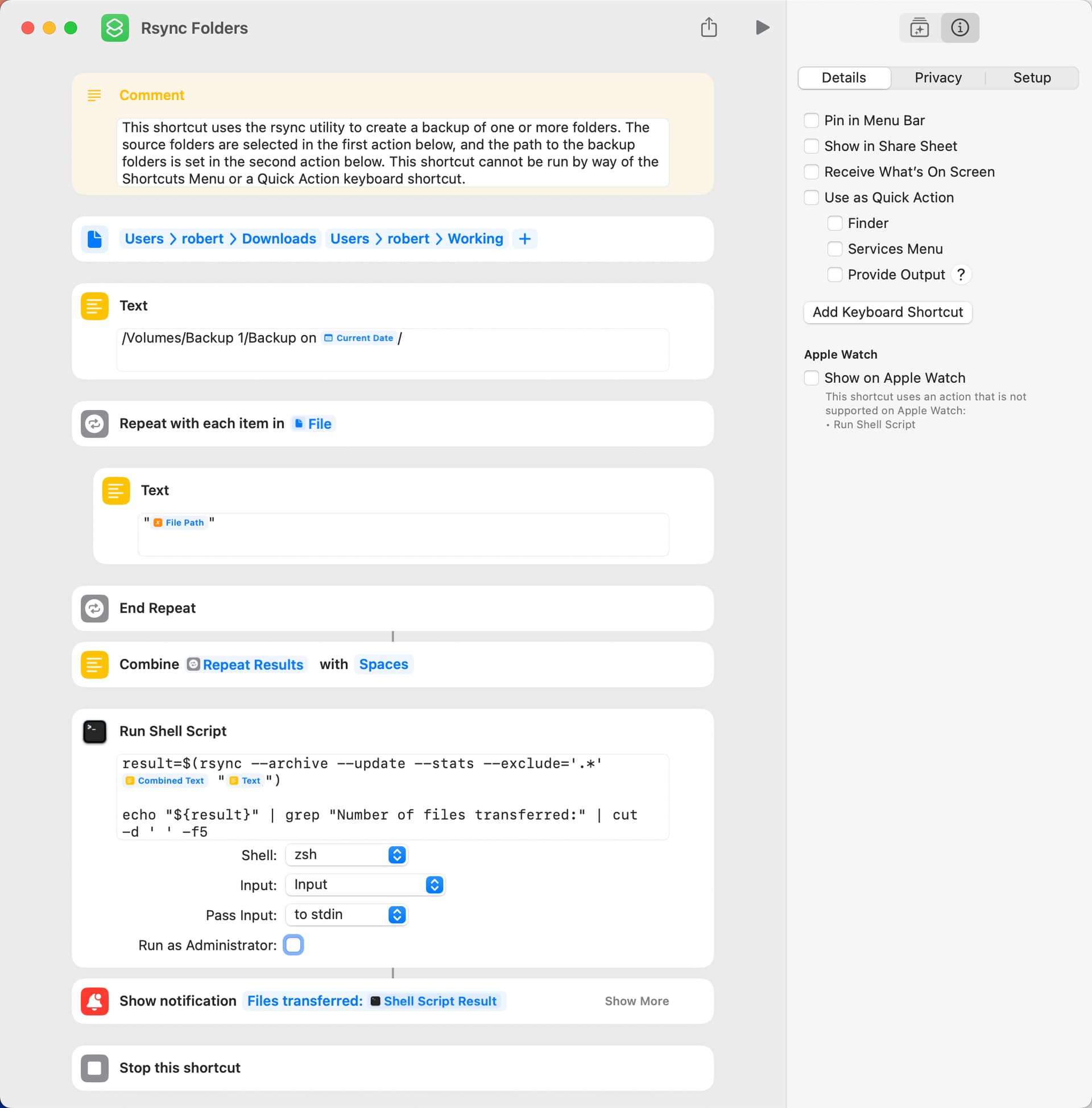
The following shortcut creates a backup of folders selected by the user and creates a dated backup in the path specified by the user. The number of files transferred is shown in a notification, although the notification may not be shown when the shortcut is run in the Shortcuts app.
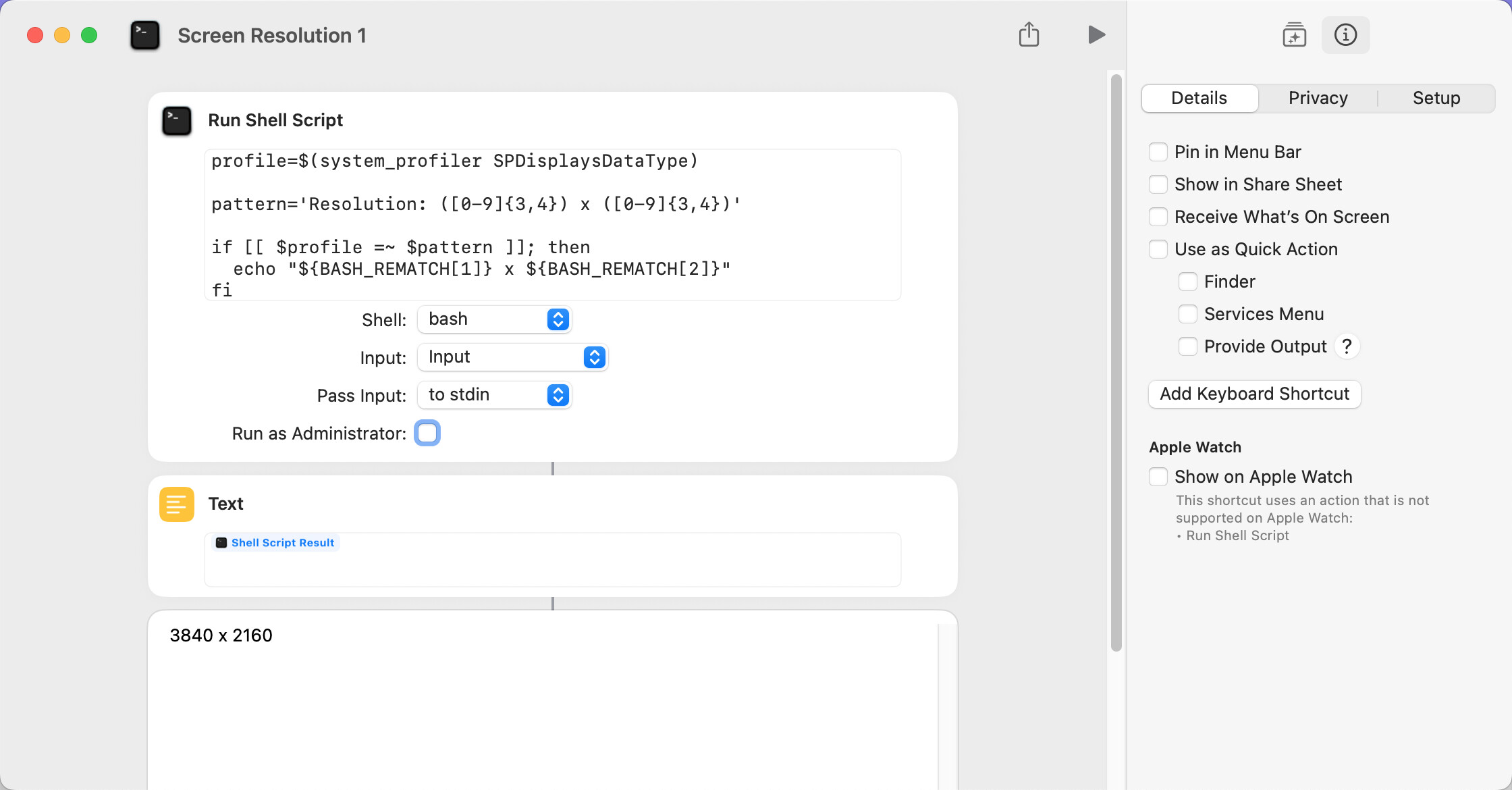
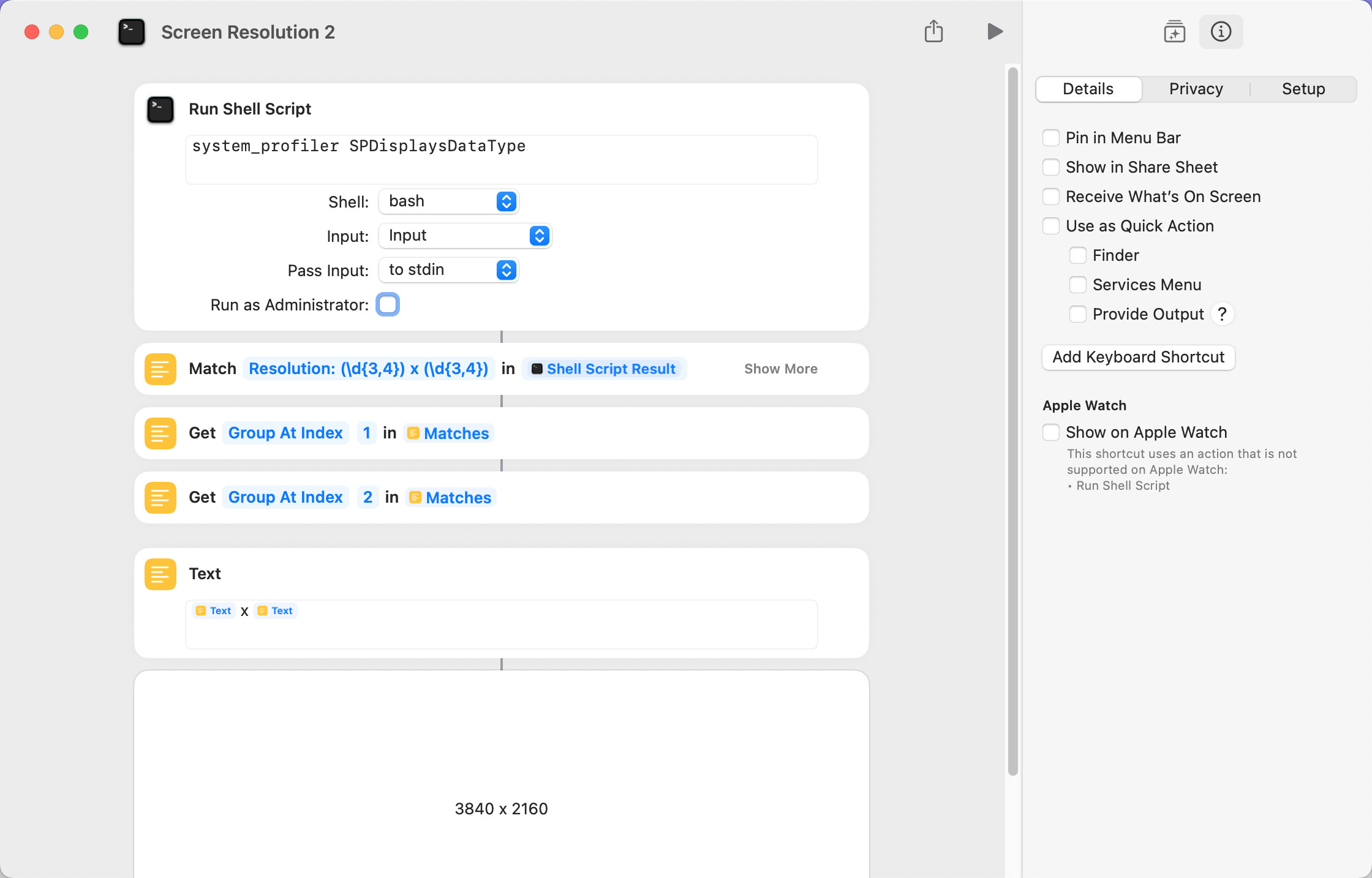
The Get Device Details action returns a limited amount of information about the current computer. If additional information is needed, the system_profiler shell utility can be used.
In the following example, the resolution of the current display–which may or may not be the same as the UI resolution–is returned.
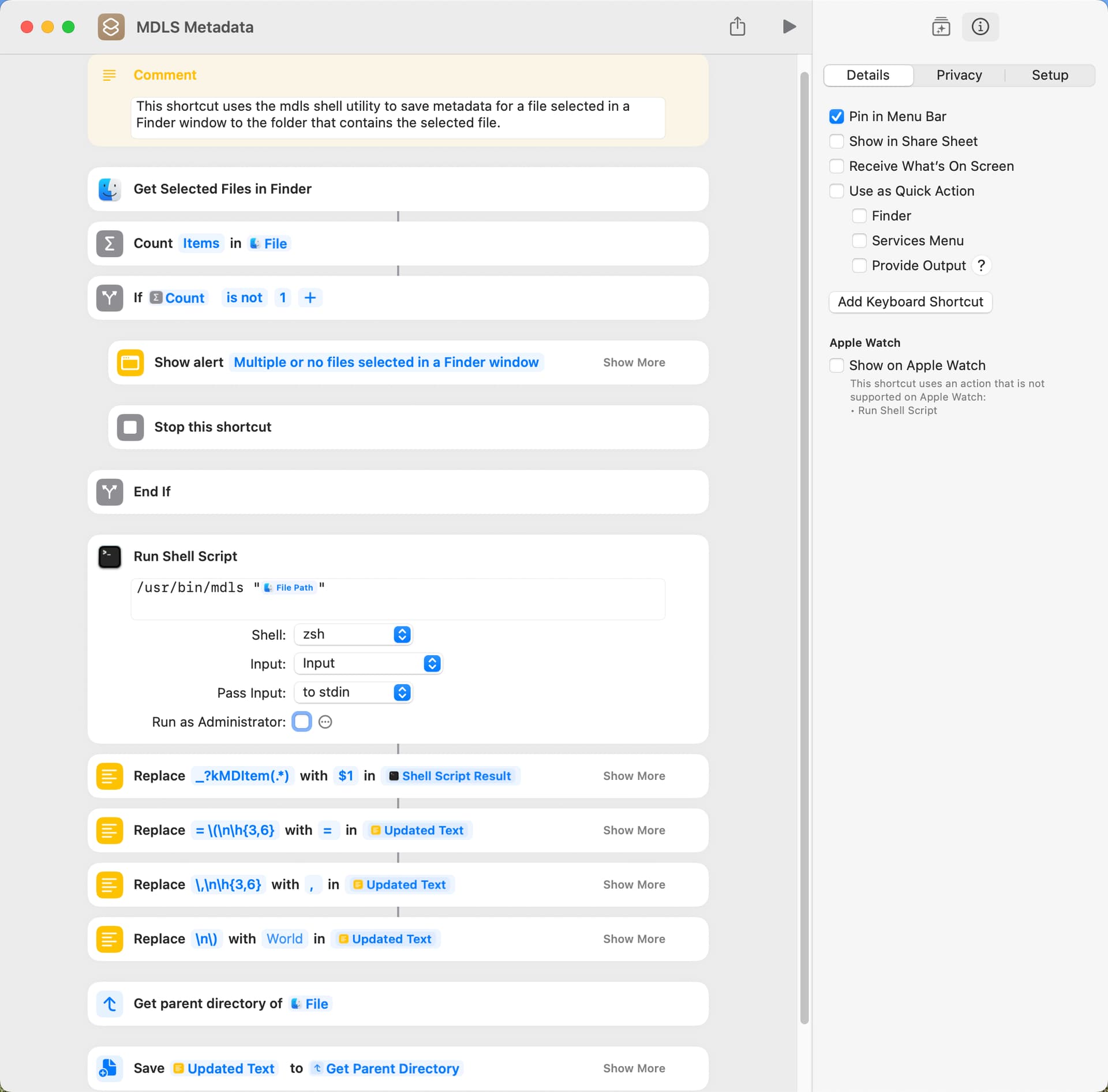
This shortcut uses the mdls shell utility to get metadata for a file selected in a Finder window and saves the metadata in a text file in the folder that contains the selected file. The shortcut reformats the mdls output, but this is easily changed by deleting the Replace Text actions. The drive that contains the selected file must be indexed by Spotlight for the shortcut to work.
The documentation for the Run Shell Script action contains the following:
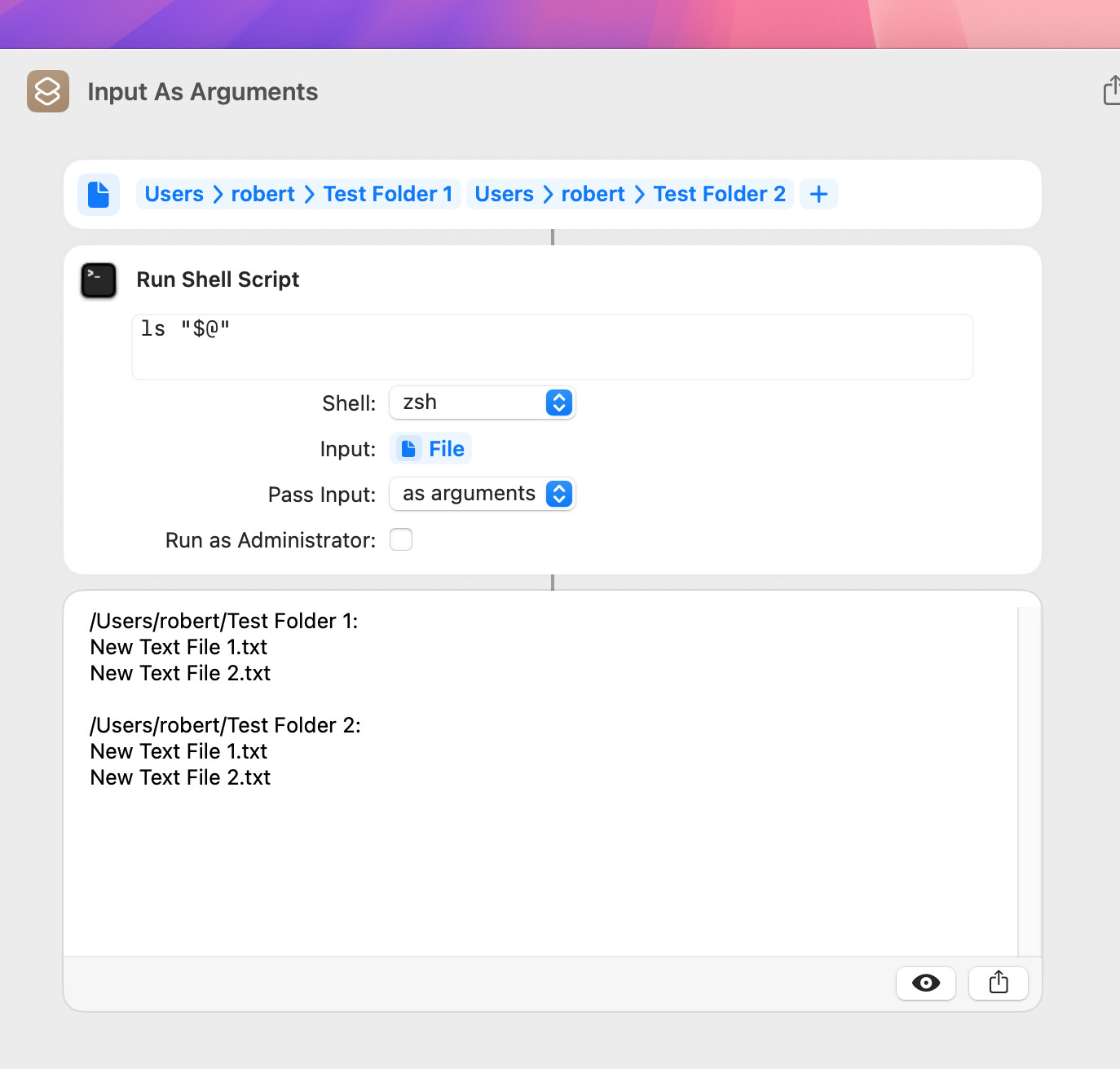
Pass input as arguments: The input will be converted to a list of strings and passed as arguments to the script.
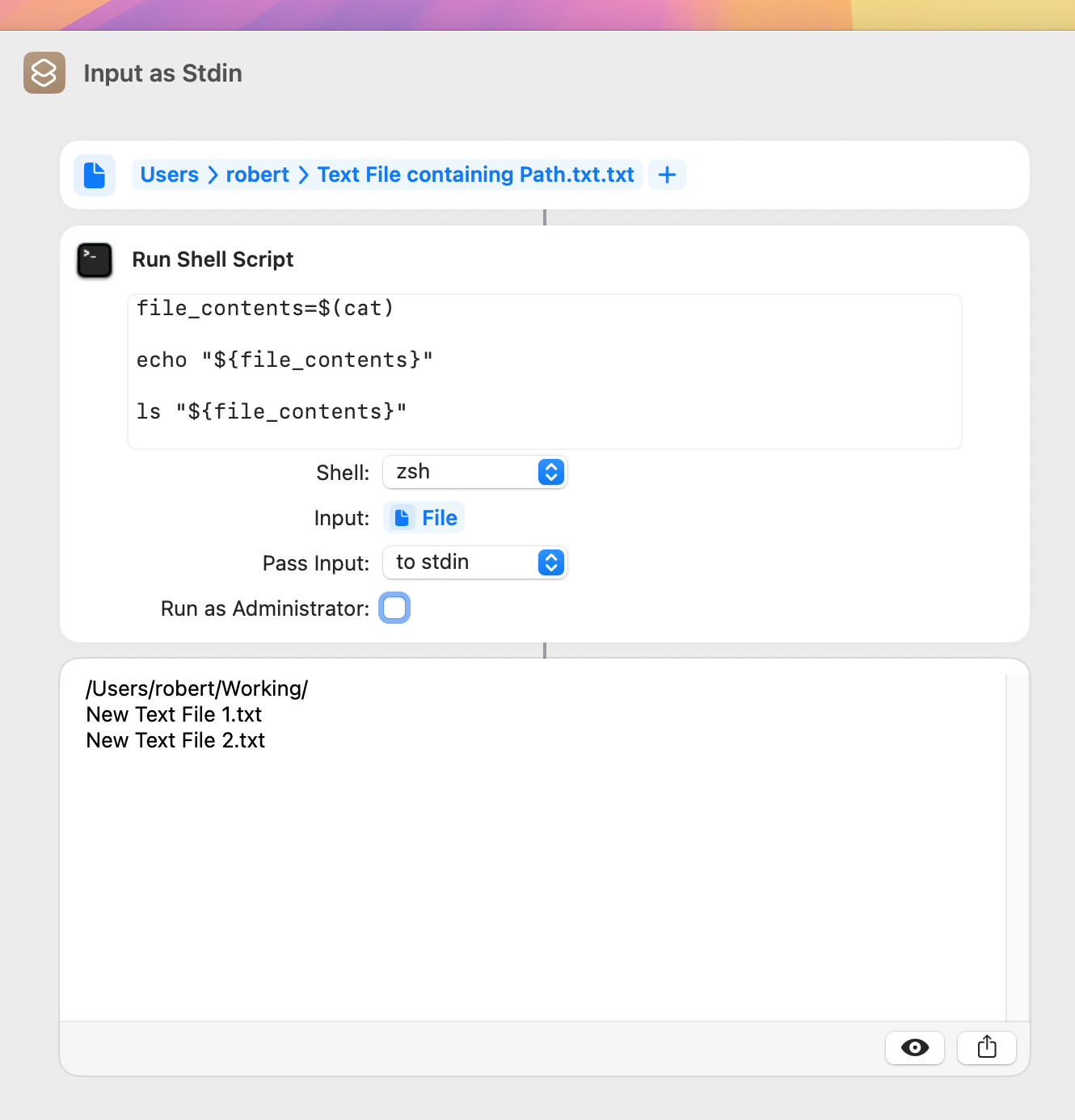
Pass input to stdin: The input will be converted to a file and directed to the stdin pipe of the script.
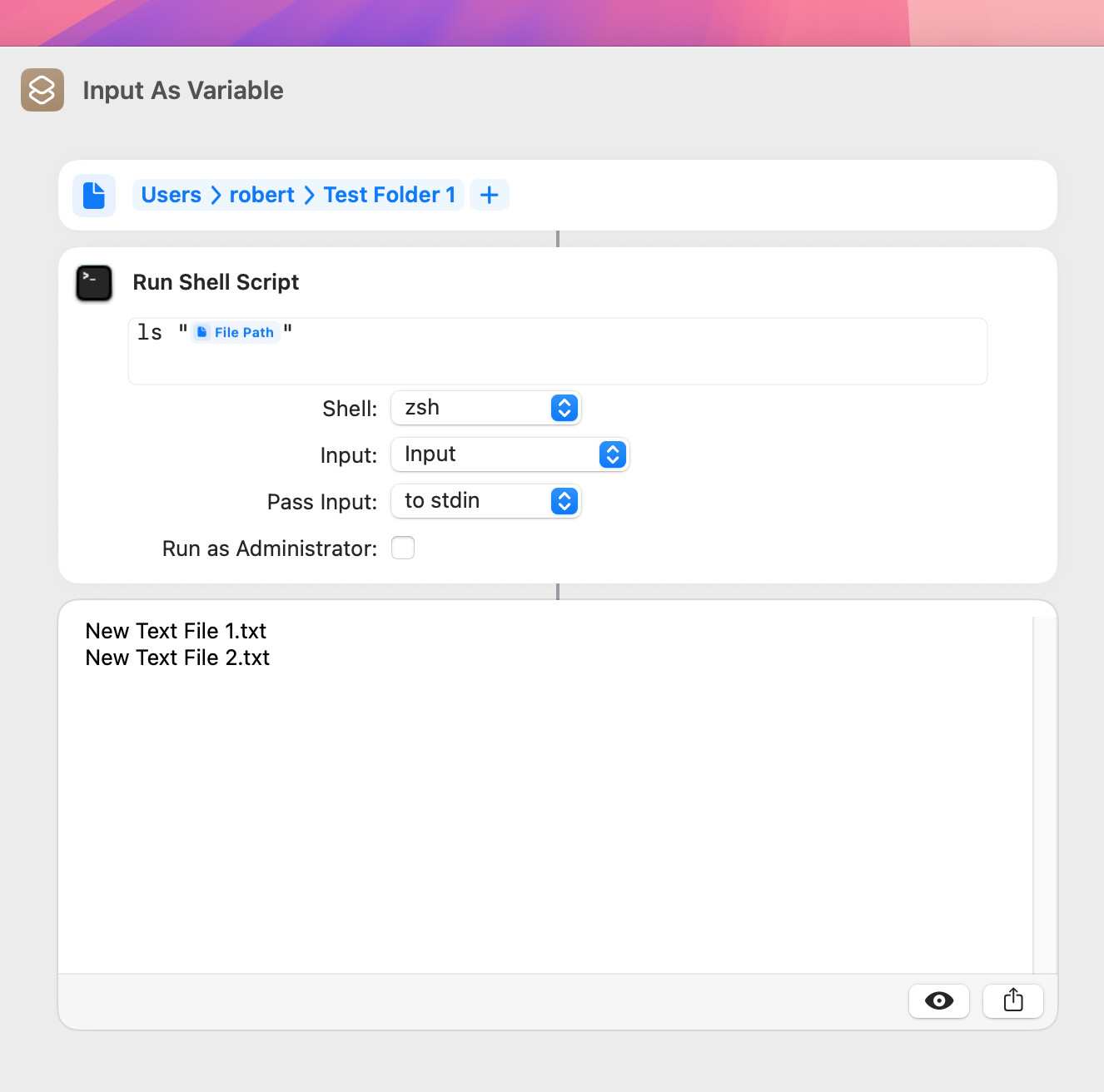
If you need to pass a value to a shell script, the simplest approach is often to use a variable. However, in the following example, an error is reported if there are two folders.
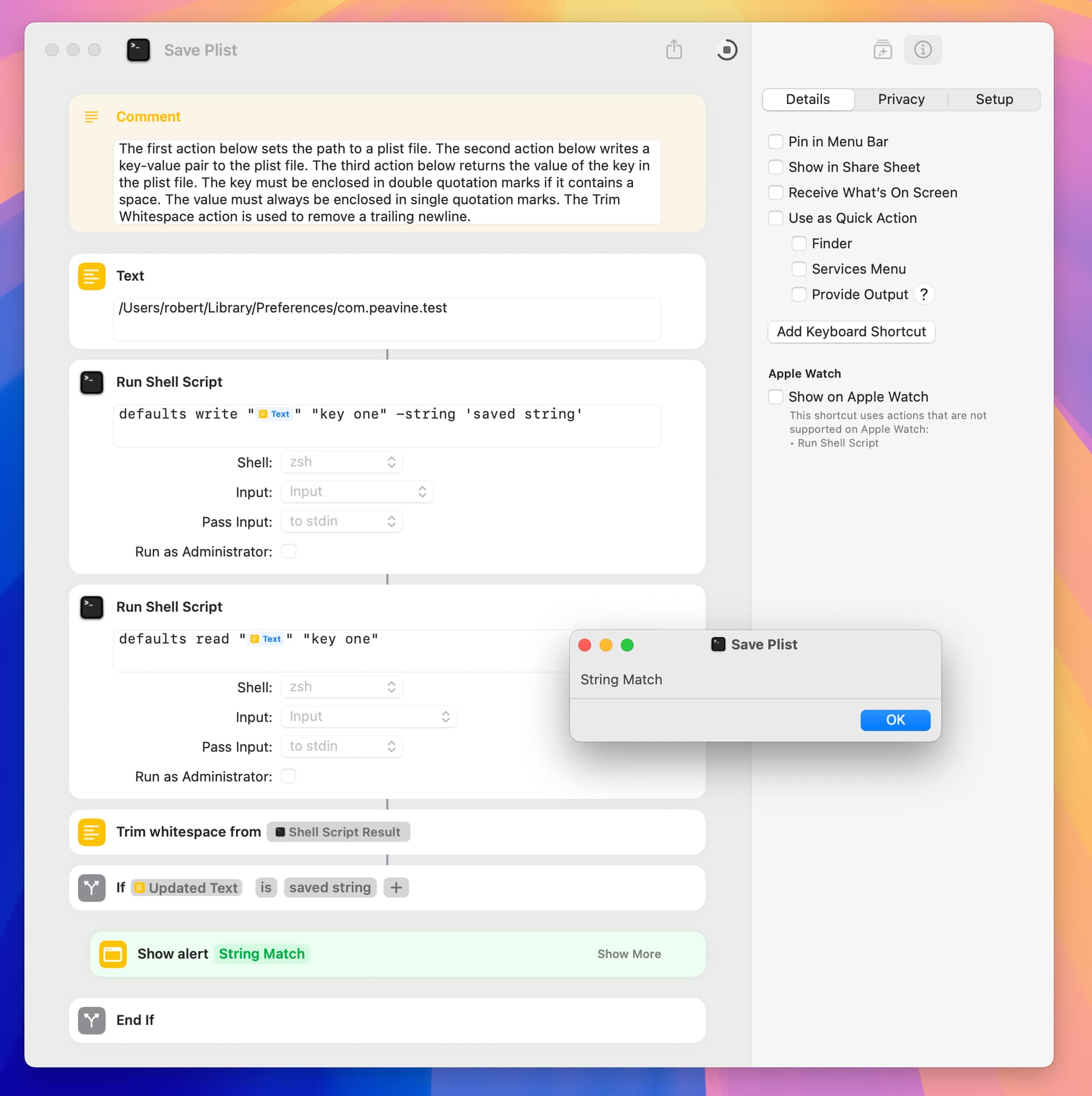
This shortcut uses the defaults shell command to save and read a string in a plist file . The normal use of this shortcut would be to save a persistent value from one running of a shortcut to the next. An alternative is to save the persistent value to a text file.
The timing results to read and write the plist file were each 72 milliseconds. The timing result to read and write the text file were 6 and 22 milliseconds.
Several years ago I got an AppleScript from this or the Script Debugger forum. I can’t find it now, but the script was not mine (in its original form).
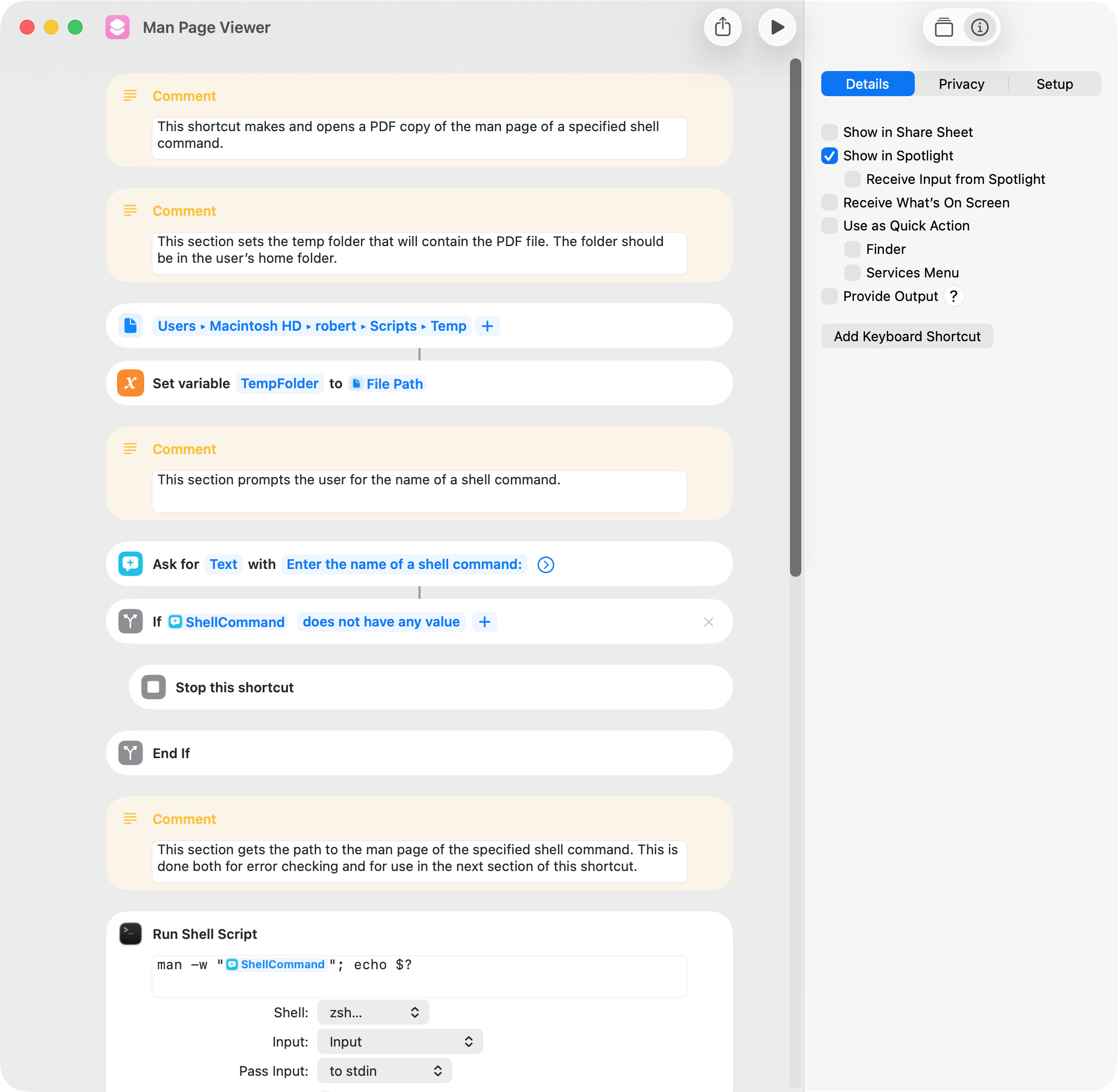
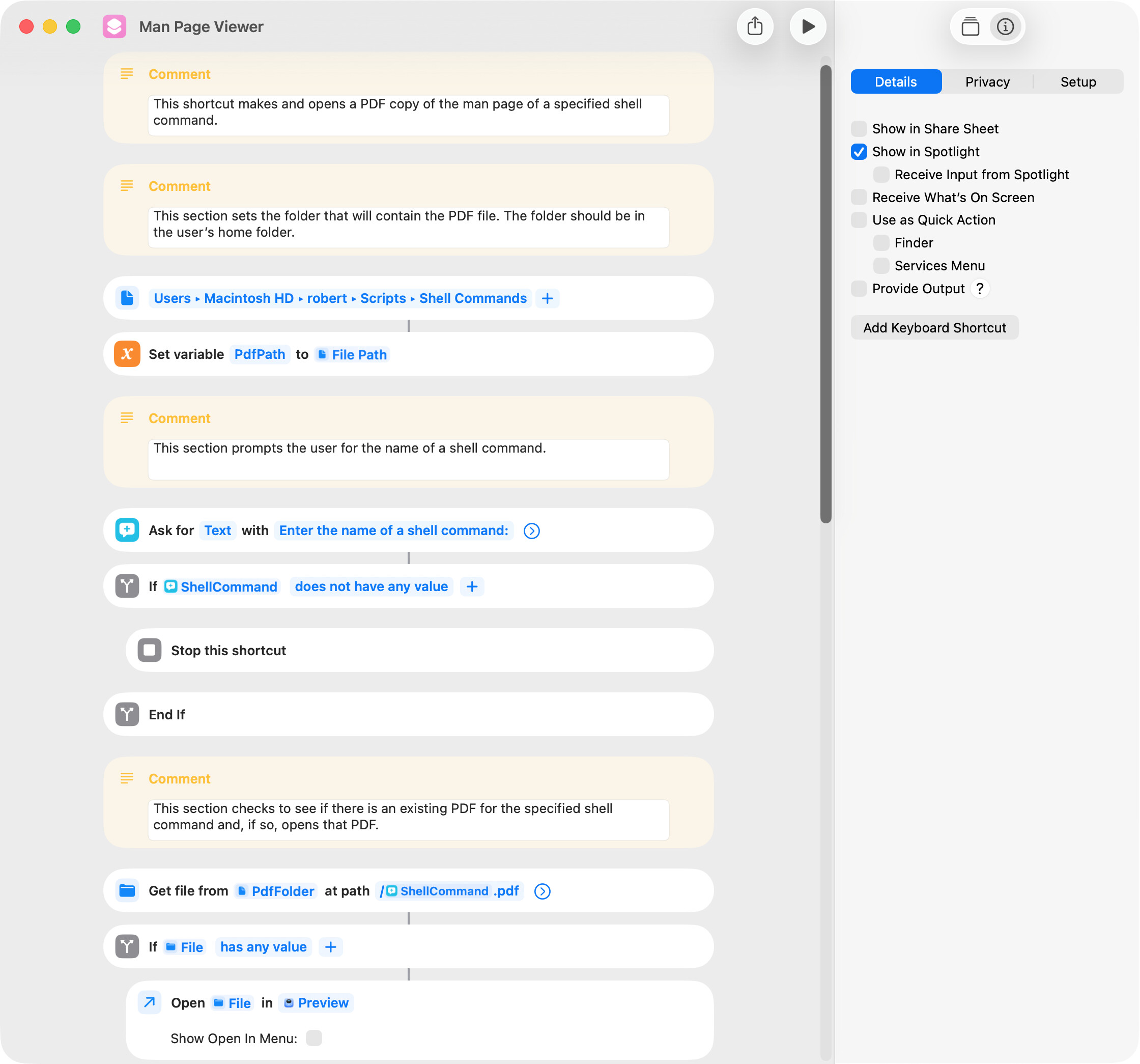
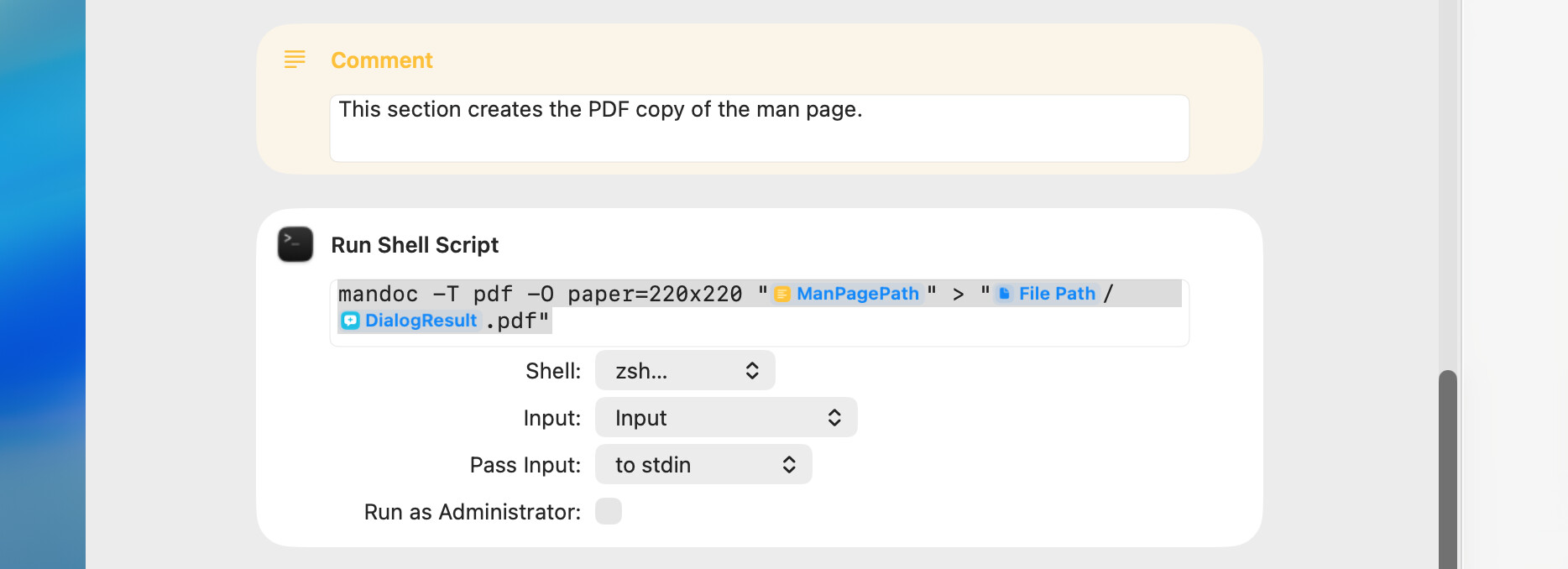
The purpose of the AppleScript was to display a PDF copy of the man page of a specified shell command. I converted that script to a shortcut and have included it below. At the top of the shortcut, the user must set the location of a temp folder, which should be in their home folder.
The shortcut creates a temporary PDF file that is overwritten every time the shortcut is run. This could be changed to set the name of the PDF to the name of the shell command. Over time, this would yield a collection of PDF’s of interest.
The following screenshot only shows a portion of the shortcut.
It is a long post so look for this: Creating Unix PDF Manuals
I found this —I think— around 2016 and have been using it since then to save a pdf for many shell commands (over 200 now). I don’t use them as often as I’ve become more conversant with the shell and can do most reading within the terminal. In 2021 I modified the script to use the palatino font which makes the files more readable for me (and also changed it to use ps2pdf). I’d do more with formatting but I’ve fallen into despair every time I’ve looked into the great roff-troff-groff abyss and since palatino is the only type 1 font I have that I like for this purpose…
Thanks Mockman. The one I remember included several posts by Nigel, who I seem to recall kept PDFs for frequently-used shell commands (much as you do). It may have also included a discussion concerning my use of the man shell command with the -w option to test for the existence of a man page. It’s probably not important, but I always like to credit other people for their work.
Didn’t see any such threads containing any of your posts, though.
As an aside, the shell command itself appears to have first been posted on the old macosxhints site. It’s not available anymore. The site was purchased by macworld magazine and they maintained it for some years, moving it to their own domain, but it seems to be gone now. It is archived on the internet archive though.
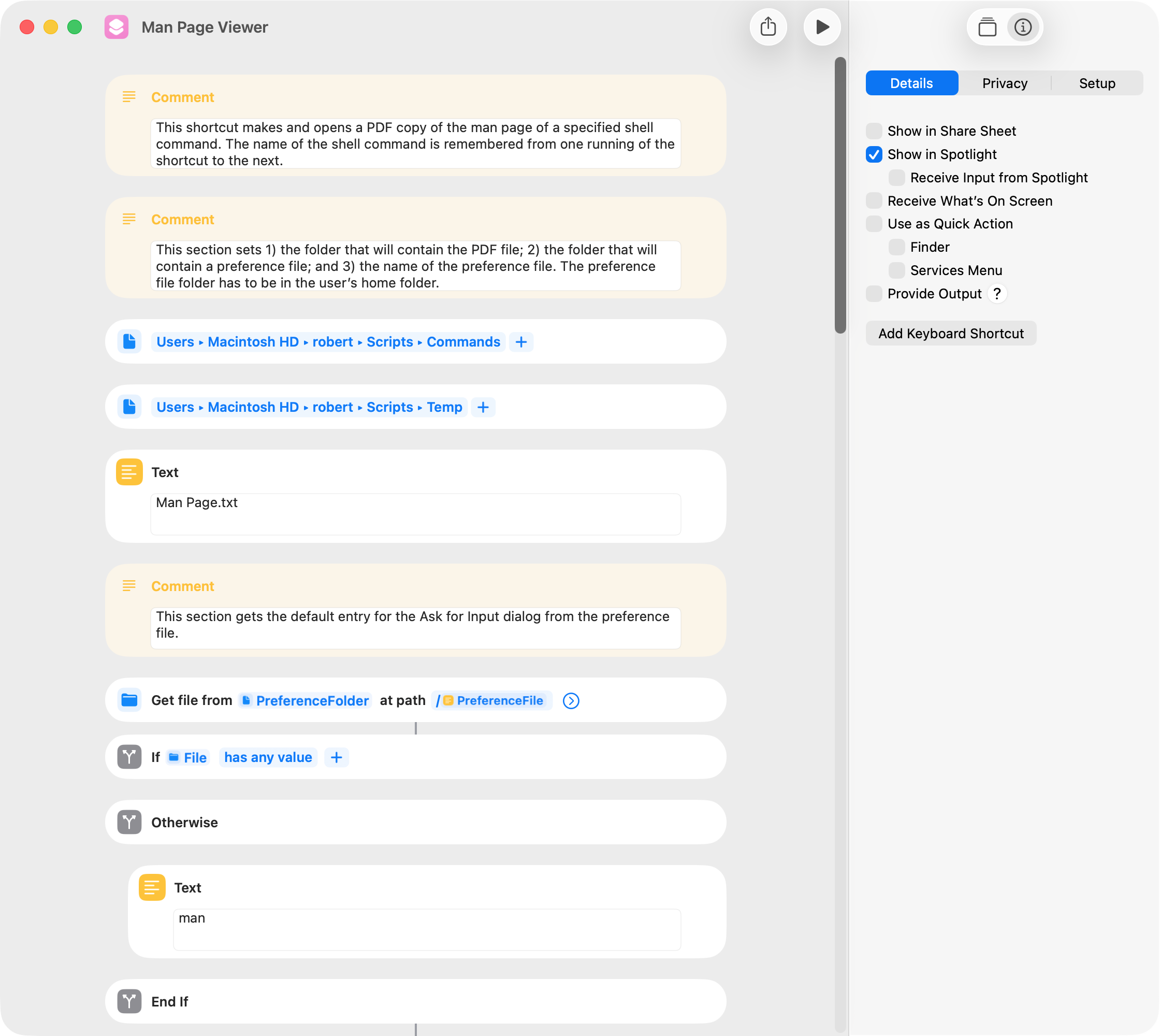
I found that I often want to view the man page of a shell command several times in succession, so I wrote a version of the shortcut that remembers the previously entered shell command. The user has to set the folders for the PDF and a preference file at the top of the shortcut. I tested using a plist instead of a text file to save the name of the shell command, but this was slower.
BTW, the default paper size of the PDF is letter, but this can be changed to one of several predefined paper sizes or to specific dimensions (in millimeters). The following is an example:
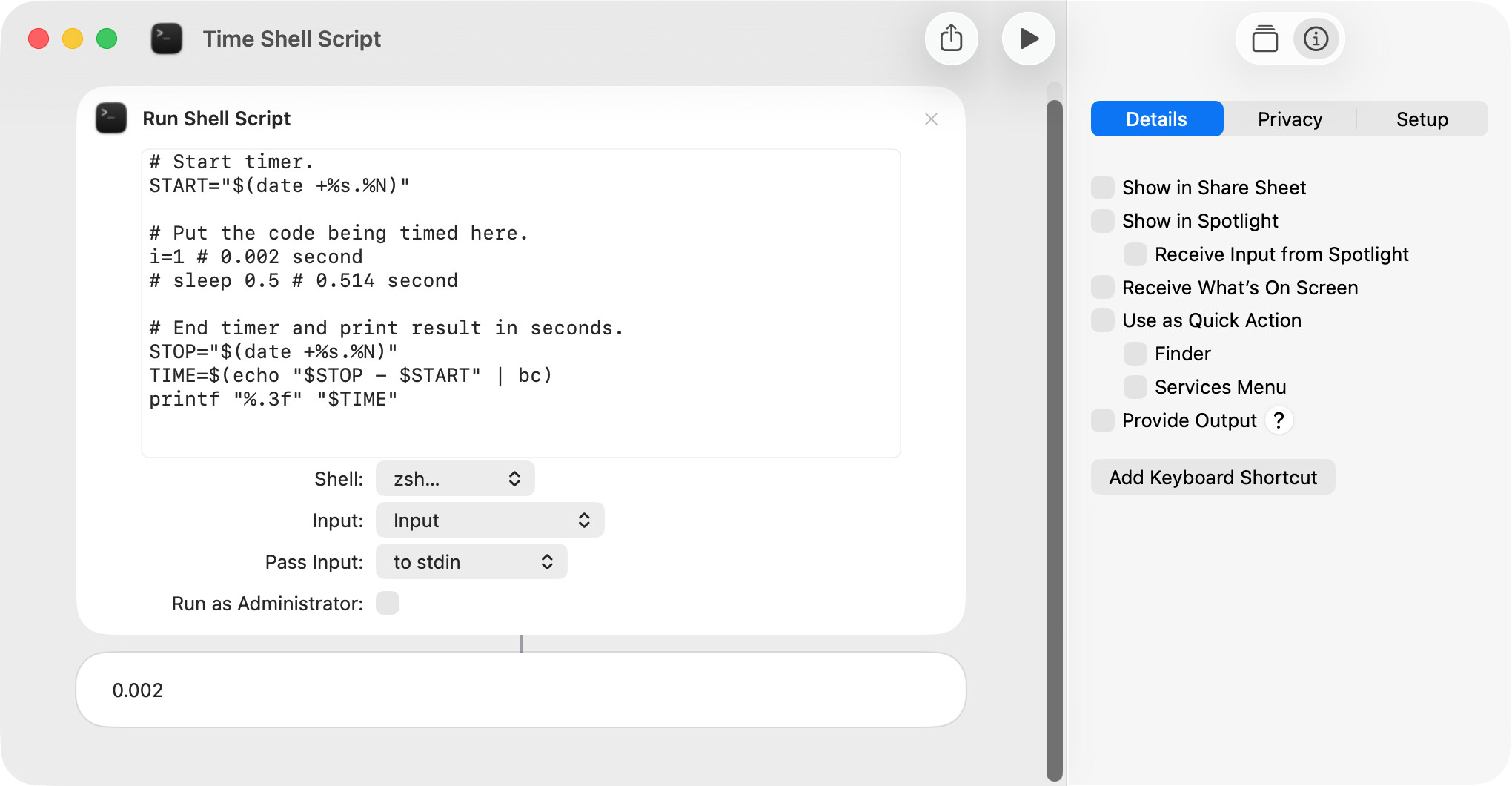
Shell scripts tend to be very fast, and there’s seldom a need to be concerned with execution speed. However, when that’s not the case, the following is a simple approach that measures the time it takes for a portion or all of a shell script to run.
The Run Shell Script action allows the user to specify one of several shells, although most users will probably select Bash or Zsh. FWIW, I’ve been using Bash but decided to switch to Zsh because:
The Bash version shipped with macOS 26 was released in 2007.
Zsh is the default in macOS, and it seems desirable to stick with one shell.
I find the The Zsh shell easier to use in a few respects.
I’ve run timing tests and did not find any difference in the time it takes to run bash and zsh scripts.
On the other hand, AppleScript’s do shell script command uses Bash, and some users might want to maintain consistency between the shell used by this command and shortcuts.
Other than the man pages, there are two sources of zsh documentation that I find helpful. The first is a fairly technical manual:
In 2007, the GPLv3 licence (GNU General Public License) was introduced. Apple apparently does not like the GPLv3.
Until then, bash was released under the GLPv2, which apple does not seem to mind.
zsh is released under a permissive licence that doesn’t seem to place any burden on anyone.
Not only is apple’s bash itself stagnant but all of the provided gnu utilties are. Only the BSD ones are updated. Of course you can generally install newer versions if they exist.
do shell script provides, by default, a ‘sh’ environment, albeit emulated in ‘bash’. But ‘sh’ is what is meaningful to any script compatibility unless you change the shell used by the script. At least, this is how it worked for many years (eg around when TN2065 was published). From your screenshots, it looks like Shortcuts has its own options.
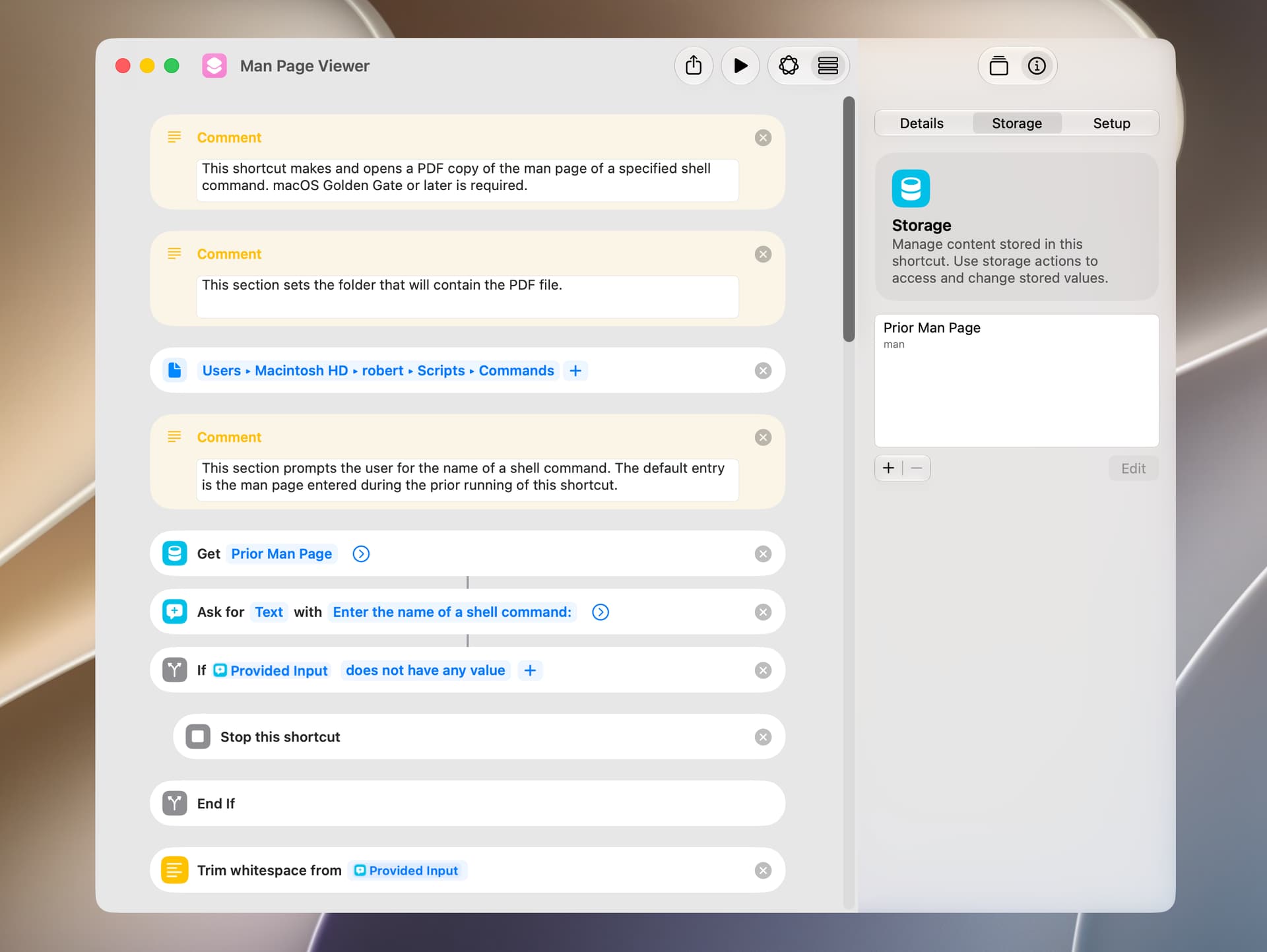
A shortcut included earlier in this thread makes and displays a PDF copy of a specified man page. Just as a small convenience, it remembers and displays the name of the previously-entered man page, and a text file is used for this purpose.
The shortcut included below is functionally the same, but it uses the Store Content and Get Stored Content actions of macOS Golden Gate to get and save the name of the man page. macOS Golden Gate or later is required for this shortcut to work as intended.