pjh. I retested my script and it worked fine. I created alias files and symbolic links that were broken and not broken, and the returned results were correct. It’s not possible for me to know why you’re getting a different result.
I also have no clue, but admittedly I didn’t have the time to step thru your code in the debugger. I was just looking for a quick solution to a problem and in this thread I found that only one of those I tried did actually return satisfactory results.
Will have to look into it sometime when I am free.
OK, got it.
Reduced to the following code.
use AppleScript version "2.4" -- Yosemite (10.10) or later
use framework "Foundation"
use scripting additions

set fileManager to current application's NSFileManager's defaultManager()

set anItem to current application's NSURL's fileURLWithPath:"/Volumes/XXX....."
set bookmarkData to (current application's NSURL's bookmarkDataWithContentsOfURL:anItem |error|:(missing value))
set originalItem to ((current application's NSURL's resourceValuesForKeys:{current application's NSURLPathKey} fromBookmarkData:bookmarkData)'s objectForKey:(current application's NSURLPathKey))
set itemExists to (fileManager's fileExistsAtPath:originalItem)
When I replace the path stub with a real working alias file I get false.
Then I double click the alias in the Finder.
Then I rerun the code and I get true.
This is what I am seeing.
So the bookmark data you will get with your approach maybe and in my case is regularly outdated. The target file got moved after alias creation, renamed or something similar.
Didn’t do further inquiries but the bottom line is, that you can’t count on this code. It may work and it may not.
I guess the crucial line in the code working for me is
set aURL to (current application's NSURL's URLByResolvingAliasFileAtURL:(anItem) options:0 |error|:(missing value))
The alias gets resolved correctly and aURL is set to the current and valid target file URL - so maybe this is what happens when I double click on the alias icon in the Finder?
What I can say is that the Finder’s bookmark data only gets updated by double click, not by using URLByResolvingAliasFileAtURL: on it.
Hope this helps.
1 Like
The main reason I use multiple approaches is to deal with edge cases should they pop up. First I look for bookmark data (which doesn’t check if the URL actually points to an alias file), then URLByResolvingAliasFileAtURL if there isn’t any (although that is usually because it is not a file object, such as a symlink). If there hasn’t been an error, then any resulting path is checked that it actually exists, since it can be anything. As mentioned I’ve been using this successfully for years with multiple system versions, so I’m not sure what Finder weirdness is happening or what is different with your setup.
pjh. Thanks for investigating this issue and for the explanation.
I retested but went two steps further by moving and renaming the original file, and my script did not work correctly. And, I think the reason why is exactly what you state.
The documentation appears to confirm why the method used by 1008com works correctly with moved and renamed files:
URLByResolvingAliasFileAtURL:options:error:
Returns a new URL made by resolving the alias file at urlReturn Value
A new URL created by resolving the bookmark data derived from the provided alias file. If an error occurs, this method returns nil.
I’ll spend some more time on this tomorrow and update my script.
In hindsight I guess a factor that may or may not have contributed to the enormous quantity of false positives in broken aliases in my case is the fact that I only recently converted the external hdd I used for testing from hfs+ to apfs.
But this doesn’t change the fact, of course, that only approaches using URLByResolvingAliasFileAtURL: seem to be reliable.
And on top of that the main reason for the existence of alias files IS to be able to move alias file and target around and/or rename both of them without cutting the link between them.
I edited my script to use the URLByResolvingAliasFileAtURL method utilized in 1008com’s script. To simplify, I also rewrote my script to return broken alias files but not broken symbolic links. In limited testing, this script did not display alias files as broken when the linked files were moved or renamed.
I don’t understand how clicking on a file in a Finder window makes any difference, so perhaps my script has some flaw?
BTW, an alias file is shown as broken if the linked file has been moved to another volume. However, that’s also true of 1008com’s script and Finder.
The following is an example of the dialog displayed by my script. The open source swiftDialog app is required.
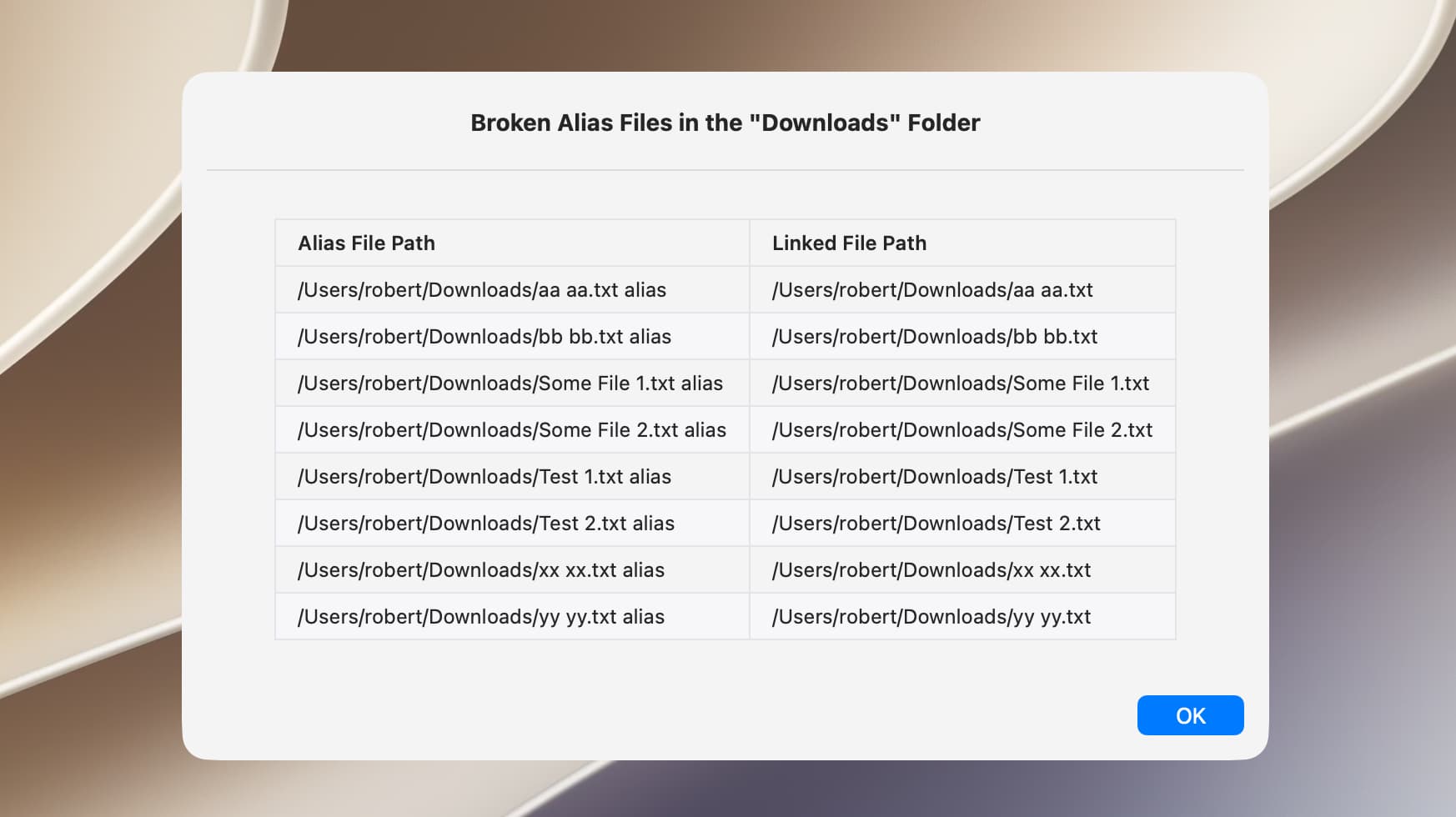
The following is my revised script:
--This script requires the open source swiftDialog app
--https://github.com/swiftDialog/swiftDialog

use framework "Foundation"
use scripting additions

--Stop script and display results when the specified number of broken alias files are found
set truncate to 20

--Prompt for and get contents of source folder and its subfolders
set sourceFolder to POSIX path of (choose folder with prompt "Select a folder to recursively search for broken alias files")
set sourceFolder to current application's |NSURL|'s fileURLWithPath:sourceFolder
set sourceFolderName to sourceFolder's lastPathComponent() as text --used later in dialog
set fileManager to current application's NSFileManager's defaultManager()
set folderContents to (fileManager's enumeratorAtURL:sourceFolder includingPropertiesForKeys:{} options:6 errorHandler:(missing value))'s allObjects() --option 6 skips package contents and hidden files
set processingCompleted to true --used in repeat loop

--Sort by containing folder then file name
set pathDescriptor to current application's NSSortDescriptor's sortDescriptorWithKey:"path.stringByDeletingLastPathComponent" ascending:true selector:"localizedStandardCompare:"
set nameDescriptor to current application's NSSortDescriptor's sortDescriptorWithKey:"lastPathComponent" ascending:true selector:"localizedStandardCompare:"
set folderContents to folderContents's sortedArrayUsingDescriptors:{pathDescriptor, nameDescriptor}

--Find broken alias files and add to array
set brokenAliasArray to current application's NSMutableArray's new()
set aliasFileKey to current application's NSURLIsAliasFileKey
set symbolicLinkKey to current application's NSURLIsSymbolicLinkKey
set booleanTrue to current application's NSNumber's numberWithBool:true --optimizes repeat loop
set booleanFalse to current application's NSNumber's numberWithBool:false --optimizes repeat loop
set theCount to 0
repeat with anItem in folderContents
	set {theResult, anAlias} to (anItem's getResourceValue:(reference) forKey:(aliasFileKey) |error|:(missing value))
	if anAlias is booleanTrue then --returns both alias files and symbolic links
		set {theResult, aSymbolicLink} to (anItem's getResourceValue:(reference) forKey:(symbolicLinkKey) |error|:(missing value))
		if aSymbolicLink is booleanFalse then --an alias file
			set aURL to (current application's NSURL's URLByResolvingAliasFileAtURL:(anItem) options:0 |error|:(missing value)) --get link
			if aURL is (missing value) then
				set bookmarkData to (current application's NSURL's bookmarkDataWithContentsOfURL:anItem |error|:(missing value))
				set originalItem to ((current application's NSURL's resourceValuesForKeys:{current application's NSURLPathKey} fromBookmarkData:bookmarkData)'s objectForKey:(current application's NSURLPathKey)) --this is used to show original linked file path in dialog
				set anItemPath to anItem's |path|()
				set aTableRow to current application's NSString's stringWithFormat_("| %@ | %@ |", anItemPath, originalItem)
				(brokenAliasArray's addObject:aTableRow)
				set theCount to theCount + 1
			end if
		end if
	end if
	if theCount is truncate then --stop when specified number of broken aliases found
		set processingCompleted to false
		exit repeat
	end if
end repeat

--Display dialog and stop if no broken aliases found
if brokenAliasArray's |count|() is 0 then display dialog "No broken alias files were found in the \"" & sourceFolderName & "\" folder and its subfolders." buttons {"OK"} cancel button 1 default button 1

--Create markdown table from array and display in dialog
if processingCompleted then
	set dialogTitle to "Broken Alias Files in the \"" & sourceFolderName & "\" Folder"
else
	set dialogTitle to "Broken Alias Files in the \"" & sourceFolderName & "\" Folder (Truncated)"
end if
set tableHeader to "| Alias File Path | Linked File Path |" & linefeed & "| :--- | :--- |"
set brokenAliasString to (brokenAliasArray's componentsJoinedByString:linefeed) as text
set dialogMessage to tableHeader & linefeed & brokenAliasString & linefeed
do shell script "/usr/local/bin/dialog --title " & quoted form of dialogTitle & " --titlefont 'size=14' --message " & quoted form of dialogMessage & " --messagefont 'size=12' --messagealignment center --messageposition top --width 650 --height 400 --hideicon --resizable; exit 0"
Hm, I don’t get what you mean…
If you mean “double clicking” the answer is obvious: to open the original or target file the Finder has to hand things off to the System which will do somekind of lookup (somewhere…) to find out where the target is currently located, if at all, to be able to return a file reference, path, whatever.
Otherwise: your script works as advertised. No false positives here anymore, one single true positive match I had to create for that purpose since I purged all the other broken aliases yesterday already.
pjh. I didn’t understand your following statement, but I think I do now. Glad to hear my script appears to work OK. I don’t do much with ASObjC these days, and my skills in that regard have eroded.
When I replace the path stub with a real working alias file I get false.
Then I double click the alias in the Finder.
Then I rerun the code and I get true.
Sorry for being too cryptic, obviously.
But no, it’s just to say that to make your approach work you would have to double click each and every alias file in the Finder to update to Finder’s knowledge of its file reference.
As long as an alias file does not get used / opened, its data on the original file might have got out of sync with real state of things.
1 Like
I was curious if and when the path to a linked file in an alias file is updated and did some testing. The answer is that the path is updated but not necessarily when you would expect.
In my testing, I created a single text file and a corresponding alias file by way of the context menu. I used my most recent script that displays both the path to the alias file and the path to the linked file. Where applicable, I opened the linked file by double-clicking on the alias file in a Finder window, and the trash was emptied immediately after deleting a linked file.
Scenario: the linked file is moved and deleted but never opened by way of the alias file.
Script Result: the linked file path reflects the original folder.
Scenario: the linked file is moved, opened once by way of the alias file, and deleted.
Script Result: the linked file path reflects the original folder.
Scenario: the linked file is moved, opened several times, and deleted. Before deleting the linked file, I rebooted the computer.
Script Result: the linked file path reflects the new folder (i.e. the folder that the linked file was moved to).
I repeated the above process but renamed instead of moved the linked file. The results were the same.
I thought simply rebooting but not opening the linked file might update the path but that wasn’t the case.
BTW, the following is the code from my script that gets the path to the linked file from the alias file.
--anItem is the file's NSURL
set bookmarkData to (current application's NSURL's bookmarkDataWithContentsOfURL:anItem |error|:(missing value))
set originalItem to ((current application's NSURL's resourceValuesForKeys:{current application's NSURLPathKey} fromBookmarkData:bookmarkData)'s objectForKey:(current application's NSURLPathKey))
set anItemPath to anItem's |path|()