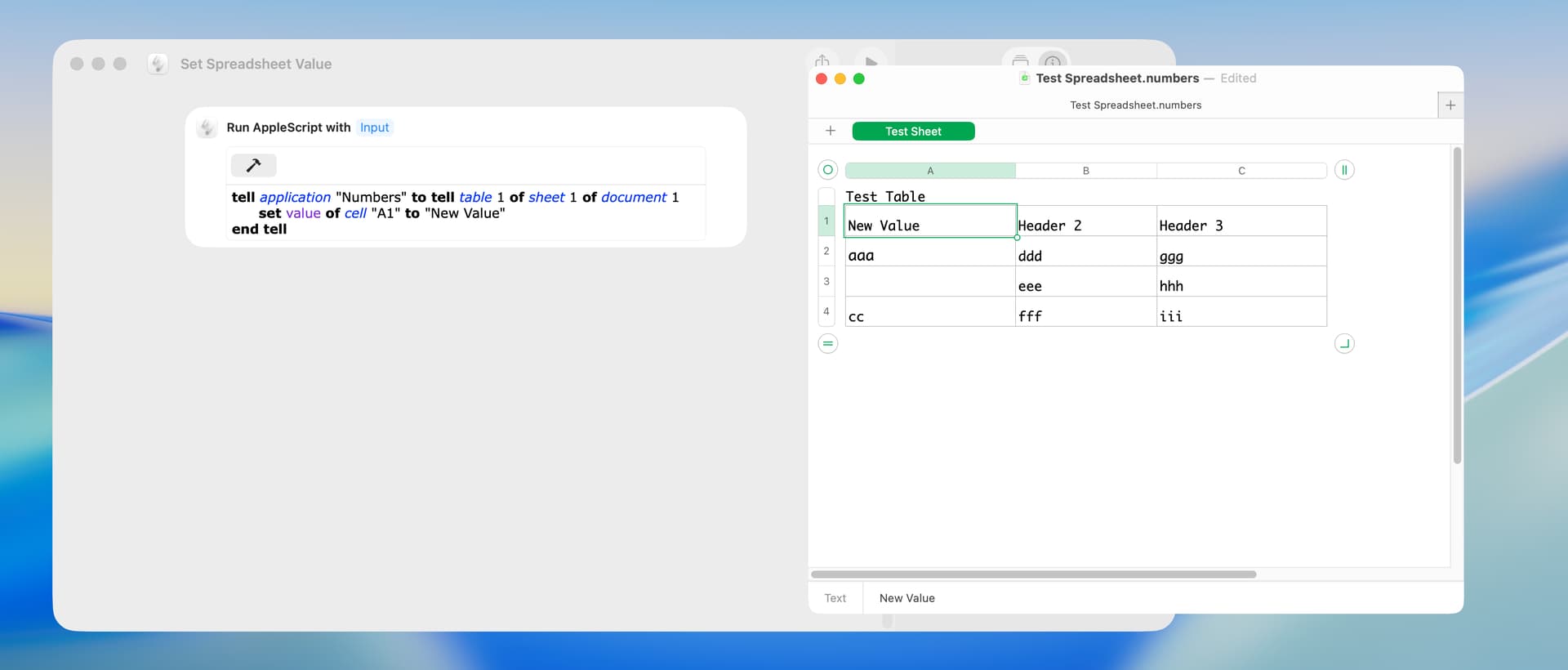
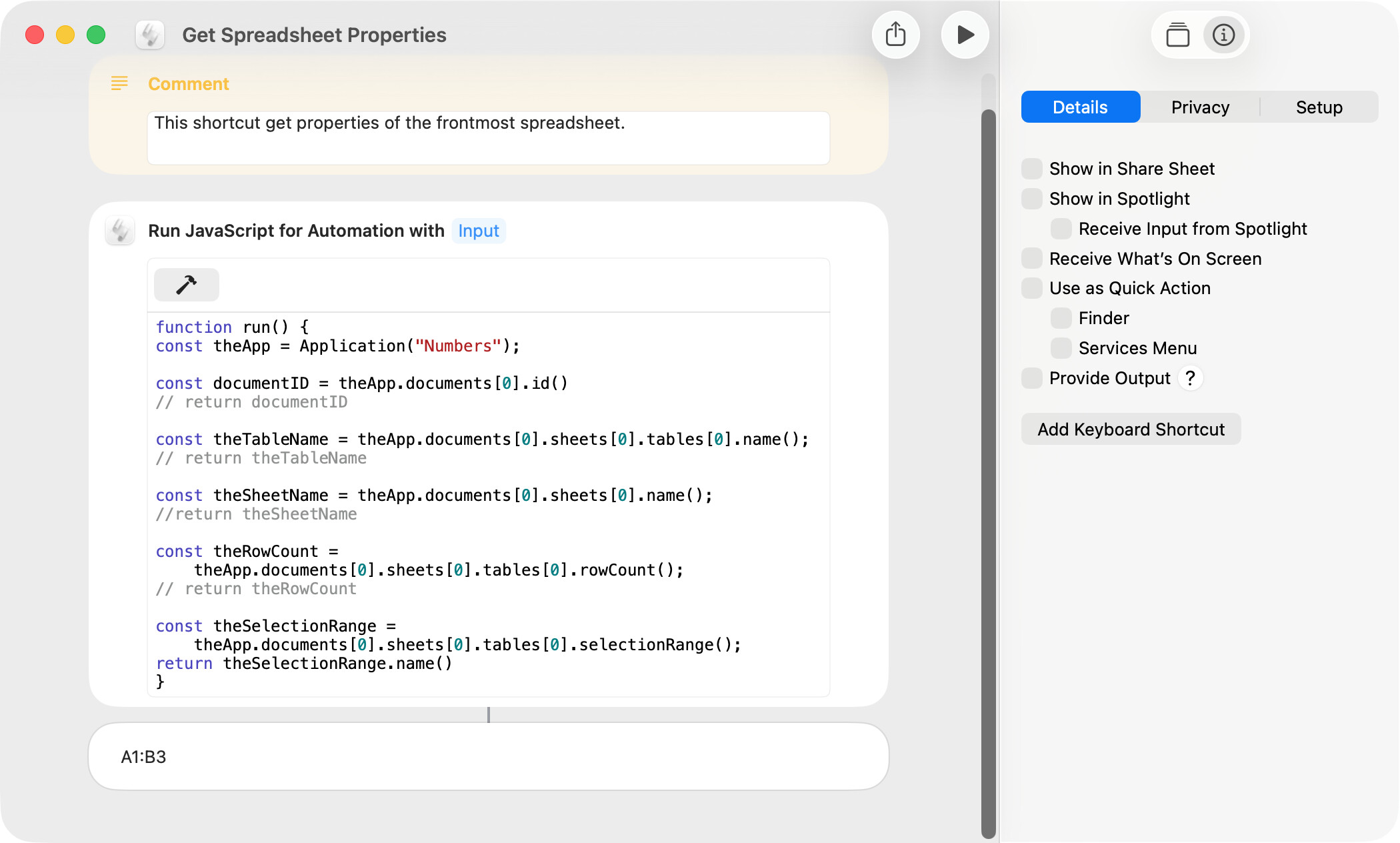
Support for the Numbers app in shortcuts is pretty limited, and, except as noted below, consists of opening, creating, and exporting a spreadsheet. I’ve included below a few other options.
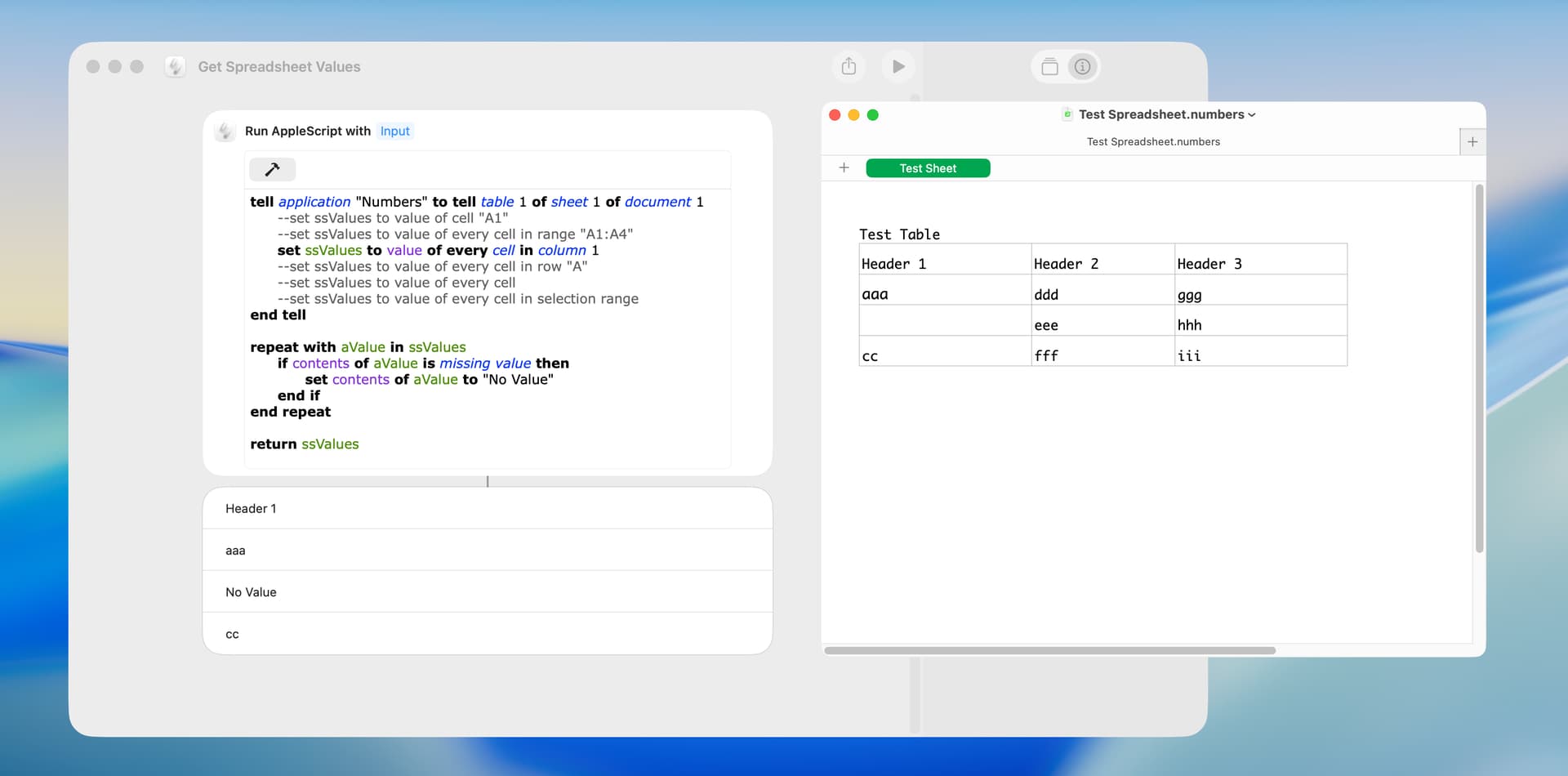
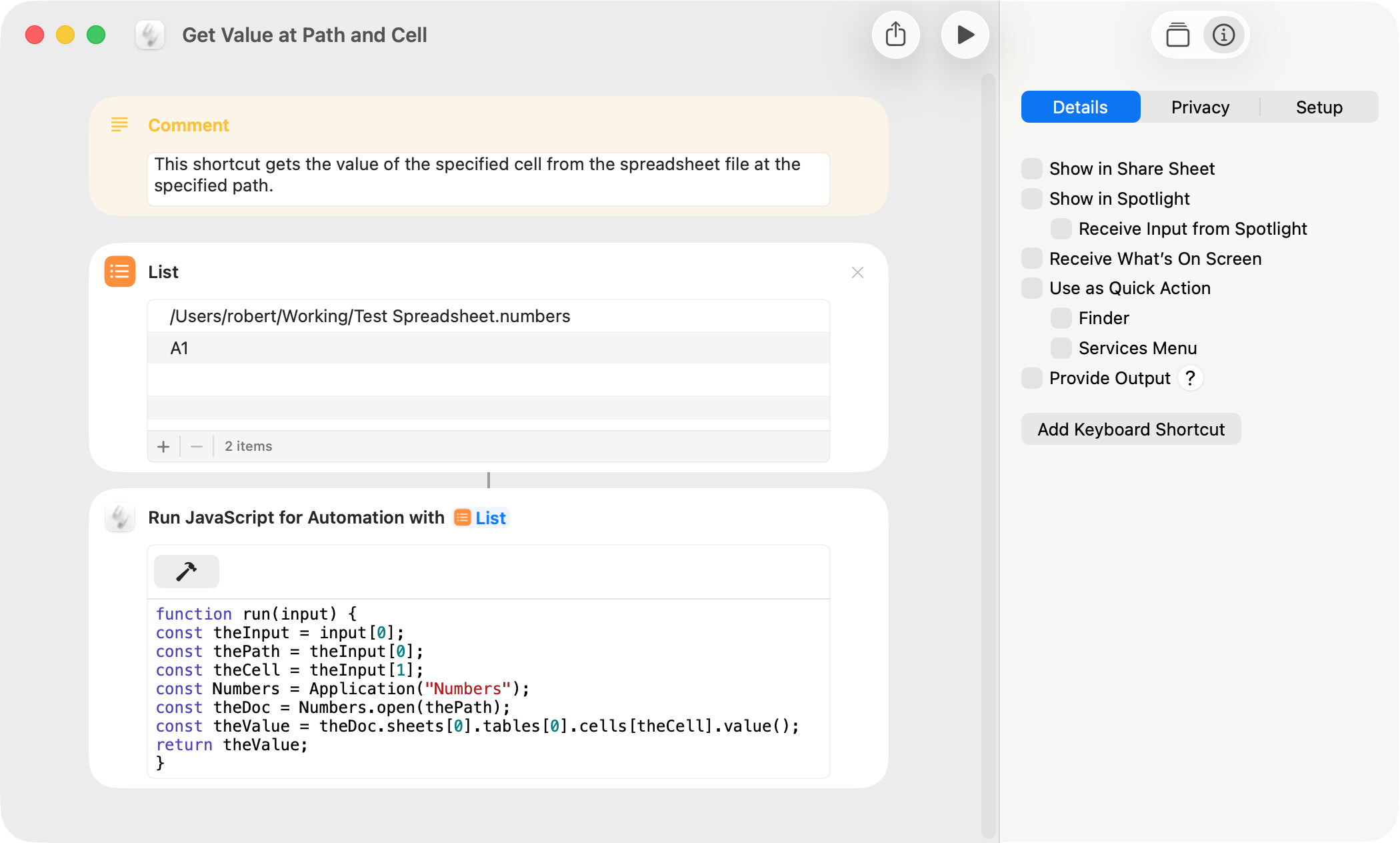
There is not an action to get the values of a spreadsheet, and one alternative is to to use an AppleScript. Because shortcuts do not understand AppleScript’s missing value constant, the following shortcut instead returns a “No Value” string when a cell is blank.
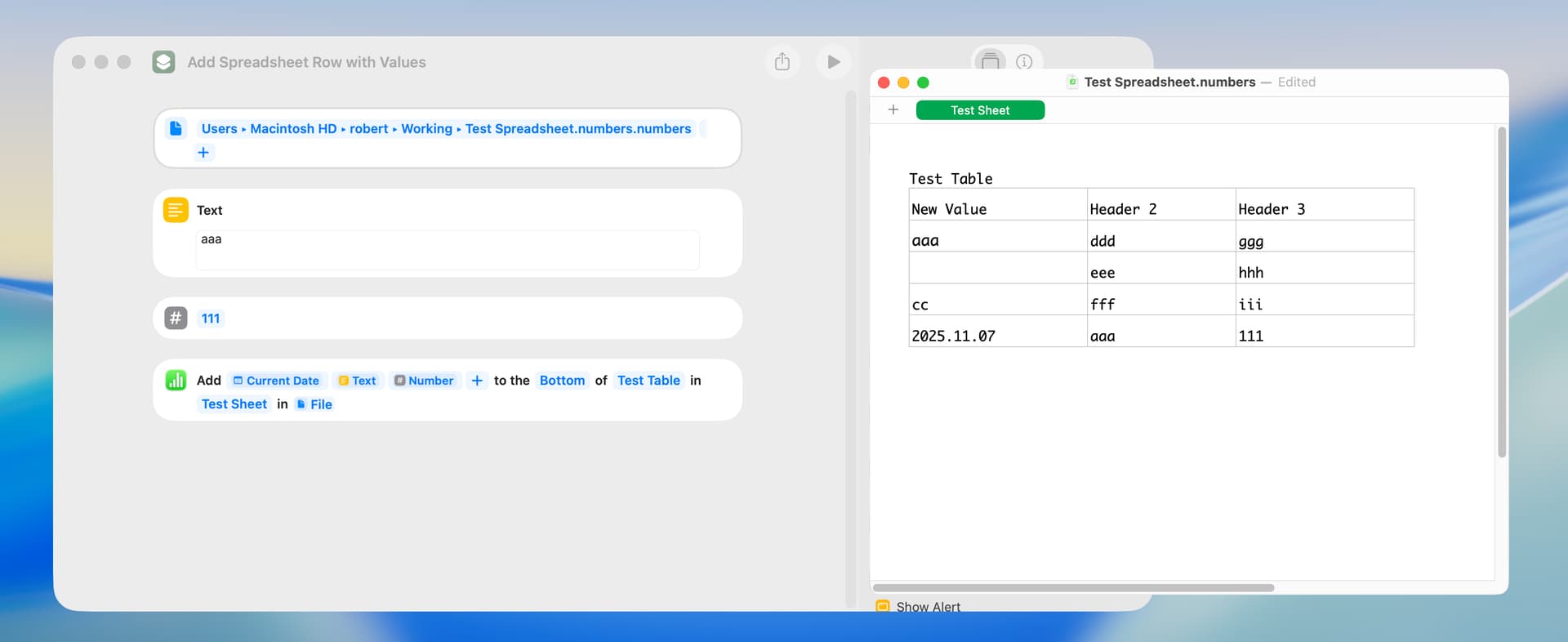
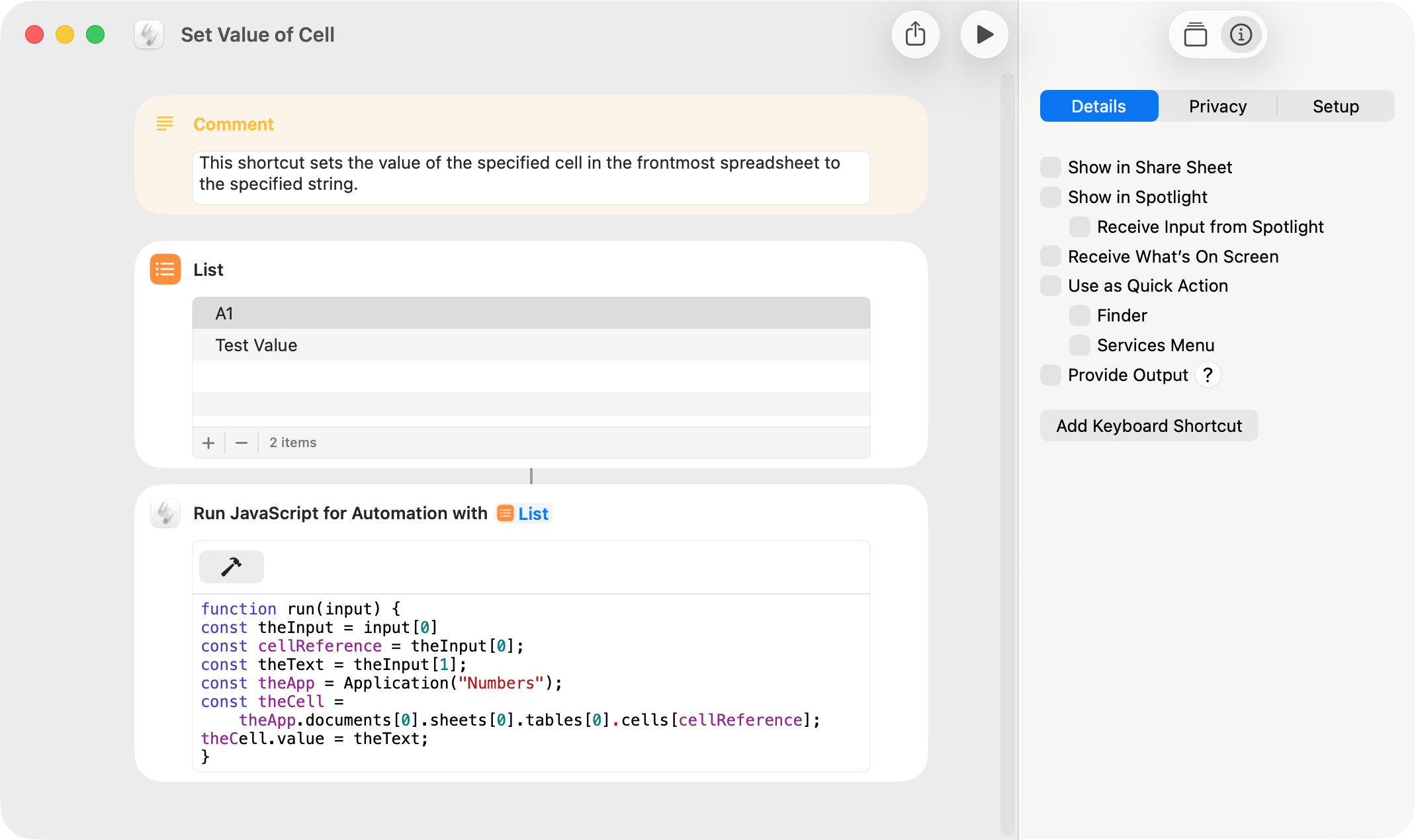
You can use the action entitled Add Row to Top or Bottom Row of Table to both add a row and to set the values in the new row. This shortcut requires that you specify the target spreadsheet.
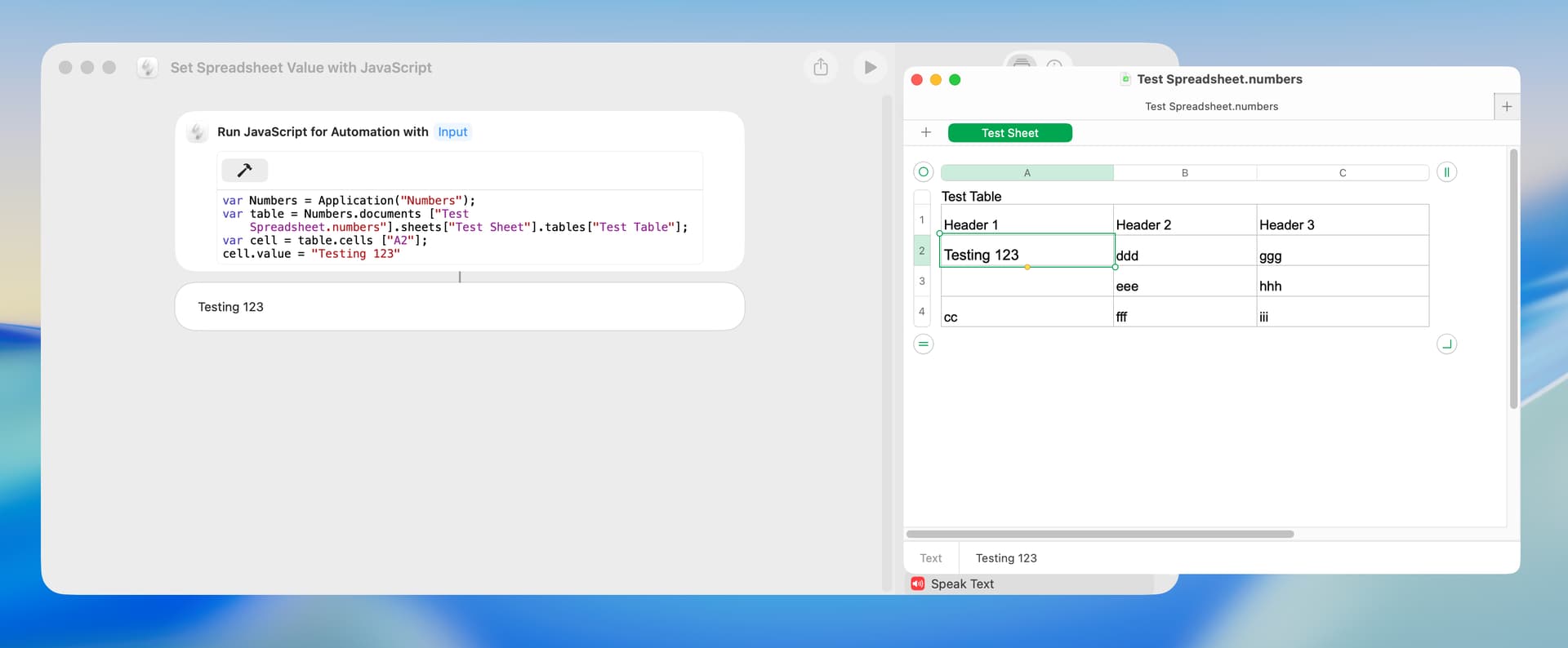
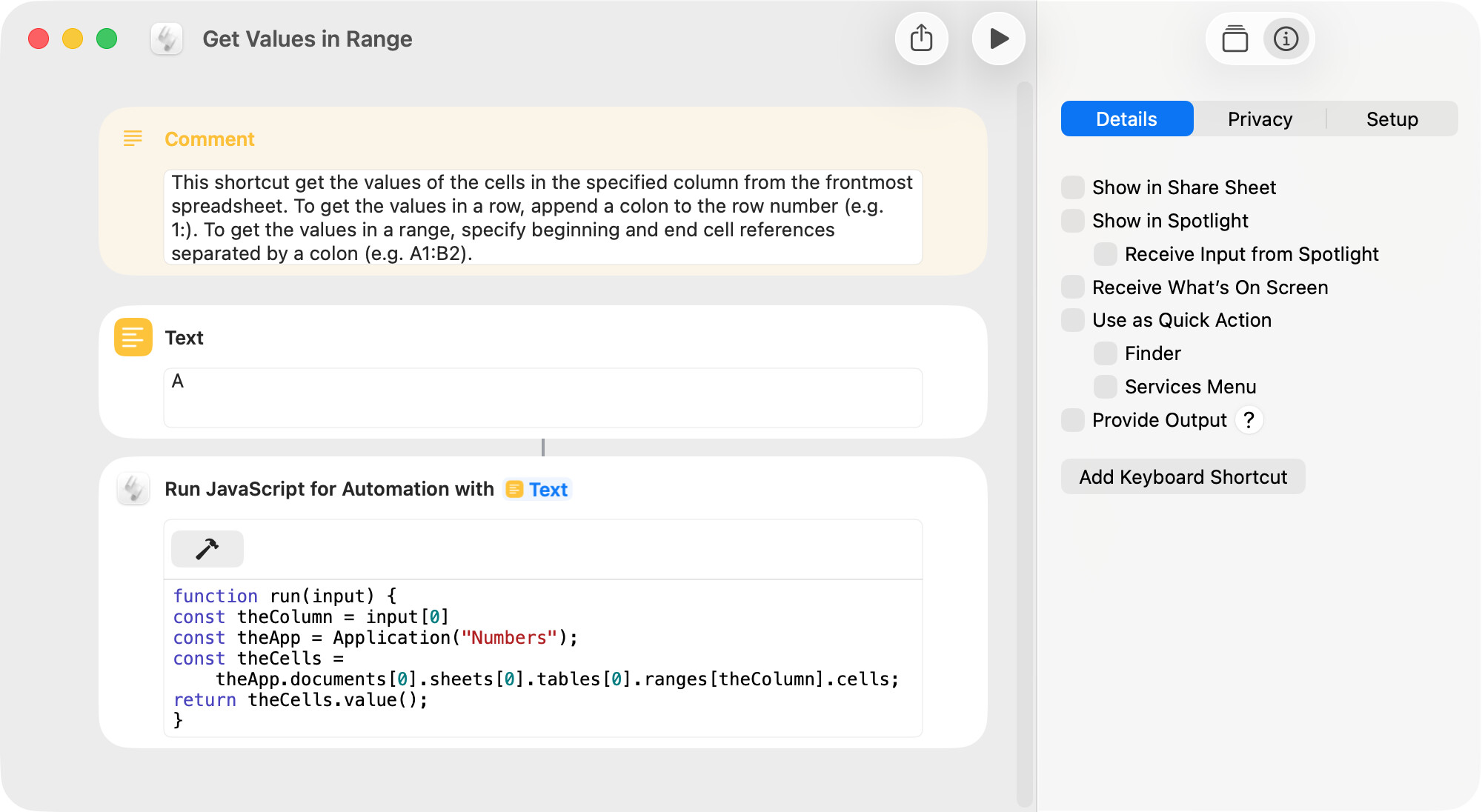
I copied the JavaScript from the video linked above, and the following is the shortcut. The timing results for this shortcut and the AppleScript version were essentially identical.
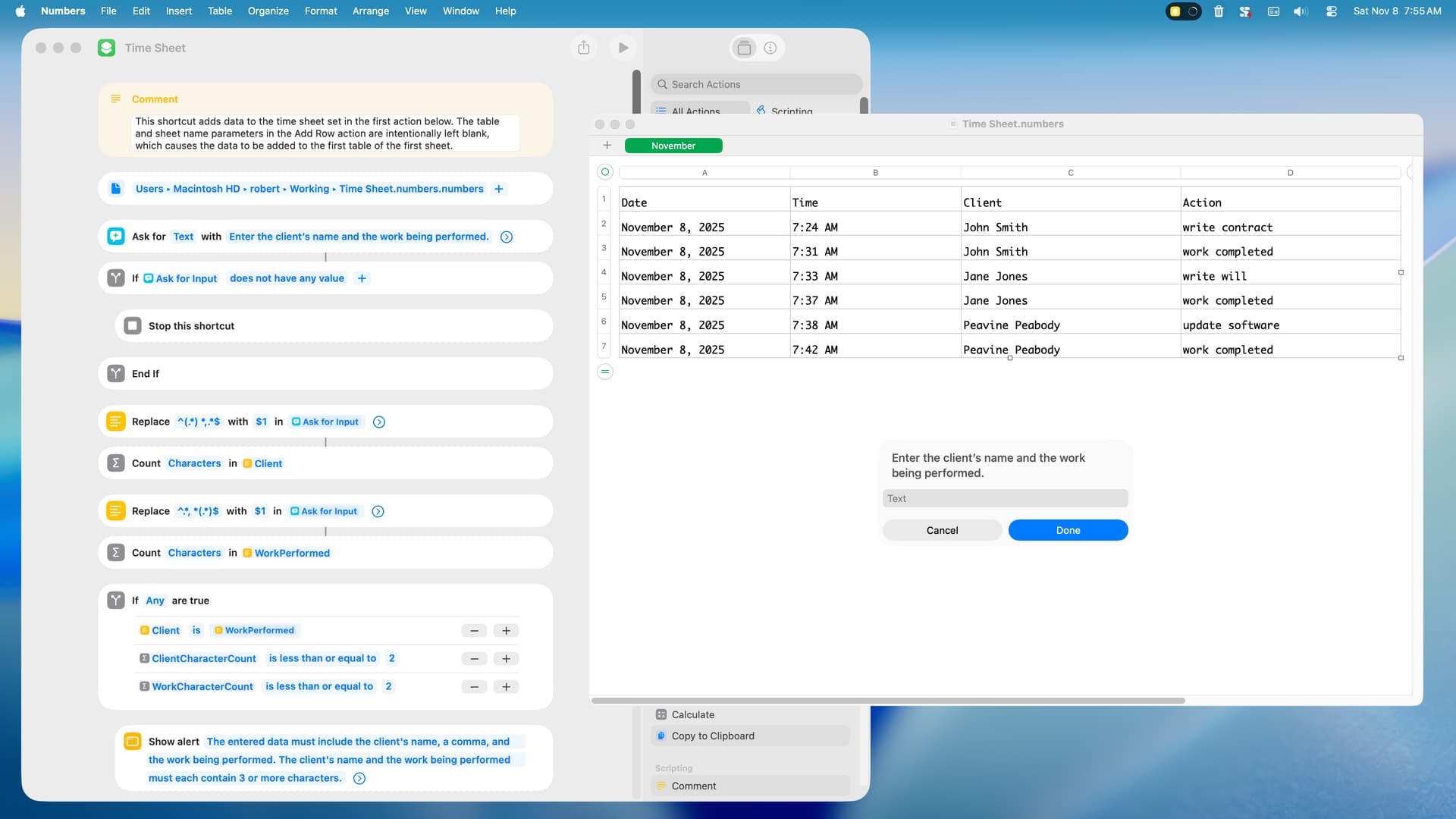
I thought I would write a simple working example of a shortcut that adds data to a Numbers spreadsheet and decided on a time sheet. A few comments:
The user enters the client’s name, a comma, and the work performed. The date and time are input by the shortcut.
The spreadsheet should be open when the shortcut is run. If not, the spreadsheet will be opened by the shortcut after the user enters the data in the shortcut dialog.
An interesting enhancement might be to add a column that calculates the time between entries.
Running the shortcut by way of Spotlight seems especially convenient.
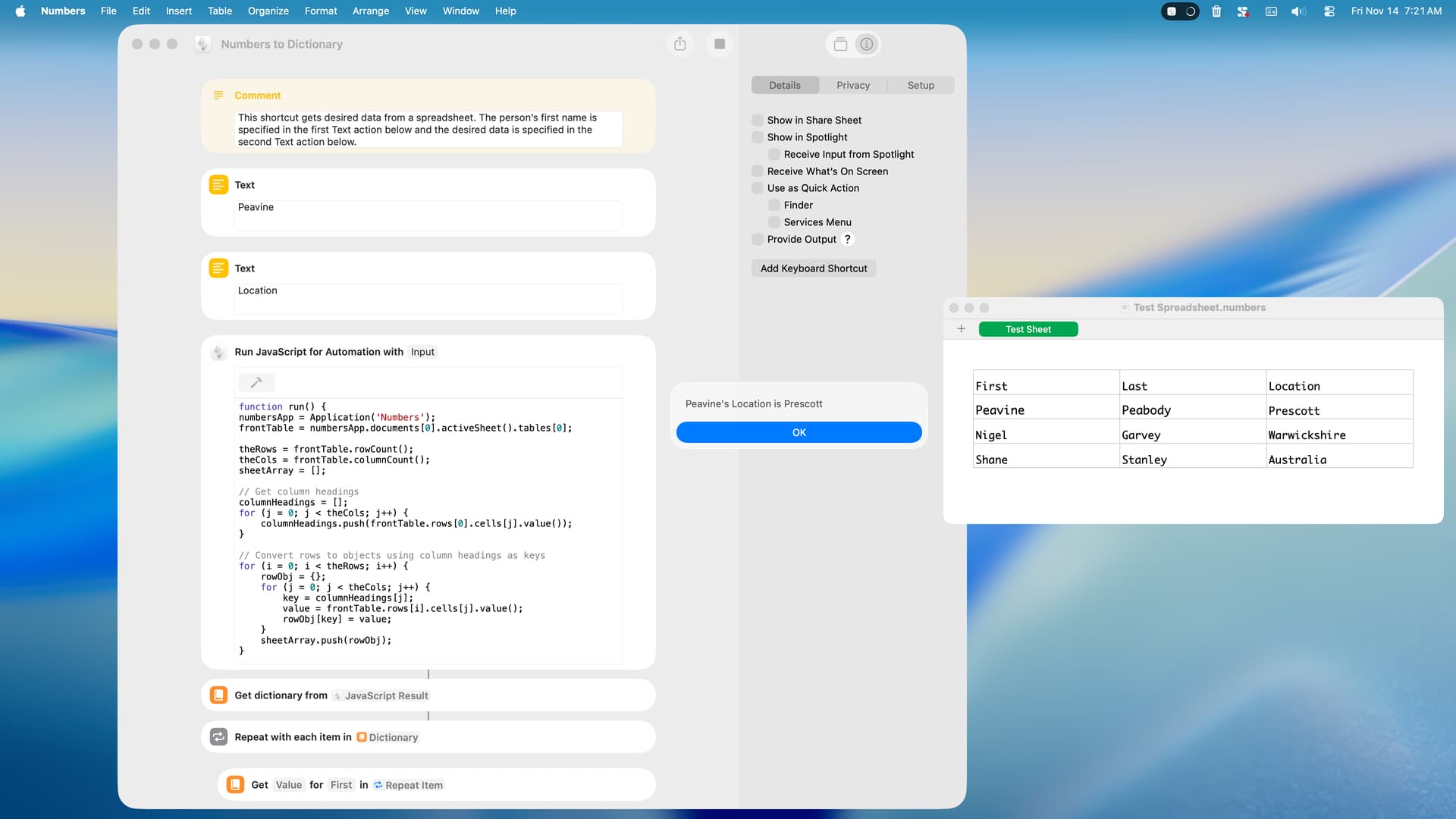
Here’s a handy bit of utility code. This converts a Numbers Spreadsheet to JSON:
numbersApp = Application('Numbers');
frontTable = numbersApp.documents[0].activeSheet().tables[0];

theRows = frontTable.rowCount();
theCols = frontTable.columnCount();
sheetArray = [];

// Get column headings
columnHeadings = [];
for (j = 0; j < theCols; j++) {
    columnHeadings.push(frontTable.rows[0].cells[j].value());
}

// Convert rows to objects using column headings as keys
for (i = 0; i < theRows; i++) {
    rowObj = {};
    for (j = 0; j < theCols; j++) {
        key = columnHeadings[j];
        value = frontTable.rows[i].cells[j].value();
        rowObj[key] = value;
    }
    sheetArray.push(rowObj);
}

jText = JSON.stringify(sheetArray, null, 2);
From there it is easy to send and received data from a shortcut.
-Jesse
Javascript for Automation 3: More interesting and Useful Scripts
Streamline your workflow, enhance your coding skills, or explore the fascinating world of JXA programming, this book is a great guide to achieving more with your Mac. https://www.amazon.com/dp/B0DVH45VLW
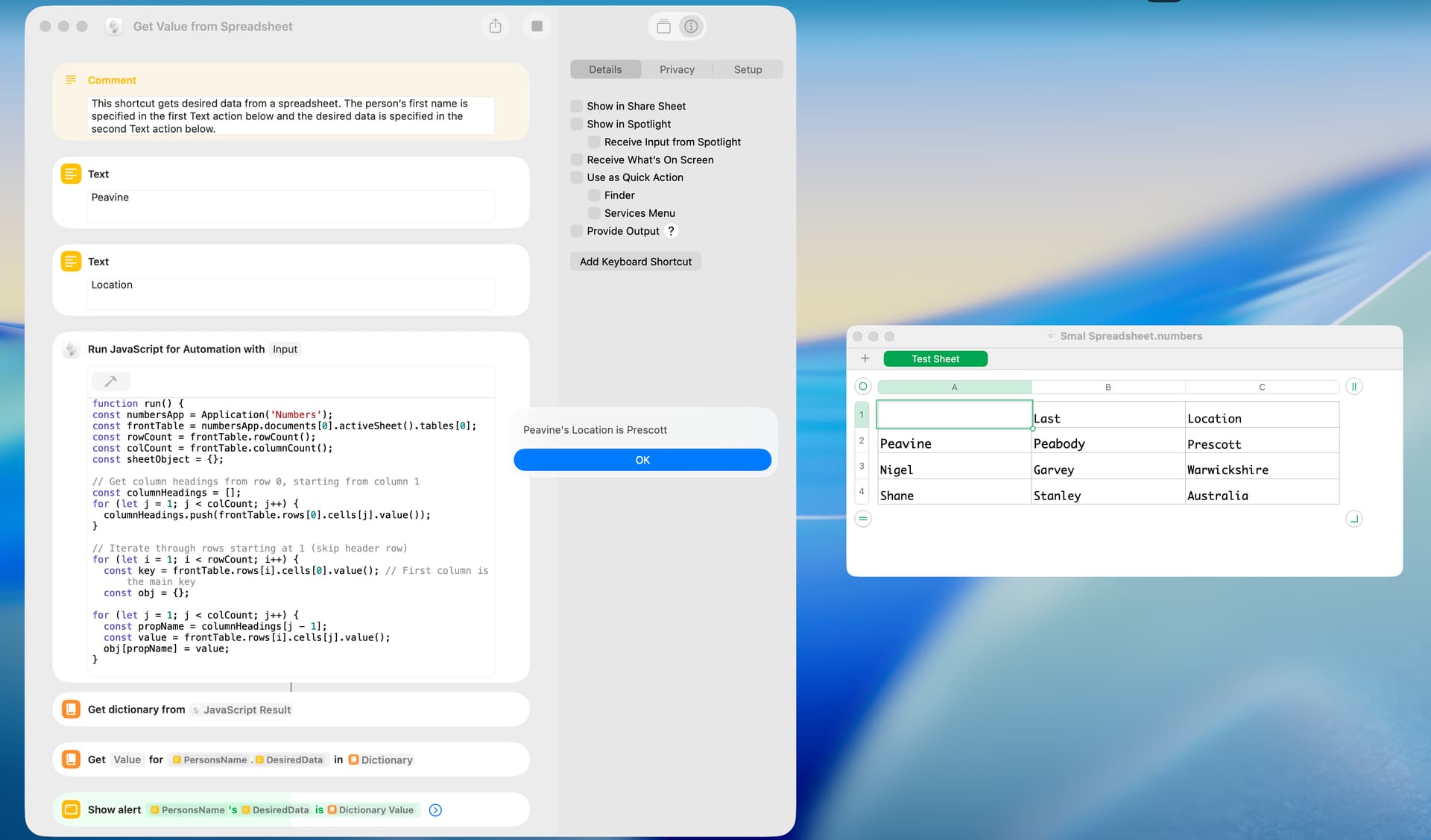
Thanks Jesse. I’ve been wondering how to do that, but my JavaScript for Automation skills are extremely limited. I always learn best with a working example, and I’ve included that below.
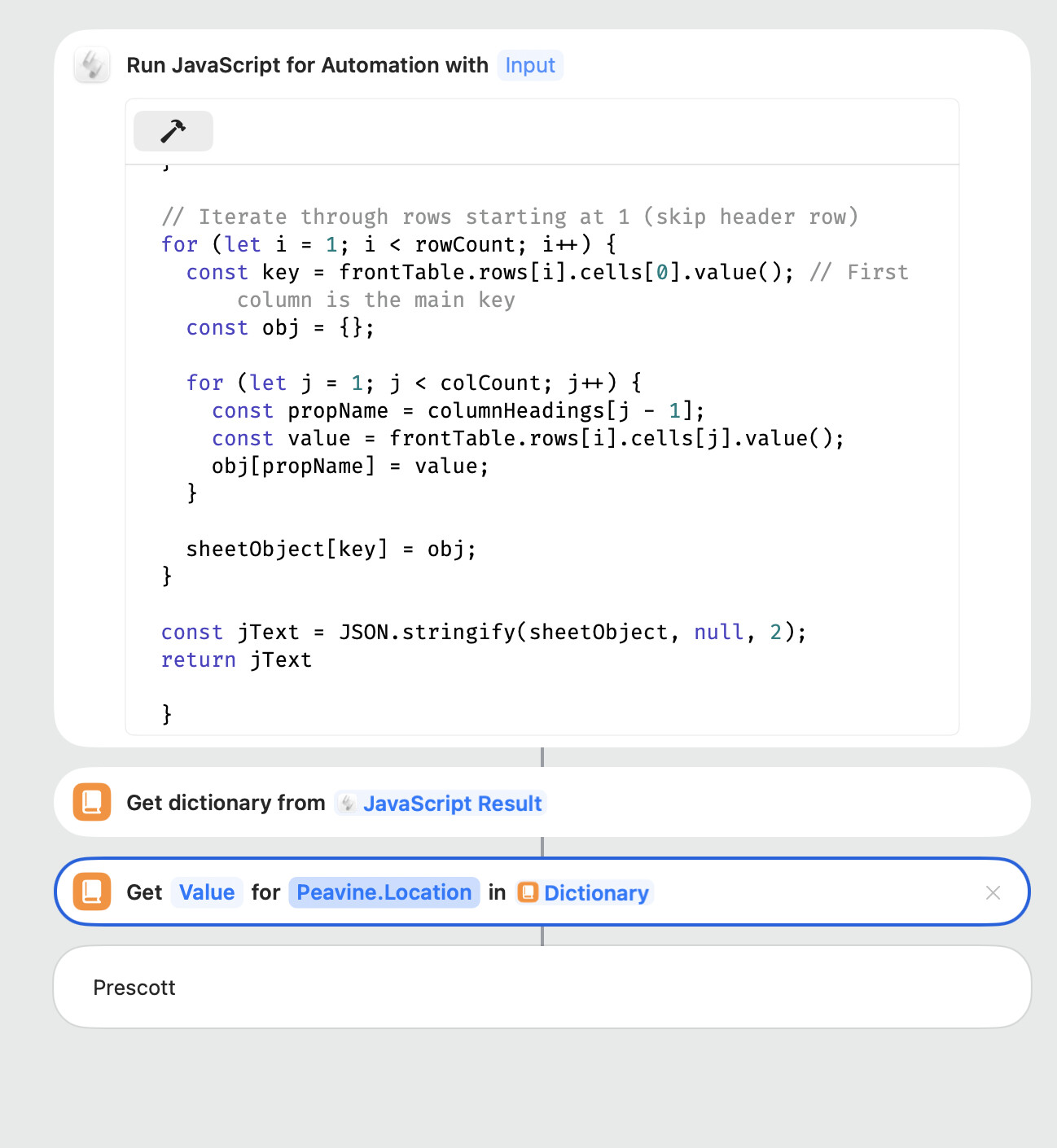
Jesse. I wondered if it would be possible to edit your JavaScript to return an array of objects of objects. Using my above spreadsheet as an example, the first-level object names would be Peavine, Nigel and Shane, and the second-level object names would be Last and Location. In the shortcut, this would permit the use of dot notation (e.g. “Peavine.Location”) to get a value. I hope this makes sense. Thanks!
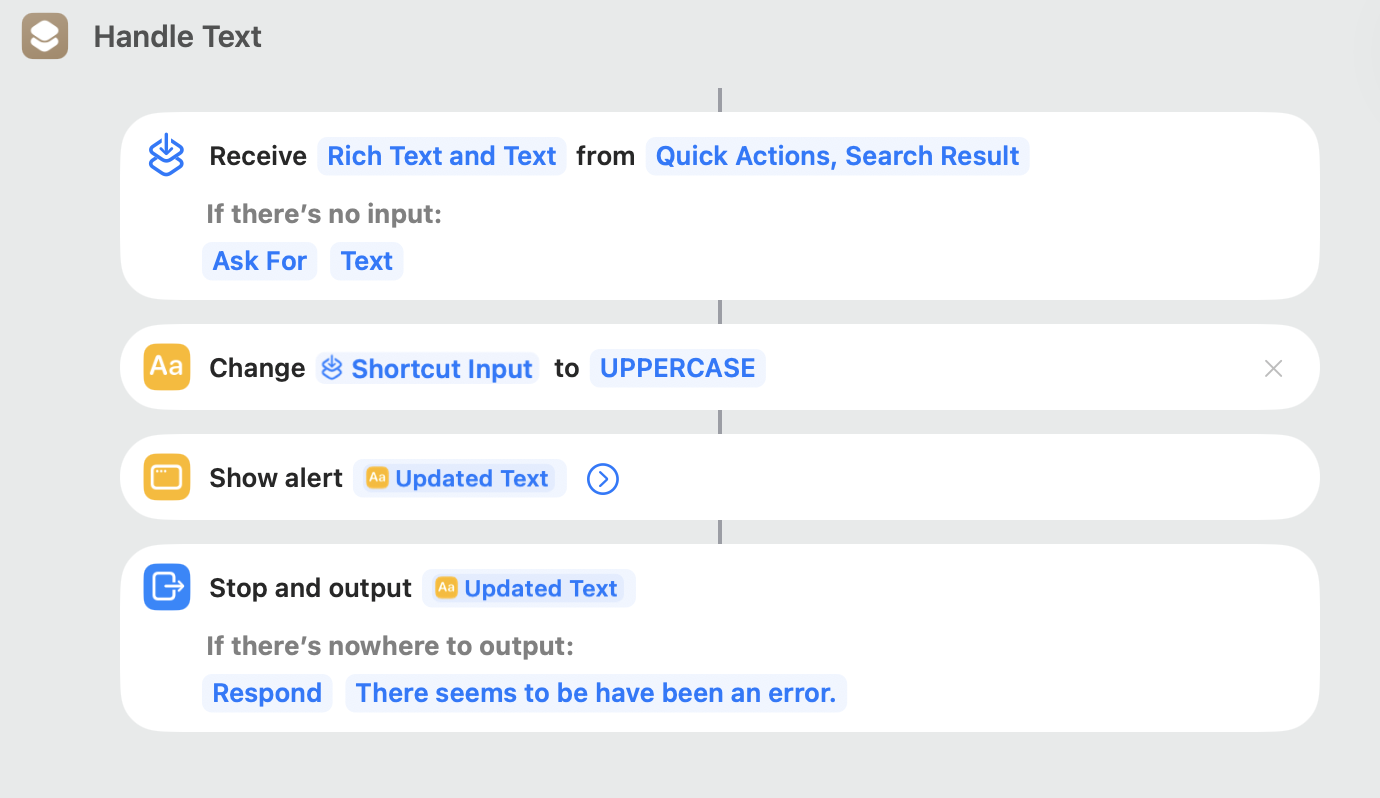
Always glad for a chance to experiment. The first image is the objects. I found that Shortcuts seems to take a bit of time to retrieve the data from the spreadsheet. However, JXA is really fast at it. So the script below, get the data from the spreadsheet, then access “Peavine.location” and puts it in a dialog. That data is sent to a Shortcut called “Handle Text” (The second image). That short cut acts on the text (in this case Capitalize) and then displays an alert from Shortcuts. The data is sent back to the script which then displays the processed data in a dialog. This is runs really quick on my computer.
(() => {
  const sc = Application("Shortcuts Events")
  const numbersApp = Application('Numbers');
  let app = Application.currentApplication()
  app.includeStandardAdditions = true
  const frontTable = numbersApp.documents[0].activeSheet().tables[0];

  const rowCount = frontTable.rowCount();
  const colCount = frontTable.columnCount();

  const sheetObject = {};

  // Get column headings from row 0, starting from column 1
  const columnHeadings = [];
  for (let j = 1; j < colCount; j++) {
    columnHeadings.push(frontTable.rows[0].cells[j].value());
  }

  // Iterate through rows starting at 1 (skip header row)
  for (let i = 1; i < rowCount; i++) {
    const key = frontTable.rows[i].cells[0].value(); // First column is the main key
    const obj = {};

    for (let j = 1; j < colCount; j++) {
      const propName = columnHeadings[j - 1];
      const value = frontTable.rows[i].cells[j].value();
      obj[propName] = value;
    }

    sheetObject[key] = obj;
  }

const location = sheetObject.Peavine.Location;

answer = app.displayDialog(location, {
    	withTitle: 'Data from Spreadsheet',
		buttons:['OK'],
		defaultButton:'OK',
		withIcon:'note', // stop/note/caution
		givingUpAfter:60
		})

let short = sc.shortcuts["Handle Text"];

response = sc.run(short, {withInput:location});

delay(1);

answer = app.displayDialog(response, {
    	withTitle: 'Response from Shortcut',
		buttons:['OK'],
		defaultButton:'OK',
		withIcon:'note', // stop/note/caution
		givingUpAfter:60
		})
})();
-Jesse
Javascript for Automation 5: Work and Play Edition
Whether you’re streamlining daily tasks, integrating AI, or even creating games, this book is your ultimate hands-on guide to scripting using JavaScript on macOS. https://www.amazon.com/dp/B0DYZ4PWRQ
I was curious as to the use of JSON.stringify() and found the following definition from Google AI:
JSON.stringify() is a static method in JavaScript’s built-in JSON object. Its primary function is to convert a JavaScript value (such as an object, array, or primitive) into a JSON string. This process is known as serialization.
It’s interesting that the Javascript can alternatively return the sheetObject object and the shortcut will coerce this to a dictionary, which works well.
I agree that the shortcut solution is a bit slow. I ran a timing test (after deleting the ending dialog) and the result with my earlier spreadsheet was 0.55 second. I increased the spreadsheet to 5 columns with 50 rows and the result was 2.95 seconds. So, in many cases, the shortcut solution is not usable. I don’t know how to run a timing test on your pure JavaScript for Automation suggestion, but the result when run from within Script Editor with the large spreadsheet appeared to be a second or less.
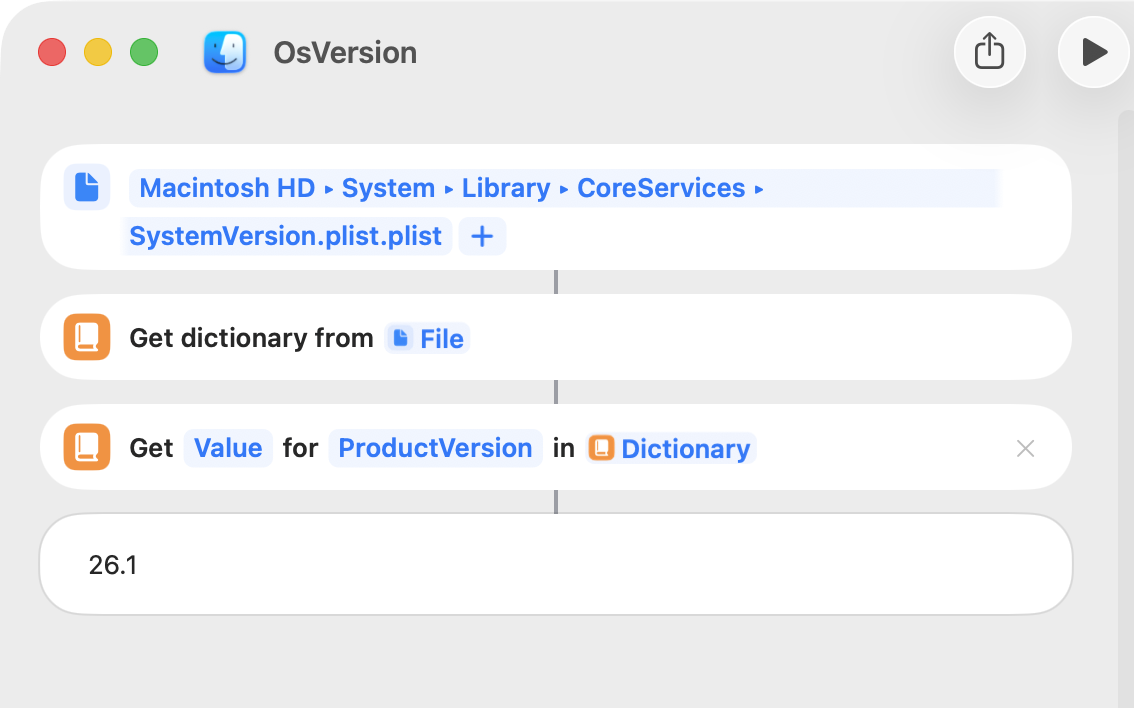
I didn’t know that a PLIST is also recognized as a Dictionary in the same way.
That’s really convenient for many things.
As always, thank you very much for providing such helpful information.