These system setting IDs–which I got from the macmost site–worked on my Tahoe computer. In a day or so, I’ll post a helper shortcut that will get the ID directly from an open System Settings window.
Accessibility = com.apple.Accessibility
Accessibility Audio = com.apple.Accessibility?Audio
Accessibility Captions = com.apple.Accessibility?Captions
Accessibility Display = com.apple.Accessibility?Display
Accessibility Hover Text = com.apple.Accessibility?HoverText
Accessibility Keyboard = com.apple.Accessibility?Keyboard
Accessibility Live Captions = com.apple.Accessibility?LiveCaptions
Accessibility Live Speech = com.apple.Accessibility?LiveSpeech
Accessibility Personal Voice = com.apple.Accessibility?PersonalVoice
Accessibility Pointer Control = com.apple.Accessibility?PointerControl
Accessibility RTT = com.apple.Accessibility?RTT
Accessibility Shortcut = com.apple.Accessibility?Shortcut
Accessibility Siri = com.apple.Accessibility?Siri
Accessibility Spoken Content = com.apple.Accessibility?SpokenContent
Accessibility Switch Control = com.apple.Accessibility?SwitchControl
Accessibility Vocal Shortcuts = com.apple.Accessibility?VocalShortcuts
Accessibility Voice Control = com.apple.Accessibility?VoiceControl
Accessibility VoiceOver = com.apple.Accessibility?VoiceOver
Accessibility Zoom = com.apple.Accessibility?Zoom
Appearance = com.apple.Appearance-Settings.extension
Apple Account = com.apple.systempreferences.AppleIDSettings
Apple Intelligence & Siri = com.apple.Siri
Battery = com.apple.Battery
Bluetooth = com.apple.BluetoothSettings
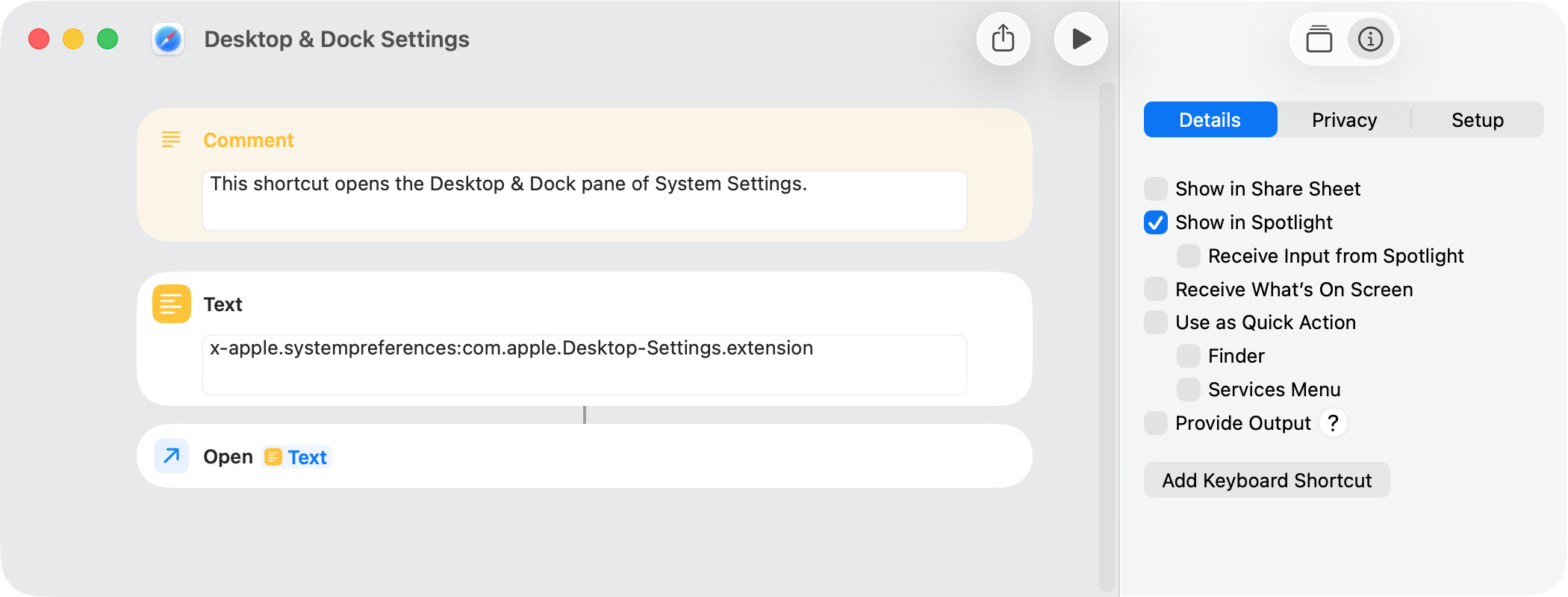
Desktop & Dock = com.apple.Desktop-Settings.extension
Displays = com.apple.Displays-Settings.extension
Energy = com.apple.Energy
Family = com.apple.Family-Settings.extension
Focus = com.apple.Focus
Game Center = com.apple.Game-Center
General = com.apple.systempreferences.GeneralSettings
General About = com.apple.SystemProfiler.AboutExtension
General AirPlay & Handoff = com.apple.AirDrop-Handoff-Settings.extension
General AppleCare = com.apple.Coverage-Settings.extension
General AutoFill & Passwords = com.apple.Passwords
General Date & Time = com.apple.Date-Time-Settings.extension
General Device Management = com.apple.Profiles-Settings.extension
General Language & Region = com.apple.Localization-Settings.extension
General Login Items & Extensions = com.apple.LoginItems-Settings.extension
General Sharing = com.apple.Sharing-Settings.extension
General Software Update = com.apple.Software-Update-Settings.extension
General Startup Disk = com.apple.Startup-Disk-Settings.extension
General Storage = com.apple.settings.Storage
General Time Machine = com.apple.Time-Machine-Settings.extension
General Transfer or Reset = com.apple.Transfer-Reset-Settings.extension
iCloud = com.apple.systempreferences.AppleIDSettings?iCloud
Internet Accounts = com.apple.Internet
Keyboard = com.apple.Keyboard
Keyboard Input Sources = com.apple.Keyboard?InputSources
Keyboard Keyboard Shortcuts Function Keys = com.apple.Keyboard?FunctionKeys
Keyboard Keyboard Shortcuts Modifier Keys = com.apple.Keyboard?ModifierKeys
Keyboard Text Replacements = com.apple.Keyboard?TextReplacements
Lock Screen = com.apple.Lock
Menu Bar = com.apple.ControlCenter
Mouse = com.apple.Mouse
Net Work Wi-Fi = com.apple.preference.network?Wi-Fi
Network = com.apple.Network
Notifications = com.apple.Notifications
Printers & Scanners = com.apple.preference.printfax
Privacy & Security = com.apple.settings.PrivacySecurity.extension
Screen Saver = com.apple.Wallpaper-Settings.extension?ScreenSaver
Screen Time = com.apple.Screen-Time
Sounds = com.apple.Sound
Spotlight = com.apple.Spotlight
Touch ID & Password = com.apple.Touch-ID-Settings.extension
Trackpad = com.apple.Trackpad
Users & Groups = com.apple.Users-Groups-Settings.extension
Wallet & Apple Pay = com.apple.Wallet
Wallpaper = com.apple.Wallpaper-Settings.extension
If anyone is interested in an AppleScript that does pretty much the same thing, please look here.
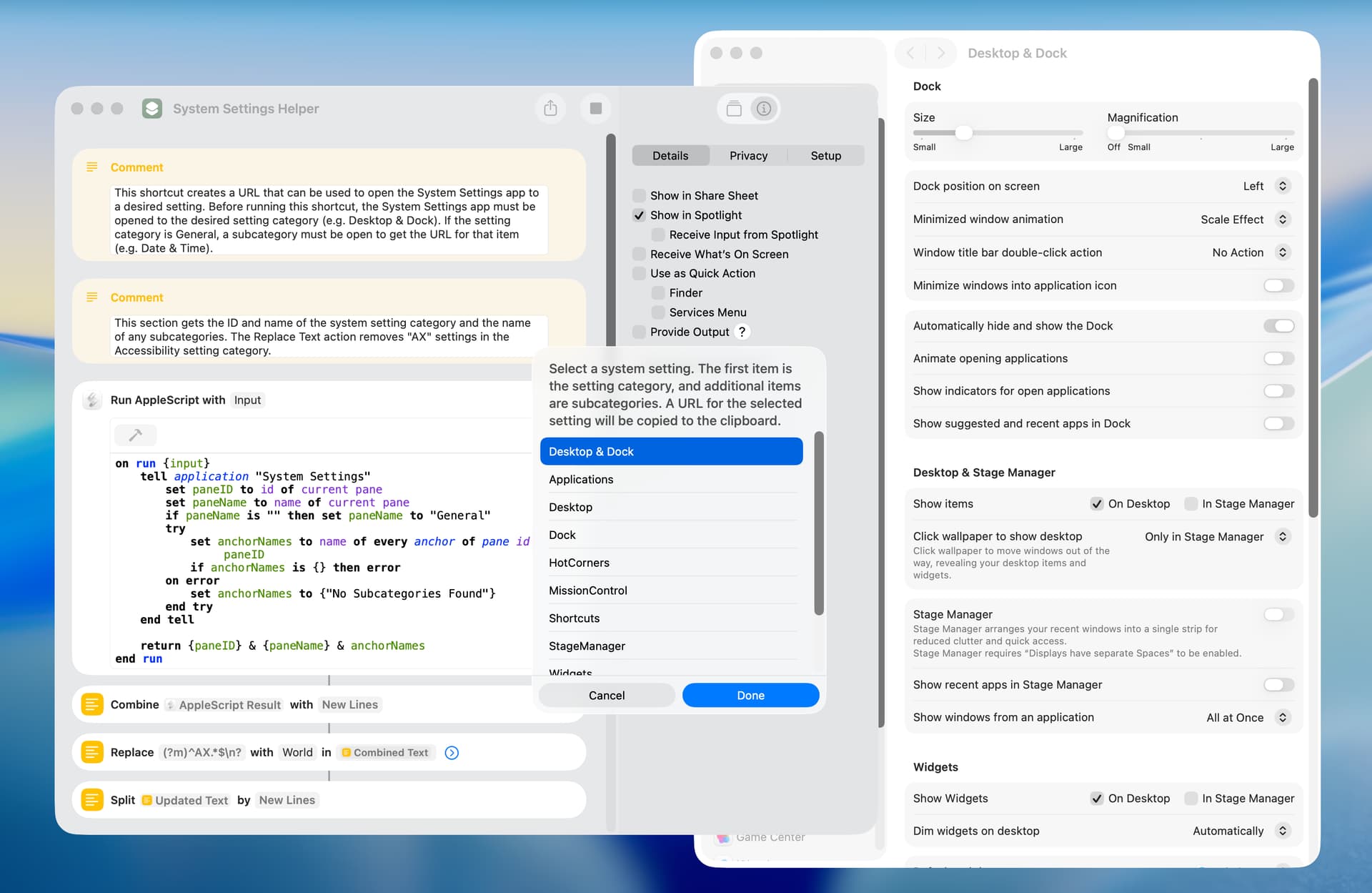
This is a helper shortcut that makes a URL for a desired system setting. After creating the URL, the shortcut opens the System Settings app to that URL. This is done just to verify what a setting does.
To test this shortcut, open the System Settings app and select the Desktop & Dock setting in the sidebar. Then run this shortcut.
I downloaded the first shortcut you posted here. And the one thing that became apparent is that you needed to quit the shortcuts app each and every time. Don’t know if it’s even possible, but could you add a line to quit the shortcuts app once the user has made a selection of what system setting they want to open?
Homer712. I’m not sure which shortcut you are referring to. You mention the first shortcut I posted but you then make reference to the user making a selection.
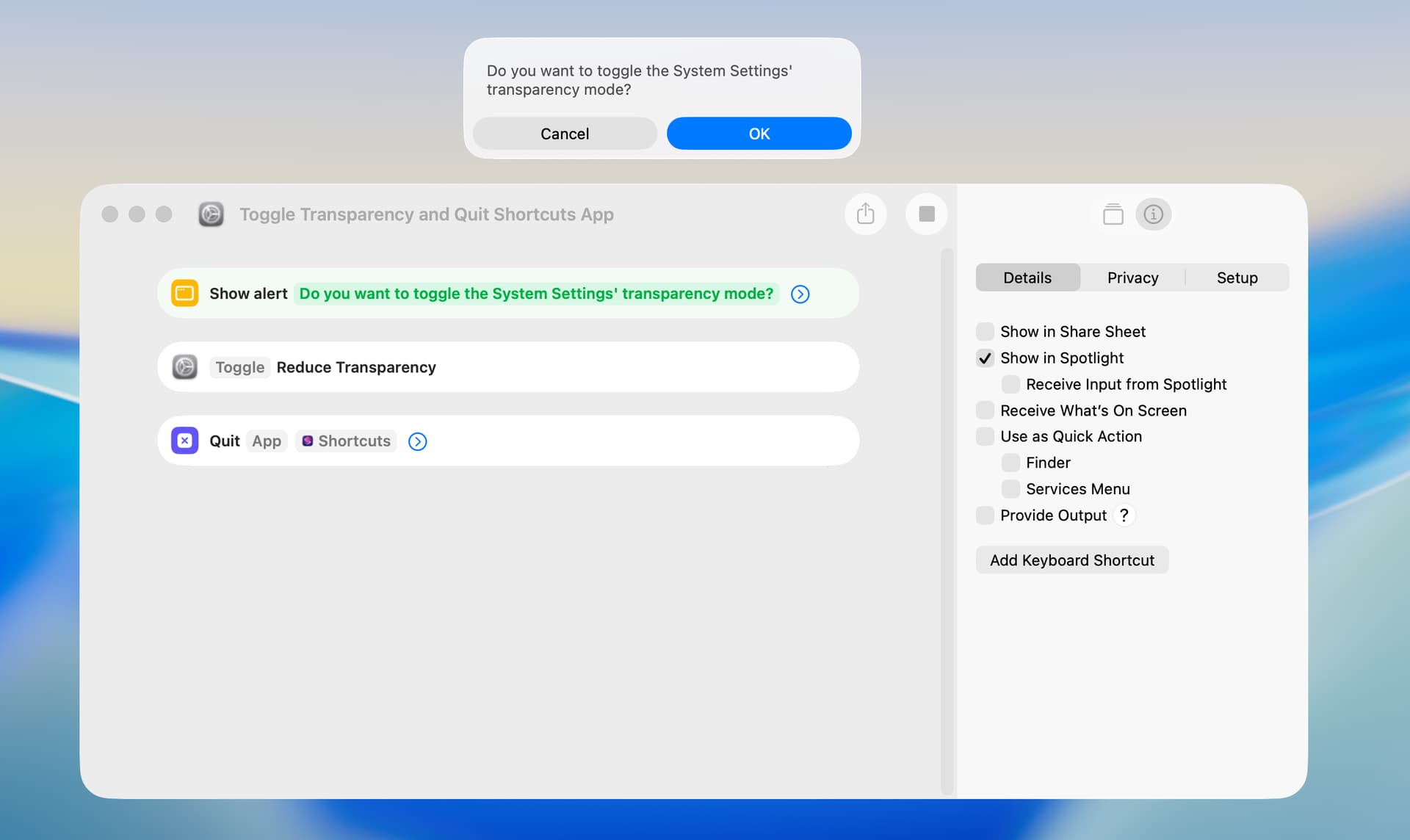
Anyways, you can quit any app including the Shortcuts app with a Quit App action. For example, the following worked as expected on my Tahoe computer when run by way of the Shortcuts Editor.
You are aware of this although other users new to Shortcuts may not be, but it’s generally best to run shortcuts in normal use by some approach other than the Shortcuts Editor. There are a large number of approaches including a menu icon, dock icon, keyboard shortcut, Spotlight, and so on.
I downloaded the shortcut in your post 1 (the called Systems Settings.shortcut at 23.0 KB). And seeing how my shortcut skills are almost non existent, could you add the quit shortcuts command to the shortcut in post 1 (the called Systems Settings.shortcut at 23.0 KB). That would be much appreciated.
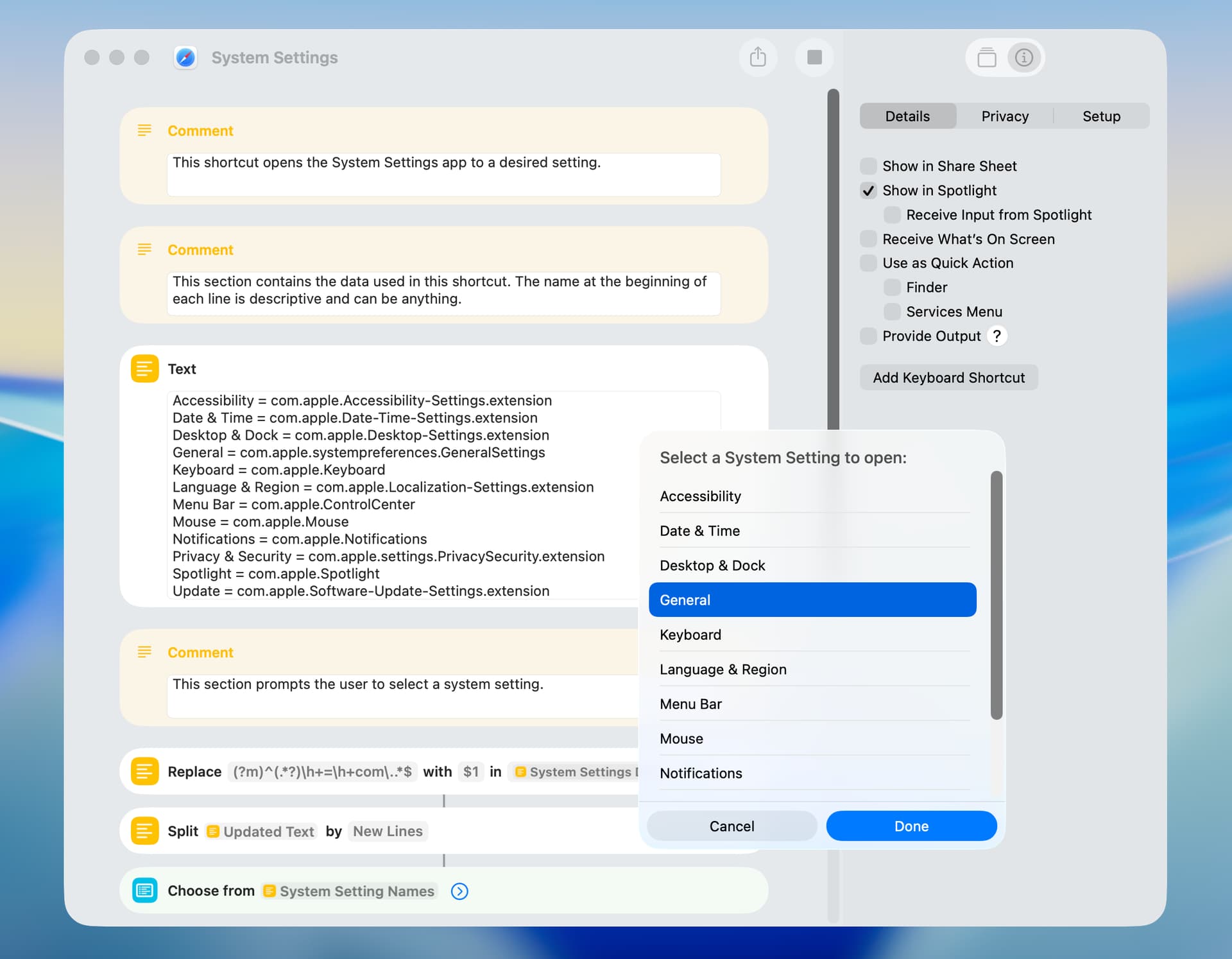
Homer712. I’ve included the shortcut below. The Shortcuts app quits after you make a selection from the dialog. There’s no simple way around that. I tested this shortcut on my Tahoe computer without issue.
I’m still running Sequoia, and the shortcut still functions perfectly. I make a System settings selection, and shortcuts quits, perfect. Many thanks peavine.
I just installed macOS Golden Gate public beta 1, and a number of the URLs included earlier didn’t work. The helper shortcut I included above returned the correct URL in every instance, and the following are the ones I use:
General = com.apple.systempreferences.GeneralSettings
Accessibility = com.apple.Accessibility-Settings.extension
Appearance = com.apple.Appearance-Settings.extension
Desktop & Dock = com.apple.Desktop-Settings.extension
Keyboard = com.apple.Keyboard-Settings.extension
Menu Bar = com.apple.ControlCenter-Settings.extension
Mouse = com.apple.Mouse-Settings.extension
Notfications = com.apple.Notifications-Settings.extension
Privacy & Security = com.apple.settings.PrivacySecurity.extension
Software Update = com.apple.Software-Update-Settings.extension
Spotlight = com.apple.Spotlight-Settings.extension
Thank you very much for your wonderful Shortcuts. I always enjoy them, and they often give me new ideas.
I found this one especially interesting.
I thought, “Maybe this can be localized?” So I tried to make my own version.
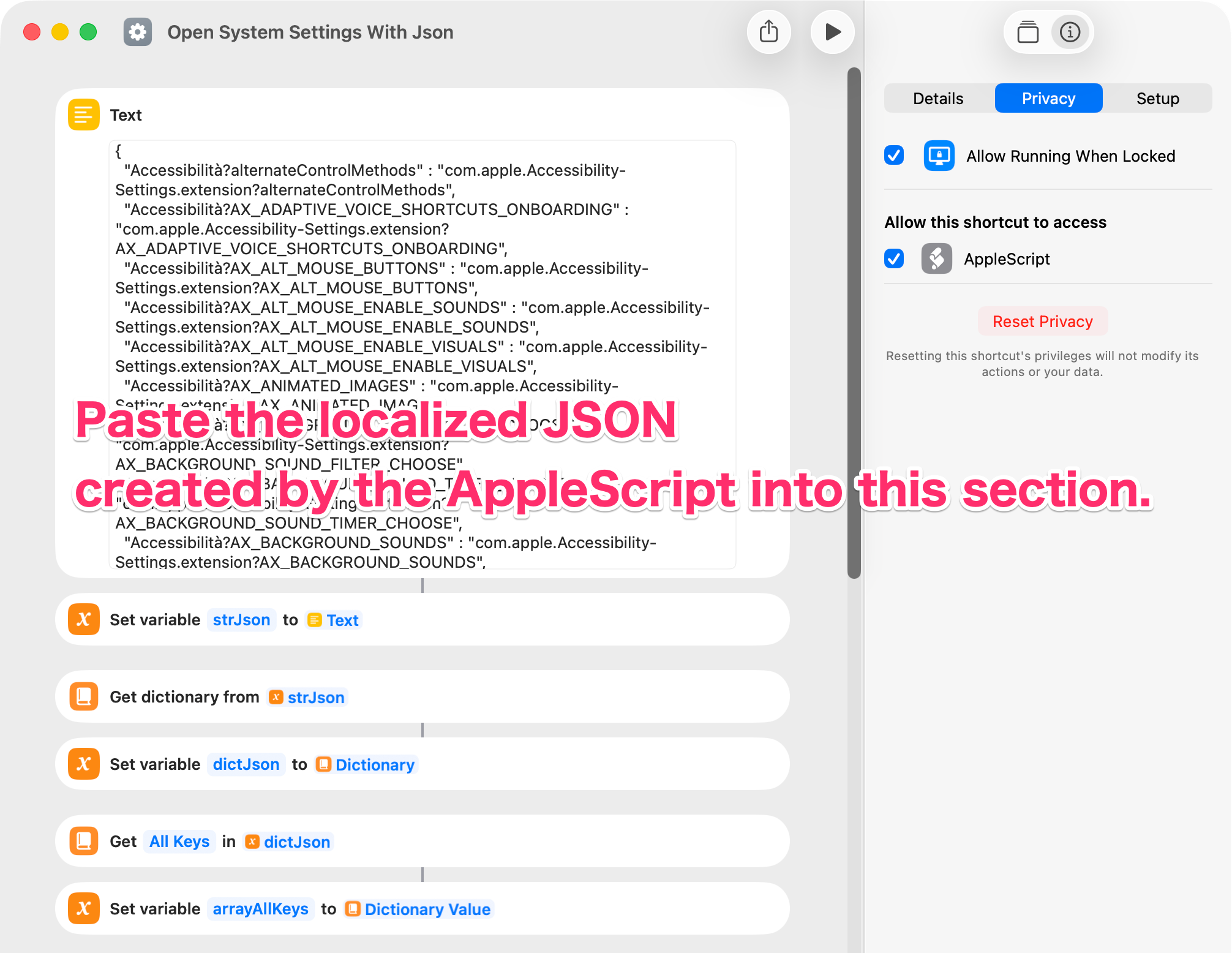
I found that the panel IDs and anchor values can be obtained quite easily just by changing the System Settings language. So I put them into a JSON file and used that for the processing.
Please note that the JSON included in the Shortcut was generated from my own Mac.
So it also contains some non-default values, such as com.microsoft.universalprintmac.
Thank you again for sharing your Shortcuts.
They always inspire me to try new ideas.
set recordSystemInfo to (system info) as record
set strOsVersion to (system version of recordSystemInfo) as text

set strDelim to AppleScript's text item delimiters
set AppleScript's text item delimiters to (".")
set listOSversion to (every text item of strOsVersion) as list
set AppleScript's text item delimiters to strDelim

set numVerMaj to (first item of listOSversion) as integer
set numVerMin to (second item of listOSversion) as integer
set numVerPat to (last item of listOSversion) as integer

if numVerMaj = 27 then
	tell application "System Settings"
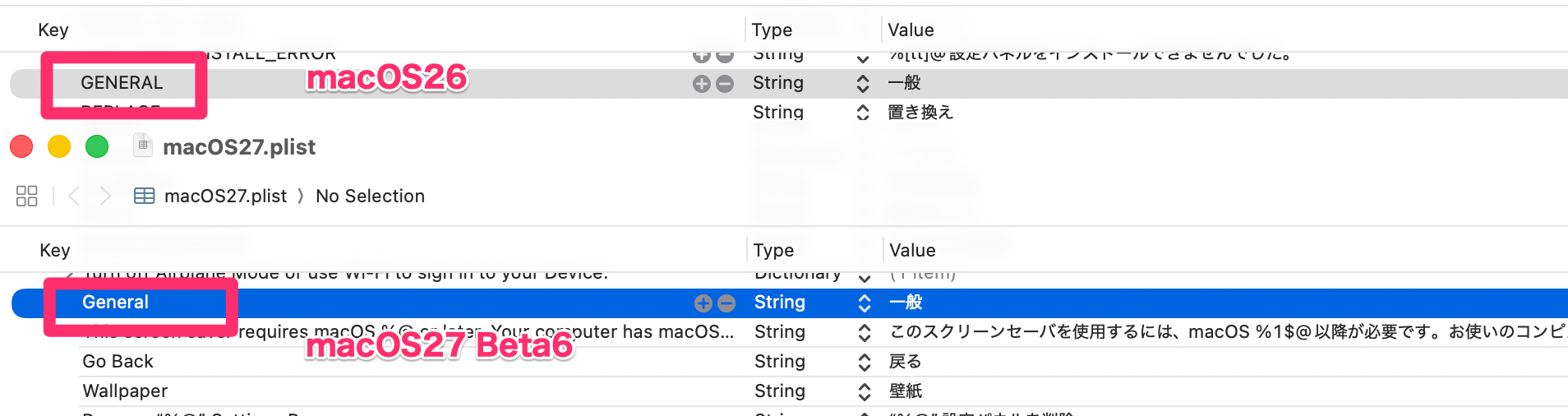
		set strGeneral to (localized string ("General") from table ("Localizable")) as text
	end tell
else
	tell application "System Settings"
		set strGeneral to (localized string ("GENERAL") from table ("Localizable")) as text
	end tell
end if


return strGeneral
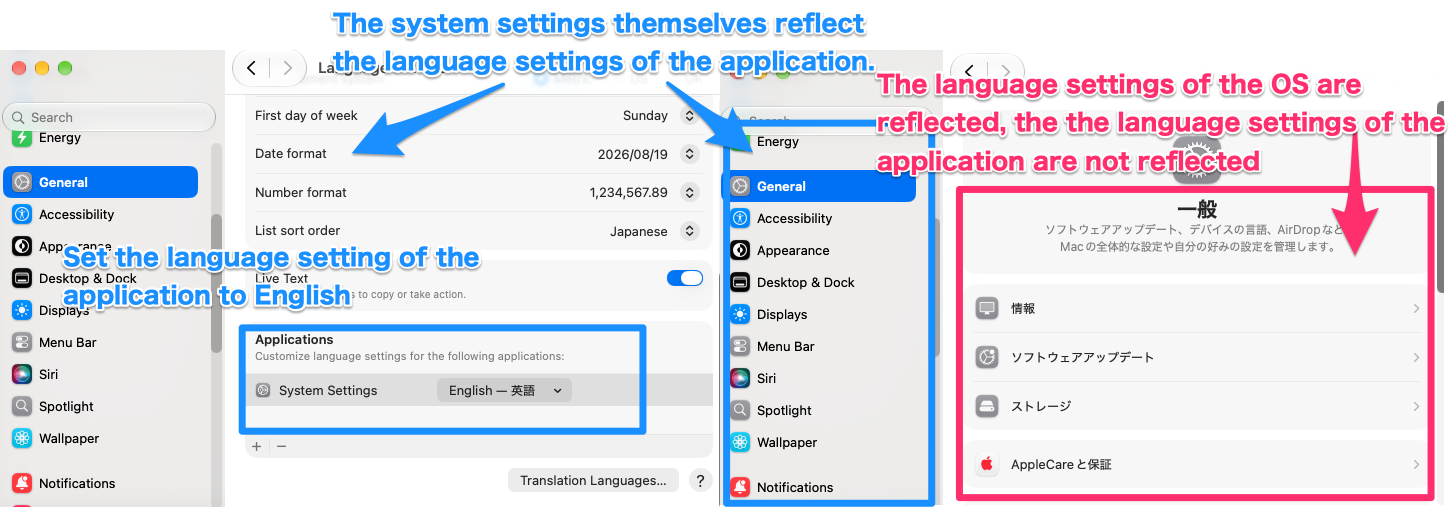
Even if I set the application language to English, the individual child panels reflect the language setting correctly. However, in the General pane, the language setting is not applied to the child entries.
There are also some missing localization files, such as MainMenu.loctable .
So, for System Settings, I don’t want to dig into it too deeply for now. I will wait and see what happens in the next update.
I also noticed a change in System Settings in macOS 27.0 Public Beta 4 (Developers Beta 6). The following pane ID for the General pane has no anchors, and all entries in the General pane (like Language & Region) also return the same General pane ID and no anchors.
com.apple.systempreferences.GeneralSettings
However, I got the following pane ID for Language & Region from a Google search and it works fine.
com.apple.Localization-Settings.extension
Just for testing purposes, I use the following AppleScript.
tell application "System Settings"
	set paneID to id of current pane
	set paneName to name of current pane
	set anchorNames to name of every anchor of pane id paneID
end tell
I wonder if there’s a way tto get the pane ID of an entry in the General pane with an AppleScript in a current beta of macOS 27.0 Golden Gate?