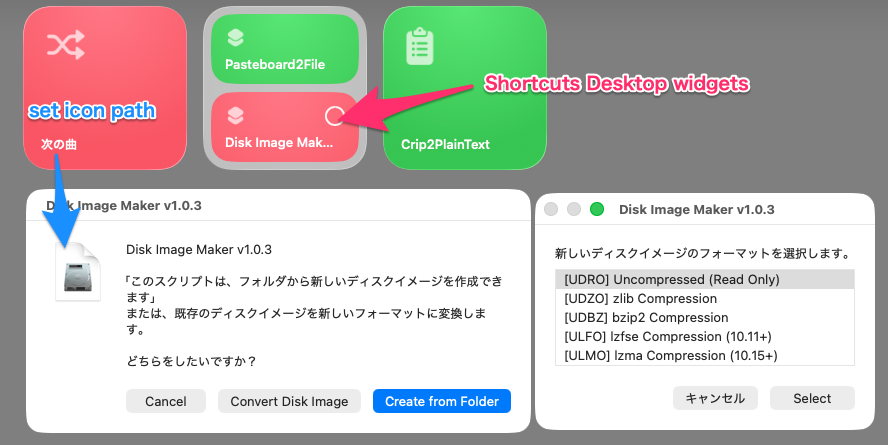
If anyone is interested, its an AppleScript application called Disk Image Maker, available here:
It lets you create disk images from folders and it lets you convert existing disk images. You can get the compression format (or no compression), and you can choose to encrypt the disk image. You can run it by dropping things on to it, or by simply double clicking it.
I’ve had lots of disk image creation and conversion programs over the years. Every last one gets abandoned and eventually stops working. So I figured I’d just create my own using AppleScript and hopefully it will keep working forever.
If you try it out, let me know if you find any bugs in it. I’ve debugged the hell out of it so hopefully its clean. Also it would be good practice for you to review the source code real quick to confirm that the script does nothing at all with the password you create, other than use it to encrypt the disk images.
It forms part of a command line executed by way of do shell script. Password1 takes its value from user input entered into an AppleScript dialog. Apart from being a potential security risk, if Password1 contains any special shell characters, do shell script will, at best, throw an error, and, at worst, execute rogue shell code.
Does applescript have any input sanitizing functions? And is it really a security risk? This isn’t something thats running over the internet. A user is running this script locally on their own machine. So yeah they could probably “hack” themselves but thats about it?
I’m not aware of any other better way to do this via applescript, are you?
So after looking in to it a bit, i changed that line to:
return " -encryption AES-256 -passphrase " & quoted form of Password1
In theory that makes it more secure. Although people are only running this on their own computer, so it really feels more like hypothetical security than actual security. But either way, password input now gets quoted. This weird forum software won’t let me post this comment unless I add extra text to it because its too similar to the first draft I deleted and then am trying to repost right now. Please disregard this part of this comment.
I’ll second the plug for DropDMG. It’s made by the same developer that produces SpamSieve, which is a must have for anyone using Apple Mail. Both applications are polished pieces of software, and are routinely updated.
There are many combinations of formats when creating a DMG, and some of them can be difficult for beginners. Your tool makes it easy to use these features without needing to understand all the details, which is extremely helpful.
Since I’m not a native English speaker, I localized the dialog messages and immediately used the tool for sending files. It works wonderfully. I’d love to keep using it, and I have one request for improvement.
Steps:
1.Run the tool
2.Select “Create From Folder”
3.Choose a folder
4.Choose a format
5.Choose encryption
6.Enter a password
7.A confirmation dialog appears
At this point, if the user forgets the password they just typed, it becomes a loop.
In the dialog that says:
“The passwords you entered do not match, please try again.”
it would be very helpful if “Cancel → Abort” were available as an option.
And regarding the issue of forgetting the password—
I have to confess I’m the one who actually did it. I genuinely locked myself into that loop.
So this request comes directly from my own real-world mistake.
If possible, I would truly appreciate having a “Cancel → Abort” option there.
So I get that having a cancel could be useful. BUT you’re not really stuck in a loop. Once you type the second password and it doesn’t match, the loop starts over. You’re starting from scratch again. So you can type any new password you think of, again. Then confirm it on the next window. I’m not sure how you’re getting “stuck in a loop” unless you keep typing two different passwords over and over again. Unless I’m not fully understanding the situation you’re describing.
But yeah, that “passwords don’t match” error message is a very logical and easy place for a cancel to abort the whole process. I’ll put that in my 1.0.3 update
I’m sorry — I completely forgot that I could simply re-enter the password.
I got flustered after typing it wrong, which is embarrassing to admit.
But I’m really glad you took the time to consider my suggestion.
I mainly use this method when localizing scripts created by English-speaking developers,
#property strMes12 : "Save your new Disk Image as:"   as text
property strMes12 : "新しいディスクイメージを次のように保存します。" as text
on ChooseSaveFile(oldName)
	set OutputDMG to choose file name with prompt strMes12 default name oldName default location path to desktop
	return " " & quoted form of POSIX path of OutputDMG
end ChooseSaveFile
and your tool was very easy to localize.
I’m looking forward to version 1.0.3!
I just updated to 1.0.3, you can now abort the script at any of the four encryption related dialogs. I also cleaned up the first window a little to make it a little friendlier and a more consistent with the rest of the windows in the program (making the right most dialog button the default all the way through).
There is still one issue with this script, which is that it doesn’t have any error correction for formats not supported by hdiutil. Like if you try to use the 10.15+ format in 10.11, you get a hard error. But both do shell script and hdiutil seem poorly suited for the kind of robust back and forth needed to make it easy to catch errors like that in applescript. So I’m just going to leave that as is.
My goal was just to make a tool to make read only, compressed disk images with. But I can’t leave well enough alone, and now I’m thinking maybe I should also add the ability to create read/write images too. Hrmmmmm.
I’ve updated to version 1.0.3.
It’s very easy to use, and I really like that the default button in the initial dialog is now on the right — that matches my UI preference perfectly.
I use DMG files once or twice a week, so I’ve added the shortcut as a desktop widget
Disk Utility doesn’t let you pick exactly which compression format to use. You just get “compressed” and it probably goes with the newest one? But who knows?
My script lets you choose among all options.
Plus I would say because my script ONLY does disk images, its UI for that is simpler and easier to use than Disk Utility.
Also I’ve never used Automator so I don’t know anything about that.
Here is my (maybe not perfect) explanation about automation…
I think the main benefits of automation are just two things:
A:repeat exactly the same process every time.
B:handle a large number of items.
In my case, creating a large number of DMGs is… well, something that almost never happens.
So for me, automation with DMGs mainly means “create it again with the same settings as last time.”
DMG provides so many different format options, so in that sense, l008com’s tool is very nice because it doesn’t give too many choices, and it’s easy to localize and customize for my own usage. That is one of my favorite points.
About “how” to automate, there are many ways:
Using the UI
Using bash/zsh scripts or AppleScript do shell script
Using macOS Shortcuts or Automator
I think you can just choose whatever method you like.
There is no single correct answer
the best way is simply the one that feels comfortable for you.
The reason I don’t choose Automator for DMG tasks is simply
because sometimes the folder-selection dialog doesn’t come to the front.
That’s really the only reason.
If you want to know more technical details, this site is very helpful
(also explains the new ASIF format):
I think Automator is slowly being replaced by Shortcuts. But, like Automator doesn’t have the flexibility of AppleScript.
l008com, you might look at using Shane Stanley’s Dialog Toolkit Plus. It has a wider variety of dialog elements and can have more buttons than display dialog. So, you can have most of the process in one dialog.
I’ve still been finding little bugs and fixing them. I’m up to version 1.1 now. It should finally, once and for all, no longer throw timeout errors if you let it run in the background and ignore it when it’s complete.
It also lets you convert from the full set of disk images now, ISO, CDR, sparseimage, sparsebundle.
It also now copies any Finder “comments” from the original folder or disk image, and writes them to the new disk image. It also adds its own “Made by” signature to those comments.
That last part isn’t exactly a “feature” for the end user, but I like it. Its super subtle but nice that people can see where these disk images came from and potentially go snag the tool themselves.
There is still one bug I’ve found that I haven’t looked in to but I suspect there may be no easy way to fix it. If you try to convert a disk image that is ALREADY encrypted, of course you won’t be able to because it’s encrypted. I’m not sure if theres a way applescript can determine if an input image IS encrypted, to then prompt the user for the password. Thats assuming that converting an encrypted image is something you can do right from the hdiutil command line.
Its a low priority bug and I may just ignore it.
Oh there was one other bug. I used the ≠ operator which got corrupt when I saved the source code and then copied that source code back in to script editor! So I replaced that with “is not equal to” to avoid that problem. Does AppleScript let you do != like every other sane language I wonder?