I’m used to scripting in PHP which has an easy function for every possible thing you’d want to do with an array. Even javascript has caught up a lot.
But now I’m trying to make some tools in applescript and i need suggestions.
First task, whats the simplest way to select two different random items from a list?. Potentially a very long list too.
Second, is there an easy way to filter through long lists? For example, say I’m making a list of the files in a folder. And there are a thousand .txt files, and a few .log files. I want to make a list, but only of the .txt files.
First: AppleScript provides the some keyword which can get a random element from a list.
To get two different random elements you can write something like this
set theList to {1, 2, 3, 4, 5, 6, 7, 8, 9, 10}

set randomElements to {}
repeat while (count randomElements) < 2
	set something to some item of theList
	if randomElements does not contain something then set end of randomElements to something
end repeat
Second: You can filter items on disk in the Finder with the whose clause
tell application "Finder"
	set allTextFiles to files of desktop whose name extension is "txt"
end tell
However from experience this can be quite slow. AppleScriptObjC with help of the Foundation framework can do it too, but much faster.
So I came up with this way of picking two random items from the list, basically the same concept you posted but slightly different implementation:
	set PayloadDelete to some item from PayloadFileList
	set PayloadCopy to ""
	repeat while (PayloadCopy = "") or (PayloadCopy = PayloadDelete)
		set PayloadCopy to some item of PayloadFileList
	end
But THEN I realized, I don’t have to even do the loop. I can just re-make the file list after the first file is picked and deleted. That will potentially slow the script down a bit though so I may still use the loop, I’m not sure. I’ll do some speed tests of making the file list with a folder of 10,000ish items and see how much time it takes.
So this is unexpected. Its taking so long for the finder to list the items of a folder (with 10,000 files in it) that the script keeps timing out even as I keep increasing the timeout.
MEANWHILE, I can use `do shell script “ls /path/to/folder” to get results instantly.
However those results are a multi-line string. Can I explode that string into a list? And also use the same filtering where I only add rows that end in “.txt”? If the answer to the last part is no, I can do the old trick I just found for another script, where I set items i don’t want to “missing value” then convert the old list to a new list.
set fileNames to paragraphs of (do shell script “ls /path/to/folder)
And in your script the empty-string-thing is not needed. You can use an unspecified repeat loop and exit repeat.
set PayloadDelete to some item of PayloadFileList

repeat
	set PayloadCopy to some item of PayloadFileList
	if PayloadCopy ≠ PayloadDelete then exit repeat
end repeat
And it’s some item of PayloadFileList
Maybe you could describe more in detail what you are going to accomplish.
LOL i was getting so close to the answer you just gave me. I was trying to do “words of do shell script” and that split on the newline and the periods. Then I tried “lines” and that just failed as if lines aren’t a thing. And right then I saw this post and turns out “paragraphs” was the magic word.
So using ‘ls’ and converting to an array takes about 1 to 2 seconds.
Using set PayloadFileList to name of files of alias "bloop:stress_test:" whose name extension is "txt" still timed out even after 20 minutes.
So is there another magic phrase I can do to say something like:
paragraphs of filelist that end with “.txt” ?
Update: Actually turns out I don’t know how long the Finder method of listing this huge folder will take because its not that the script was timing out, turns out it fully locked up my Finder.
Yes, there is. Use the find command from the shell
set sourceFolder to quoted form of POSIX path of "bloop:stress_test:"
set file_list to paragraphs of (do shell script "/usr/bin/find" & space & sourceFolder & space & "-maxdepth 1 -type f -name '*.txt'")
However this returns full (POSIX) paths.
If you omit the -maxdepth 1 parameter find performs a deep search including subfolders
Ok everything is working and working well. The only problem is that it takes about a second to run ls but then another 5 seconds or so to loop through the results and remove the non-.txt results (in a folder of 10,000 items).
Because this is running in a loop of it’s own, that time is going to add up. I can probably grep up a filter that will be super fast, ill look in to that next time. Thats all for tonight, thanks for the help.
Ok, here is my take.
I would never use “Finder” for file work. I use “System Events”, it is much faster
I also never use a whose clause. It slows things down drastically.
Best to get all files first, then parse them out in your script like so…
use AppleScript version "2.4" -- Yosemite (10.10) or later
use scripting additions

property fileList : {}
set myFolder to "Extra HD:Folder Test"
set fileList to findFileExt(myFolder, "txt")

on findFileExt(aFolder, ext)
	script F
		property fileList : missing value
		property extList : missing value
		property txtList : {}
	end script
	local i
	tell application "System Events"
		tell files of folder aFolder
			set {F's extList, F's fileList} to {name extension, path}
		end tell
	end tell
	repeat with i from 1 to count F's fileList
		if item i of F's extList = ext then set end of F's txtList to item i of F's fileList
	end repeat
	return F's txtList
end findFileExt
In a folder with 10,000 files, it finishes in under 1 second.
Do not use Finder for filesystem operations. Use System Events, which operates almost as quickly as the shell.
tell application id ("com.apple.SystemEvents") ¬
        to tell the folder ("/path/to/folder") ¬
        to tell the files whose name extension ¬
        is "txt" and visible is true to set fs ¬
        to the name
That’ll get you a list of text files within a given folder, returning a list of basenames (file names with extensions only). The folder path can be provided in HFS (colon) format or in Posix (slash) format (for which you’re free to use the tilde (~) as an abbreviation for your home folder, just as you’d normally do in the shell).
Then grab a random item from the list as you’ve been doing.
There are very, very few reasons one would ever need to use Finder to operate on or enumerate files. For when it is genuinely necessary or advantageous, using the traditional techniques to do so will be extremely slow but there are implementations that can allow one to make the most efficient use of Finder.
Here is an approach that is faster than Finder, System Events, or even the UNIX Find command at siphoning specific file types from a flat folder into an ASOC mutable Array. It then converts those POSIX path elements into HFS paths, randomizes the array elements, and then plucks the first two array elements as they are both entirely random.
Tested on macOS 26.2
use framework "Foundation"
use framework "GamePlayKit"
use framework "OSAKit"
use scripting additions

property ca : current application
property fileExt : "txt"

set nsma to ca's NSMutableArray's array()
set target to ca's NSString's stringWithString:"/"

set aFolder to POSIX path of (choose folder default location (path to desktop)) as text

-- make a sorted by name and size > 0 list of fileExt files from the selected folder
-- to make this folder recursive, change ${0}*.($1) to ${0}**/*.($1)
nsma's setArray:(paragraphs of (do shell script "/bin/zsh -c 'setopt nocaseglob;ls -1 ${0}*.($1)(.NonL+0)' " & aFolder & space & fileExt))

-- did not find any fileExt files in folder so we quit here
if not ((nsma's objectAtIndex:0)'s hasPrefix:target) = true then return

set arange to ca's NSMakeRange(0, [nsma count])

-- replace every POSIX path list item with its  AppleScript HFS path equivalent
nsma's replaceObjectsInRange:arange withObjectsFromArray:(nsma's valueForKey:"_osa_hfsPath")

-- randomize mutable array elements as they are brought into standard array
set nsa to (ca's NSArray's arrayWithArray:nsma)'s shuffledArray()

-- get first two entirely random elements of the Array
set selected to nsa's subarrayWithRange:(ca's NSMakeRange(0, 2))
log (selected) as list
return
I have revised my original submission to behave differently when the file extension is not found. If this is the case, the recipient array is set to 0 for a less expensive test and script end.
I have commented the expensive, and probably unneeded — in-place POSIX to HFS path conversion. Instead, this can be optionally performed on the final random selection array. I did include an active POSIX path to URL loop (also optional), and a display dialog of the random array results.
This has been tested with Apple’s Script Editor, and Script Debugger 8.10.0 on macOS Tahoe 26.2.
use framework "Foundation"
use framework "GamePlayKit"
-- use framework "OSAKit"
use scripting additions

property ca : current application
property fileExt : "txt"
-- number of random files we want
property randCnt : 2

set aFolder to POSIX path of (choose folder default location (path to desktop)) as text
set nsma to ca's NSMutableArray's array()

-- make a sorted by name and size > 0 list of fileExt files from the selected folder
-- to make this folder recursive, change ${0}*.($1) to ${0}**/*.($1)
try
	-- omit the customary Zsh N modifier so file extension not found fails and  leaves the array empty
	nsma's setArray:(paragraphs of (do shell script "/bin/zsh -c 'setopt nocaseglob;ls ${0}*.($1)(.onL+0)'  " & aFolder & space & fileExt))
end try

-- file extension not found in chosen folder so quit
if not ([nsma count] > 0) = true then return

set arange to ca's NSMakeRange(0, [nsma count])
-- randomize mutable array elements as they are brought into standard array. GamePlayKit required here.
set nsa to (ca's NSArray's arrayWithArray:nsma)'s shuffledArray()

-- get randCnt  random elements of the Array
set selected to (nsa's subarrayWithRange:(ca's NSMakeRange(0, randCnt)))'s mutableCopy()
set selRange to ca's NSMakeRange(0, [selected count])

-- optionally make these randCnt elements as HFS paths instead of POSIX paths. Uncomment OSAKit above.
-- if you do this, comment out the following repeat loop
-- selected's replaceObjectsInRange:selRange withObjectsFromArray:(selected's valueForKey:"_osa_hfsPath")

-- if we want file:// URL description instead of POSIX path
-- less expensive on a smaller array of randCnt items
repeat with ndx from 0 to [selected count] - 1
	set fileURL to (ca's NSURL's fileURLWithPath:(selected's objectAtIndex:ndx))'s absoluteString()
	(selected's replaceObjectAtIndex:ndx withObject:fileURL)
end repeat
display dialog "Files: " & return & return & (selected's componentsJoinedByString:return) with title "Random File Selection"
return
I combined and reversed these two tasks and used ASObjC for the second task and basic AppleScript for the first. If randomizing the file list task takes too long, then ASObjC can be used for this as well (as suggested by VikingOSX). The timing result on my smallish Home folder of 1034 files in 202 folders was 18 milliseconds. This assumes that the Foundation framework is in memory, which would often be the case. This script returns files in subfolders but that’s easily changed.
use framework "Foundation"
use scripting additions

set theFolder to "/Users/robert"

--get files with txt extension (not case sensitive)
set theFolder to current application's NSURL's fileURLWithPath:theFolder
set fileManager to current application's NSFileManager's defaultManager()
set folderContents to (fileManager's enumeratorAtURL:theFolder includingPropertiesForKeys:{} options:6 errorHandler:(missing value))'s allObjects() --option 6 skips package contents and hidden files
set thePredicates to current application's NSPredicate's predicateWithFormat:"pathExtension ==[c] 'txt'" --set file extension here
set theFiles to (folderContents's filteredArrayUsingPredicate:thePredicates) --an array of file objects
--set theFiles to (folderContents's filteredArrayUsingPredicate:thePredicates)'s valueForKey:"path" --an array of paths
set theFiles to theFiles as list

--return two random items from file list
set {randomFileOne, randomFileTwo} to {some item of theFiles, some item of theFiles}
The shell might also be used, although the first of the following approaches is not truly random in that the two returned files cannot be the same file (which may or may not be desirable). The timing result on a folder with 3,000 TXT files plus a few PDF files was 20 milliseconds. Apologies if these approaches have already been posted.
--approach one (gets two files from shuffled list of files)
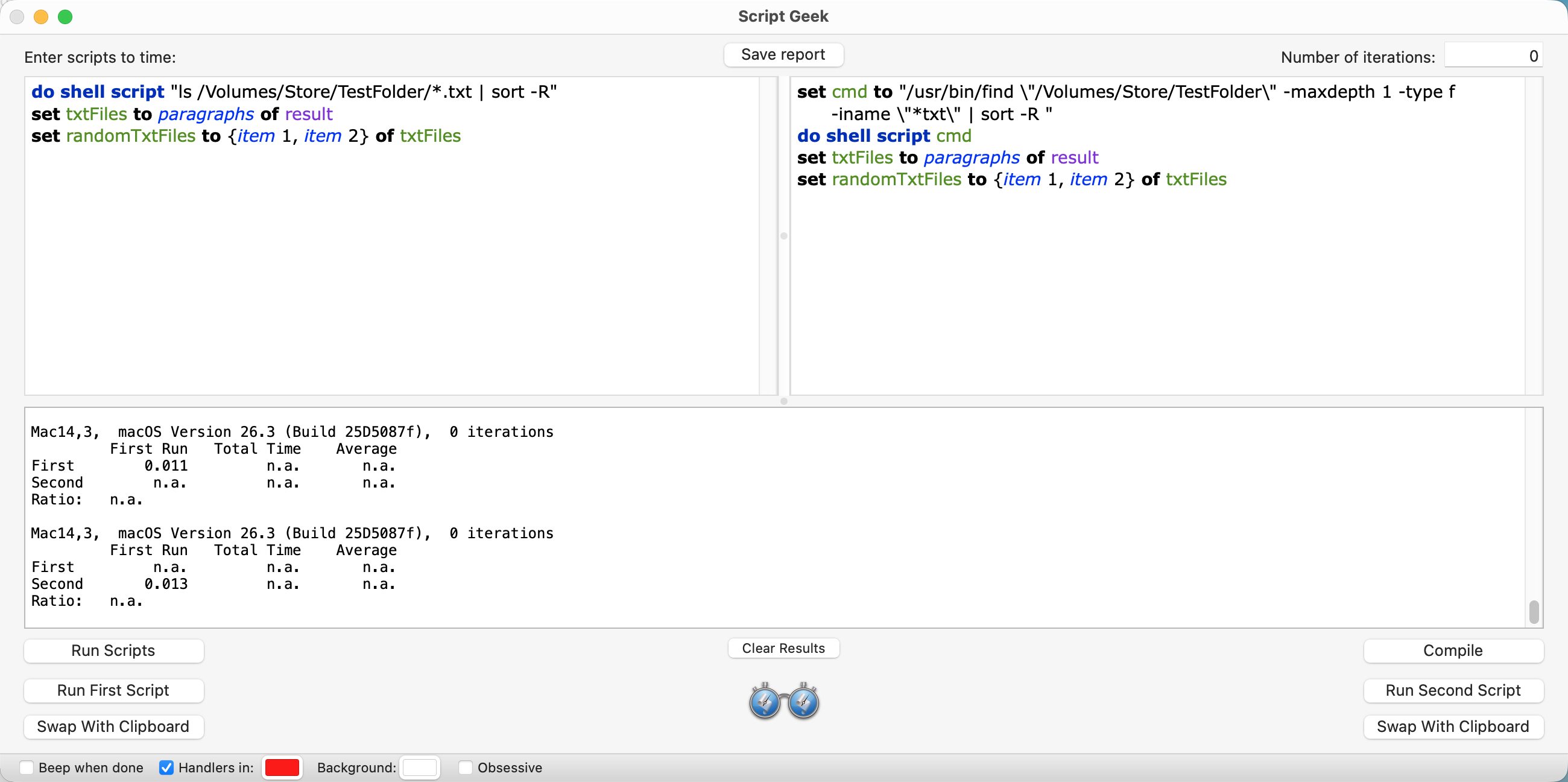
do shell script "ls /Users/robert/Working/*.txt | sort -R"
set txtFiles to paragraphs of result
set randomTxtFiles to {item 1, item 2} of txtFiles

--approach two (gets two random files)
do shell script "ls /Users/robert/Working/*.txt"
set txtFiles to paragraphs of result
set {randomFileOne, randomFileTwo} to {some item of txtFiles, some item of txtFiles}
I like the shell options! I didn’t know *.txt was something you coudl do with LS. That makes making the file list a LOT easier. And sorting/shuffling “the array” then taking the first two is as good a way as any to get to random items.
The second option, the “gets two random files” looks like it will from time to time pick the same file for both which will break the script.
Originally I wanted to do everything I could natively in applescript but seeing how slow it is compared to simple cli commands, now I’m thinking I should just do most of the actual work with shell commands and let applescript just be the wrapper.
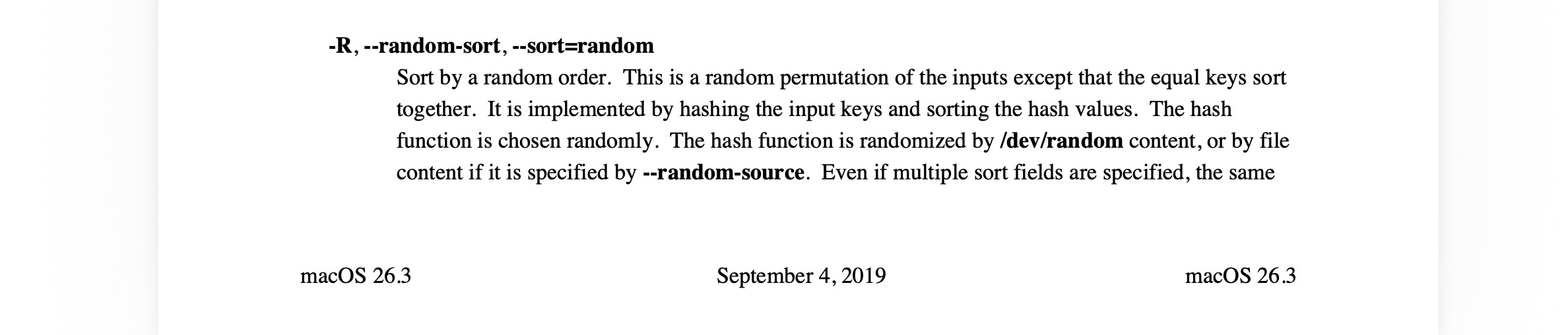
What shell or sort are you running? My sort doesn’t have a ‘-R’ option. I see that GNU’s sort does however.
If going the shell route, I’d use the shuf command, as well as find rather than ls.
This will return two random lines from stdin.
/usr/local/bin/shuf -n 2
And in combination, this would cut out some steps.
set cmd to "/usr/bin/find \"/path/to/folder\" -maxdepth 1 -type f -iname \"*txt\" | /usr/local/bin/shuf -n 2"
do shell script cmd
Update
I removed it but I had written that using system events would likely be faster but I just did a couple of tests and it was much slower (by a factor of 10). I also integrated the shell command into do shell script.
I couldn’t find a shuf command on my computer. I also specifically looked in the /usr/local/bin/ folder.
I edited your script to use the sort command and ran timing tests on a folder with 1,000 text files. I did this to determine whether the ls or find commands has an advantage in this particular use scenario. Both scripts worked as expected, and the time differences were negligible.
Interesting. Thanks for taking the timings. I looked at the freebsd site and they added -R in version 10, which came out in 2012. From your screen shot, it looks like apple upgraded around 10.15 Catalina. I’m still on Sierra so therein lies the problem.
I regularly read that ls should not be used for file name parsing, so I suggest find. It also offers myriad filtering options as well as some control over its descent into sub-directories. This is a fairly simple operation so I’m not surprised that the speeds are similar.
As to shuf, I just checked and it is a gnu ‘coreutils’ utility, and so would presumably require a separate install (eg via macports or homebrew)
The purpose of the shuf command’s -n option is to perform the limiting to two results, which would obviate sorting, listing and selecting while staying within a single shell instance. It looks quick enough either way though.
Running it 20 times on a folder of 1200 matching files, it averaged about .15 seconds per script debugger. Your second method averaged about .21 seconds per SD.
So I just ran it in a folder tree with 1896 items (1257 matches) and maxdepth 2 — there are 2000 items in the tree but about one hundred are in deeper folders. Oddly, it’s now averaging .12 seconds.