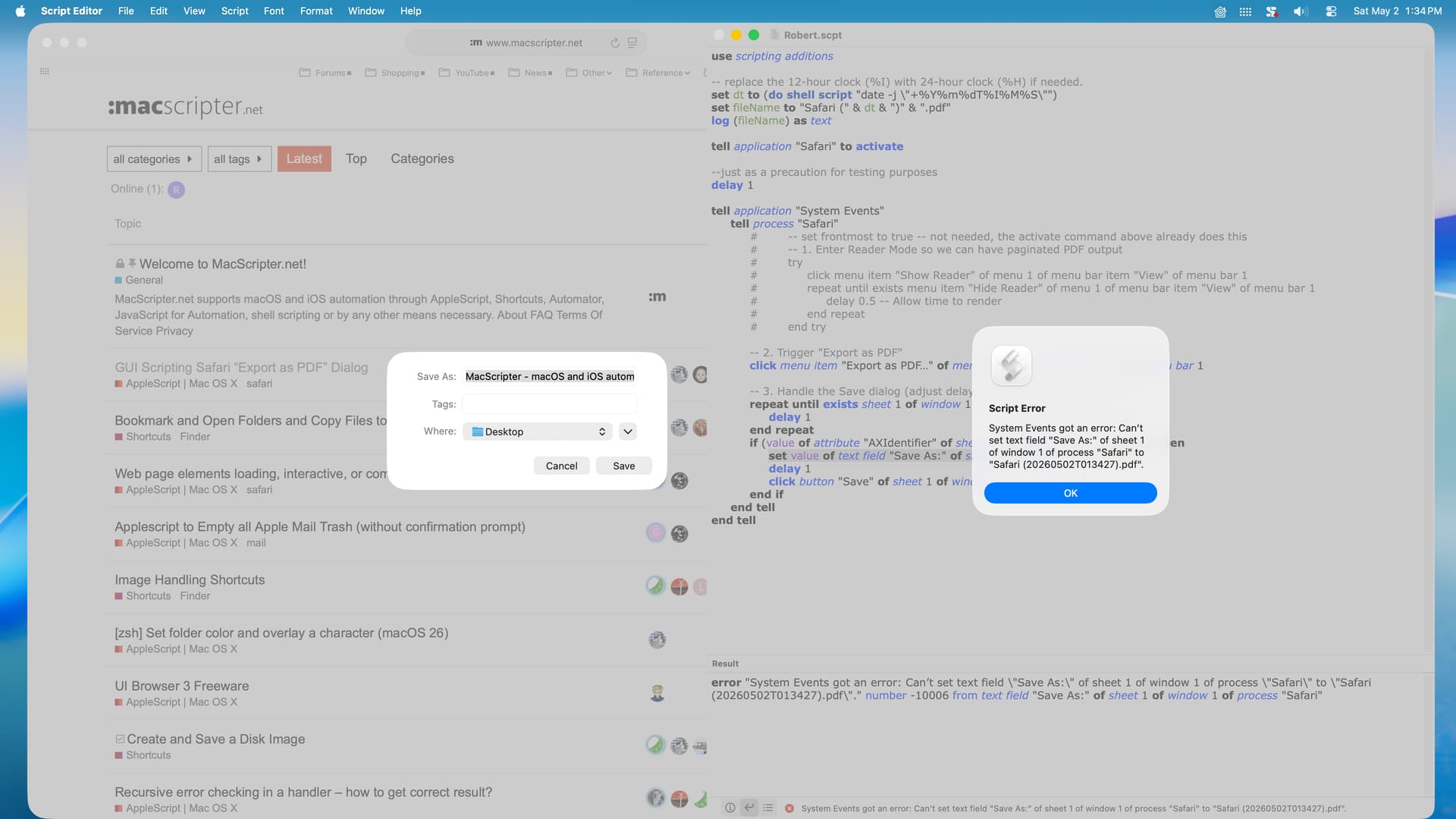
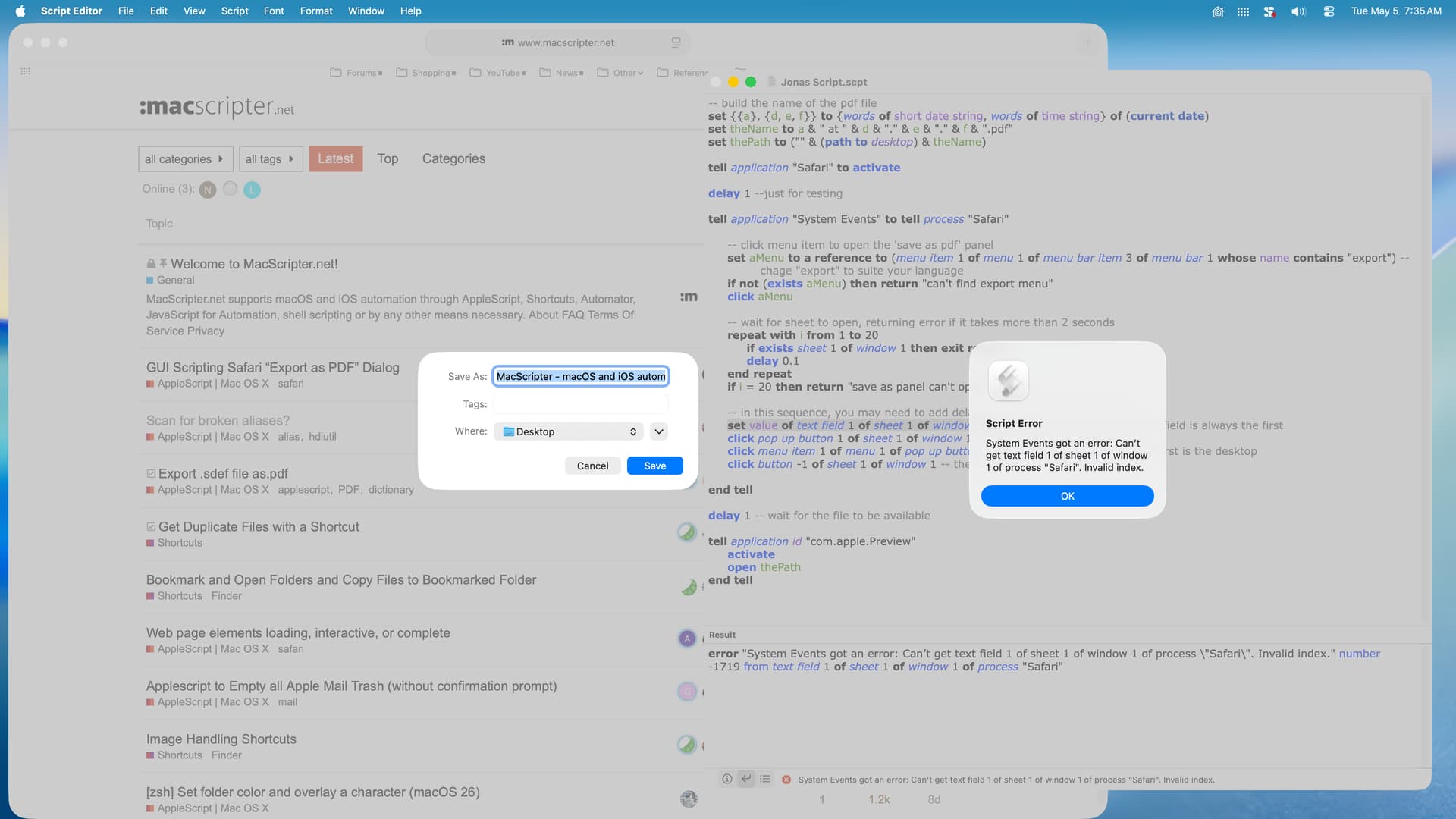
In my particular circumstance, the PDF cannot be paginated. The reason is that the content of the web page is financial data in a tabular format and splitting the PDF into pages is very undesirable. So, I simply disabled the reader portion of your script, but an error is returned. I assume that sheet 1 of window 1 is the issue, but that’s just a guess. BTW, I lengthened the delays to 1 second just for testing.
Try this script. It’s running fine here but I’m on Sequoia.
-- build the name of the pdf file
set {{a, b, c}, {d, e, f}} to {words of short date string, words of time string} of (current date)
set theName to c & "-" & b & "-" & c & " at " & d & "." & e & "." & f & ".pdf"
set thePath to ("" & (path to desktop) & theName)

tell application "Safari" to activate
tell application "System Events" to tell process "Safari"

	-- click menu item to open the 'save as pdf' panel
	set aMenu to a reference to (menu item 1 of menu 1 of menu bar item 3 of menu bar 1 whose name contains "export") -- chage "export" to suite your language
	if not (exists aMenu) then return "can't find export menu"
	click aMenu

	-- wait for sheet to open, returning error if it takes more than 2 seconds
	repeat with i from 1 to 20
		if exists sheet 1 of window 1 then exit repeat
		delay 0.1
	end repeat
	if i = 20 then return "save as panel can't open"

	-- in this sequence, you may need to add delays
	set value of text field 1 of sheet 1 of window 1 to theName -- the 'save as' text field is always the first
	click pop up button 1 of sheet 1 of window 1 -- there is only 1 popup button
	click menu item 1 of menu 1 of pop up button 1 of sheet 1 of window 1 -- the first is the desktop
	click button -1 of sheet 1 of window 1 -- the 'ok' button is always the last

end tell

delay 1 -- wait for the file to be available

tell application id "com.apple.Preview"
	activate
	open thePath
end tell
Be aware that with the AP site, I got 2 issues:
1- needed to scroll down the page at first to get all images in the pdf.
2- the pdf shows nothing in Acrobat DC but is perfect in Preview.
Note sure. If it was the case, the script result should be “save as panel can’t open” (unless you’ve change it!).
Same thing if it can’t find the Export menu.
Does the ‘Save As’ panel opens or not at all?
I spent over an hour attempting to get my script to work reliably with the suggested solutions, but none worked reliably. So, I’m going to give up on this one. My original script is a bit slow and kludgey, but it does work reliably, and I’ll continue using that.
Thanks everyone for your suggestions–I greatly appreciate your help.
@peavine, are you interested in a wkhtmltopdf based solution? It’s a command line tool to render HTML into PDF. You could either have Safari save the html or just pull it with curl. Quick here on slow intel hardware.
--https://blog.harawata.net/2011/06/convert-html-files-to-pdf-using-web-kit.html?m=1
on run
 set htmls to choose file with prompt "PDFに変換するHTMLファイルを指定してください。" of type {"public.html"} with multiple selections allowed
 my convertHtmlToPdfList(htmls)
end run

on open htmls
 my convertHtmlToPdfList(htmls)
end open

on convertHtmlToPdfList(htmls)
 tell application "Finder"
  set cmd to POSIX path of (path to me) & "Contents/MacOS/wkhtmltopdf"
--The above line expects you to place the executable in the  Contents/MacOS/ directory inside the application package.
--I would replace this with a posix path to the wkhtmltopdf binary.
--i.e. set cmd to "/usr/local/bin/wkhtmltopdf"

  repeat with html in htmls
   if (name extension of html is "html") then
    my convertHtmlToPdf(cmd, html)
   end if
  end repeat
 end tell
end convertHtmlToPdfList

on convertHtmlToPdf(cmd, html)
 tell application "Finder"
  set htmlName to name of html
  set {dir, htmlUrl, pdfName} to {POSIX path of (container of html as alias), URL of html, text 1 thru -5 of htmlName & "pdf"}
 end tell
 do shell script "\"" & cmd & "\" \"" & htmlUrl & "\" \"" & dir & pdfName & "\""
end convertHtmlToPdf
This caught my attention, but as I don’t use Safari (I use Firefox) I tried converting your script to Firefox (posted below).
--set filename
set {year:y, month:m, day:d, hours:h, minutes:min, seconds:s} to (current date)
set theDate to ((y * 10000) + ((m as integer) * 100) + d) as text
set theTime to text 2 thru -1 of ((1000000 + (h * 10000) + (min * 100) + s) as text)
set fileName to "Furefox (" & theDate & " " & theTime & ")"

--confirm Safari is open with URL
tell application "Firefox" to set theURL to URL of front document
if theURL is missing value then display dialog "The frontmost Firefox window could not be found or did not return a URL." buttons {"OK"} cancel button 1 default button 1

--I normally run this script by way of FastScripts with Safari active
--as a result, the following is normally not necessary and is for testing only
tell application "System Events" to tell process "Firefox"
	set frontmost to true
	delay 1
end tell

--confirm "Export as "PDF dialog is available then display
set repeatNumber to 6
tell application "System Events" to tell process "Firefox"
	repeat with i from 1 to repeatNumber
		set menuAvailable to enabled of menu item "Export as PDF…" of menu "File" of menu bar 1
		if menuAvailable is true then
			exit repeat
		else if i = repeatNumber then
			display dialog "The \"Export as PDF\" menu item was not available." buttons {"OK"} cancel button 1 default button 1
		else
			delay 0.5
		end if
	end repeat
	click menu item "Export as PDF…" of menu "File" of menu bar 1
	delay 1 --a smaller number doesn't work for me
	keystroke fileName
	delay 0.5
end tell
But it returns an error “Firefox got an error: Can’t get URL of document 1.” Any suggestions?
Homer712. I don’t have Firefox installed on my computer, but I’ll provide what information I can.
According to Google AI, Firefox does not support AppleScript. So, the following line of the script will fail.
tell application "Firefox" to set theURL to URL of front document
It could be replaced with something else or skipped entirely if Firefox is open when the script is run. You might try the following followed by a delay.
tell application "Firefox" to activate
The rest of the script uses GUI scripting and may or may not work depending on menu items available in Firefox. Unfortunately, I don’t have any way to help with this.
I tried almost all of your suggestions and none of them worked, but then I have FireShot installed in Firefox, which captures an entire page and creates a PDF document.